
Yealink WH64 Hybrid Mono UC-DECT & Bluetooth Hybrid Wireless Technology

Frequently Asked Questions

First, make sure the base station is powered on and connected to your desk phone's USB or RJ-9 port as appropriate. Then press the pairing button on the base for about 3 seconds until the LED flashes. On the headset, press and hold the call control button for 5 seconds to enter pairing mode. If it still fails, try power cycling both the base (unplug and replug power) and the headset (turn off and back on). In many GTA offices, DECT registration issues are resolved by ensuring the headset is within 30 cm of the base during pairing.
Yes, the WH64 supports simultaneous DECT and Bluetooth connections. You can be on a call on your desk phone via DECT and still hear notifications or answer a second call from your smartphone. Just make sure Bluetooth is enabled on your phone and the headset is paired to it. If you experience audio dropping on the smartphone side while on a DECT call, try moving the phone closer to the headset—Bluetooth range is shorter than DECT, especially in a busy office environment.
Check that you are not too far from the DECT base or Bluetooth source—DECT range is up to 150 metres in open space, but walls and interference reduce it. If you are near the limit, move closer. Also verify that the headset's microphone is not blocked by clothing or hair. In a Toronto office with lots of Wi-Fi and other wireless devices, try moving the base station away from routers or other electronics to reduce interference.
First, ensure the charging contacts on both the headset and cradle are clean and free of debris—wipe them gently with a dry cloth. Make sure the cradle is plugged into a working power source. If the LED on the cradle does not light up when you place the headset, reseat the headset firmly. For Canadian users, if you are using a power adapter with a different plug standard (e.g., from a non-North American source), confirm it provides the correct voltage—most Yealink chargers are 5V/1A, and using a wrong adapter can prevent charging.
Connect the USB cable from the DECT base station to your PC. Windows or macOS should recognize it as a sound device automatically. Open your softphone's audio settings and select 'Yealink WH64' as the speaker and microphone. For Teams, you may also need to allow the device in Teams settings. If the headset is not listed, try a different USB port or restart the softphone. UC certification ensures good compatibility, but always update the headset's firmware via Yealink's Device Manager if available.
The busy light is typically tied to the DECT connection's call status. If it stays on constantly, the headset may be stuck in an active call state or a registration loop. Try ending any active call from the desk phone or softphone. If that does not help, power off the headset and back on, or reset the DECT base by unplugging it for 30 seconds. If the LED still stays lit, contact your VoIP support provider to check if the headset's firmware needs an update.
Yes, the WH64 can function purely as a Bluetooth headset paired to a smartphone, PC, or tablet without the DECT base. However, you lose the extended DECT range and the ability to connect to a desk phone. If you want to use it in Bluetooth-only mode, simply put the headset into Bluetooth pairing mode and connect directly to your device. The DECT base can remain unplugged, but you may want to keep it handy for future use.
This is a power-saving feature. The WH64 enters a low-power state when idle for a preset time to conserve battery. To reconnect, simply press the call control button or lift the headset arm (if it has one). If the disconnection happens during a call or too frequently, check the headset's firmware version—older firmware may have a different idle timeout. You can usually adjust power-saving settings through the Yealink Device Configuration tool, but a simple tap of the button will bring it back immediately.
Ensure the microphone arm is positioned correctly—ideally 1-2 cm from your mouth, not under your chin or pointing away. Check that the microphone grille is not blocked by a wind cover or debris. If you are using the headset in a noisy area, Acoustic Shield 2.0 should help, but it works best when the microphone is close to your mouth. On a softphone, also verify that the input volume is set properly in your OS sound settings. A simple test call with a colleague can help diagnose if it's the headset or the connection.
The WH64 can store multiple Bluetooth pairings, but it connects to only one Bluetooth device at a time. To switch between devices, you need to disconnect from the current one and select the headset from the other device's Bluetooth menu. For example, if you are connected to your PC and want to switch to your phone, either disconnect the headset from the PC or turn off Bluetooth on the PC momentarily. This is a limitation common to most mono wireless headsets.
Headsets

Yealink WH64 Hybrid Mono UC-DECT & Bluetooth Hybrid Wireless Technology
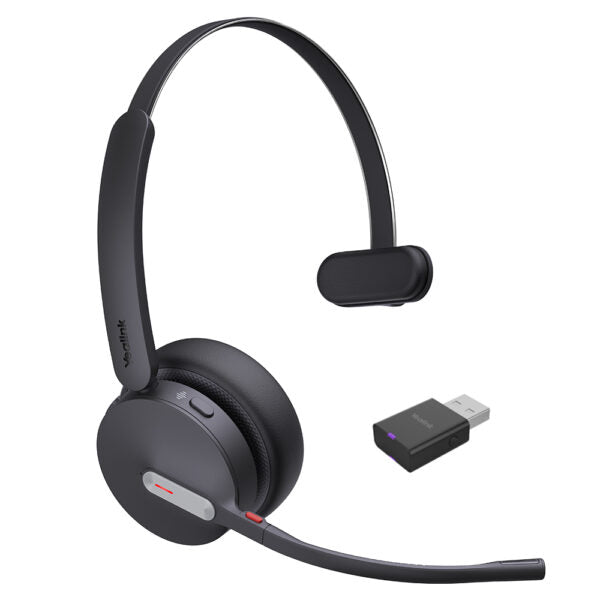
• The Yealink WH64 Hybrid is a wireless headset that offers a flexible solution for hybrid working. Its advanced acoustic shield technology 2.0 filters out background noise for clear sound transmission, while its DECT wireless connectivity technology provides an exceptional call range of up to 150m. • Key features: • DECT & Bluetooth Hybrid Wireless Technology • Acoustic Shield Technology 2.0 • Ultra-Long-Range Connectivity • All-day-wearing Comfort • Integrated busy light LED indicator • Compatible with mainstream UC Platforms • UC Certified • The headset connects seamlessly to UC platforms for plug-and-play device switching, ensuring a smooth office experience. It also offers advanced call security and up to 32 hours of talking time. • Key technical specifications: • Model: WH64 Hybrid Mono UC • Part number: 1208688 • Weight: 0.56 lb • Dimensions: 6.97 × 8.15 × 2.09 in • Headset type: Bluetooth, DECT, Mono, USB • Battery life: • Talk time (DECT): up to 14 hours • Talk time (Bluetooth): up to 26 hours • Music time (DECT): up to 13 hours • Music time (Bluetooth): up to 41 hours • Standby time: 157 hours • Charging time: 1.5 hours

About This Product

The Yealink WH64 Hybrid Mono is a wireless headset built for professionals who move between a desk phone and a softphone throughout the day. Its hybrid DECT and Bluetooth design means you can stay connected to your desk phone via DECT—giving you the long range and stability to walk around the office or warehouse—while simultaneously being paired to your smartphone or laptop over Bluetooth for calls or music. This makes it a natural fit for GTA-based hybrid work environments where employees shift between on-premise and remote communication tools.

Unlike a conventional Bluetooth-only headset, the WH64 offers a DECT connection that can reach up to 150 metres from the base, which is ideal for larger office floors, retail spaces, or warehouse operations where you need to take calls hands-free while moving. The tradeoff is that DECT requires a dedicated base station that must stay plugged into your phone or PC, so it is not a truly mobile-only headset. For workers who seldom leave their desk, the dual-radio capability may be overkill; a simpler wired or single-radio Bluetooth headset would serve just as well and cost less.

Acoustic Shield 2.0 helps keep background noise out of your listener's ear, which is valuable in open-plan offices or busy home environments. The headset is UC certified, so it pairs cleanly with major softphones like Microsoft Teams, Zoom, or RingCentral without extra configuration. Just keep in mind that the mono variant delivers audio to one ear only, which some users prefer for situational awareness but others may find less immersive for music or long conference calls. In smaller Canadian businesses that do not need extended range or hybrid connectivity, the WH64 may be more headset than necessary—but for anyone who regularly walks the floor while on a call, it hits a useful sweet spot.

When evaluating this headset, consider your workstation setup. The DECT range is a genuine advantage in a warehouse or open-concept office, but if your desk phone is already USB-only, the DECT base adds cabling. For teams that rely on a mix of desk phones and softphones, the ability to juggle both without swapping headsets is the core selling point. If your Toronto office has a mix of Polycom and Yealink desk phones, the WH64's compatibility is straightforward, but always verify that your particular phone model supports DECT pairing—most modern Yealink IP phones do, but older units may not.
Services We Provide
  • Professional Installation & Configuration
  • Ongoing Maintenance & Support
  • Troubleshooting & Repairs
  • System Upgrades & Updates



