
Yealink WH64 Mono UC -1208672

Frequently Asked Questions

First, check the DECT base station is placed at least 1 metre away from other electronic devices (Wi‑Fi routers, monitors, power adapters) that could cause interference. If the distance between the base and headset exceeds 150 metres or goes through heavy concrete walls, you may need to relocate the base closer to where you work. If the issue persists, a Toronto-based VoIP support provider can usually resolve this remotely.
Ensure the charging stand is powered via the supplied USB cable and that you hear a click when the headset seats in the cradle. Wipe the contact pins on both the headset and charging stand with a dry, lint-free cloth – oils or dust can prevent proper contact. Gently reseat the headset, confirm the charging indicator lights up, and wait 30 seconds.
Verify the headset base is connected to the desk phone’s handset or headset port using the correct cable (the included EHS or USB cable, depending on your phone model). On the desk phone, try cycling the headset mode in the phone’s audio settings to detect the base. If you are using a Yealink IP phone with a dedicated EHS port, confirm the headset’s EHS cable is securely attached and the phone’s EHS feature is enabled in its web interface.
First, press the volume-up button on the headset itself to raise the earpiece level. If you are connected to a desk phone, also adjust the phone’s handset or headset volume – sometimes the phone’s internal setting limits the output. On a softphone (Teams, Zoom), check the app’s audio device volume and ensure you have selected the correct Yealink WH64 audio device as both input and output.
The busylight can be triggered by the ‘Mute’ state or by a pending call on either the DECT or Bluetooth connection. Check your softphone or desk phone to see if there is an active call in a hold state or if the microphone is muted via the boom arm position. Unmute the headset by moving the boom arm down, and if the light remains on, try power cycling the headset (turn it off and on) to reset the status.
First, ensure the boom arm is positioned close to your mouth (about one finger width away) and not pointed upward or away from your face. Then, check if the microphone is muted – a red busylight or a blinking mute indicator on the headset shows it is muted; unmute by moving the boom arm down or pressing the mute button. If the problem persists on multiple calls, the voice tube may be clogged; use a soft, dry brush to clean the microphone openings gently.
The WH64 Mono UC supports simultaneous connections to both the DECT base (your desk phone) and Bluetooth (your mobile). While on a call on the desk phone, press and hold the call control button for about 3 seconds – the headset will move the call to your Bluetooth-connected mobile device (if your mobile app supports it). To go back, simply end the mobile call and lift the headset; the next call will default to the active connection.
Move the headset closer to the DECT base or Bluetooth source—distances over 100 metres or obstacles like bookshelves can degrade signal quality. Turn off any nearby Wi‑Fi 5 GHz networks or Bluetooth speakers that might cause interference. If the headset is connected via both DECT and Bluetooth simultaneously, try disconnecting one to see if the audio improves.
Yes – the WH64’s Bluetooth 5.2 works with any smartphone that supports Bluetooth HFP and A2DP, which covers all major Canadian carriers (Rogers, Bell, Telus). Pair the headset with your phone using the Bluetooth pairing procedure (press the Bluetooth button on the base for 5 seconds to enter pairing mode). Once paired, you can answer and end calls from your mobile just like a standard Bluetooth headset.
First, ensure the base station is powered and that the headset is in pairing mode (hold the DECT button on the base for about 5 seconds until the LED flashes). Then, place the headset on the charging stand or near the base and press the pairing button on the headset itself (if available) or power-cycle the headset to trigger re-pairing. If the headset still does not link, contact the device manufacturer’s support to confirm the firmware version is compatible with your base hardware revision.
Headsets

Yealink WH64 Mono UC -1208672
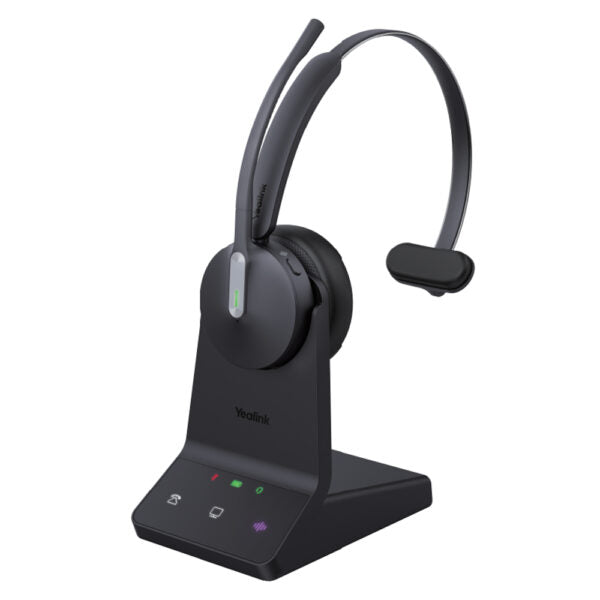
The WH64 Mono UC is a wireless headset designed for business communication, offering efficiency and flexibility through its DECT and Bluetooth modes. Advanced acoustic shield technology 2.0 filters out background noise for clear sound transmission, while the busylight signals your call status to avoid interruptions. Key features: • DECT & Bluetooth Hybrid Wireless Technology • All-day-wearing Comfort • Acoustic Shield Technology 2.0 • Hybrid Visual Busylight • Plug & Play for Mainstream IP Phones • Up to 32 hours Talking Time • Multiple Devices Connection • Compatible with mainstream UC platforms The headset is ergonomically designed for a comfortable wearing experience, featuring high-quality materials and a lightweight build. It connects seamlessly with IP phones and UC platforms for plug-and-play and device switching. Technical specifications: General Info: • Model: WH64 Mono UC • Part number: 1208672 • Port: + 1 micro USB 2.0 port + 1 Type-C USB 2.0 port + 1 Mini USB port + 1 DC power port + 1 busylight port + 1 Type-C USB 2.0 (on headset) • Charging stand (for headset) • USB connectivity to PC and IP phone • Boom arm adjustable: 280° • Integrated busylight LED indicator Weight: 1.61lb Dimensions: 7.6 × 9.4 × 3.92 in Headset Type: DECT, Mono, UC Certified Battery: • Talk time: up to 14 hours (DECT), up to 26 hours (Bluetooth) • Music time: up to 14 hours (DECT), up to 41 hours (Bluetooth) • Standby time: 157 hours • Charging time: 1.5 hours (5 V/1.2 A) DECT: • Wireless range: up to 150 m/492 feet • Frequency bands: 1880 – 1900 MHz (Europe), 1920 – 1930 MHz (US) • Secure DECT: Step C authentication, DSAA2 encryption, DSC2 (128 bit) Bluetooth: • Bluetooth device • Bluetooth version: Bluetooth5.2 • Bluetooth profiles: HFP v1.8, A2DP v1.3.2, AVRCP v1.6.2, SPP v1.2 • Operating range: up to 50m/164 feet Audio: • Hearing protection: Peak Block protection (EN50332), Australian G616 Protection (AU G616), Daily Noise Exposure Protection • Microphone type: 3 microphones MEMS • Speaker size: Φ 30 • Speaker frequency range: 20 Hz-20 kHz • Talk mode: wideband, 100 Hz-8 kHz, 16 kHz sample rate • Music mode: 20 Hz-20 kHz, 48 kHz sample rate, Stereo (Stereo only supported by Dual headset) Call Control: • Answer/End/Reject a call • Hold/Unhold call • Volume up/down • Microphone mute • Move the microphone boom arm up to mute, or down to unmute

About This Product

The Yealink WH64 Mono UC is a wireless headset built for day-long use in busy offices, particularly well-suited to desk-based workers who move between a desk phone, a softphone client, or a mobile device. Its dual DECT and Bluetooth connectivity means you can roam up to 150 metres from the DECT base in an open office environment, then switch to Bluetooth for a call on your mobile when you step out. This headset pairs naturally with a Yealink IP phone via the included base station for plug-and-play desk phone audio, while simultaneously staying connected to a PC or mobile device – useful if you take calls through a UC platform like Microsoft Teams or Zoom. The tradeoff is that as a mono headset, audio is only in one ear, which makes it ideal for environments where you need to hear your surroundings but less suitable for immersive listening or music. For small-to-mid-size businesses in the GTA running a mix of Yealink desk phones and cloud UC platforms, the WH64 Mono UC offers a reliable and cable-free way to unify desk and mobile audio without needing separate headsets. It is overkill if your team rarely leaves their desks or works exclusively on one device; a simpler wired headset would suffice. Conversely, it may be underpowered for a very noisy open-plan floor where dual-ear passive noise isolation would better reduce distraction.
Services We Provide
  • Professional Installation & Configuration
  • Ongoing Maintenance & Support
  • Troubleshooting & Repairs
  • System Upgrades & Updates



