
Yealink WH66 Mono Headset Teams

Frequently Asked Questions

First, make sure the headset is seated correctly in the charging dock and that the base is powered on. The headset should register automatically; if it doesn't, undock it, wait 10 seconds, and dock it again. If the issue persists, check that the base firmware is current via the Yealink USB Connect application, as outdated firmware can sometimes disrupt DECT pairing.
Start by confirming the microphone isn't muted—press the mute button on the headset and look for the indicator on the touch screen. In Microsoft Teams, verify that the Yealink WH66 is selected as the microphone device under audio settings. If the microphone still doesn't pick up, try a quick power cycle of the base by unplugging the USB cable for 20 seconds.
Echo often comes from volume that is too high causing the microphone to pick up the speaker output. Lower the headset volume a few steps and reposition the microphone boom so it’s closer to your mouth and pointed away from the speaker. Also check that the base speakerphone is not active at the same time—tap the speakerphone icon on the touch screen to ensure only the headset is in use.
A frozen screen typically resolves with a simple restart. Disconnect the USB cable from the base, wait 15 seconds, then reconnect it. When the base powers back up, the touch screen should be responsive. If this happens repeatedly, check for a firmware update through the Yealink USB Connect desktop app.
DECT range can be affected by walls, metal furniture, and Wi-Fi interference. Stay within the line-of-sight range of the base, roughly up to 50 metres indoors under ideal conditions. If calls drop even when you're within 10 metres, reposition the base away from large metal objects and wireless routers, then test again.
Check that the charging contacts on both the headset and the dock are clean and free of debris. Wipe them gently with a dry cloth. Ensure the base is receiving power—the touch screen should light up when connected. If it still doesn't charge, reseat the USB cable at the base and at the computer or power adapter.
No, the WH66 uses DECT wireless technology and requires the base station to connect. The base plugs into your computer’s USB port and acts as the audio device for Teams. The headset communicates solely with the base, not directly with your computer or phone.
Plug the base station’s USB cable into the USB port on your compatible Yealink IP phone. The phone should recognize the headset automatically. You may need to select the USB headset as the audio path in the phone’s settings. Check Yealink’s compatibility list for your exact phone model, as some older models may need a firmware update to support USB headsets.
The Busylight BLT60 plugs into the base and shows a red or green visual indicator when you’re on a call or available. It’s helpful in open offices where colleagues need a quick way to see if you’re busy. It is not required for the headset to work—only add it if visual status notification would reduce interruptions in your workspace.
Yes, if you have the optional BT50 Bluetooth dongle connected to the base. Once you pair your mobile phone with the dongle, the touch screen shows both the Teams call and the mobile line. You can tap to answer a mobile call while a Teams call is active, or transfer audio between devices. Without the BT50, the base does not communicate with mobile phones.
Headsets

Yealink WH66 Mono Headset Teams
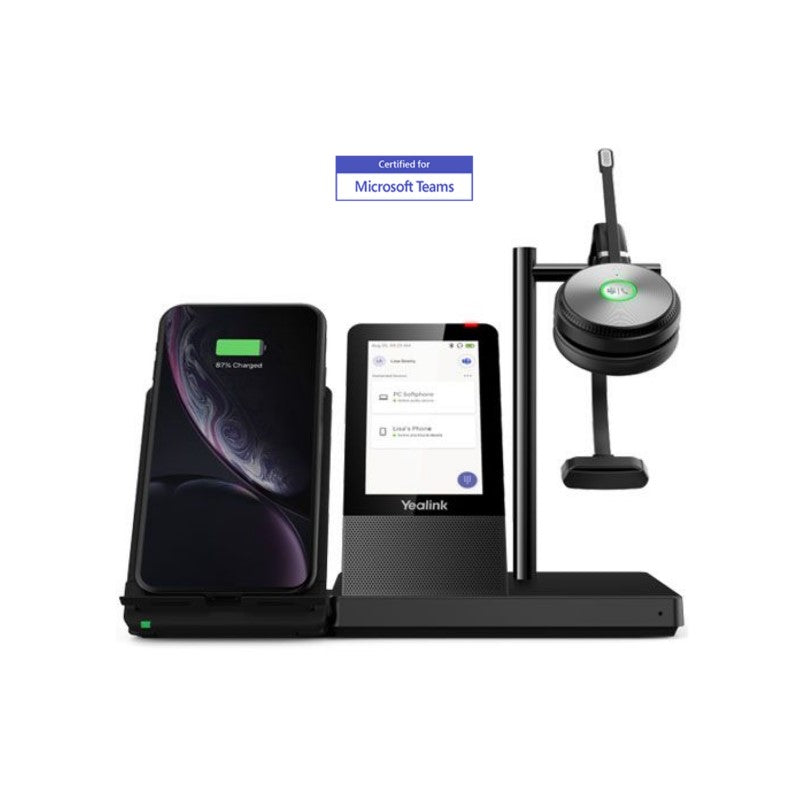
• The Yealink WH66 Mono Teams is an industry-leading DECT wireless headset that seamlessly integrates with major UC platforms and Yealink IP Phones. • It features a 4.0 inch (480 x 800) capacitive touch screen for easy control, allowing you to manage phone calls, connect multiple devices, charge mobile phones wirelessly (optional), and play speakerphone. Key Features: • 4.0 inch (480 x 800) capacitive touch screen • Yealink Acoustic Shield Technology • 2-ports USB 3.0 hub • Crystal speakerphone • Teams Compatible • Optional accessories: Busylight BLT60, Wireless Charger, Bluetooth Dongle BT50 Additional Information: • Weight: 2.54 lbs • Dimensions: 10.04 × 8.03 × 5.31 in • Brand: Yealink • Headset Type: DECT, Mono, Teams Certified, USB • Supported Platforms: Microsoft Teams Technical Specifications: • Model: WH66 Mono Teams • Part number: 1308002 • Microphone type: dual microphone • Microphone sensitivity: -44.0+/-3 dBV • Microphone frequency range: 100 Hz-10 kHz • Speaker size: Ф 28 • Speaker sensitivity: 92.5+/-3 dB, 0.179 V • Speaker impedance: 32+/-4.8 Ω • Speaker max output power: 10 mW • Speaker frequency range: 20 Hz-20 kHz • Hearing Protection: • Peak Block Protection (EN50332) • Australian G616 Protection (AU G616) • Daily Noise Exposure Protection

About This Product

The Yealink WH66 Mono headset is designed for professionals who spend much of their day on Microsoft Teams calls and want a wireless headset that keeps the desk uncluttered while adding a touch-screen command centre. Its DECT wireless connection gives you solid range within a typical private office or open cubicle, and the charging base doubles as a speakerphone and two-port USB hub. This is a natural fit for Canadian businesses running Teams as their primary collaboration platform, especially where users already have a compatible Yealink desk phone and want a single headset that can switch between softphone and desk phone calls without re-pairing.

Because it is a mono headset, it leaves one ear free for ambient awareness and conversation, which makes it ideal for front-desk staff, customer service reps, or anyone who needs to hear colleagues or phone alerts while on a call. The Acoustic Shield technology and dual microphones help reduce background chatter, but in very noisy open-plan environments you may still want to test whether the passive noise rejection is sufficient for your space. The optional Busylight adds a visual do-not-disturb indicator, a useful add-on for shared desk areas.

A buyer should understand that this headset does not operate as a standalone Bluetooth device without the base station. The base acts as the DECT transmitter and call controller, so you cannot simply grab the headset and connect to a mobile phone on the go unless you have the optional BT50 Bluetooth dongle plugged into the base. The touch screen is bright and responsive, but it does add some depth to the base, so you’ll want to check desk space if your workstation is tight.

For a home office or a small Toronto startup where a single person handles calls and meetings, the WH66 is likely overkill unless the wireless charging and USB hub are genuinely needed. On the flip side, a large contact centre where every inch of desk matters might find the base too dominant and the mono-only limitation a deal-breaker for training or multimedia tasks. It positions itself as a premium accessory for the Teams user who values physical call controls over clicking a softphone screen, and it pairs best with a clean desk philosophy and a moderate call volume.
Services We Provide
  • Professional Installation & Configuration
  • Ongoing Maintenance & Support
  • Troubleshooting & Repairs
  • System Upgrades & Updates



