
Yealink WH66 Mono Headset UC

Frequently Asked Questions

First, ensure the headset is within range of the base station and that the base station is powered on and connected to your phone or computer. Try placing the headset in the charging cradle for a few seconds to force a re-registration. If the issue persists, a Toronto-based VoIP support provider can usually resolve this remotely.
Check that the charging contacts on both the headset and the cradle are clean and free of debris. Also verify that the cradle is plugged into a working power source. If you are using the optional wireless charger, ensure the headset is properly aligned on the charging pad.
Make sure the microphone boom is positioned close to your mouth and not blocked by clothing. Check that the headset is not muted—look for a mute icon on the touch screen. If the issue continues, try disconnecting and reconnecting the headset from the base station.
The WH66 connects to a computer via the included USB cable or the optional Bluetooth dongle (BT50). For USB, simply plug the base station into your computer and select it as your audio device in your softphone settings. For Bluetooth, pair the dongle with the base station following the instructions in the user manual.
This is often a range or interference issue. Move closer to the base station and ensure there are no large metal objects or other wireless devices (like microwaves) between you and the base. Also check that the base station is not placed too close to a Wi-Fi router, as DECT and Wi-Fi can interfere.
Yes, the WH66 can be used with any desk phone that has a headset port (typically a 2.5mm or RJ9 jack) or via USB for softphones. You may need an adapter depending on your phone's connector type. Check your phone's manual for compatibility.
First, clean the screen with a soft, dry cloth to remove any dirt or moisture. If the screen is still unresponsive, try power cycling the base station by unplugging it for 10 seconds and plugging it back in. If the problem persists, the screen may need calibration or service.
You can adjust the volume using the volume buttons on the headset itself or via the touch screen on the base station. The headset also has a dedicated mute button. For fine-tuning, check your softphone or desk phone's audio settings.
Ensure the base station is properly connected to your computer via USB. On Windows, check your sound settings to see if the Yealink WH66 is listed as an input/output device. If not, try a different USB port or restart your computer. You may also need to install the latest Yealink USB driver from their support site.
The WH66 is primarily designed for desk phones and computers. However, you can connect it to a mobile phone using the optional Bluetooth dongle (BT50) or a 3.5mm audio cable if your phone has a headphone jack. Note that call control features may be limited when used with a mobile phone.
Headsets

Yealink WH66 Mono Headset UC
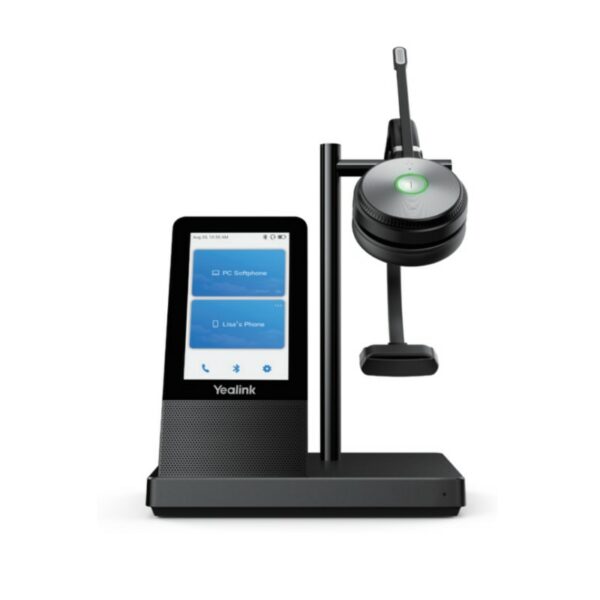
*The Yealink WH66 Mono UC is the industry-leading DECT wireless headset. With seamless integration with major UC platforms and native support for Yealink IP Phones, it provides a comprehensive solution for professionals on-the-go.* • 4.0-inch capacitive touch screen for intuitive control • Yealink Acoustic Shield Technology for exceptional audio quality • 2-ports USB 3.0 hub for easy connectivity • Crystal-clear speakerphone with wideband capabilities • Optional accessories include Busylight BLT60, Wireless Charger, and Bluetooth Dongle BT50 *Additional key features:* • Weight: 2.54 lbs • Dimensions: 10.04 × 8.03 × 5.31 in • Brand: Yealink • Headset Type: DECT, Mono, UC Certified *Technical specifications:* • Model: WH66 Mono UC • Part number: 1308007 • Microphone type: dual microphone with -44.0+/-3 dBV sensitivity • Speaker size: Ф 28 with 92.5+/-3 dB sensitivity and 32+/-4.8 Ω impedance *Hearing protection features include:* • Peak Block Protection (EN50332) • Australian G616 Protection (AU G616) • Daily Noise Exposure Protection

About This Product

The Yealink WH66 Mono UC is a DECT wireless headset designed for professionals who need reliable, wide-range audio without being tethered to their desk. It is well-suited for open-plan offices, hot-desking environments, or any setting where you move between your desk and meeting spaces. The 4.0-inch capacitive touch screen gives you direct control over calls and settings, which can be more intuitive than navigating through a phone's menu. This headset pairs naturally with Yealink IP phones and integrates with major UC platforms, making it a strong fit for businesses already using Yealink desk phones or softphones. A practical tradeoff is that DECT headsets require a base station, so you cannot pair this directly with a computer via Bluetooth alone; the optional Bluetooth dongle adds that flexibility. For a small office or a single user, the WH66 Mono may be more than you need if you rarely leave your desk, but for anyone who values mobility and clear audio during calls across a floor or between rooms, it is a capable choice. In a Canadian context, this headset works well with standard office VoIP setups common in the GTA, and its DECT range is generally sufficient for most office layouts.
Services We Provide
  • Professional Installation & Configuration
  • Ongoing Maintenance & Support
  • Troubleshooting & Repairs
  • System Upgrades & Updates



