
Yealink WH67 TEAMS-V4 Convertible DECT Wireless Headset

Frequently Asked Questions

Start by checking the physical distance and any large metal objects between the headset and the base, as these can block the DECT signal. Make sure you are pressing the DECT pairing button on the base briefly and not holding it down, which can trigger a register/deregister sequence. For the best performance in a typical Canadian office with drywall partitions, try to keep the base unit positioned on your desk rather than on the floor or inside a cabinet, and move any active USB 3.0 hubs away from it if possible.
First, confirm you are using the USB cable that came with the headset, as some standard cables may not carry data reliably. Check that Windows recognizes a new audio device in the Sound settings; if it does not, try a different USB port directly on your PC, bypassing any external hub. Also ensure the headset is seated properly in the charging cradle, as the base station acts as the USB audio link and needs stable power.
Verify the headset's microphone boom is rotated down to the speaking position, as the mute function is often tied to boom arm placement on convertible headsets. Next, check Sound settings on your computer to see if the WH67 microphone is selected as the default input device. Also look at the touchscreen for a mute indicator; the call itself or the headset system may be muted separately.
A frozen screen can often be cleared by completely power-cycling the base station. Unplug the power adapter, wait 10 seconds, and plug it back in. Once it restarts, ensure no debris or moisture is touching the screen's surface, as this can cause ghost touches. If the screen remains unresponsive only during a call, the issue may be related to the USB data connection to your PC, so reseat the USB cable at both ends.
Yes, the WH67 can connect to two Bluetooth devices alongside the DECT/USB link to the base. You would pair your mobile phone via Bluetooth to the base station, not the headset directly. The desk phone connection typically requires a Yealink phone with native DECT pairing capability. When a call comes in, you can select which device to answer from the base station's touchscreen.
This is often a network quality issue rather than a headset fault. First, perform a test call in the Teams app's device settings to hear a sample recording. If it sounds fine there, the problem is on the network side. If the recorded sample is choppy, check that the WH67 is set as both the speaker and microphone in Teams, and try disconnecting one of your Bluetooth devices temporarily to rule out wireless bandwidth limitations.
Make sure the base station's power adapter is securely plugged in and that the LED on the base lights up. With the headset in the stand, look for a charging indicator on the headset or base screen. Gently clean the charging contacts on both the headset and the stand with a dry cloth; even a small amount of dust or skin oil can disrupt the connection. If you are using an optional charging stand, confirm the cable is properly seated in it.
Headsets

Yealink WH67 TEAMS-V4 Convertible DECT Wireless Headset
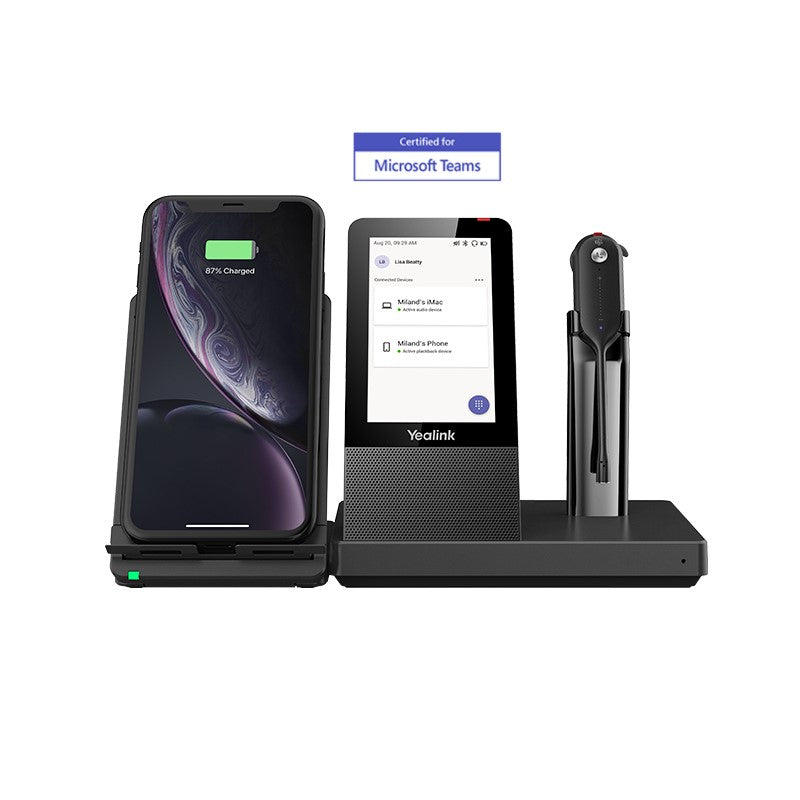
The Yealink WH67 is an industry-leading convertible DECT wireless headset, revolutionizing desktop collaboration. Seamlessly integrate with major UC platforms and Yealink IP Phones. Key Features: • 4.0 inch (480 x 800) capacitive touch screen for intuitive control • Yealink Acoustic Shield Technology for enhanced audio quality • 2-ports USB 3.0 hub for connecting multiple devices • Crystal speakerphone for clear calls • Optional accessories: Busylight BLT60, Wireless Charger, Bluetooth Dongle BT50 Weight: 2.25 lbs Dimensions: 10.5 × 8.5 × 5 in Brand: Yealink Headset Type: DECT, Mono, UC Certified, USB Technical Specifications: • 4.0 inch (480 x 800) capacitive touch screen • 2 feature buttons • 1 Type-A USB 3.0 port • Built-in Bluetooth 4.2 • Connectivity: USB 3.0 & 2 x Bluetooth devices • Integrated busylight LED indicator • Built-in hub: 2 Type-A USB 3.0 ports • Charging stand (for headset) For a full list of specifications, please refer to the product datasheet.

About This Product

The Yealink WH67 is built for professionals who handle high call volumes from a fixed desk but need the flexibility to step away during conversations. Its convertible design means you can use the headset traditionally or lift the touchscreen base station to use it as a speakerphone, adapting easily to personal workspaces and smaller huddle rooms. The integrated USB 3.0 hub is a practical touch for modern laptops with limited ports, letting you keep your keyboard and mouse connected without a separate dock.

This headset pairs naturally with Microsoft Teams-centric workflows, given its dedicated Teams certification, but it also connects to desk phones and other Bluetooth devices. If you are moving from a basic corded headset, the DECT wireless range is a significant upgrade, offering stable audio across a typical Toronto office floor without Wi-Fi interference. The base station’s touchscreen puts call control and device settings right at your fingertips, reducing reliance on your computer screen.

A buyer should note that the speakerphone, while clear, is best suited for personal or very small group use; it is not a replacement for a full conference-room speaker. The mono design keeps you aware of your surroundings, which is ideal for an open-plan office, but users who want total noise isolation will need to look at a stereo headset. Also, while the hub is convenient, the system still needs its own power adapter, so it does require one more connection at your desk.

For a solo operator or an executive needing a clean, all-in-one device, this model justifies its footprint. It would be overkill for a hot-desking environment where each desk has a full docking station, and underpowered for mid-sized meeting rooms that need a dedicated conference phone. In Canadian professional settings where a polished, cable-free desk matters, the WH67 fits well as a premium personal communication hub.
Services We Provide
  • Professional Installation & Configuration
  • Ongoing Maintenance & Support
  • Troubleshooting & Repairs
  • System Upgrades & Updates



