
Yealink WH67 UC-V4 Convertible DECT Wireless Headset

Frequently Asked Questions

Make sure the base station is powered on and the headset is seated in the charging cradle properly. If the LED on the base isn't blinking, try a power cycle by unplugging the base for 10 seconds and plugging it back in. Then remove and re-seat the headset in the cradle until it clicks to initiate pairing.
First, clean the screen with a soft, dry cloth—dirt or grease can interfere with capacitive touch. If that doesn't help, unplug the base station from power for 30 seconds to reset the touch controller. Be careful not to press too hard; the screen is sensitive.
Check that the headset is positioned correctly on your ear and that the microphone arm is close to your mouth (about a finger's width away). Also, ensure the headset's firmware is up to date via Yealink's support site. If the issue persists, try lowering the speaker volume slightly to reduce acoustic coupling.
Use the provided USB cable to connect the base station to your Yealink phone's USB port. The headset should register automatically as a USB headset. If not, go to your phone's settings under 'Devices' > 'USB Devices' and select the WH67. For older phones without USB, you may need an EHS cable (sold separately).
First, ensure you're within the DECT range (typically up to 150 meters line-of-sight indoors) and that there aren't large metal objects or other DECT phones nearby causing interference. Move the base station to a higher, more central location. If drops continue, check for firmware updates on the Yealink website.
Yes. Plug the base station into your computer's USB port, and the headset will appear as a standard audio device. In Teams or Zoom, go to audio settings and select 'Yealink WH67' as both the speaker and microphone. For optimized features like call control, install Yealink's UC software from their support page.
Ensure the charging contacts on both the headset and cradle are clean and free of debris. Also confirm that the base station is powered (check the LED). Try reseating the headset firmly. If it still doesn't charge, test with a different USB power adapter (5V/1A minimum) to rule out a power issue.
Press the Bluetooth button on the base station to pair your mobile phone (or use the touch screen menu). Once paired, you can toggle between the DECT (desk phone) and Bluetooth source using the headset's call control button. A long press on the button typically switches active sources.
Static is often caused by radio interference. Try moving the base station away from other wireless devices (Wi-Fi routers, cordless phones, microwave ovens). Also, check that the headset's firmware is updated. If the problem persists only on one specific call, it may be a network issue on the other end.
On the base station touch screen, go to Bluetooth settings and either unpair the mobile device or turn off Bluetooth visibility. If you still want to use Bluetooth occasionally, you can manually enable it only when needed. Alternatively, turn off Bluetooth on your phone when not in use.
Headsets

Yealink WH67 UC-V4 Convertible DECT Wireless Headset
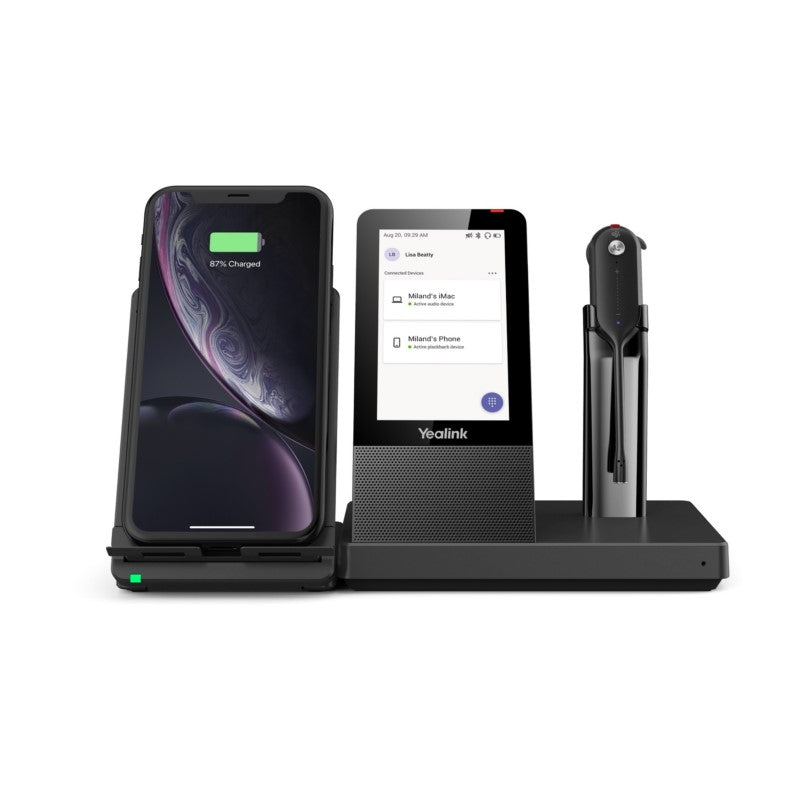
• The Yealink WH67 UC is an industry-leading convertible DECT wireless headset, revolutionizing desktop collaboration with its innovative design. • Seamlessly work with major UC platforms and integrate natively with Yealink IP Phones. Key Features: • 4.0 inch (480 x 800) capacitive touch screen for easy control • Yealink Acoustic Shield Technology for enhanced sound quality • 2-ports USB 3.0 hub for multiple device connectivity • Crystal speakerphone for clear communication • Optional accessories: Busylight BLT60, Wireless Charger, Bluetooth Dongle BT50 Additional Information: • Weight: 2.25 lbs • Dimensions: 10.5 × 8.5 × 5 in • Brand: Yealink • Headset Type: DECT, Mono, UC Certified, USB Technical Specifications: • 4.0 inch (480 x 800) capacitive touch screen • 2 feature buttons • 1 Type-A USB 3.0 port • Built-in Bluetooth 4.2 • Connectivity: USB 3.0 & 2 x Bluetooth devices • Integrated busylight LED indicator • Built-in hub: 2 Type-A USB 3.0 ports • Charging stand (for headset) • Microphone type: dual microphone • Microphone sensitivity: -38.0+/-2 dBV • Microphone frequency range: 100 Hz-10 kHz • Speaker size: Ф 13.6 • Speaker sensitivity: 116+/-3 dB, 0.179 V • Speaker impedance: 32+/-4.8 Ω • Speaker max output power: 10 mW • Speaker frequency range: 20 Hz-14 kHz Hearing Protection: • Peak Block Protection (EN50332) • Australian G616 Protection (AU G616) • Daily Noise Exposure Protection

About This Product

The Yealink WH67 UC-V4 is a DECT wireless headset designed for professionals who spend significant time on calls across both desk phones and softphone platforms. It's an excellent fit for open-plan offices or busy work-from-home setups where reliable wireless range and audio clarity are critical. The included base station with a touch screen and USB hub makes it a natural companion for Yealink IP phone users, though it also works seamlessly with major UC platforms like Microsoft Teams, Zoom, and RingCentral.

One practical tradeoff is that this headset relies on DECT rather than pure Bluetooth, which provides superior range and stability but requires the base station to be plugged in and within range. It's not ideal for someone who only uses a mobile phone or needs to roam far from the desk, as the base station acts as the hub. The integrated USB hub is a nice bonus for Canadian office setups where space is tight—you can plug in a mouse or flash drive directly into the base.

For small businesses or single-user scenarios, the WH67 is likely overkill; a simpler wired or Bluetooth headset would suffice. However, in a GTA-based call centre or corporate environment where call quality and multi-device switching are priorities, the combination of DECT reliability, a touch screen interface, and Yealink ecosystem integration makes it a strong investment. Just ensure your desk phone supports USB or 3.5mm connectivity, and that your UC platform is certified for Yealink devices to avoid compatibility surprises.
Services We Provide
  • Professional Installation & Configuration
  • Ongoing Maintenance & Support
  • Troubleshooting & Repairs
  • System Upgrades & Updates



