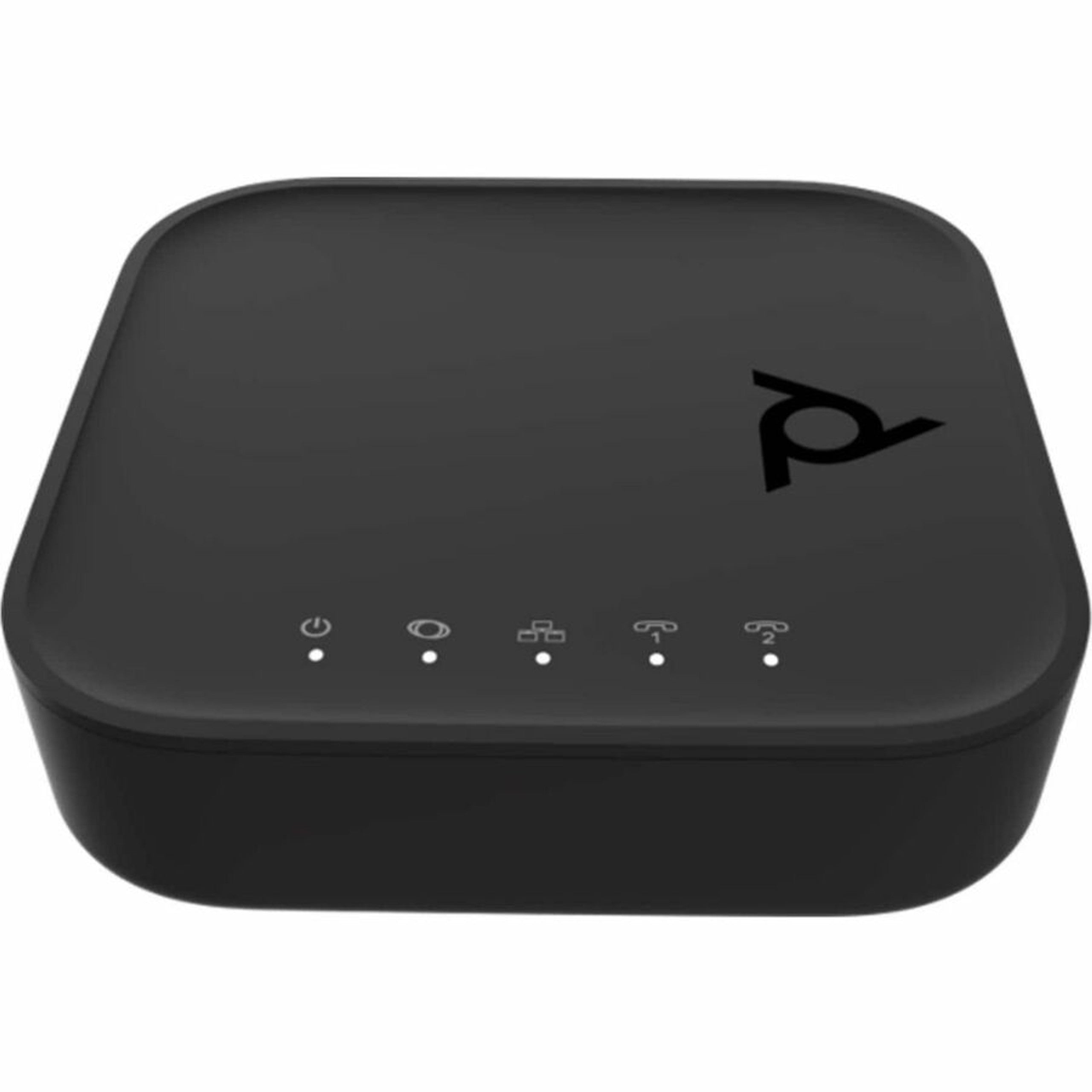
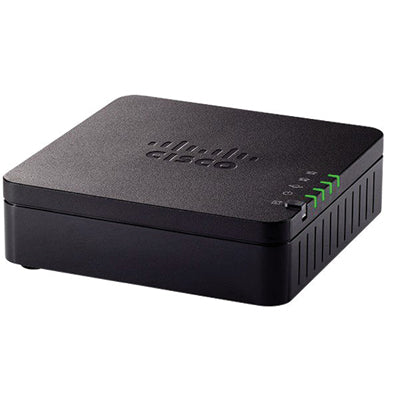
Cisco ATA 192 Multiplatform Analog Telephone Adapter ATA192-3PW-K9

Frequently Asked Questions

First, check that the phone is plugged into one of the FXS ports (not the Ethernet ports) and that the ATA is receiving power—the status LED should be solid or blinking normally. Next, verify that the line has registered with your SIP provider by logging into the ATA’s web interface and looking at the Line Status page; a registered line will show a state like ‘Registered’. If it isn’t registered, confirm the SIP server address, account credentials, and that your network allows outbound SIP traffic (no firewall blocking port 5060). Try a different telephone to rule out a faulty handset.
Begin by confirming the device is getting an IP address—you can find it on the Voice > Information page in the web interface or by pressing the problem report button to gather logs. Double-check the SIP proxy address, username, and password exactly as your provider gave them, watching for extra spaces or case sensitivity. Ensure DNS is working if the server is entered as a hostname, and verify that any SIP ALG or session border controllers on your router are disabled, as they often interfere with registration. If the problem persists, a Toronto-based VoIP support provider can usually resolve this remotely after reviewing the ATA’s status.
One‑way audio on a Cisco ATA almost always points to a NAT or firewall issue. Check that the router handling your internet connection does not have SIP ALG enabled, and consider enabling STUN on the ATA under the SIP settings. Also, ensure that the audio codecs listed on both ends match—if your provider offers only G.729a but the ATA is set to prefer G.711 only, the call may connect with no audio path. Temporarily moving the ATA directly to the modem (bypassing the router) can help confirm whether the network gear is causing the symptom.
Echo is usually caused by audio reflections in the network or poor impedance matching; start by lowering the handset volume on the analog phone slightly to see if it reduces the echo. Choppy audio points to packet loss or jitter on the network—check that your router or switch offers QoS priority for voice traffic, and on the ATA, try using the G.711 codec with a smaller packetization size (20 ms) and a moderate fixed jitter buffer. If you are on a congested Wi‑Fi link, move the ATA to a wired Ethernet connection to eliminate wireless interference.
Fax over VoIP needs a steady, loss‑free path. Enable T.38 fax relay on both the ATA 192 and your SIP provider’s trunk; T.38 is specifically designed for fax. If T.38 isn’t supported, switch to G.711 passthrough and disable echo cancellation for that line. Reducing the fax machine’s baud rate to 9600 bps and turning off Error Correction Mode often compensates for slight network jitter. Always test with a one‑page document first to isolate configuration issues from multi‑page transmission problems.
Make sure the ATA is powered on and your computer is connected to the same network segment as the ATA (or plugged into its PC port). Find the ATA’s current IP address—you can check your router’s DHCP client list or use an analog phone connected to the ATA to dial the IVR access code (often ****) and have it read the IP. If you are using the correct IP but still get no page, try a different browser, clear your cache, and confirm you haven’t changed the default HTTP port. Also, verify that your computer’s IP is in the same subnet; a misconfigured static IP could be blocking access.
The two ports operate independently. Log into the web interface, go to the Line 1 and Line 2 configuration pages, and fill in the respective SIP proxy, user ID, and password for each provider or extension. You can assign different codec preferences, caller ID names, and dial plans on each line. After saving, both lines will register separately. If you only see one line active, confirm the second line is not disabled under the Voice > Line tab and that its credentials are accurate.
Yes, the ATA 192 supports IPv6 dual stack, so it can be deployed in networks that use both protocols. In the Network Settings page, you can enable IPv6 and choose automatic configuration (SLAAC or DHCPv6). To avoid registration issues, make sure your SIP provider’s servers are reachable over IPv6; if not, you may need to force IPv4 transport in the SIP settings until the provider supports IPv6. Dual‑stack operation allows a gradual migration without losing connectivity.
VoIP Adapters

Cisco ATA 192 Multiplatform Analog Telephone Adapter ATA192-3PW-K9
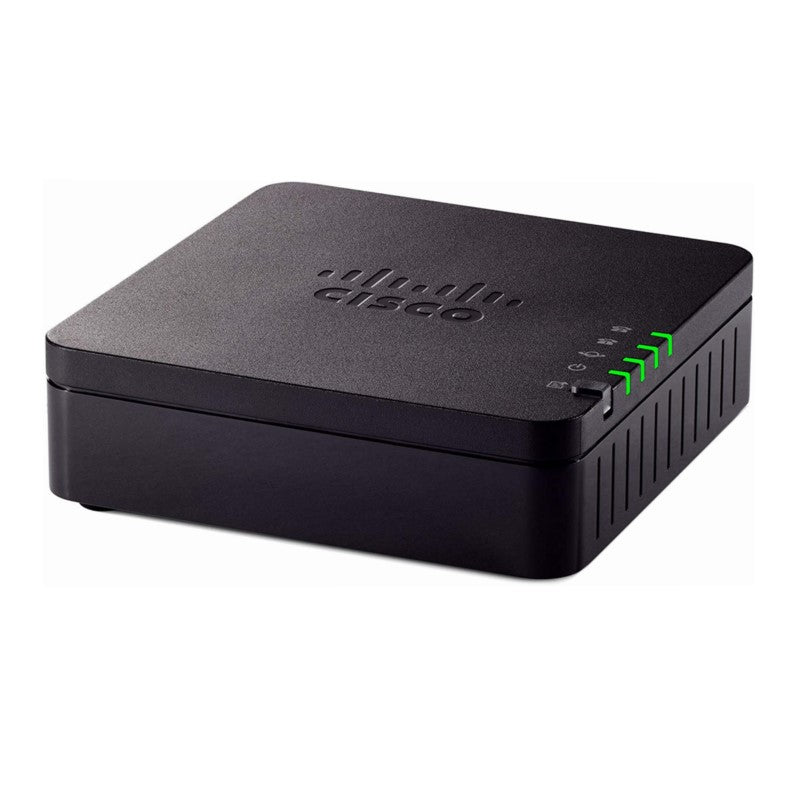
• The Cisco ATA 192 Multiplatform Analog Telephone Adapter converts traditional telephone, fax, and overhead paging devices into IP devices for a more cost-effective solution. Customers can utilize IP telephony applications by connecting their analog devices to this adapter. • Designed for enterprise networks, small offices, or unified communications as a service from the cloud, the ATA 192 has two standard FXS ports, which can be configured independently as two Session Initiation Protocol (SIP) registrations. It also features two 100BASE-T ports with an integrated high-performance router to extend local network connectivity. • Key Features: • Advanced voice quality: Clear, natural-sounding voice quality via advanced preprocessing, high-performance echo cancellation, voice activity detection, and comfort noise generation • Cloud provisioning: Zero-touch provisioning via TR-069 and XML configuration files • Comprehensive security: Complete security solution for both media and signaling • Problem reporting: Dedicated PRT button for problem reporting and log collection • IPv6 support: Enables IPv6 dual stack to help with migration to IPv6 • Technical Specifications: • Audio Codecs: G.711 a-law, G.711 μ-law, G.729a, G.729ab, G.726 • Full-duplex audio and echo cancellation for improved voice quality • Voice activity detection, silence suppression, configurable silence threshold, comfort noise generation, adaptive jitter buffer, frame loss concealment, adjustable audio frames per packet, call progress tone generation, impedance and gain adjustment, dynamic audio payload

About This Product

The Cisco ATA 192 Multiplatform Analog Telephone Adapter fills a straightforward need: it lets you keep your existing analog phones, fax machines, or overhead paging equipment while moving your voice traffic to an IP‑based network. This is particularly useful for small to midsize Canadian businesses, branch offices, and professional services firms—a Toronto law office, for instance, might want to retain a trusted fax line and a couple of desk phones while switching to a cloud PBX. The ATA 192 bridges that gap cleanly, supporting two independent SIP registrations so each FXS port can be associated with a different provider or extension.

The built‑in 100BASE‑T router and second Ethernet port simplify deployment in tight wiring closets or shared workspaces; you can connect a local computer or printer without needing an extra switch. It pairs naturally with hosted UCaaS platforms, on‑premise IP PBXs, or direct SIP trunking services from Canadian carriers. Zero‑touch provisioning via TR‑069 and XML configuration files helps IT teams roll out multiple units quickly, and the dedicated problem‑report button gives support staff a head start when something isn’t right.

Realistically, a two‑port ATA is not meant to serve a large analogue estate—if you’re trying to keep a dozen legacy phones alive, you’ll need several ATAs. Audio quality depends on network stability, so a poorly managed LAN or an undersized broadband connection will show up as echo or dropouts even on a device this capable. It’s also overkill for a home office with a single phone, where a cheaper single‑port adapter would do the job. Conversely, for a fax‑heavy law firm or a clinic that still relies on multiple analog lines, the ATA 192 is underpowered; a multi‑port gateway would be a better fit. For the target scenario—two critical analog endpoints that need reliable access to an IP voice network—it hits the right balance.
Services We Provide
  • Professional Installation & Configuration
  • Ongoing Maintenance & Support
  • Troubleshooting & Repairs
  • System Upgrades & Updates