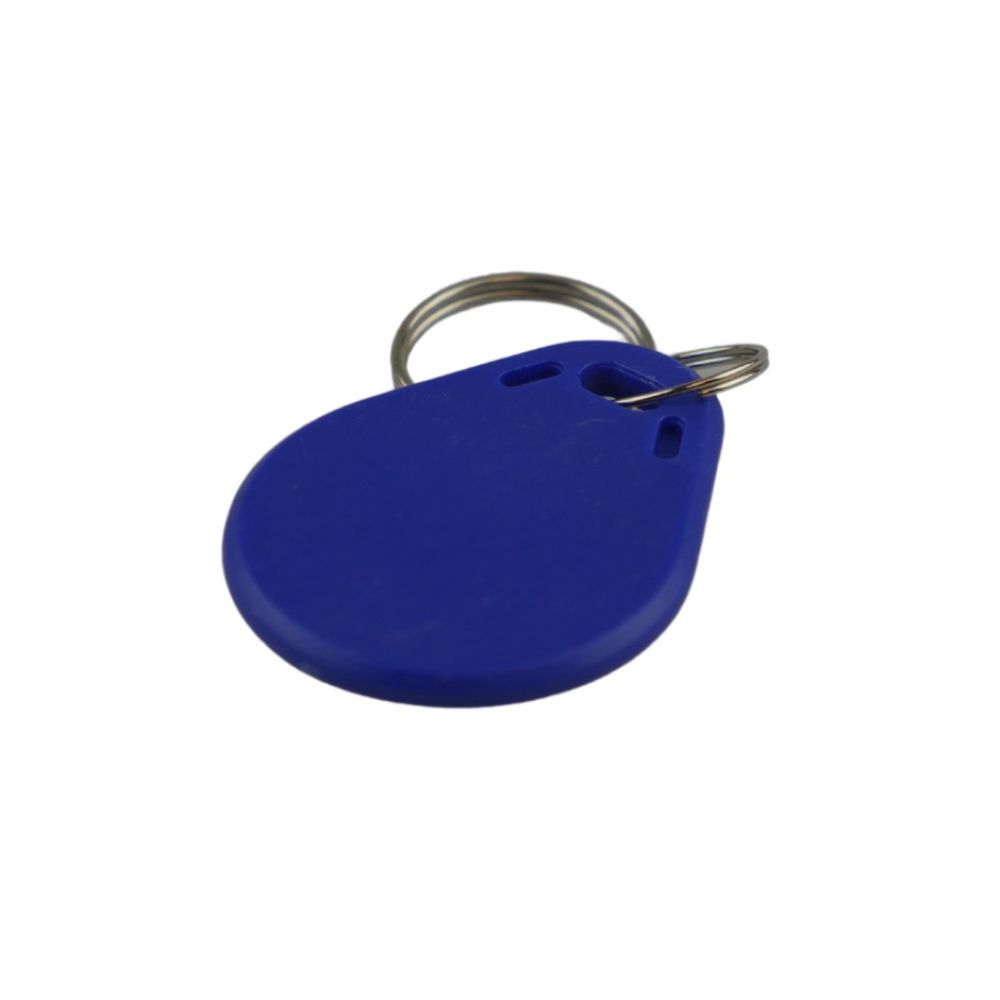
Fanvil AC102 RFDI Tag
Frequently Asked Questions
First, clean the tag and the reader area with a soft cloth. Make sure the door phone is powered on and RFID mode is enabled in its web interface. Hold the tag flat and steady against the reader for a full second. If it still doesn't read, try a different tag to rule out a defective unit.
Log into the door phone's web interface as an administrator. Navigate to the RFID or access control section, select 'Add Card' or 'Register Tag', then tap the tag against the reader. Assign it to a user account and set the access schedule. For step-by-step guidance, refer to the door phone's manual or contact your VoIP provider.
Probably not. The AC102 is only tested with the models listed—i16V, i20S, i30, i23S, i31S, i32V, and i33V. Using it with an unsupported model may not work because the RFID reader and firmware are specific. Check your door phone's specifications or contact support to confirm compatibility.
First, confirm the door phone is running a supported firmware version for the model. Log into the web interface and check the RFID settings are still enabled. Try re-registering the tag by going to the access control menu and tapping the tag again. If it still fails, the firmware update may have reset the tag database—re-add all tags manually.
Test the same tag on another compatible Fanvil door phone if available. If it works there, the issue is likely with the first door phone's reader or configuration. If it doesn't work on any reader, the tag is likely defective—contact your supplier for a replacement. Also check for physical damage like cracks or bending.
No, the AC102 uses a proprietary RFID protocol that only works with the listed Fanvil models. It is not compatible with other brands. For a multi-vendor site, you would need universal RFID credentials or separate tags for each system.
First, check that the user assigned to the tag has permission to unlock the door at that time of day. Then verify the door strike or lock relay is wired correctly and the door phone's relay settings are configured (e.g., pulse duration). If the door phone has a test relay function, use it to isolate whether the signal reaches the lock.
Log into the door phone's web interface and go to the RFID or access control list. Find the lost tag's ID or the user it was assigned to and delete that entry. Changing the door unlock PIN and informing building occupants is also wise. If you can't locate the tag in the list, you can factory reset the door phone and re-add all valid tags—but do that only after confirming the cause.
Ensure the tag is dry and not near metal objects (like keys or coins) which can interfere. Check that the door phone's RFID reader is clean and not blocked by dirt or paint. If the issue persists, try holding the tag at slightly different angles; some readers have a sweet spot. If multiple tags have the same problem, the reader may need service.
The maximum number depends on the specific door phone model and its firmware. Most Fanvil door phones support at least a few hundred RFID tags. If you need to register many tags (e.g., for a large office building), check the device's datasheet or contact support to confirm the limit before deploying.
Door Phones
Fanvil AC102 RFDI Tag
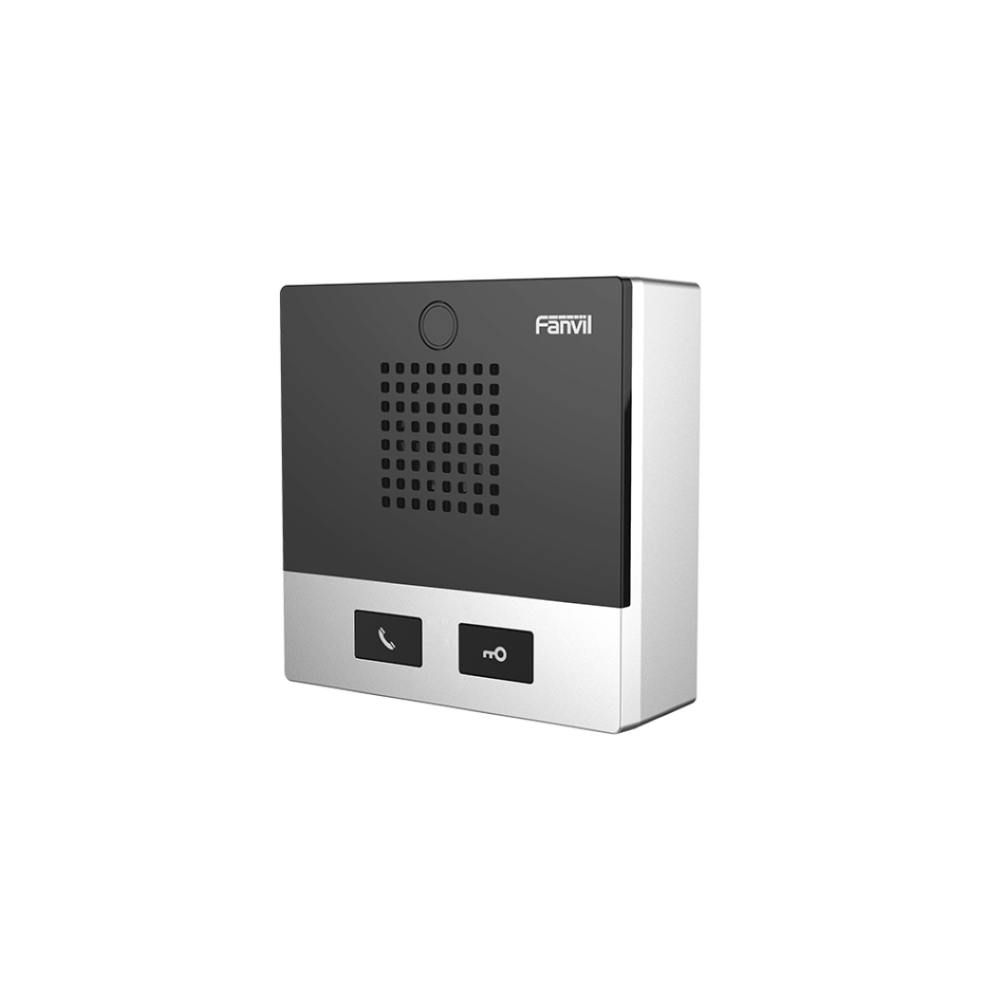
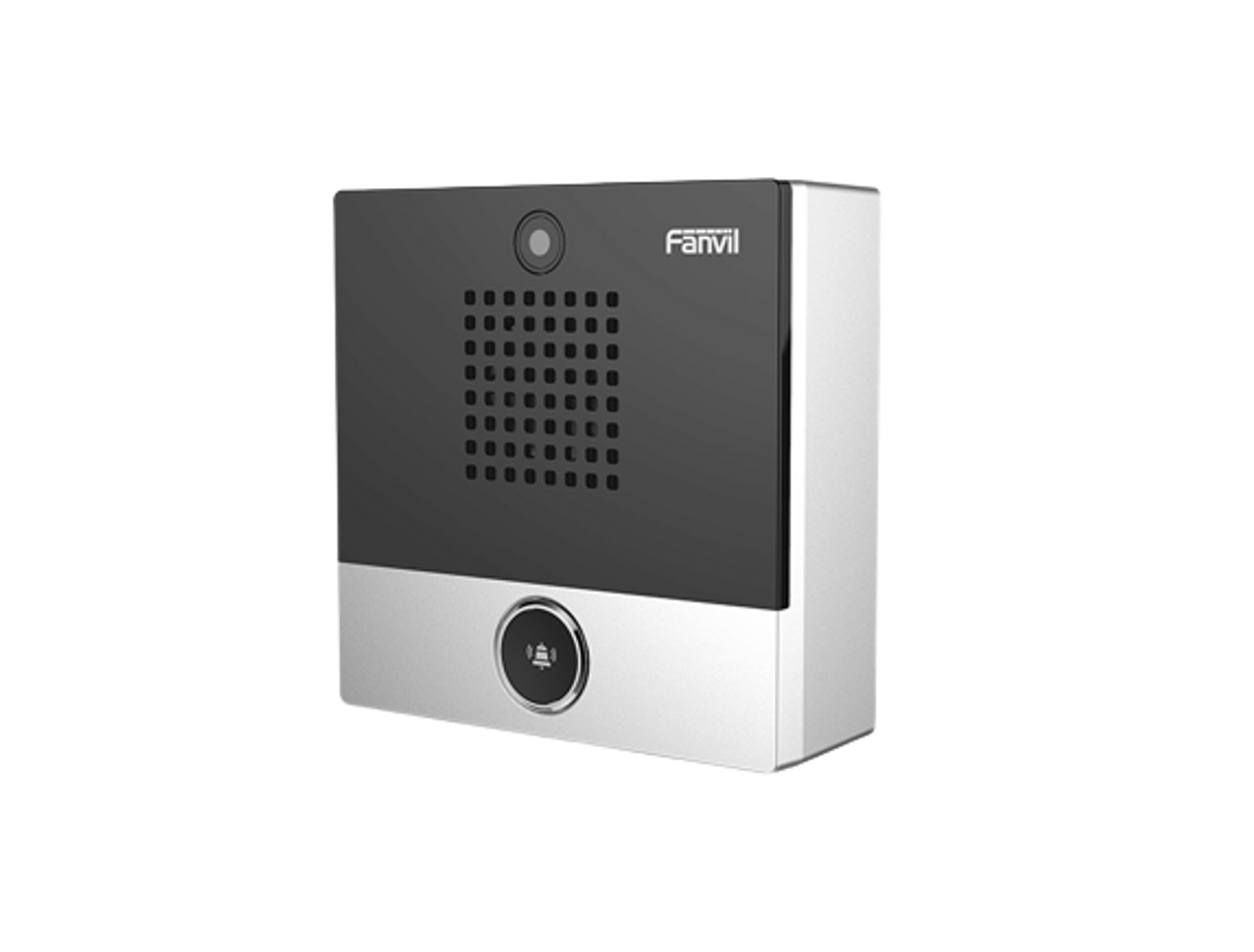
The Fanvil AC102 RFID tag is compatible with the following devices: • i16V • i20S • i30 • i23S • i31S • i32V • i33V This tag offers a reliable and secure solution for tracking and managing inventory, ensuring accurate and efficient management of your assets.
About This Product
The Fanvil AC102 RFID tag is a simple, affordable access credential designed for use with compatible Fanvil door phones. It suits small to medium businesses, multi-tenant offices, or residential lobbies in the GTA where you need to control entry without issuing keys or managing PIN codes. Each tag works out of the box with supported models (i16V, i20S, i30, i23S, i31S, i32V, i33V), and multiple tags can be assigned to a single user across different doors. One tradeoff: the tag itself holds no user data—all access rights are configured on the door phone, so you'll need administrative access to the device to enroll tags. For a single-door office where a PIN is sufficient, this tag is optional; for high-security environments, it may be underpowered compared to biometric or encrypted credential systems. The AC102 is a practical, low-cost way to add physical access control to Fanvil intercoms without additional infrastructure.
Services We Provide
- Professional Installation & Configuration
- Ongoing Maintenance & Support
- Troubleshooting & Repairs
- System Upgrades & Updates