Fanvil CA400 All-in-One Screen Share Video Conference Solution

Frequently Asked Questions

Start by ensuring the USB cable is firmly connected to both the speakerphone and your laptop. Try a different USB port, and if you're using a USB hub, connect directly to the computer instead. If the issue persists, restart your laptop and the speakerphone, then check your computer's audio settings to confirm the CA400 is selected as the input and output device.
First, make sure your laptop and the CA400 receiver are on the same Wi-Fi network. Move the receiver closer to your laptop and away from other electronic devices that might cause interference. Restart both the receiver and your laptop, then try the casting again.
Check that the USB camera is plugged directly into your computer or the speakerphone's USB port if applicable. Open your computer's device manager or system settings to see if the camera appears as a connected device. If it's listed, try selecting it manually in your conferencing app's camera settings.
Make sure the speakerphone is placed on a flat, stable surface in the center of the meeting table, away from any obstructions. Reduce background noise by closing windows and doors, and mute any participants not speaking. If the issue continues, check for interference from other wireless devices and try adjusting the volume levels in your conferencing app.
Ensure both the speakerphone and receiver are powered on and within 10 meters of each other. Press the pairing button on the receiver, then follow the speakerphone's manual instructions to initiate pairing mode. If they don't connect, restart both devices and try again.
Yes, the system supports Mac 10.8 and later. Connect the speakerphone and camera via USB, then select them in your conferencing app's audio and video settings. For wireless screencasting, ensure your Mac is on the same network as the receiver.
Check that the camera lens is clean and not obstructed. The camera has auto-framing and digital zoom, so ensure the room lighting is adequate and that participants are within the 4-meter pickup range. If needed, adjust the camera's position manually to better frame the room.
Ensure the speakerphone's mute button is not activated and that the microphone is not blocked by objects. Check your conferencing app's audio settings to confirm the CA400 is selected as the microphone. Speak within 4 meters of the unit and avoid covering it with papers or other materials.
Firmware updates are typically available from the Fanvil support website. Download the latest firmware file for the CA400, then connect the device to your computer via USB and follow the manufacturer's update instructions. If you're unsure, contact your VoIP support provider for guidance.
Check your Wi-Fi signal strength in the meeting room; weak signals can cause drops. Move the receiver closer to your router or use a wired Ethernet connection if available. Restart your router and the CA400, and ensure no other devices are hogging bandwidth. If the issue persists, a Toronto-based VoIP support provider can usually resolve this remotely.
Video Systems

Fanvil CA400 All-in-One Screen Share Video Conference Solution
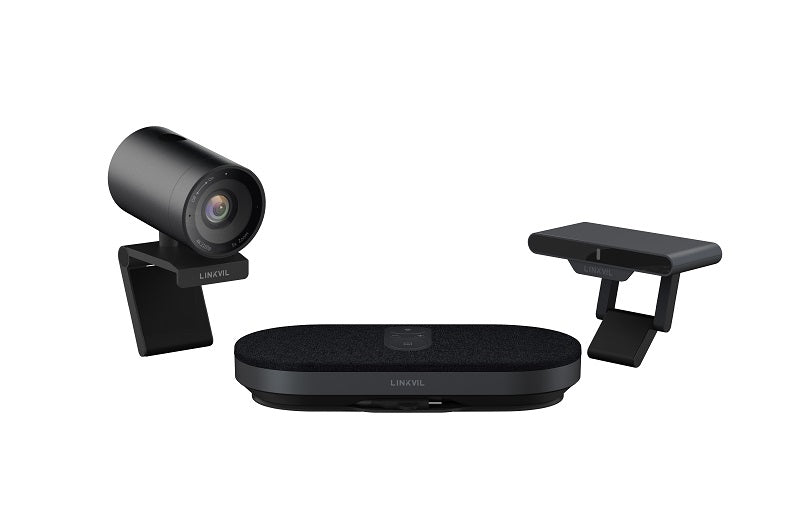
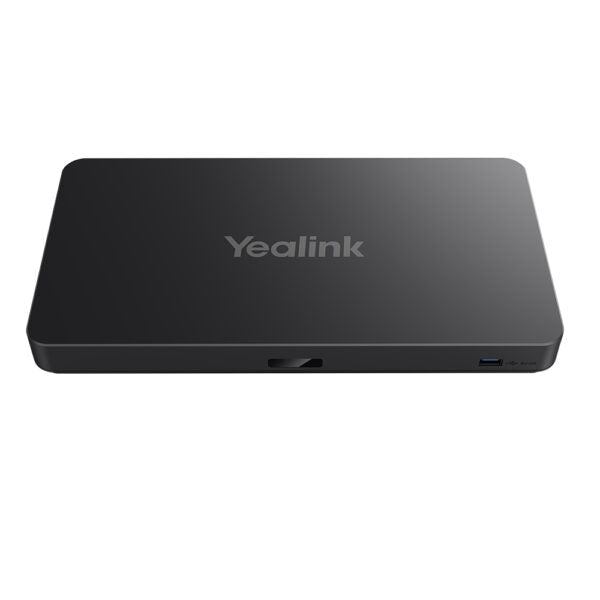
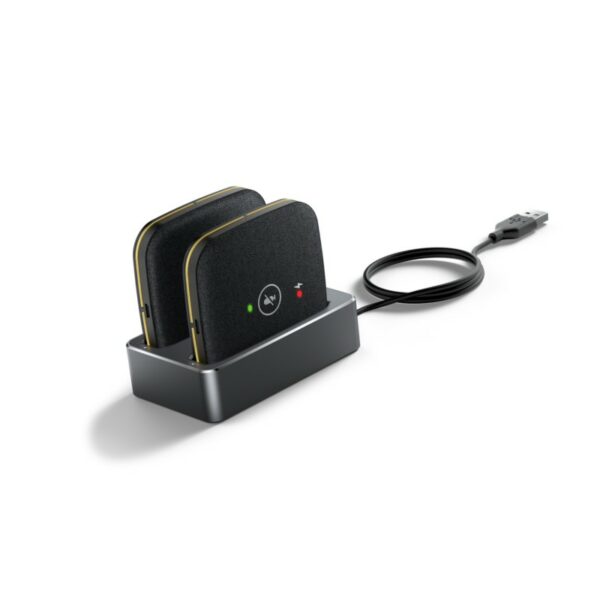
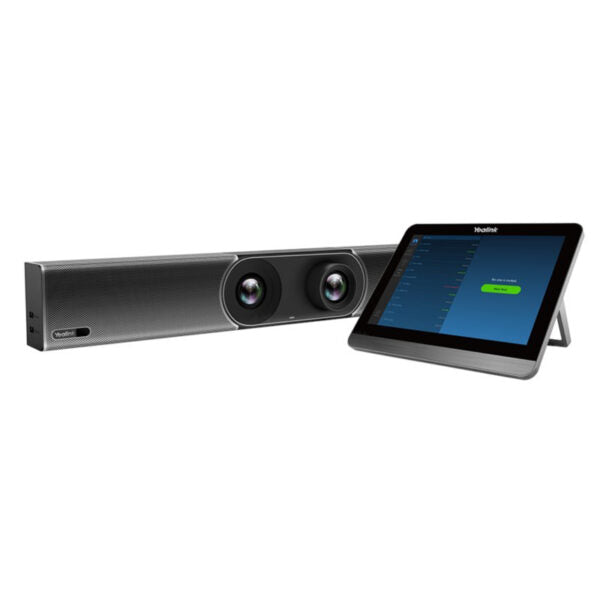
• Designed for small and medium meeting rooms up to 20m², the CA400 features a unique speakerphone MS10 with wireless screencasting capabilities, a receiver RC10, and a USB camera CM70. It delivers far-field voice pickup and HD crystal sound, allowing participants to wirelessly cast at 4K and access FHD video streaming. • Key Features: • Compatible with LINKVIL by Fanvil All-in-one screen share video conference solution • Operates on Windows 10/11 and Mac 10.8 and later MS10 • Built-in microphone • 8 MEMS Microphones for 360-degree pickup • Automatic pick-up range of 4M • Acoustic echo cancellation for noise suppression • The CA400 comes with a power adapter and features: • CM70 sensor type: IMX 415(1/2.8") 3840*216 Auto Framing Zooming 5x digital zoom • Pick-up Range: 4m Automatic • Noise Suppression: Acoustic Echo Cancellation

About This Product

The Fanvil CA400 is an all-in-one video conference solution designed for small to medium meeting rooms, typically up to 20 square meters. It's a good fit for huddle rooms or small boardrooms in Canadian offices, especially in the GTA where space is often at a premium. The system pairs a speakerphone with wireless screencasting, a receiver, and a USB camera, making it a self-contained kit that can replace a more complex setup of separate components.

This solution works well with common video conferencing platforms on Windows or Mac, and its wireless casting at 4K resolution is a strong point for presentations. However, potential buyers should consider that the 4-meter pickup range and digital zoom (5x) mean it's best suited for close-range use; larger rooms or participants far from the camera may not be as clearly captured. The system is likely overkill for a personal office but may be underpowered for a conference room larger than 20m² or one with multiple speakers spread out.

For Canadian businesses, compatibility with standard USB-A and USB-C connections on office laptops is generally good, but verify that your preferred conferencing software supports the camera and speakerphone as a single device. The system's reliance on a power adapter (not PoE) means you'll need a nearby outlet, which is typical for this class of device. Overall, the CA400 offers a straightforward, integrated approach to video conferencing for teams that want to minimize cabling and setup complexity.
Services We Provide
  • Professional Installation & Configuration
  • Ongoing Maintenance & Support
  • Troubleshooting & Repairs
  • System Upgrades & Updates