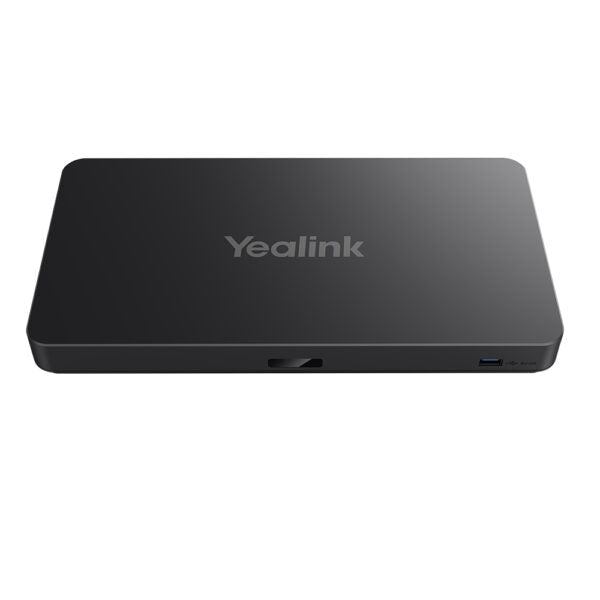
Yealink Collaboration Bar A30-020 – 1206653

Frequently Asked Questions

First, confirm that the device’s time and date settings are correct—an incorrect clock often breaks cloud registration. Then verify that the Teams account license includes a Teams Rooms Standard or Pro license and that the network firewall allows outbound TCP 443 and UDP 3478–3481 to Microsoft’s endpoints. If the issue continues, a Toronto-based VoIP support provider can usually diagnose this remotely.
Start by unmuting the device via the touch controller or remote—mute is easy to overlook. Check the volume level in the meeting platform’s audio settings and ensure the speaker is selected, not an external device. Rebooting the bar and controller often resolves temporary audio glitches. If silence persists, test with a different meeting app to isolate if the issue is service-specific.
Ensure the camera lens is clean and that no objects block its view. Auto-framing works best with adequate, even lighting; avoid strong backlighting from windows. In the camera settings, you can disable and re-enable the feature to recalibrate. Persistent issues may be resolved by a firmware update, but only apply an update after confirming it addresses this specific behavior.
Verify the power adapter is securely connected at both the bar and the wall outlet, and try a different AC outlet to rule out power failure. If the LED indicator remains off, inspect the cable for damage. Contact Yealink support if the bar still doesn’t power up—do not open the unit.
Check your network’s packet loss and jitter using a tool like PingPlotter; video is sensitive to anything above 1% loss. Confirm the A30 is connected via Ethernet rather than Wi-Fi for the most stable experience, and ensure no large downloads are consuming bandwidth. If your router has QoS settings, prioritize traffic for this device’s IP address. If the issue persists, a Toronto-based VoIP support provider can usually help optimize your network for video traffic.
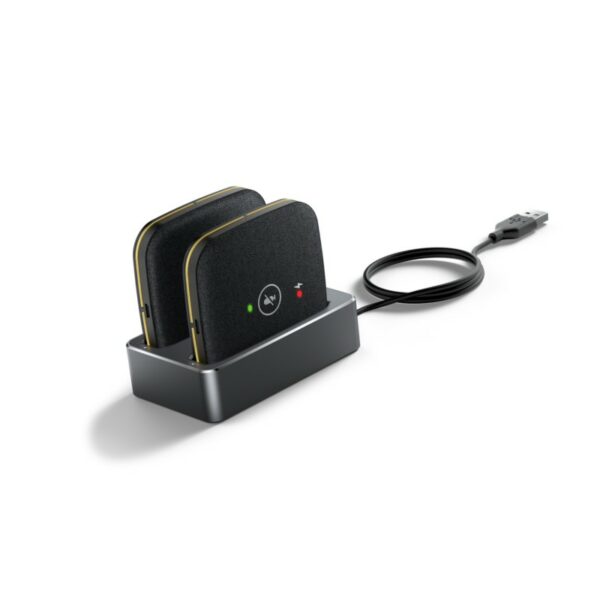
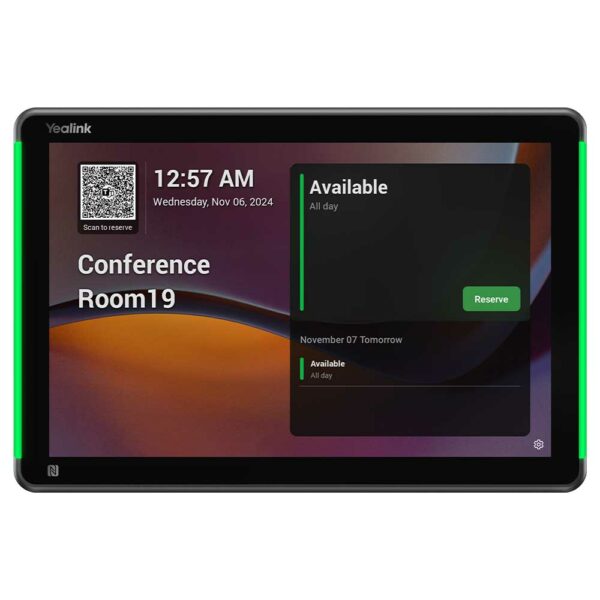
Replace the batteries in the remote or check that the touch panel is charged. For the wireless touch panel, try re-pairing by placing it in the cradle or following the on-screen Bluetooth settings. A reboot of the MeetingBar often restores connectivity. If pairing fails repeatedly, moving other Bluetooth devices away can reduce interference.
The A30 is primarily a video room system for Teams or Zoom. While you can join RingCentral Video meetings through a browser or interoperability service, it is not designed as a SIP endpoint for voice-only calls. For regular phone calls, pair the A30 with a separate VoIP desk phone or softphone, or use a platform that runs natively on the bar.
In a Teams or Zoom meeting, use the share button in the app and select the MeetingBar A30 as the casting target; it supports dual-band Wi-Fi for low-latency screen mirroring. Alternatively, you can use Miracast from Windows or AirPlay from Apple devices if enabled in settings. Ensure the laptop and bar are on the same network segment for reliable discovery.
It connects to any HDMI-equipped display, so most modern TVs or projectors are fine. The bar outputs video up to 4K, but even a 1080p screen works. Just make sure the display supports HDCP if you’ll share protected content, and use a high-speed HDMI cable for a reliable signal.
While the A30 is optimized for Teams and Zoom, it can join Google Meet calls via the Chrome browser if you run the bar in browser mode, or through third-party interop services. For Webex, it may work using guest join or SIP calling features, but the experience isn’t as seamless as with certified endpoints. For full Webex or Meet room functionality, other native video room systems might be a better fit.
Video Systems

Yealink Collaboration Bar A30-020 – 1206653
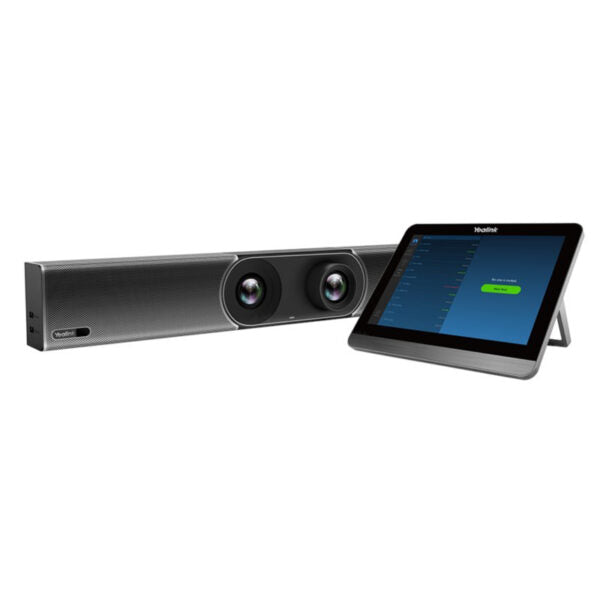
• Yealink MeetingBar A30 is a leading platform collaboration bar designed for medium rooms, delivering outstanding video quality with its 8MP camera and 120° superwide-angle lens. • Features: • 8 MEMS microphone arrays for excellent audio experience • AI technologies including Auto Framing and Speaker Tracking for smarter and safer video conferencing • Human body detection for convenient and fast meeting experiences • Support for cloud video platforms like Zoom and Microsoft Teams, eliminating the need for a PC or Mac • Content sharing and whiteboard capabilities for enhanced communication and collaboration • All-in-one design with computing unit, camera, microphones, speaker, Wi-Fi, and Bluetooth • Dimensions: 37 × 20 × 14 in • Weight: 18.9 lb • Video Room Size: Medium

About This Product

The Yealink MeetingBar A30 is an all-in-one video conferencing solution tailored for medium-sized meeting rooms. It eliminates the need for a dedicated PC or Mac, delivering a streamlined experience for organizations that rely on Microsoft Teams or Zoom. For Canadian businesses outfitting huddle-to-medium spaces, it reduces cable clutter and setup complexity while providing professional-grade audio and video. Its an elegant choice when your priority is a clean, touchscreen-controllable video endpoint that just works for scheduled cloud meetings.

Its 8MP camera with a 120-degree superwide lens, combined with AI-driven auto framing and speaker tracking, suits rooms that seat roughly six to ten people. The integrated 8-microphone array and speaker handle full-room pickup without external peripherals. However, this fixed lens design means you trade optical zoom for simplicity; in longer or deeper rooms, faces at the back may appear less detailed. It pairs naturally with a single large display over HDMI, and Wi-Fi and Bluetooth connectivity ease installation where Ethernet isn't always convenient.

The A30 is overkill for a private office or phone booth, where a smaller personal device would suffice, and underpowered for large boardrooms or divisible training rooms that typically require multiple cameras and ceiling microphones. For Toronto-area companies and firms across Canada, this bar fits well into IT-managed deployments where remote support is routine. Because it leverages cloud services over the internet, no specialized carrier compatibility is required—it will work behind any business-grade internet connection. Keep in mind that while it can share content and whiteboard, its native collaboration features are optimized for the Teams and Zoom ecosystems, so organizations using other conferencing platforms should verify integration depth.
Services We Provide
  • Professional Installation & Configuration
  • Ongoing Maintenance & Support
  • Troubleshooting & Repairs
  • System Upgrades & Updates