Yealink RoomPanel Plus E2 –All-In-One Meeting Room Scheduling Panel-1303196

Frequently Asked Questions

Verify that the Ethernet cable is connected to a PoE-capable switch port that supplies enough power (the panel requires 802.3at PoE+ or better). If you’re using a DC power adapter, ensure the barrel connector is fully seated and the outlet is live. Try a different cable and port; reseating the connection often resolves startup issues.
The ambient light and proximity sensor may be blocked by mounting hardware or a nearby object. Inspect the area around the sensor (usually near the top edge) and remove any dust or obstructions. Also check in the device’s display settings that the auto-wake feature is enabled and that the sensitivity isn’t set too low.
First, confirm that the room’s calendar status is correct in the scheduling platform (e.g., Exchange, Google Workspace). The panel mirrors what the booking service reports. If the calendar is accurate, a quick reboot of the panel (using the restart option in the settings, not a factory reset) will re-sync the status. If the mismatch persists, the scheduling integration credentials may need to be re-entered; you can check those in the device’s management interface.
Moisture or a failing touch digitizer can cause unresponsiveness. Start by power-cycling the panel—disconnect PoE for 30 seconds and plug it back in. As it boots, watch the screen; if the problem is temporary, the touch should recover. If the issue occurs in multiple spots or only after a recent firmware update, contact support before attempting a factory reset. If the issue persists, a Toronto-based VoIP support provider can usually resolve this remotely.
Make sure the RoomSensor has fresh batteries and is within Bluetooth range (typically 10 meters with line of sight). In the panel’s settings, navigate to the Bluetooth pairing menu and delete any old pairings, then initiate a fresh scan. If the sensor still doesn’t appear, power-cycle both devices and try again. If you’re in a building with many Bluetooth devices, temporary interference can disrupt pairing.
First, check that the panel is within good range of the access point—signal strength below -65 dBm often causes dropouts. Use the panel’s network diagnostics to view the RSSI. If the signal is weak, move the access point closer or add a repeater. Also verify that the Wi‑Fi network isn’t using band-steering or 802.11r fast-roaming features that some IoT devices stumble on; if possible, place the panel on a dedicated 5 GHz SSID with simple WPA2-PSK security.
A post-update slowdown can happen if background sync processes aren’t completing. Perform a clean reboot by removing power for a full minute, then reconnect. The panel will re-establish calendar connections as it starts up. If the sluggishness continues, check the Yealink Management Cloud Service for a newer firmware hotfix or rollout notes; sometimes a subsequent patch addresses performance regressions. Avoid rolling back firmware unless support advises it. If the problem continues, a Toronto-based VoIP support provider can often diagnose performance issues remotely.
Automatic release depends on the occupancy sensor correctly reporting that the room is vacant for a configured grace period (e.g., after 15 minutes of no motion). First, ensure the occupancy sensor—whether it’s the built-in PIR (if any) or an external RoomSensor—is paired and detecting movement. Test by waving your hand in front of the sensor and watching the panel’s status change. Also double-check the room’s booking policy in the scheduling software: some platforms require a check-in to prevent release, and if attendees haven’t checked in, the booking may be held indefinitely.
Yes, the panel supports both landscape and portrait mounting. The display orientation isn’t automatic by accelerometer, but you can change it manually in the on-screen display settings. After physically mounting the panel the way you want, go to Settings > Display > Orientation and select Portrait. The touch targets and booking interface will adjust accordingly.
The RoomPanel Plus E2 is designed for broad third-party compatibility and works with many leading workspace management apps via standard APIs or direct integrations. Core functions—room booking, check-in/out, LED status and sensor triggers—are supported with those partners. Some advanced features, like zero-touch provisioning through the Yealink Management Cloud Service, naturally require Yealink’s cloud, but you can also manage the panel manually. Check with your booking software’s documentation for their certified device list to confirm specific integrations.
Video Systems

Yealink RoomPanel Plus E2 –All-In-One Meeting Room Scheduling Panel-1303196
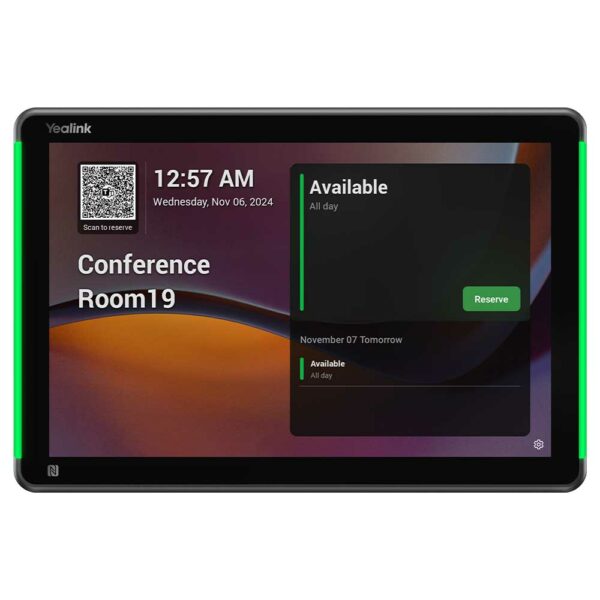
• 10.1-inch multi-point interactive panel with touch capability, allowing for easy booking of rooms or check-in/out. • Full RGB LED bars for immediate and visible communication of room status. • Ambient light and proximity sensor embedded, automatically adjusting the screen brightness and waking up the screen based on environmental conditions. • Various mounting methods supported, including no inclination, 20-degree inclination, mullion hangers, and more. • Orientation optional, allowing for easy mounting in portrait or landscape orientation. • PoE (Power over Ethernet) and DC power options for flexible installation. • Remote device management via Yealink Management Cloud Server. • WiFi and Bluetooth 5.0 connectivity to connect the front-end network and RoomSensor. • RFID and NFC embedded for enhanced security and tracking of meeting attendees. • Actions with occupancy sensor, including automatic release and check-in. • Extensive compatibility with third-party APP applications. For a full list of specifications, please refer to the <a href="https://cdn.shopify.com/s/files/1/0643/6736/2234/files/RoomPanel_Plus_E2_Datasheet.pdf?v=1752700546" target="_blank" title="Roompanel Plus E2 Datasheet" rel="noopener"><strong>Product Datasheet</strong></a>.

About This Product

The Yealink RoomPanel Plus E2 is a purpose-built scheduling display for organizations that manage a fleet of meeting spaces. It shines in mid-sized to large offices, co-working hubs, or campus environments where at-a-glance room availability and easy check-in reduce friction and double-bookings. The 10.1-inch interactive panel replaces paper signs or static digital displays with a touch-enabled interface that integrates directly into popular room booking platforms—whether you’re using Yealink’s own ecosystem, Microsoft 365, or a third-party workspace management tool.

This panel fits best in deployments where Power over Ethernet (PoE) is already available, simplifying cabling and placement. Its multi-mount design and optional tilt let you install it on glass partitions, drywall, or mullions, and the ambient light sensor keeps the screen readable without manual adjustment. The RGB LED bars around the edge act as an unmistakable visual beacon—red for occupied, green for free—visible from down the hallway, so staff don’t need to walk up to check.

While the RoomPanel Plus E2 comes packed with sensors and radios (Wi‑Fi, Bluetooth, NFC/RFID), it isn’t a general-purpose tablet or a full room controller. It’s tightly focused on scheduling and occupancy workflows, including automatic room release when people don’t show up—a feature that relies on pairing with a Yealink RoomSensor or third-party occupancy sensor. For a single small office with just one or two meeting rooms, the investment may outweigh the benefit; a simpler tablet-on-a-stand approach might suffice. But where consistency, remote manageability, and touch-free room validation matter, this panel delivers a polished, enterprise-grade experience right out of the box.
Services We Provide
  • Professional Installation & Configuration
  • Ongoing Maintenance & Support
  • Troubleshooting & Repairs
  • System Upgrades & Updates