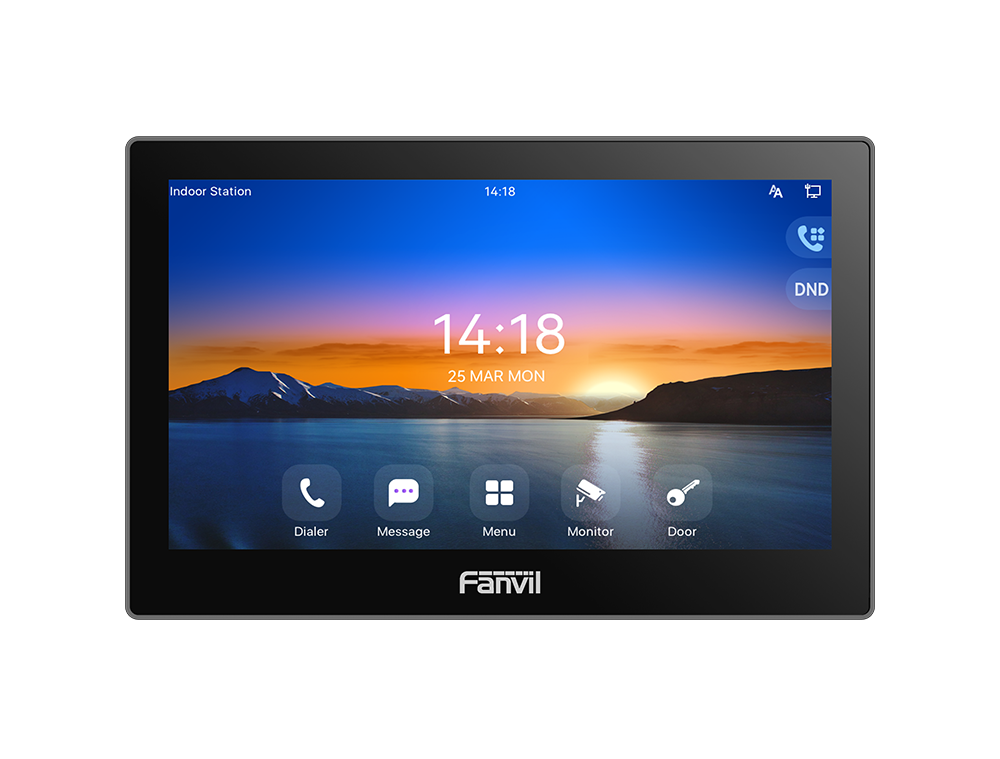
Fanvil i504W SIP Indoor Station

Frequently Asked Questions

First, power-cycle the unit by disconnecting the PoE or 12V power supply for 10 seconds, then reconnecting. If the screen remains unresponsive, gently clean the screen with a soft, dry cloth to remove any residue that might interfere with capacitive touch. If the issue persists, contact your VoIP support provider to check for firmware updates or touch calibration settings.
Check the volume level on the i504W by going into the settings menu and adjusting the handset and speaker volume. Also verify that the outdoor station's audio settings (e.g., mic gain, speaker volume) are configured correctly. If the audio is one-way or missing entirely, make sure both devices are on the same network and that no firewall or VLAN is blocking the SIP audio streams.
Confirm that the door lock is wired correctly to the short-circuit output relay on the i504W. A multimeter can verify continuity. Also ensure the outdoor station’s DTMF or relay commands are set to match the expected action. If the wiring and settings look correct, power-cycle both the indoor station and the outdoor door station.
First, check that the unit is within reasonable range of your Wi-Fi access point; thick walls or metal obstacles can weaken the signal. Try rebooting your router and then the i504W. For a permanent solution, switch to a wired Ethernet connection with PoE, which is more reliable for continuous door-intercom use. If Wi-Fi is mandatory, consider relocating the access point or using a Wi-Fi extender.
Verify that the SIP server address, port, and credentials entered into the i504W’s account settings exactly match what your PBX expects. Check that the PBX allows registrations from the i504W’s IP address or subnet. A simple network test—pinging the PBX from the station’s web interface—can confirm connectivity.
Ensure the Ethernet cable is connected to a PoE switch or injector that provides at least 802.3af compliant power. Try a different cable and port. If the station still doesn’t power up, use the included 12V-1A power adapter as a fallback—this confirms whether the issue is with the PoE source or the unit itself.
On the i504W, go to the configuration menu and add a new SIP account using the outdoor station’s extension number and SIP credentials. The outdoor station should be registered to the same PBX. Alternatively, if they are on the same local network without a PBX, use the station’s direct IP call feature, but a PBX is recommended for reliable ring and unlock functions.
Yes, as long as the other station supports standard SIP and DTMF signaling. You will need to configure both endpoints as SIP peers on the same PBX or with direct SIP URIs. Note that video compatibility may vary; the i504W decodes H.264 and H.265 up to 1080p, so verify that the outdoor station encodes in one of those formats.
You can configure the i504W to forward incoming door calls to another SIP extension (e.g., a desk phone or softphone). On the i504W’s web interface, set a call-forward-on-busy or unconditional forward to the desired number. The remote user can then press a DTMF digit (usually 5 or 0) during the call to trigger the relay. Test with a short call first to confirm the DTMF code is correct.
Check that the outdoor station’s camera is not physically obstructed and that it is receiving adequate light. On the i504W, verify that video is enabled for that incoming call and that the codec (H.264 or H.265) is selected. If the issue persists, power-cycle both units; if that doesn’t help, the outdoor camera may need a firmware update.
IP Door Phones

Fanvil i504W SIP Indoor Station

*Fanvil i504W is an indoor station with a 7-inch color touch screen and rich interfaces. It is designed for residential areas, villas, office buildings, and other places to receive calls and communicate through the door phone while achieving remote door-opening.* *Key Features:* • 7-inch 1024 x 600 Color Touch Screen • Operating System: Linux • Panel: Plastic • HD Audio: G.722, Opus • Video Decoding: Up to 1080P @30fps, H.264, H.265 (optional) • Network: 1* 10/100Mbps • Speaker: 4R2W • WiFi: 2.4GHz Wi-Fi (optional) • Power Supply: 12V-1A/PoE • Alarm Input Interface: 8 • Short Circuit Output: 1 • Short Circuit Input: 1 • Working Temperature: -10℃-45℃ • Working Humidity: 10-90% • Installation: Wall mounted *For a full list of specifications, please refer to the product datasheet.*

About This Product

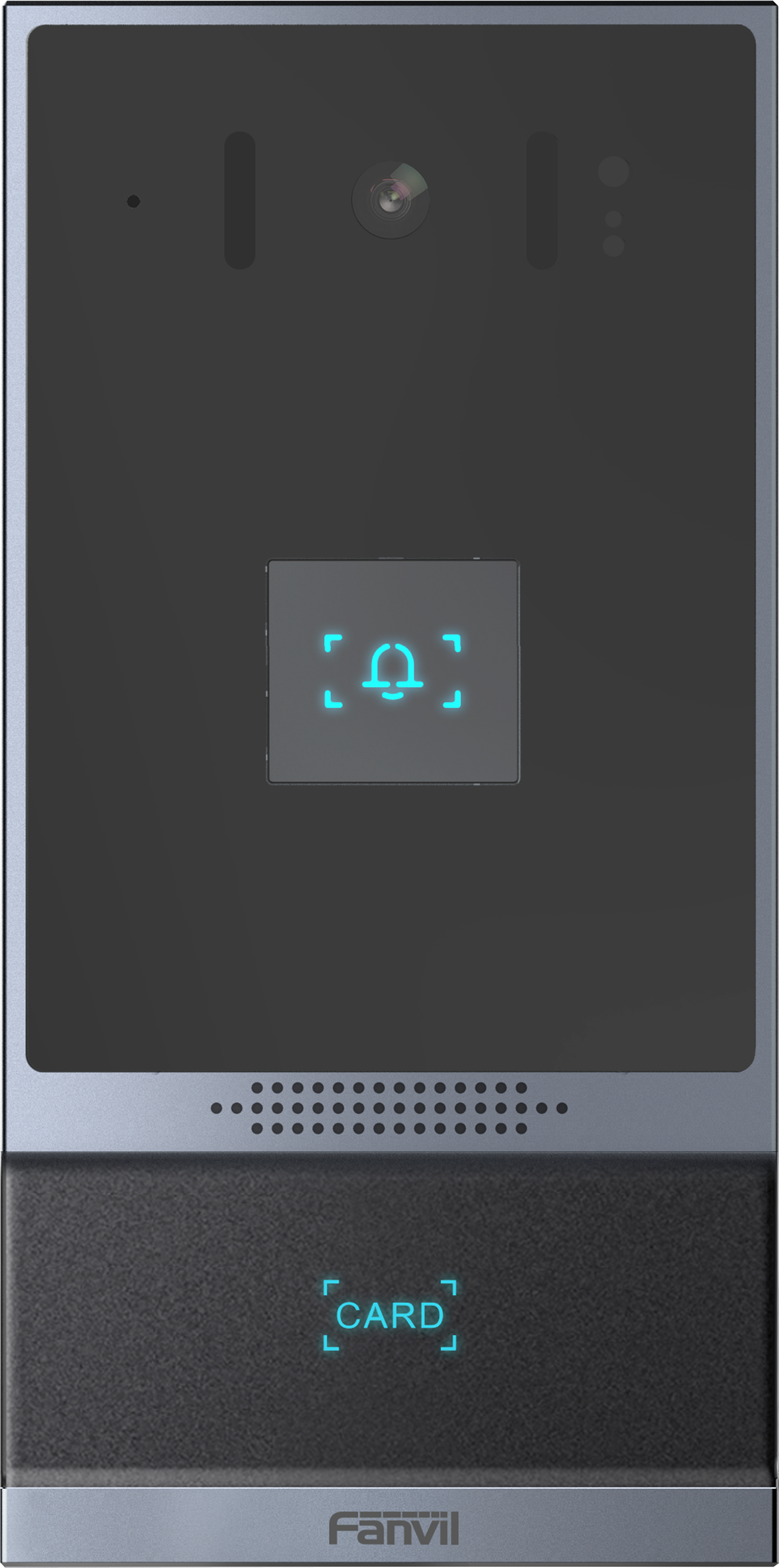
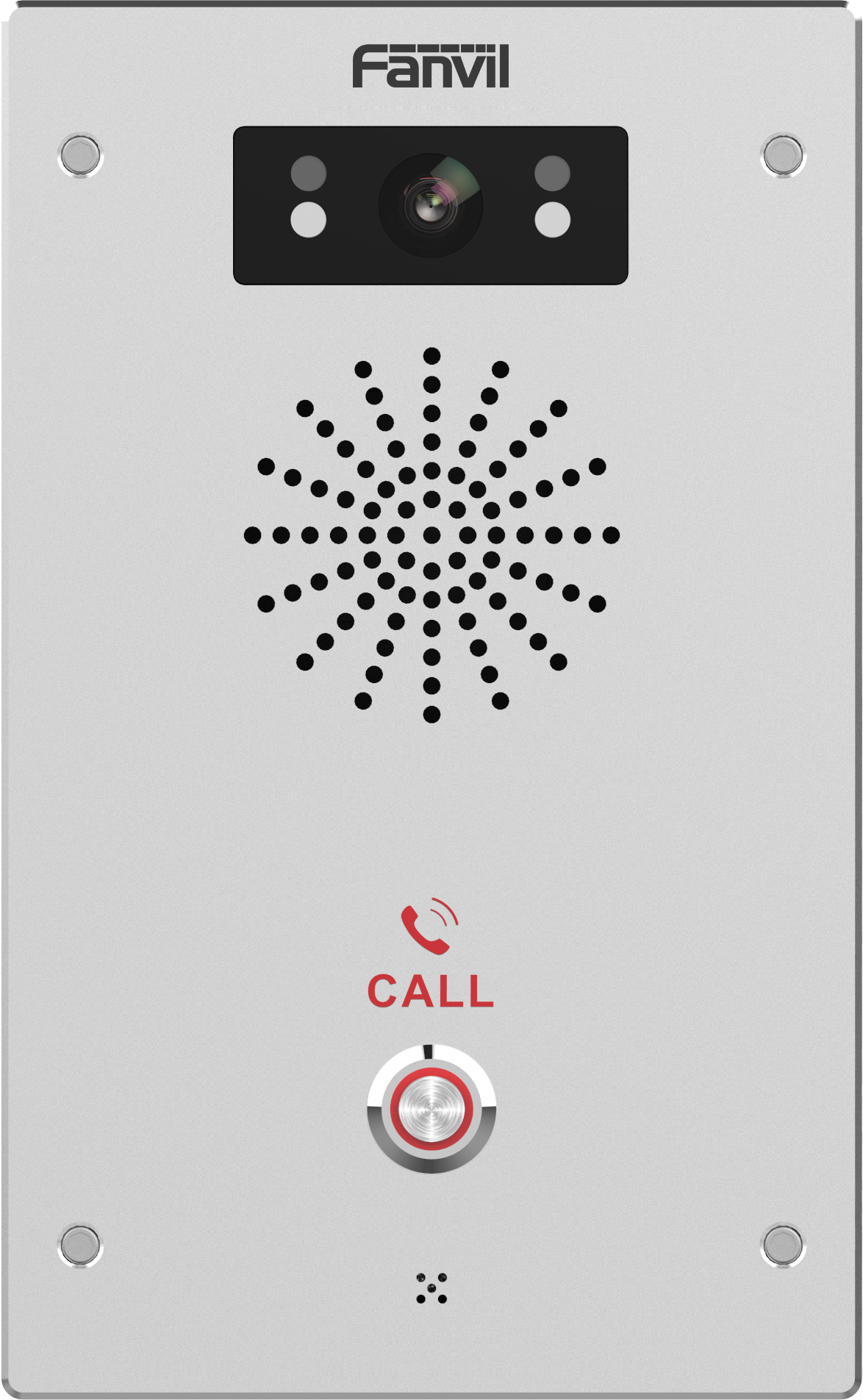
The Fanvil i504W is an indoor SIP station designed to serve as the central communication hub for intercom and door-access systems. It fits naturally in multi-unit residential buildings, gated communities, small office lobbies, and villa entrances where a single wall-mounted touchscreen provides audio and video calling to outdoor door stations or a PBX. The 7-inch color touch panel offers an intuitive interface for visitors to announce themselves and for residents to see, speak to, and remotely unlock doors. This unit is best paired with a compatible Fanvil outdoor door station (such as the i50V series) and a SIP server or cloud intercom service. It can directly replace older analog intercom panels in renovations where structured cabling and SIP standards are preferred, though careful wiring planning is needed for the alarm and relay interfaces. The plastic enclosure keeps the cost accessible, but in high-traffic lobbies or exposed hallways, a metal-faced unit may be more durable over time. The optional Wi-Fi can simplify installation where Ethernet is unavailable, but the wired 10/100 port and PoE support are more reliable for constant use. The i504W is well-suited for compact deployments; for large multi-wing campuses with dozens of access points and complex pairing requirements, a more modular station or integrated access controller may be a better fit. In Canadian deployments, especially within the GTA’s dense condo market, this station works with standard SIP trunks and common PBX hardware, but integrators should verify that the remote door lock wiring and 12V supply align with local security codes.

Services We Provide
  • Professional Installation & Configuration
  • Ongoing Maintenance & Support
  • Troubleshooting & Repairs
  • System Upgrades & Updates