
Grandstream GAC2570 Enterprise Conference Phone
AIM Telecom provides troubleshooting and configuration support for this product to businesses across Toronto and the GTA. Contact us to confirm whether the issue can be handled by phone or requires on-site service.
Get Support Call 416-312-4819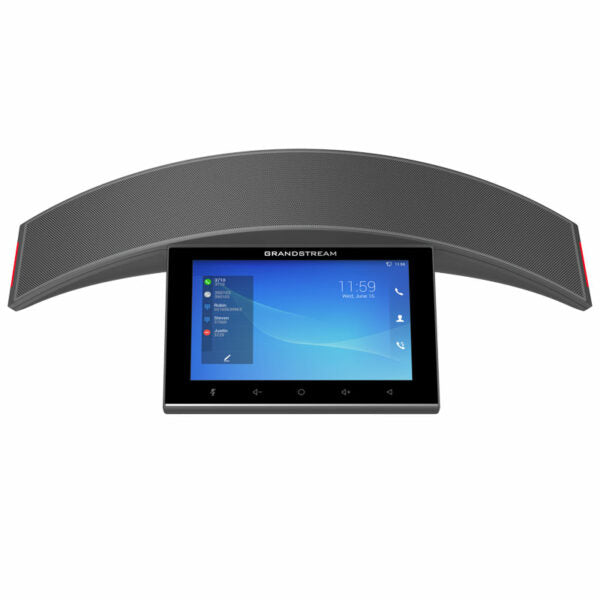
Common issues and fixes
Reviewed troubleshooting steps are not yet available for this model.
Ask AIM Telecom about this productAbout this product
• Full-duplex conferencing device with high-quality voice communication for meeting rooms, huddle areas, boardrooms, and other spaces
• Features 12 omnidirectional microphones with Multichannel Microphone Array Design (MMAD) for a natural and immersive experience
• Supports 5m pickup range and can be paired with two GMD1208 desktop wireless microphones up to 20m away for full room coverage
• High-fidelity speaker with 10-watt output, frequency response of 100-20000 Hz, and volume up to 83 dBA at 1.0 meter
• Integrated Bluetooth 5.0 support and Wi-Fi 6, Dual-band 2.4 & 5GHz with 802.11 a/b/g/n/ac/ax
• Supports 12-party conferences and Zoom Certified for seamless integration
• Modern industrial design and customizable solution for small to medium-sized conference rooms and day-to-day business meetings
• Key Features:
• Full-duplex speakerphone with HD acoustic chamber, advanced acoustic echo cancellation, and microphone beam-forming array
• 12 omnidirectional microphones with MMAD for a natural and immersive experience
• Supports 5m pickup range, can be paired with two GMD1208 desktop wireless microphones up to 20m away for full room coverage
• Integrated Bluetooth 5.0 support, Wi-Fi 6, Dual-band 2.4 & 5GHz with 802.11 a/b/g/n/ac/ax
• Supports 12-party conferences and Zoom Certified for seamless integration
• Weight: 3.04 lbs
• Dimensions: 16.52 × 8.6 × 3.1 in
• Brand: Grandstream
• Phone Type: Conference, Desk, WiFi / WiFi Capable
• Supported Platforms: Zoom
• Features 12 omnidirectional microphones with Multichannel Microphone Array Design (MMAD) for a natural and immersive experience
• Supports 5m pickup range and can be paired with two GMD1208 desktop wireless microphones up to 20m away for full room coverage
• High-fidelity speaker with 10-watt output, frequency response of 100-20000 Hz, and volume up to 83 dBA at 1.0 meter
• Integrated Bluetooth 5.0 support and Wi-Fi 6, Dual-band 2.4 & 5GHz with 802.11 a/b/g/n/ac/ax
• Supports 12-party conferences and Zoom Certified for seamless integration
• Modern industrial design and customizable solution for small to medium-sized conference rooms and day-to-day business meetings
• Key Features:
• Full-duplex speakerphone with HD acoustic chamber, advanced acoustic echo cancellation, and microphone beam-forming array
• 12 omnidirectional microphones with MMAD for a natural and immersive experience
• Supports 5m pickup range, can be paired with two GMD1208 desktop wireless microphones up to 20m away for full room coverage
• Integrated Bluetooth 5.0 support, Wi-Fi 6, Dual-band 2.4 & 5GHz with 802.11 a/b/g/n/ac/ax
• Supports 12-party conferences and Zoom Certified for seamless integration
• Weight: 3.04 lbs
• Dimensions: 16.52 × 8.6 × 3.1 in
• Brand: Grandstream
• Phone Type: Conference, Desk, WiFi / WiFi Capable
• Supported Platforms: Zoom
More product details
The GAC2570 is designed for organizations that run frequent audio conferences in small to medium-sized meeting spaces. It fits well in dedicated boardrooms, huddle rooms, and open collaboration areas where a tabletop device with clear, full-duplex audio can replace a patchwork of speakerphone pucks and laptop mics. Its built-in microphone array handles a 5-meter radius without extra hardware, which covers most standard conference tables in a typical Toronto office tower.
This model stands out when paired with Grandstream’s GMD1208 wireless microphones, extending pickup to the full room. For a twelve-person meeting, that combination turns the GAC2570 into a capable all-hands audio solution without the complexity of a fully installed ceiling-mic system. On its own, the phone is a practical fit for day-to-day stand-ups and client calls where participants stay close to the table. It is less suited to very large boardrooms or lecture-style spaces with seating well beyond 5 meters unless you add the wireless mics.
Wi-Fi 6 and Bluetooth 5.0 give the device modern connectivity, so it can sit on a credenza without a nearby Ethernet jack. That is useful in older Toronto buildings where cabling is limited. The Wi-Fi 6 support also helps maintain call quality in dense office environments with many competing devices. However, for mission-critical conference rooms, a wired connection is still the safer choice if the infrastructure exists, because even the best Wi-Fi can suffer from intermittent interference.
As a Zoom Certified device, the GAC2570 integrates smoothly into a Zoom Rooms or Zoom Phone deployment, but it is also a standards-based SIP phone. That means it will register to most Canadian VoIP platforms, including those popular with small businesses in the GTA. It is not a video conferencing endpoint; for rooms that need camera and screen sharing, this device would complement a separate video bar or meeting room system rather than replace one.
This model stands out when paired with Grandstream’s GMD1208 wireless microphones, extending pickup to the full room. For a twelve-person meeting, that combination turns the GAC2570 into a capable all-hands audio solution without the complexity of a fully installed ceiling-mic system. On its own, the phone is a practical fit for day-to-day stand-ups and client calls where participants stay close to the table. It is less suited to very large boardrooms or lecture-style spaces with seating well beyond 5 meters unless you add the wireless mics.
Wi-Fi 6 and Bluetooth 5.0 give the device modern connectivity, so it can sit on a credenza without a nearby Ethernet jack. That is useful in older Toronto buildings where cabling is limited. The Wi-Fi 6 support also helps maintain call quality in dense office environments with many competing devices. However, for mission-critical conference rooms, a wired connection is still the safer choice if the infrastructure exists, because even the best Wi-Fi can suffer from intermittent interference.
As a Zoom Certified device, the GAC2570 integrates smoothly into a Zoom Rooms or Zoom Phone deployment, but it is also a standards-based SIP phone. That means it will register to most Canadian VoIP platforms, including those popular with small businesses in the GTA. It is not a video conferencing endpoint; for rooms that need camera and screen sharing, this device would complement a separate video bar or meeting room system rather than replace one.