
Yealink CP935W Wireless Touch-Sensitive Conference Phone-1304016
AIM Telecom provides troubleshooting and configuration support for this product to businesses across Toronto and the GTA. Contact us to confirm whether the issue can be handled by phone or requires on-site service.
Get Support Call 416-312-4819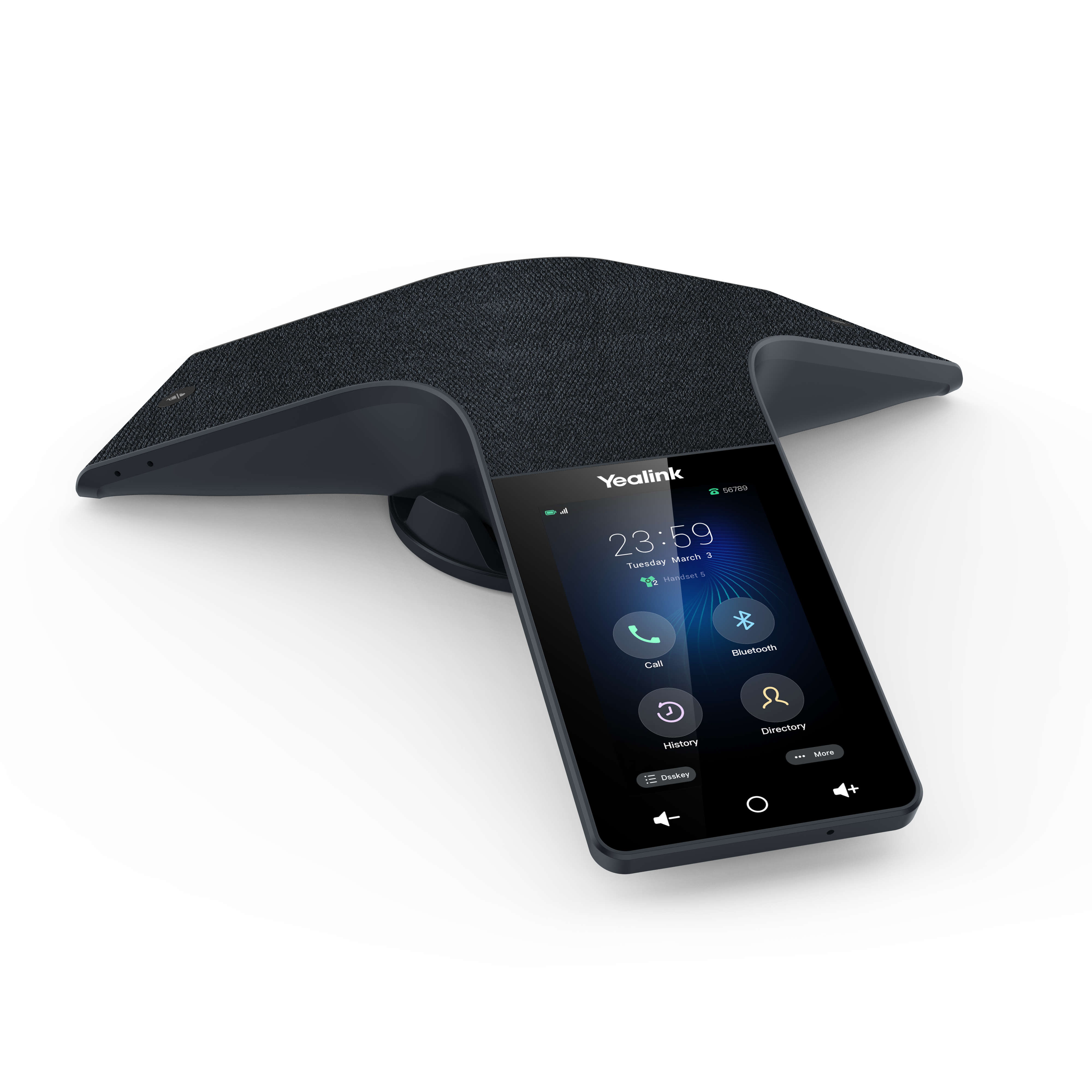
Common issues and fixes
Reviewed troubleshooting steps are not yet available for this model.
Ask AIM Telecom about this productAbout this product
Yealink CP935W is a wireless touch-sensitive HD conference phone designed for small to medium conference rooms. Its business and introverted design perfectly matches the calm style of the conference room, featuring an acoustic fabric that resists accidental liquid spills.
The phone boasts a fingerprint-proof LCD screen with clear UI interaction, making it easy for everyone to control meetings. With built-in battery and Wi-Fi, users can register a SIP account directly through Wi-Fi and deploy the device wirelessly without power or network cables.
Key features include:
• 4-inch multi-touch screen with 480×800 resolution
• Optimal HD audio and full duplex technology
• Yealink Noise Proof Technology
• Built-in rechargeable lithium battery with up to 20 hours talk time and 75 hours standby time in Wi-Fi mode
• 20-foot (6-meter) and 360° voice pickup
• Built-in 6-microphone array for clear voice pickup
• 5-way conference call and hybrid UC meeting capabilities
• Built-in Wi-Fi (2.4GHz/5GHz, 802.11a/b/g/n) and Bluetooth 4.2 connectivity
The phone boasts a fingerprint-proof LCD screen with clear UI interaction, making it easy for everyone to control meetings. With built-in battery and Wi-Fi, users can register a SIP account directly through Wi-Fi and deploy the device wirelessly without power or network cables.
Key features include:
• 4-inch multi-touch screen with 480×800 resolution
• Optimal HD audio and full duplex technology
• Yealink Noise Proof Technology
• Built-in rechargeable lithium battery with up to 20 hours talk time and 75 hours standby time in Wi-Fi mode
• 20-foot (6-meter) and 360° voice pickup
• Built-in 6-microphone array for clear voice pickup
• 5-way conference call and hybrid UC meeting capabilities
• Built-in Wi-Fi (2.4GHz/5GHz, 802.11a/b/g/n) and Bluetooth 4.2 connectivity
More product details
The Yealink CP935W is built for small to medium-sized conference rooms that need a clean, cable-free audio solution. Its wireless design and built-in battery make it a natural fit for huddle spaces, flexible meeting areas, or any room where running Ethernet and power cables would be disruptive. You can place it in the centre of a table and move it as needed, which suits dynamic office layouts common in Toronto’s downtown core and GTA business parks.
It pairs well with hosted VoIP platforms and on-premise SIP servers, and its Bluetooth and hybrid UC meeting support let it bridge mobile devices into the room audio. The trade-off is that all call quality and registration depend on a stable Wi-Fi connection. In offices with congested airwaves or weak signal, performance can suffer unless the network is properly tuned. The battery lasts through a full workday of talking, but you will need a routine charging discipline—this is not a set-and-forget desk phone.
For larger boardrooms or spaces seating more than a dozen people, the 20-foot pickup range and built-in speaker may feel underpowered. Conversely, for a solitary home office or a tiny phone booth, this device is overkill; a desktop IP phone would be more practical. It hits its sweet spot in the typical 4–8 person meeting room where quick setup and a tidy table matter more than absolute audio horsepower.
It pairs well with hosted VoIP platforms and on-premise SIP servers, and its Bluetooth and hybrid UC meeting support let it bridge mobile devices into the room audio. The trade-off is that all call quality and registration depend on a stable Wi-Fi connection. In offices with congested airwaves or weak signal, performance can suffer unless the network is properly tuned. The battery lasts through a full workday of talking, but you will need a routine charging discipline—this is not a set-and-forget desk phone.
For larger boardrooms or spaces seating more than a dozen people, the 20-foot pickup range and built-in speaker may feel underpowered. Conversely, for a solitary home office or a tiny phone booth, this device is overkill; a desktop IP phone would be more practical. It hits its sweet spot in the typical 4–8 person meeting room where quick setup and a tidy table matter more than absolute audio horsepower.