
Grandstream GCC6010 Built-in IPPBX (10 Users, 4 Concurrent Calls) + enterprise-grade firewall + VPN Router + 2 x 2.5 Gb, 5 x GigE Network Switch
AIM Telecom provides troubleshooting and configuration support for this product to businesses across Toronto and the GTA. Contact us to confirm whether the issue can be handled by phone or requires on-site service.
Get Support Call 416-312-4819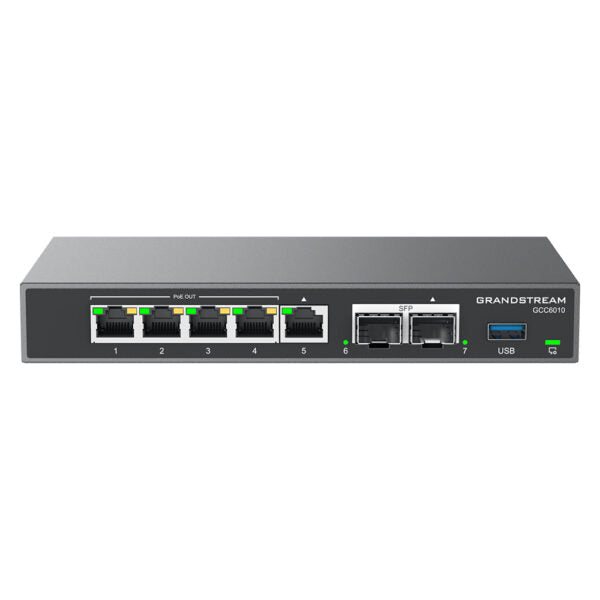
Common issues and fixes
Reviewed troubleshooting steps are not yet available for this model.
Ask AIM Telecom about this productAbout this product
• The GCC6010 Series provides an extraordinary all-in-one solution that redefines the communications experience by merging your unified communications and networking solutions into one platform.
• This state-of-the-art device combines the functionality of 4 products to provide an all-in-one solution that includes a VPN router, next-generation firewall, IP PBX, and network switch or Wi-Fi access point.
• Key features:
• Built-in IPPBX (10 Users, 4 Concurrent Calls)
• Enterprise-grade firewall
• VPN Router
• Support for SD-WAN for improved network performance, increased security, and simplified network management
• Easily configure, deploy, and manage all Grandstream endpoint solutions from one central location
• Weight: 1.86 lb
• Dimensions: 11.81 × 5.10 × 2.09 in
• Business Routers: VPN Routers
• Network Type: Wired, Wireless
• Main Port Speed: Gigabit
• Model: GCC6010
• Mounting: Desktop/Wall-mounting
• Material: Metal
• LEDs: 7x single LEDs , 4x PoE LEDs, and 1x RGB LED for device tracking and status indication
• Box Contents: GCC6010, Universal Power Supply, Network Cable, Rack mount kit (Only GCC6011), Quick Installation Guide
• This state-of-the-art device combines the functionality of 4 products to provide an all-in-one solution that includes a VPN router, next-generation firewall, IP PBX, and network switch or Wi-Fi access point.
• Key features:
• Built-in IPPBX (10 Users, 4 Concurrent Calls)
• Enterprise-grade firewall
• VPN Router
• Support for SD-WAN for improved network performance, increased security, and simplified network management
• Easily configure, deploy, and manage all Grandstream endpoint solutions from one central location
• Weight: 1.86 lb
• Dimensions: 11.81 × 5.10 × 2.09 in
• Business Routers: VPN Routers
• Network Type: Wired, Wireless
• Main Port Speed: Gigabit
• Model: GCC6010
• Mounting: Desktop/Wall-mounting
• Material: Metal
• LEDs: 7x single LEDs , 4x PoE LEDs, and 1x RGB LED for device tracking and status indication
• Box Contents: GCC6010, Universal Power Supply, Network Cable, Rack mount kit (Only GCC6011), Quick Installation Guide
More product details
The Grandstream GCC6010 is a convergence appliance tailored for very small businesses that want to collapse separate networking and voice hardware into one manageable unit. It makes sense for a professional office, retail counter, or satellite location with up to ten staff who need reliable internet access, basic firewall protection, and a simple phone system. Because it bundles a router, VPN, firewall, switch, and IP PBX at an accessible price, it can replace a tangle of ISP‑provided gear and entry‑level VoIP boxes with a single metal chassis that sits on a desk or wall.
This device pairs naturally with Grandstream SIP endpoints, especially since you can provision and manage everything from one central interface. If your office already uses a mix of Grandstream phones and you want a straightforward way to tie them together without a separate PBX server, the GCC6010 fits that role. For Canadian deployments, it works well in GTA professional services or small retailers where a single public IP and a handful of extensions are all that’s needed, and where the built‑in VPN can securely connect a remote owner or a home office.
Its limits are tied to the modest PBX capacity: four simultaneous calls across ten users is fine for light call volumes but will become a constraint if the team is phone‑heavy or if you expect to add a call queue or receptionist handling multiple lines at once. The firewall, while marketed as enterprise‑grade, lacks the advanced threat detection and reporting that some regulated industries require, so treat it as a capable SMB firewall rather than a compliance tool. Also, if you already have a solid router and only need a PBX, you would be paying for routing and switching features you don’t use.
The GCC6010 is overkill for a two‑person home office that could be served by a simple VoIP ATA and a basic router. Conversely, it’s underpowered for a busy clinic or call centre where more than four concurrent calls are routine. It shines in that narrow slice where a tiny office wants one device to handle internet, firewall, VPN, and phones—and doesn’t mind staying within the Grandstream ecosystem.
This device pairs naturally with Grandstream SIP endpoints, especially since you can provision and manage everything from one central interface. If your office already uses a mix of Grandstream phones and you want a straightforward way to tie them together without a separate PBX server, the GCC6010 fits that role. For Canadian deployments, it works well in GTA professional services or small retailers where a single public IP and a handful of extensions are all that’s needed, and where the built‑in VPN can securely connect a remote owner or a home office.
Its limits are tied to the modest PBX capacity: four simultaneous calls across ten users is fine for light call volumes but will become a constraint if the team is phone‑heavy or if you expect to add a call queue or receptionist handling multiple lines at once. The firewall, while marketed as enterprise‑grade, lacks the advanced threat detection and reporting that some regulated industries require, so treat it as a capable SMB firewall rather than a compliance tool. Also, if you already have a solid router and only need a PBX, you would be paying for routing and switching features you don’t use.
The GCC6010 is overkill for a two‑person home office that could be served by a simple VoIP ATA and a basic router. Conversely, it’s underpowered for a busy clinic or call centre where more than four concurrent calls are routine. It shines in that narrow slice where a tiny office wants one device to handle internet, firewall, VPN, and phones—and doesn’t mind staying within the Grandstream ecosystem.