
Grandstream UCM6304A 4 FXO 4 FXS Audio PBX
AIM Telecom provides troubleshooting and configuration support for this product to businesses across Toronto and the GTA. Contact us to confirm whether the issue can be handled by phone or requires on-site service.
Get Support Call 416-312-4819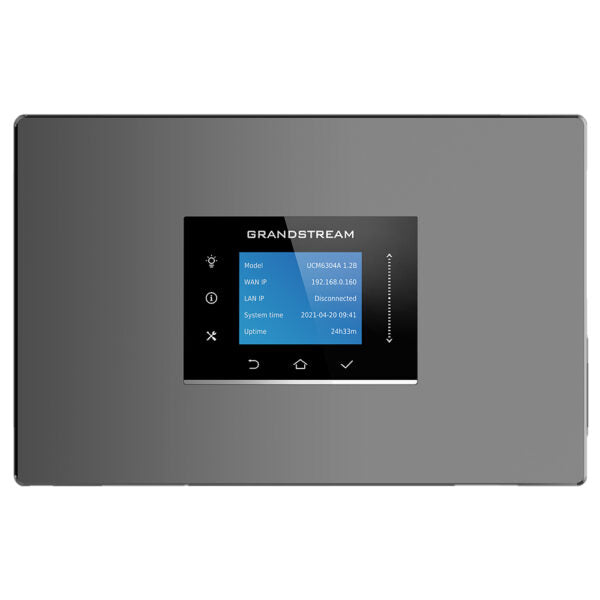
Common issues and fixes
Reviewed troubleshooting steps are not yet available for this model.
Ask AIM Telecom about this productAbout this product
• The UCM6300 Audio series from Grandstream offers a powerful and scalable unified communication and collaboration solution for businesses.
• This IP PBX platform unifies fundamental business communications needs, including voice, instant messaging, voice meetings, audio web meetings, data, analytics, mobility, facility access, intercoms, and more.
Key Features:
• Supports up to 1500 users
• Built-in Instant Messaging (IM), Audio Conferencing & Web Meetings platform that supports access from computers, mobile devices, and SIP endpoints
• Free Wave App for easy voice and instant messaging communications using desktops, web, and Android/iOS devices
• API available for third-party integrations
• Advanced security protection with secure boot, unique certificate, and random default password
• Three Gigabit auto-sensing RJ45 network ports with integrated PoE+ and support NAT router
• Automated NAT firewall traversal service facilitates secure remote connections
• Enhanced reliability with support for Hot Standby High-Availability and local dual deployment
Additional Information:
• Weight: 2.89 lbs
• Dimensions: 14.88 × 8.09 × 2.36 in
• Brand: Grandstream
• Number of Ports: 4 FXS, 4 FXO
• This IP PBX platform unifies fundamental business communications needs, including voice, instant messaging, voice meetings, audio web meetings, data, analytics, mobility, facility access, intercoms, and more.
Key Features:
• Supports up to 1500 users
• Built-in Instant Messaging (IM), Audio Conferencing & Web Meetings platform that supports access from computers, mobile devices, and SIP endpoints
• Free Wave App for easy voice and instant messaging communications using desktops, web, and Android/iOS devices
• API available for third-party integrations
• Advanced security protection with secure boot, unique certificate, and random default password
• Three Gigabit auto-sensing RJ45 network ports with integrated PoE+ and support NAT router
• Automated NAT firewall traversal service facilitates secure remote connections
• Enhanced reliability with support for Hot Standby High-Availability and local dual deployment
Additional Information:
• Weight: 2.89 lbs
• Dimensions: 14.88 × 8.09 × 2.36 in
• Brand: Grandstream
• Number of Ports: 4 FXS, 4 FXO
More product details
The UCM6304A suits a growing small-to-medium business that still depends on a handful of analog phone lines and legacy desk phones, yet wants to modernize with VoIP calling, mobile apps, and web-based conferencing. It’s a pragmatic bridge for offices that aren’t ready to rip out their copper lines but see value in unified communications—especially in older buildings around the GTA where Bell or Rogers analog lines remain common and reliable.
Because it includes four FXO ports for PSTN trunks and four FXS ports for analog devices, this appliance focuses on modest analog integration. It pairs naturally with Grandstream’s own IP phones and the Wave softphone app, creating a mixed environment where a receptionist can keep a traditional analog handset while mobile staff work entirely through their smartphones. The built-in NAT router and automated traversal help remote users connect without complex firewall configurations, though site-to-site VPNs or static IPs still boost stability.
Keep in mind the analog ports are a fixed quantity; if your business needs to connect more than four PSTN lines or more than four analog phones/fax machines, you’ll need additional gateways or a larger model. The 1500-user capacity far exceeds the analog trunk count, so this is best when most users are IP-based and the analog side covers only a few critical endpoints. It can be overkill for a micro-business with two or three people who only need a simple ATA and a softswitch, but it’s underpowered for a call centre that relies on dozens of copper lines or requires heavy inbound failover from multiple carriers.
Because it includes four FXO ports for PSTN trunks and four FXS ports for analog devices, this appliance focuses on modest analog integration. It pairs naturally with Grandstream’s own IP phones and the Wave softphone app, creating a mixed environment where a receptionist can keep a traditional analog handset while mobile staff work entirely through their smartphones. The built-in NAT router and automated traversal help remote users connect without complex firewall configurations, though site-to-site VPNs or static IPs still boost stability.
Keep in mind the analog ports are a fixed quantity; if your business needs to connect more than four PSTN lines or more than four analog phones/fax machines, you’ll need additional gateways or a larger model. The 1500-user capacity far exceeds the analog trunk count, so this is best when most users are IP-based and the analog side covers only a few critical endpoints. It can be overkill for a micro-business with two or three people who only need a simple ATA and a softswitch, but it’s underpowered for a call centre that relies on dozens of copper lines or requires heavy inbound failover from multiple carriers.