
Grandstream GCC6020 Built-in IPPBX (12 Users, 4 Concurrent Calls) + enterprise-grade firewall + VPN Router + 1 x 2.5 Gb, 1 x 10 Gig SFP+, 4 x GigE Network Switch
AIM Telecom provides troubleshooting and configuration support for this product to businesses across Toronto and the GTA. Contact us to confirm whether the issue can be handled by phone or requires on-site service.
Get Support Call 416-312-4819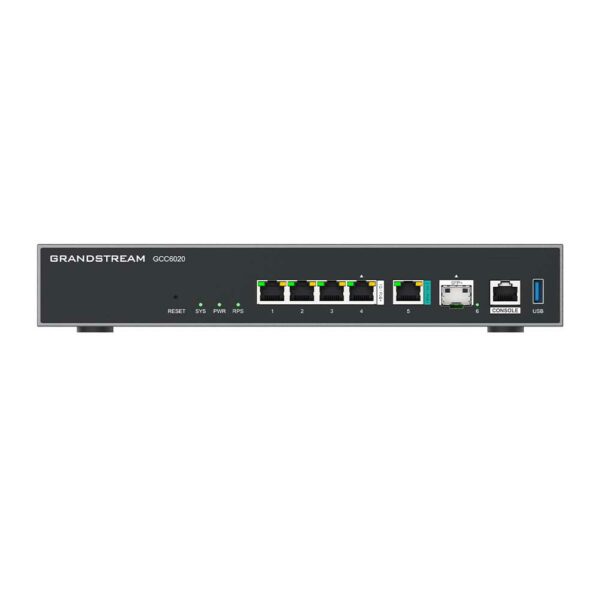
Common issues and fixes
Reviewed troubleshooting steps are not yet available for this model.
Ask AIM Telecom about this productAbout this product
The GCC6020 provides an all-in-one solution that redefines the communications experience by merging unified communications and networking solutions into one platform. This state-of-the-art device combines the functionality of 4 products to provide a single, powerful solution.
Key Features:
• Integrated VPN router
• Enterprise-grade firewall
• Built-in IPPBX for up to 12 users with 4 concurrent calls
• 1 x 2.5 Gb and 1 x 10 Gig SFP+ ports
• 4 x GigE network switches
This device provides unified management and centralized control of all Grandstream endpoint solutions, including Wi-Fi APs, network switches, IP Phones, and more. It allows for full UC, networking, and security solutions to be configured in minutes and managed through the cloud with our Device Management System or via a mobile app, local Web UI, CLI, and SSH console management.
Ideal for small-to-medium sized businesses, the GCC6020 provides an all-in-one platform that combines business data, security, communication, and collaboration needs into one device.
Key Features:
• Integrated VPN router
• Enterprise-grade firewall
• Built-in IPPBX for up to 12 users with 4 concurrent calls
• 1 x 2.5 Gb and 1 x 10 Gig SFP+ ports
• 4 x GigE network switches
This device provides unified management and centralized control of all Grandstream endpoint solutions, including Wi-Fi APs, network switches, IP Phones, and more. It allows for full UC, networking, and security solutions to be configured in minutes and managed through the cloud with our Device Management System or via a mobile app, local Web UI, CLI, and SSH console management.
Ideal for small-to-medium sized businesses, the GCC6020 provides an all-in-one platform that combines business data, security, communication, and collaboration needs into one device.
More product details
The Grandstream GCC6020 is a compact all-in-one appliance designed for small businesses that want to consolidate their voice, data, and security infrastructure into a single manageable device. It is ideal for a small office of up to 12 users, such as a professional services firm, retail location, or branch office of a larger organization, where a full-sized PBX and separate networking gear would be overkill. By combining a built-in IP PBX, enterprise-grade firewall, VPN router, and a multi-gigabit network switch, the GCC6020 replaces the need for four separate pieces of equipment, simplifying procurement, cabling, and ongoing maintenance.
For a Canadian small business in the GTA, the GCC6020 offers straightforward compatibility with major SIP trunk providers and can be managed locally or through Grandstream's cloud-based Device Management System. The 12-user, 4-concurrent-call limit means it is well-suited for teams that do not require heavy call volume, but it may feel constrained in a fast-paced sales or customer service environment where many calls happen simultaneously. The integrated firewall and VPN router provide basic network security and remote access, though organizations with advanced security needs (e.g., PCI compliance) may still require a dedicated next-generation firewall upstream.
The device’s switch ports include one 2.5Gb port and one 10 Gig SFP+ port, which allow for high-speed uplinks to a server or a faster LAN backbone, while the four Gigabit ports handle typical office devices like PCs and IP phones. This makes the GCC6020 a practical choice for a small office that already uses Grandstream endpoints (phones, Wi-Fi access points, switches) and wants unified management. However, if your team grows beyond 12 users or requires more than four concurrent calls, this device will quickly become underpowered, and you would need to look at a larger PBX or a separate voice platform.
For a Canadian small business in the GTA, the GCC6020 offers straightforward compatibility with major SIP trunk providers and can be managed locally or through Grandstream's cloud-based Device Management System. The 12-user, 4-concurrent-call limit means it is well-suited for teams that do not require heavy call volume, but it may feel constrained in a fast-paced sales or customer service environment where many calls happen simultaneously. The integrated firewall and VPN router provide basic network security and remote access, though organizations with advanced security needs (e.g., PCI compliance) may still require a dedicated next-generation firewall upstream.
The device’s switch ports include one 2.5Gb port and one 10 Gig SFP+ port, which allow for high-speed uplinks to a server or a faster LAN backbone, while the four Gigabit ports handle typical office devices like PCs and IP phones. This makes the GCC6020 a practical choice for a small office that already uses Grandstream endpoints (phones, Wi-Fi access points, switches) and wants unified management. However, if your team grows beyond 12 users or requires more than four concurrent calls, this device will quickly become underpowered, and you would need to look at a larger PBX or a separate voice platform.