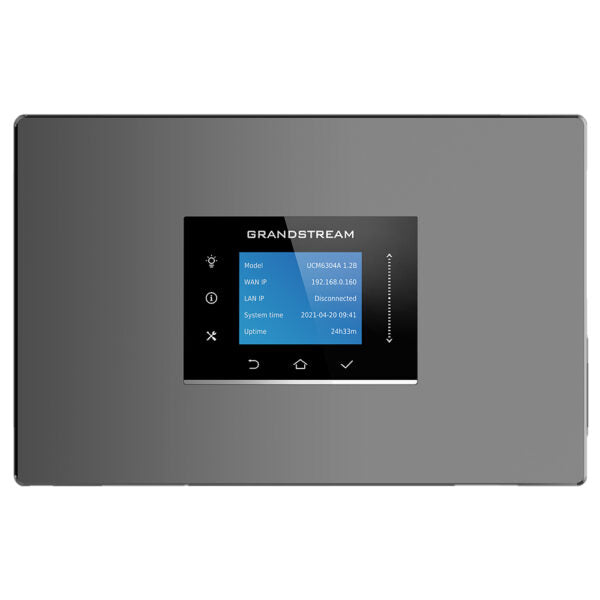
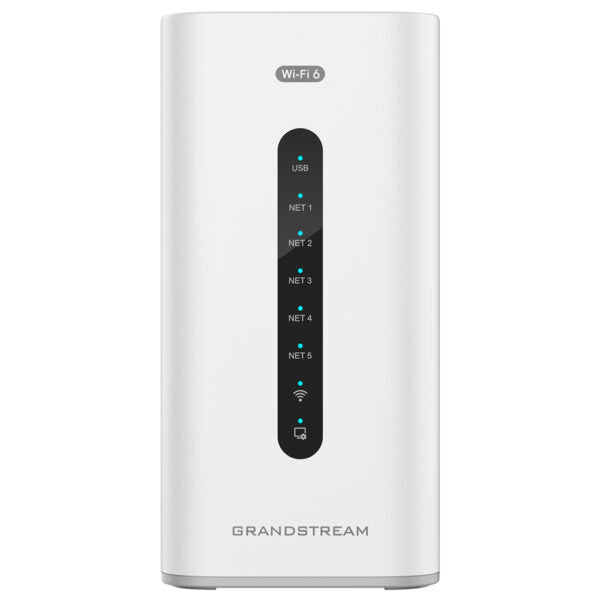
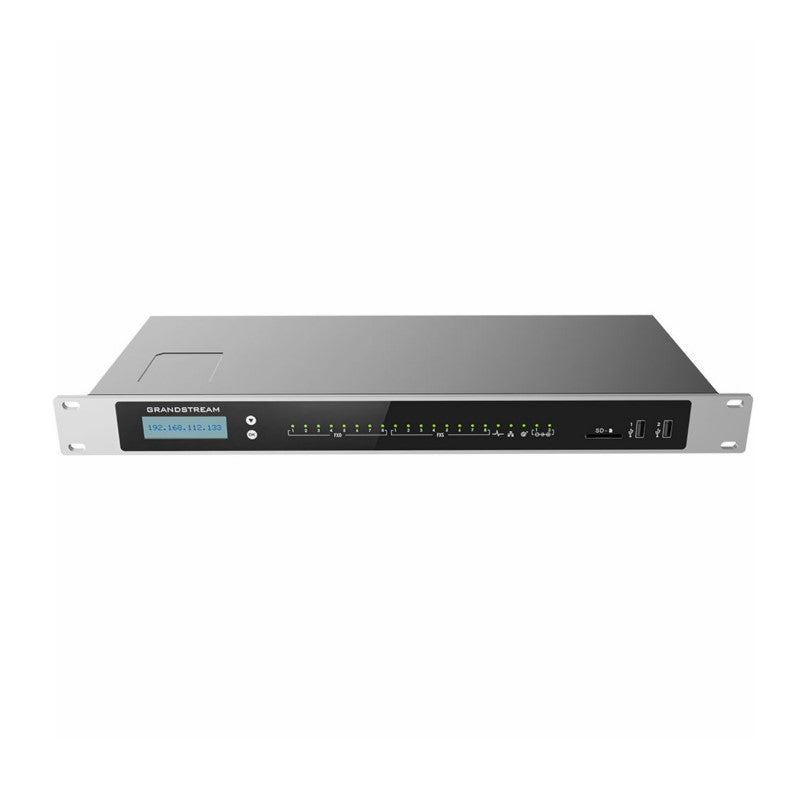
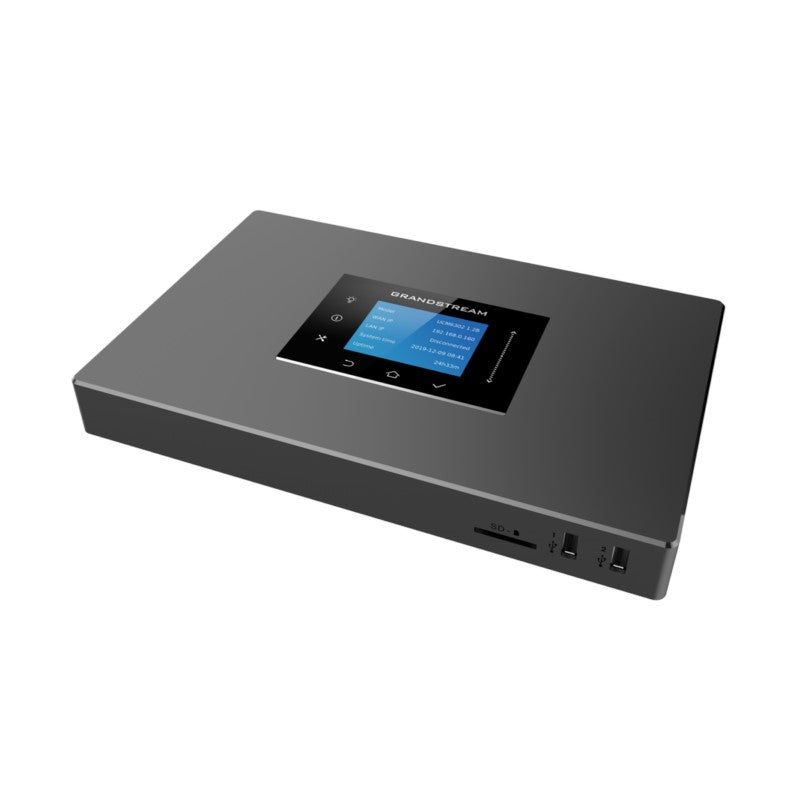
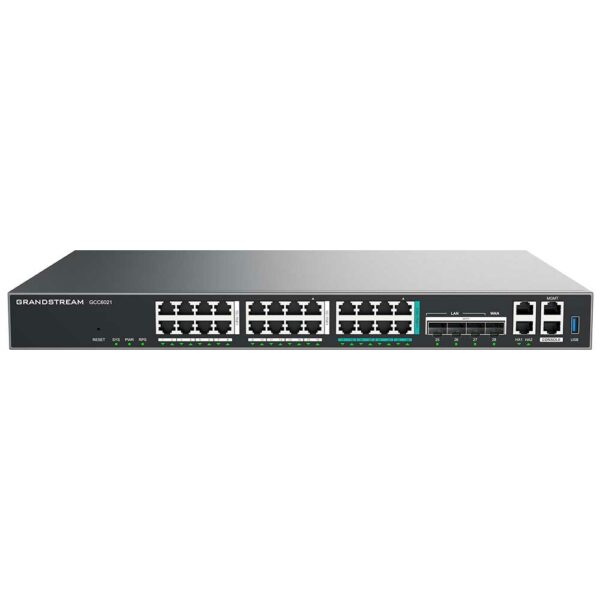
Grandstream GCC6021 Built-in IPPBX (12 Users, 4 Concurrent Calls) + enterprise-grade firewall + VPN Router + 8 x 2.5 Gb, 4 x 10 Gig SFP+, 16 x GigE Network Switch
Frequently Asked Questions

First, confirm that the phones and the GCC6021 are on the same network segment or VLAN. Check the phone’s SIP server setting to ensure it points to the GCC6021’s IP address on the correct port (default 5060). Then verify that the extension number and password you entered on the phone match exactly what is configured in the GCC6021’s extension list.
Ensure that the VPN client credentials (username, password, and any pre-shared key) are correct and match the GCC6021’s VPN server configuration. Verify that the device’s WAN interface has a public IP or that the necessary ports (e.g., UDP 500 and 4500 for IPSec) are forwarded if the GCC6021 sits behind a modem. Also check that your client’s firewall is not blocking the VPN protocol.
Start by checking that your Internet connection has sufficient upload bandwidth — at least 100 kbps per concurrent call is a reasonable baseline. Then enable Quality of Service (QoS) on the GCC6021’s switch and firewall to prioritize SIP and RTP traffic. If the network has heavy file transfers or video streaming, try moving those to a separate VLAN or schedule them outside peak call hours.
Try a different cable and a known-working device on the same port to eliminate a physical fault. Log into the GCC6021’s web interface and check the port status under switching — look for errors or disabled status. If the port is in a VLAN that is different from the device’s configured VLAN, adjust the port’s PVID or assign the device to the correct VLAN.
Make sure your computer is connected to one of the LAN ports (not the WAN port) and has an IP address from the same subnet as the GCC6021 (default 192.168.10.1). Try pinging that IP address from a command prompt. If you still cannot connect, power-cycle the GCC6021 — a temporary software glitch is often cleared by a restart and does not erase settings.
First, ensure you downloaded the correct firmware file from the Grandstream support site for the exact model. Reboot the device by unplugging power for 10 seconds, then retry the update from the web interface using a wired connection. If the update still fails, contact support before attempting any recovery process that could reset the device.
Access the GCC6021’s web GUI, go to the PBX section, and create extensions for each user — assign a unique number and password. Then add a SIP trunk from your provider: enter the hostname or IP, username, and password provided by your Canadian carrier like Rogers or Bell. Finally, set up inbound and outbound routes so calls reach the correct extensions or external numbers.
Yes. From the web interface, navigate to the switching section and create a new VLAN with a descriptive name and VLAN ID. Assign ports that should be in that VLAN by changing their mode to ‘Access’ and setting the PVID, or use ‘Trunk’ if you want to carry multiple VLANs. Save the configuration and reboot the switch portion if prompted.
Log in to the GCC6021, go to the PBX menu, then SIP Trunks. Click Add and enter the provider’s server address, your account username, and password. For most Canadian business providers, leave the transport as UDP and the port at 5060 unless told otherwise. Test the trunk by making a call once it registers status shows ‘Registered’.
First, find the application’s required ports by checking its documentation. In the GCC6021’s firewall settings, create a rule to allow traffic to your device’s IP on those ports. If you are unsure which ports, temporarily set the firewall to a low security level for testing — but be sure to restore it afterwards. If the issue persists, a Toronto-based VoIP support provider can usually resolve this remotely.
IP PBX

Grandstream GCC6021 Built-in IPPBX (12 Users, 4 Concurrent Calls) + enterprise-grade firewall + VPN Router + 8 x 2.5 Gb, 4 x 10 Gig SFP+, 16 x GigE Network Switch

The GCC6021 is an all-in-one solution that combines unified communications and networking solutions into one platform. This state-of-the-art device provides a VPN router, next-generation firewall, IPPBX, and network switch, allowing for the creation and management of wired, wireless, and VPN networks. Key features include: • Built-in IPPBX with 12 users and 4 concurrent calls • Enterprise-grade firewall • Integrated VPN Router • 8 x 2.5 Gb ports • 4 x 10 Gig SFP+ ports • 16 x GigE Network Switch These devices offer unified management and centralized control of all Grandstream endpoint solutions, providing an affordable solution for small-to-medium sized businesses to build state-of-the-art communication solutions. For a full list of specifications, please refer to the GCC6020 and GCC6021 Data Sheet.

About This Product

The Grandstream GCC6021 is an all-in-one appliance designed for small to medium-sized businesses that want to simplify their network and communications infrastructure. It combines an IPPBX, enterprise firewall, VPN router, and a managed switch with 2.5 Gb and 10 Gb connectivity into a single device. This makes it especially suitable for a growing office in the GTA or similar urban business district where desk space is at a premium and consolidating equipment reduces cabling and support overhead. It eliminates the need for separate phone servers, routers, and switches, and works particularly well with Grandstream SIP endpoints for a fully integrated experience.

For a business with roughly five to twelve staff, the GCC6021’s built-in IPPBX supports up to 12 users and four concurrent calls — enough for a team that communicates primarily internally but also handles moderate outside call volume. The switch section offers eight 2.5 Gb Ethernet ports and four 10 Gig SFP+ uplinks, making it easy to connect high-speed workstations or a NAS, while the sixteen GigE ports handle standard office devices. However, none of the switch ports provide Power over Ethernet (PoE), meaning you will need separate PoE injectors or a PoE switch if you intend to power VoIP phones directly from the GCC6021 — a point to plan for in your wiring closet.

Where this device truly shines is in a deployment that wants one vendor’s ecosystem for phone system, firewall, and network management. It is overkill for a sole proprietor or a very small team that could manage with a cloud PBX and a basic router. Conversely, it may be underpowered for an office expecting rapid growth beyond 12 users or needing more than four simultaneous calls, as those limits are hard-coded. It is also not the right choice if your network demands advanced Layer 3 switching or deep packet inspection beyond what the built-in firewall offers. For the right-sized business, however, the GCC6021 delivers a remarkably tidy, cost-effective, and unified platform.
Services We Provide
  • Professional Installation & Configuration
  • Ongoing Maintenance & Support
  • Troubleshooting & Repairs
  • System Upgrades & Updates