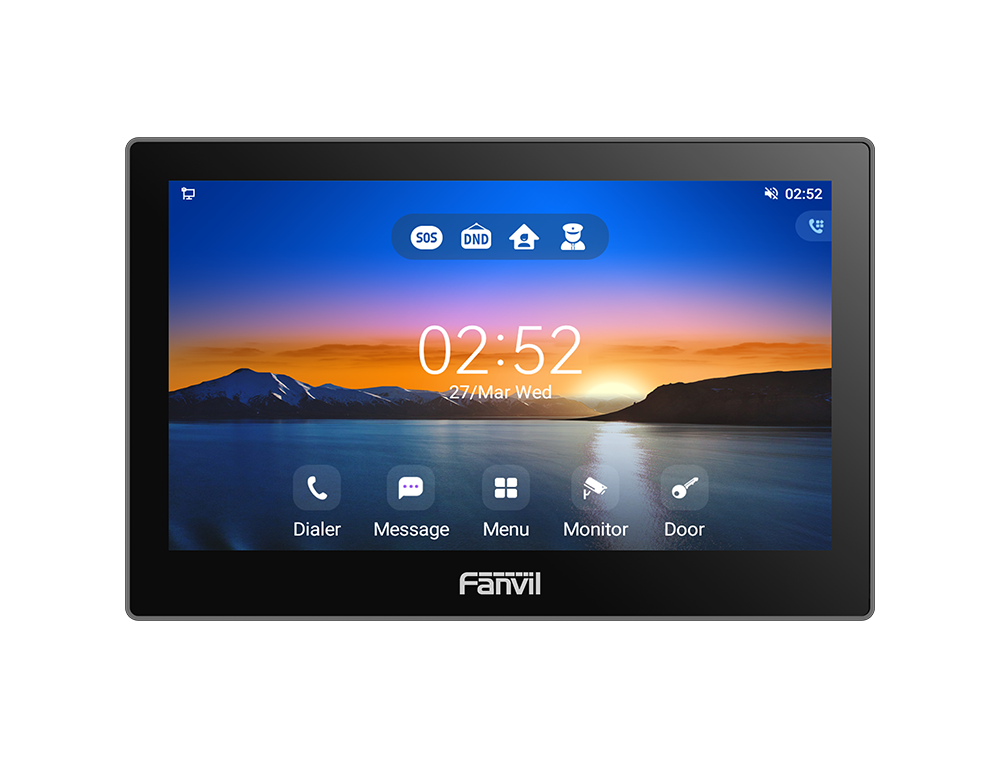
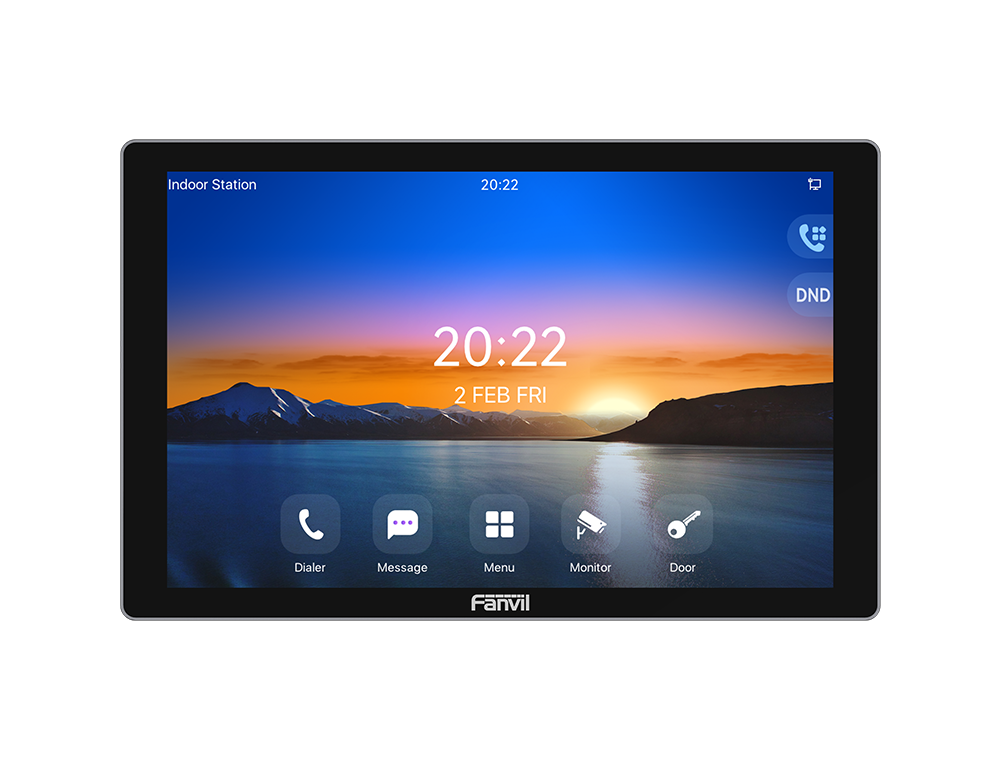
Grandstream GSC3574 IP Video Intercom Phone

Frequently Asked Questions

First confirm that the device is receiving PoE and has a valid IP address—check the network status on the touch screen. Next, verify the SIP server address, extension, and password in the account settings, ensuring there are no typos or extra spaces. If the server is on a different VLAN, make sure the network port is tagged correctly. If the problem continues, a Toronto-based VoIP support provider can usually diagnose the registration remotely.
A slow or unresponsive screen can often be fixed by a simple reboot—hold the power icon on the screen or disconnect and reconnect the PoE cable. Ensure the device isn’t overheating, as direct sunlight or a poorly ventilated mount can cause performance issues. If the screen remains sluggish, check that no power-hungry Android apps are running in the background; closing unnecessary apps from the recent apps view may help.
Double-check that you’ve selected the correct frequency band (2.4GHz or 5GHz) and entered the correct password. The GSC3574’s Wi‑Fi antenna works best when the device isn’t surrounded by metal; if it’s mounted on a metal wall, try repositioning the bracket or using adhesive tape to create a small gap. Also, confirm that the access point isn’t using a hidden SSID or MAC filtering that could block the intercom.
Start by verifying that both the GSC3574 and the other endpoint are using the same codec, preferably G.722 for HD audio. Check the network for packet loss—a quick ping test from the device’s diagnostic menu can reveal jitter. If echo is present, ensure the speaker volume isn’t set too high and that the unit isn’t enclosed in a small space that reflects sound back to the microphone.
First confirm that the wiring matches the input type—the GSC3574 has 6 dry-contact (short) inputs and 2 voltage inputs, so a sensor wired to the wrong type won’t register. Use a multimeter to check that the sensor is closing the circuit correctly. In the device’s alarm settings, ensure the input is enabled and the trigger condition (normally open or normally closed) matches your sensor.
From the home screen, open the Grandstream Room Panel app and sign in with your facility’s credentials. You’ll need to pair the GSC3574 with a compatible Grandstream UCM or cloud scheduling platform. Once linked, you can configure the display to show room availability, book meetings, and adjust meeting duration directly from the touch panel. Make sure the device’s date and time are synchronized via NTP to avoid scheduling conflicts.
Check the Ethernet cable for damage and try a different port on the switch; a marginal PoE supply can cause intermittent drops. If using Wi‑Fi, look for channel congestion—switching to a less crowded channel or to the 5GHz band may stabilize the connection. Also, disable any power-saving features in the Android settings that might be turning off the network interface.
Yes, because it runs Android 13, you can sideload or install compatible apps from the Grandstream-approved app store or via USB. However, only install apps that are designed for a fixed touch screen and don’t require frequent updates or background services that could interfere with intercom functions. For HVAC or lighting control, stick to apps that support Android’s kiosk mode for a stable, always-on experience.
After a reset, the device will try to download a configuration from the provisioning server. First, confirm that the GSC3574 can reach the server’s IP or FQDN—use the built-in network tools to ping it. Check that the MAC address is correctly entered in your provisioning system and that the configuration file isn’t corrupted. If the error persists, do not reset again; instead, verify the provisioning URL and credentials with your VoIP administrator.
Door Phones

Grandstream GSC3574 IP Video Intercom Phone
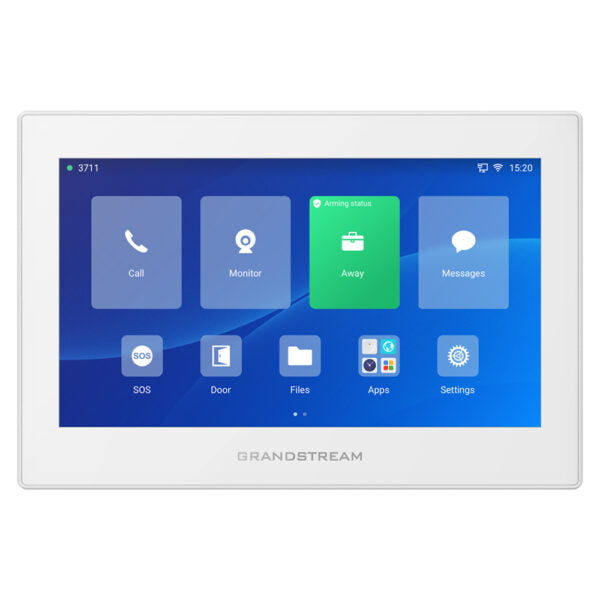
• Powerful intercom and facility control station with 7-inch touch screen LCD, full duplex 2-way HD audio, and flexible network connectivity. • Supports Android V.13 and integrates with Grandstream's entire range of products for seamless facility-wide UC integration. • Key features: ‣ 7-inch capacitive touch screen TFT LCD ‣ Full duplex 2-way HD audio with advanced echo cancellation ‣ Dual-band Wi-Fi 6 802.11 a/b/g/n/ac/ax (2.4GHz and 5GHz) support ‣ Integrated Bluetooth 5.0 ‣ Secure Boot & Data, TLS, and SRTP security encryption technology for protected calls and accounts ‣ 8x alarm input ports and 2x alarm output ports for customized deployments • Supports HVAC, lighting, smart home, smart office, and similar Android apps. • Runs on Android V.13 and integrates with Grandstream's products for a seamless facility-wide UC experience. • Includes features such as room occupancy status monitoring, reserved meeting times, and adjustable meeting duration using the meeting room panel mode. • Package contents include: ‣ GSC3574 device ‣ Quick installation guide ‣ 0° wall mount bracket ‣ 20° desktop mount ‣ Wall mount bracket ‣ Adhesive tape ‣ Expansion anchors (6) ‣ Screws (8) • Network interface: 1x 10/100M adaptive port with integrated PoE. • Graphic display: 7’’ 1024×600 capacitive touch screen TFT LCD. • Memory: 2GB RAM, 8GB eMMC Flash. • Wi-Fi: Yes, dual-band Wi-Fi 6 802.11 a/b/g/n/ac/ax (2.4GHz and 5GHz). • Bluetooth: Yes, integrated Bluetooth 5.0. • Auxiliary ports: 1x type-A USB 2.0 port, 1 x micro-SD card socket. • Alarm input: 8 Channels, 6x Alarm Short-In, 2x Alarm Voltage-In. • Alarm output: 2 Relays, max 125VAC/0.5A or 30VDC/2A, Normal Open or Normal Close. • Video Conferencing: Control Panel. • Telephony Features: ‣ 6 SIP Accounts ‣ Hold ‣ Call Waiting ‣ Call Log ‣ Auto Answer, etc. • Operating System: Android 13.

About This Product

The Grandstream GSC3574 is a wall-mount IP intercom and facility control panel built for modern offices, retail spaces, and shared commercial environments. It combines a large 7-inch touch screen with full-duplex HD audio and Android 13, so it can run building management apps alongside its core intercom functions. This makes it a practical choice for locations that need a single point of access control, room scheduling display, or lighting and HVAC control, especially within a Grandstream unified communications setup. For a Toronto business, the integrated PoE and dual-band Wi‑Fi 6 mean it can be placed where network cabling is simplest without sacrificing reliable connectivity.

Because the GSC3574 runs Android, it can host third-party apps for smart office or smart home control, which extends its usefulness beyond a simple door phone. The 8 alarm inputs and 2 relay outputs let it tie into existing door strikes, motion sensors, or alert systems, so a single device can replace a small cluster of separate controllers. That said, it is not a standalone security panel or a full building automation gateway; it works best when it’s part of a larger Grandstream ecosystem with an on-site UCM or cloud management. For a single-door small business that only needs a basic SIP doorbell, this unit is probably overkill, while a multi-tenant building with complex access rules will find it a flexible, cost-effective front end.

Installation is straightforward with the included wall and desktop brackets, and the 20° desktop mount option is useful for reception desks where the screen needs to be visible without being permanently mounted. The 10/100M network port with PoE keeps wiring simple, but the lack of a gigabit interface means it won’t double as a high-speed pass-through switch. For Canadian deployments, the dual-band Wi‑Fi 6 helps in dense office towers where 2.4GHz interference is common, and the alarm ports can interface with standard low-voltage wiring commonly found in commercial suites across the GTA.
Services We Provide
  • Professional Installation & Configuration
  • Ongoing Maintenance & Support
  • Troubleshooting & Repairs
  • System Upgrades & Updates