Grandstream GWN7052 Dual-Band Wi-Fi Router

Frequently Asked Questions

First, double-check that you’re entering the correct Wi-Fi password (found on the sticker or set during initial configuration). If the password is correct, power-cycle the router and your laptop, then try again while close to the router. Also verify that MAC address filtering isn’t accidentally enabled in the web interface, as that could block your device.
On the GWN7052, ensure you’re connected to the 5GHz band for higher throughput, as the 2.4GHz band is more congested. Move the router away from thick walls, metal objects, and other electronics that cause interference. Log into the router’s dashboard and check if any Quality of Service (QoS) rules or bandwidth limits are unintentionally restricting speed.
Confirm that the pre-shared key, peer IP address, and encryption parameters match exactly on both ends of the tunnel. Check that the WAN interface on the GWN7052 is actually online and has a public IP (or is correctly port-forwarded if behind another router). Many Canadian ISPs do not block IPsec by default, but if the issue persists, a VoIP and networking support team in Toronto can usually help verify the handshake remotely.
First, check if the issue is limited to one area of the office—if so, interference or weak signal is likely. Log into the router and see how many clients are connected; approaching the 100-device limit can cause instability. Try disabling band steering temporarily to see if forcing clients to a particular band improves stability, and make sure the firmware is up to date from the Grandstream website.
Connect a computer directly to one of the LAN ports with an Ethernet cable, and set your computer to obtain an IP address automatically. The GWN7052 typically hands out a 192.168.x.x address; open a command prompt and type ‘ipconfig’ (Windows) or ‘ifconfig’ (Mac/Linux) to find the default gateway. If you still cannot reach the interface, reboot the router—it’s a safe, non-destructive step that often restores access.
Start by navigating to the router’s security or firewall section and look for SIP ALG (Application Layer Gateway). SIP ALG can rewrite packet headers and cause registration failures—temporarily disabling it is a safe troubleshooting step. Also confirm that the phones are getting IP addresses via DHCP and can ping the PBX server’s IP. If this doesn’t solve it, a Toronto-based VoIP support team can often pinpoint the issue by checking NAT traversal and port forwarding settings.
Check the WAN port’s link light when the connection drops—if it goes out, the issue might be the Ethernet cable or the modem. Log into the router’s system log to see if the WAN interface is losing its IP address, which could point to a problem with the ISP modem or DHCP lease. Ensure the router’s firmware is current, as early firmware versions sometimes had stability quirks.
If the GWN7052’s embedded controller is enabled (it is by default), simply connect a compatible Grandstream GWN AP to the same network, and it should be discovered automatically in the controller’s web interface. You can then adopt it and assign it a role, either as a mesh extender or a wired access point. The controller can manage up to 30 such APs, making it easy to scale coverage.
The embedded controller is designed exclusively for Grandstream GWN access points; it won’t adopt or manage third-party APs. If you already have APs from another vendor, they’ll still function as standalone devices on the network, but you’ll need to manage them separately.
Yes, the GWN7052 is rated for up to 100 client devices, so 50 is well within its comfort zone for typical office tasks like email, web browsing, and voice calls. For the best experience, connect bandwidth-heavy devices like conference room systems or NAS units via the four Gigabit LAN ports. If you later expand beyond 100 clients, adding a Grandstream access point managed by the router is a straightforward upgrade.
Routers

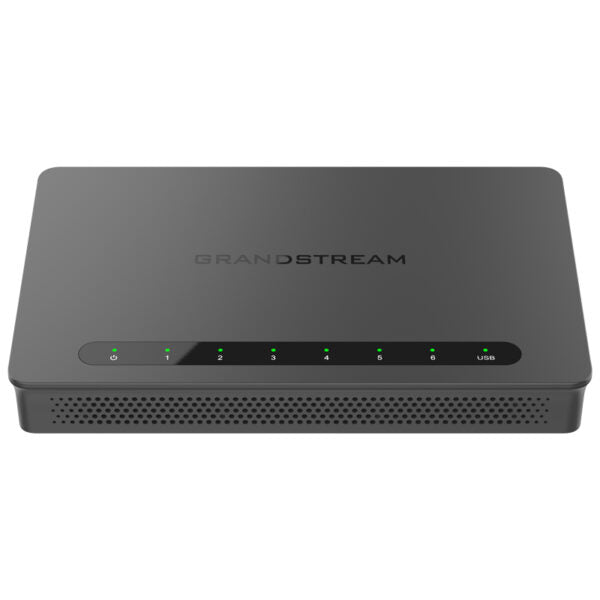
Grandstream GWN7052 Dual-Band Wi-Fi Router
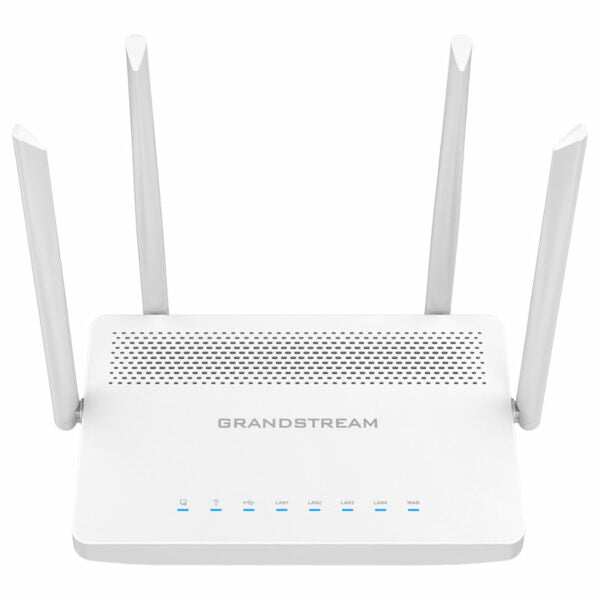
• The GWN7052 is a secure dual-band router powered by 802.11ac Wi-Fi technology, ideal for small offices, home offices, and remote workers. • Dual-band 2×2 MU-MIMO provides Wi-Fi speeds of up to 1.266 Gbps to 100 wireless devices, supporting bandwidth demanding applications such as 4K Ultra HD video streaming, web meeting, video conference, online gaming, and more. Key Features: • Accelerated Wi-Fi speeds • Mesh networking • Wired AP connections • Built-in VPN support • Supports up to 100 wireless client devices • Powerful security features, including unique security certificates and random default passwords Additional Information: • Weight: 1.63 lbs • Dimensions: 9.85 × 9.9 × 2.21 in • Brand: Grandstream • Product Family: GWN-Cloud • WAN Port Count: 1-4 Technical Specifications: • Memory and NAT Sessions: 128MB RAM, 30K NAT sessions • NAT Routing & IPSec VPN Performance: 1Gbps NAT routing and 300Mbps IPSec VPN performance • Wi-Fi Standards: IEEE 802.11 a/b/g/n/ac • Antennas: 4 individual external antennas, 2 per band • Wi-Fi Data Rates: + 5G: IEEE 802.11ac: 6.5 Mbps to 867 Mbps, IEEE 802.11n: 6.5 Mbps to 300 Mbps, IEEE 802.11a: 6, 9, 12, 18, 24, 36, 48, 54 Mbps + 2.4G: IEEE 802.11n: 6.5 Mbps to 300 Mbps, IEEE 802.11b: 1, 2, 5.5, 11 Mbps, IEEE 802.11g: 6, 9, 12, 18, 24, 36, 48, 54 Mbps • Network Interfaces: + 1x Gigabit Ethernet WAN port and 4x Gigabit Ethernet LAN ports • Network Management: + GWN7052 embedded controller can manage itself and up to 30 GWN APs

About This Product

The Grandstream GWN7052 is a dual-band Wi-Fi router tailored for small offices, home offices, and distributed teams that need reliable connectivity without the complexity of enterprise-grade hardware. It sits comfortably at the center of a Grandstream ecosystem, pairing naturally with the company’s IP phones and GWN access points to create a unified, cloud-managed network. For a small professional services firm in the GTA with a handful of workstations, VoIP phones, and perhaps a printer, this router provides a clean, single-vendor solution that’s easy to set up and manage.
Built on 802.11ac (Wi-Fi 5) technology, the GWN7052 delivers solid performance for everyday business tasks—video calls, file sharing, and cloud application access—but it’s not the latest generation. Buyers who plan to invest heavily in Wi-Fi 6 client devices over the next few years may want to consider a more recent standard. That said, real-world speeds remain ample for most small-business workloads, especially when paired with wired connections for bandwidth-hungry endpoints like conference room systems.
One of the router’s standout features is its built-in IPSec VPN, capable of 300 Mbps throughput. That makes it a practical choice for remote workers needing a secure tunnel back to the office or for connecting two small sites. A Toronto-based accountant, for example, could use the GWN7052 at home to access firm resources as if they were on the LAN, without suffering the sluggish performance that often plagues software-based VPN clients. The embedded controller for up to 30 GWN APs also means a growing office can add wireless coverage incrementally without an extra management appliance.
It’s worth noting the product’s limits: the 100-client capacity is generous for a small office but will strain if you try to run a busy retail floor or a co-working space where dozens of smartphones and laptops constantly associate and disassociate. The 1Gbps NAT routing won’t bottleneck a typical Canadian fibre internet plan, but in a deployment with many simultaneous high-throughput streams, the 30K NAT sessions could become a ceiling. For the right size of organization, though, the GWN7052 hits a sweet spot between capability, cost, and the simplicity of a single management interface.
Services We Provide
  • Professional Installation & Configuration
  • Ongoing Maintenance & Support
  • Troubleshooting & Repairs
  • System Upgrades & Updates