Grandstream GWN7052F Dual-Band Wi-Fi Fiberport Router

Frequently Asked Questions

First, check for physical obstructions or interference from other electronics near the router. Try moving the antennae to a vertical position and ensuring the router is placed in a central, elevated location. If the issue persists, a quick power cycle—unplug for 30 seconds, then plug back in—often resolves temporary glitches.
Verify that your SFP module is compatible with the GWN7052F—it must be a gigabit SFP module and support the same fiber type (single-mode or multi-mode) your ISP uses. Reseat the module firmly and check the web interface under WAN settings to confirm if the port is enabled. If it still fails, try the module in another device to isolate whether the issue is with the module or the router.
Log into the router’s web interface, go to the Wi-Fi settings section, and create a new SSID for guests. Under advanced settings, enable the guest network option and ensure 'Client Isolation' is turned on. This prevents guest devices from communicating with each other or your main network.
Make sure the router’s VPN passthrough or VPN server settings (depending on your setup) are correctly configured. Check that the firewall isn’t blocking the VPN protocol—try temporarily disabling the firewall as a test. Also verify your internet connection has a stable public IP or that dynamic DNS is set up if you’re using a hostname.
Try clearing your browser cache and using a different browser (Chrome or Firefox recommended). If the interface still hangs, power cycle the router and try again. Avoid having too many browser tabs open while accessing the router’s management page.
Ensure the access point is a Grandstream GWN series model that supports mesh. Press the pairing button on the AP (usually on the back) and within two minutes, press the pairing button on the router or enable auto-discovery in the router’s AP management menu. If they still don’t connect, check that both devices have the latest firmware installed.
Wait a few minutes for the router to fully initialize—it may take up to three minutes. If clients still can’t see the SSID, power cycle the router by unplugging it for 30 seconds. Also check that the Wi-Fi radios are enabled in the web interface under wireless settings.
Enable QoS in the router’s advanced settings and create a rule to prioritize traffic on the port or protocol used by your VoIP phones (typically UDP port 5060 for SIP and RTP ports). You can also set a specific LAN IP as high priority if your phones have static IPs. After applying the rule, test a call to see if audio quality improves.
First, confirm the access points are on the same subnet as the router. Check if the APs have a static IP that conflicts with another device. Restart the APs by power cycling them. If they still show offline, log into the router and under AP management, try to rediscover them manually. A firmware mismatch could also cause this.
Yes. The router has four gigabit Ethernet ports, and one of them can be configured as the WAN port in the web interface. Simply connect your cable modem to that port using an Ethernet cable. The SFP port is optional and only needed if you want a fiber uplink.
Routers

Grandstream GWN7052F Dual-Band Wi-Fi Fiberport Router
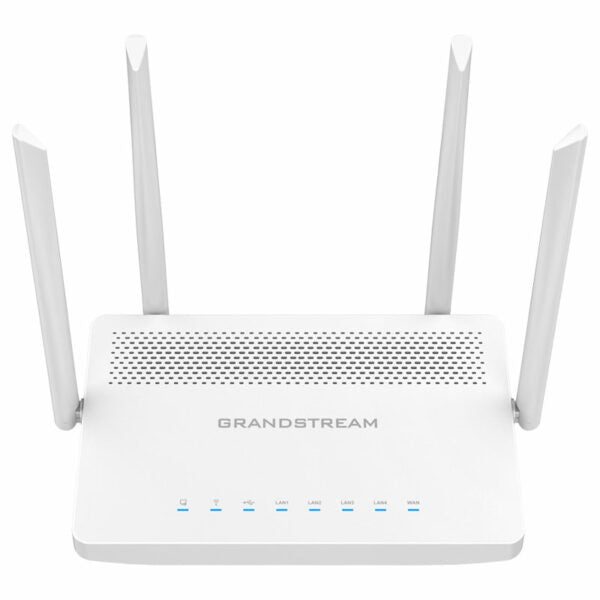
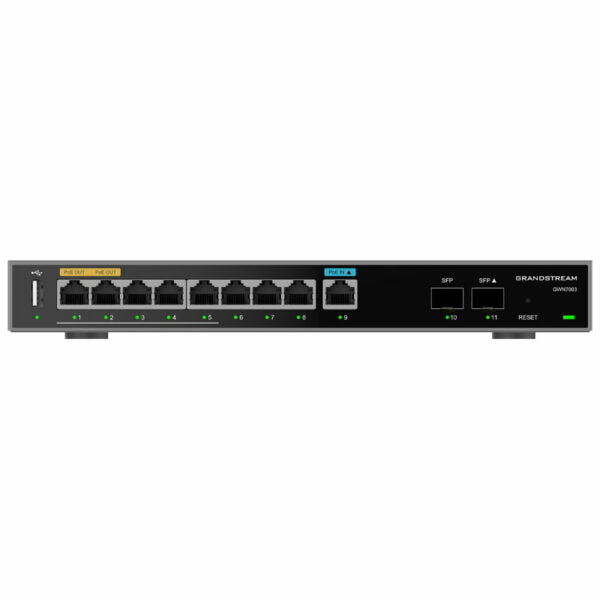
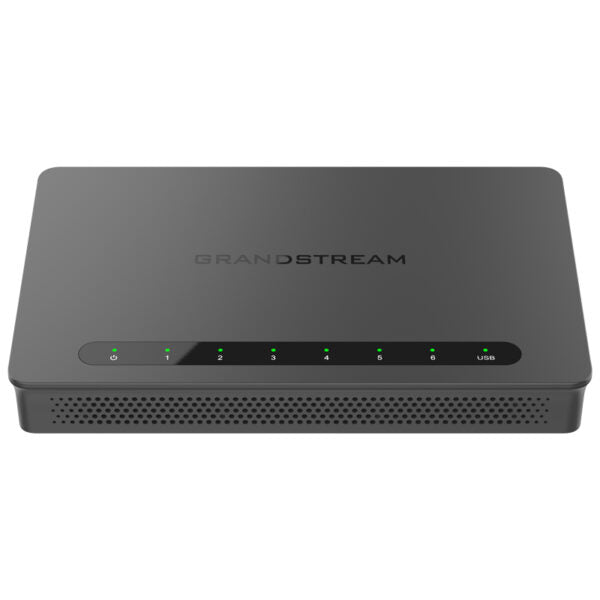
• The GWN7052F is a secure dual-band router powered by 802.11ac Wi-Fi technology, ideal for small offices and remote workers. • Key features include: ‣ Dual-band 2×2:2 MU-MIMO ‣ 4 LAN + 1 WAN SFP ‣ Built-in VPN support ‣ Supports 100 concurrent Wi-Fi client devices ‣ Mesh networking with Grandstream access points for easy network expansion ‣ Powerful security features, including guest network, network blacklist, and digital signatures • The router provides Wi-Fi speeds of up to 1.266 Gbps and supports a wide range of wireless standards, including IEEE 802.11 a/b/g/n/ac. • It also includes a built-in controller embedded within the product’s web user interface for easy installation and management. • Additional features include: ‣ Accelerated Wi-Fi speeds ‣ Advanced QoS ‣ Secure cloud provisioning through GWN.Cloud (coming soon) • Key specifications: ‣ Model: GWN7052F ‣ Memory and NAT Sessions: 256MB RAM, 60K NAT sessions ‣ Wi-Fi Standards: IEEE 802.11 a/b/g/n/ac ‣ Antennas: 4 individual external antennas, 2 per band ‣ Network Interfaces: 1x Gigabit SFP WAN port, 4x Gigabit Ethernet ports (WAN/LAN configurable) ‣ Network Management: GWN7052F embedded controller can manage itself and up to 50 GWN APs

About This Product

The Grandstream GWN7052F is designed for small office environments and remote workers who need a reliable, secure router with built-in dual-band Wi-Fi and the flexibility of a fiber WAN port. Its SFP interface makes it a good fit for Canadian businesses in areas where fiber internet is common, such as parts of the GTA, allowing direct connection to a fiber modem without an extra media converter. The router pairs naturally with Grandstream’s GWN series access points because it includes an embedded controller that can manage up to 50 of them, making it simple to extend wireless coverage across a larger office without additional hardware. However, the mesh networking and AP management features are overkill if you only need a basic router for a single small space, and the 100-client Wi-Fi limit means it may be underpowered for a busy office with many devices streaming or doing heavy data transfers. While the advanced QoS and VPN support are useful for prioritizing voice and video traffic, setting them up properly requires some networking know-how; for a plug-and-play home user, a simpler consumer router might be a better choice. A notable trade-off is that the SFP port is WAN-only, so you cannot use it for a second fiber link as LAN, but for most small offices a single fiber uplink is sufficient.
Services We Provide
  • Professional Installation & Configuration
  • Ongoing Maintenance & Support
  • Troubleshooting & Repairs
  • System Upgrades & Updates