Grandstream GWN7062ET High Performance WiFi 6 Router

Frequently Asked Questions

Start by checking for wireless interference—move the router away from metal objects or other electronics. You can also try changing the Wi-Fi channel in the router settings, or update the firmware to the latest version. If you're using mesh nodes, ensure they are within reasonable range of the main router.
Verify that the SSID and password are correct and that DHCP is enabled on the router. Check if any MAC filtering or access control lists are blocking the device. A simple power cycle of the router and the client device often resolves temporary connection issues.
Check the router's QoS settings to ensure no bandwidth limits are applied. Run a wired speed test from a computer to confirm maximum throughput, then test over Wi-Fi to isolate wireless congestion. Also verify that no background updates or streaming are consuming bandwidth.
Make sure your computer is on the same subnet as the router (default is often 192.168.2.x). Try using a wired connection instead of Wi-Fi, clear your browser cache, or use a different browser. If the IP address was changed, you may need to reset the router to factory defaults as a last resort.
Log into the router's web interface, navigate to the VPN section, and enable the VPN server (OpenVPN or L2TP). Create user accounts and download the configuration files to distribute to employees. Ensure your firewall allows the VPN port through and that remote clients have the correct settings.
Confirm that Wi-Fi 6 (802.11ax) is enabled in the router's wireless settings and that your client device supports it. For maximum speed, use the 5GHz band with a channel width of 80 or 160MHz. Also, check for interference from neighbouring networks that might reduce throughput.
Yes, most Canadian ISPs are compatible. Connect the modem to the router's WAN port and configure the connection type (DHCP for Rogers, PPPoE for Bell) in the router settings. You may need to put the modem in bridge mode to avoid double NAT.
First, check the power adapter and cable for damage; try a different outlet. Ensure the router has adequate ventilation and isn't overheating. Updating the firmware to the latest version can also fix stability issues. If the problem persists, contact Grandstream support for further diagnostics.
Enable mesh mode on the main router, then pair additional nodes by pressing the WPS button or using the GDMS app. Place the nodes within range of the main router for a strong backhaul signal. The system will automatically manage client roaming between nodes.
Log into the router admin, go to the firewall or URL filtering section, and check the blocklist or DPI rules. Add the specific website to the whitelist or adjust filter categories to allow it. Temporarily disable the content filter to confirm it's the cause before making permanent changes.
Access Points

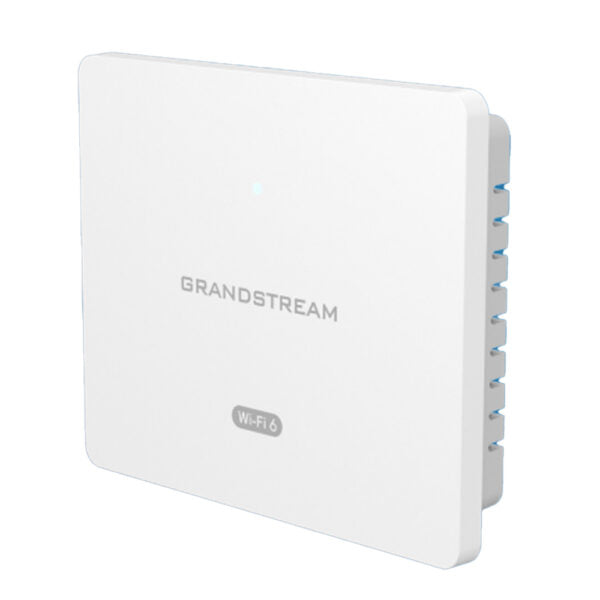
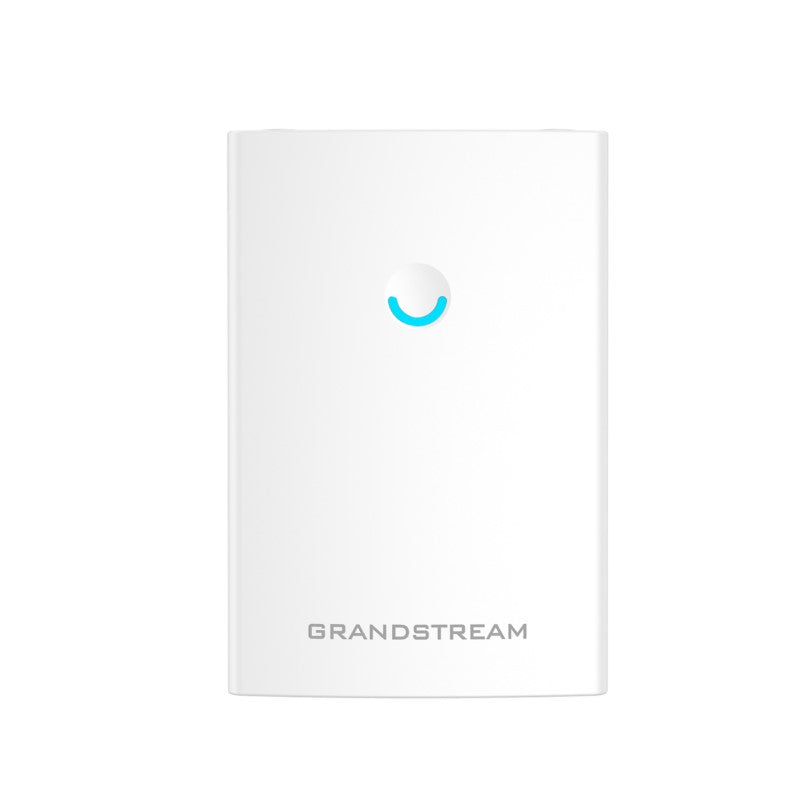
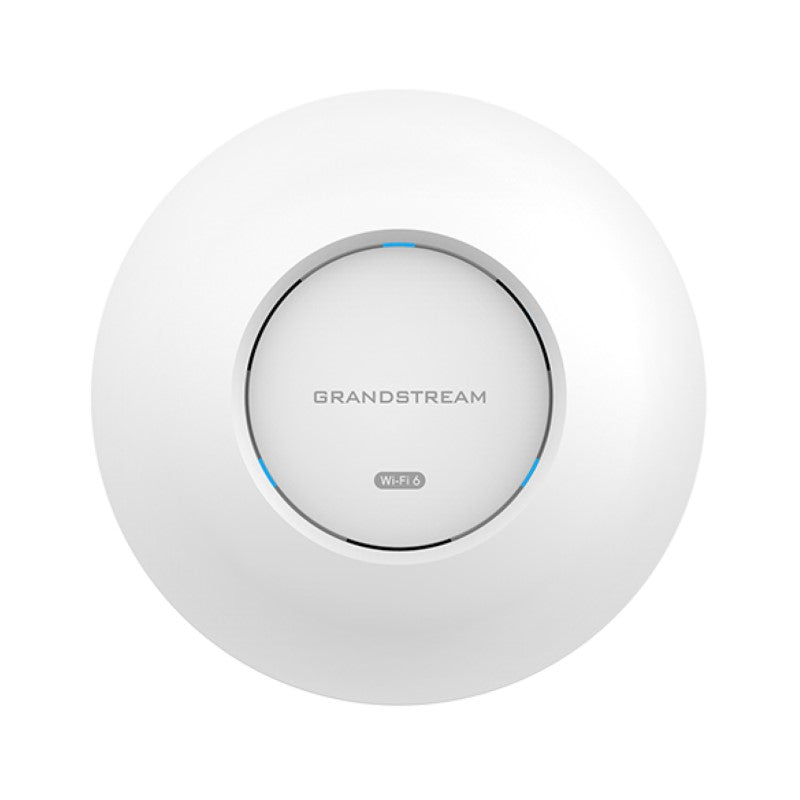
Grandstream GWN7062ET High Performance WiFi 6 Router
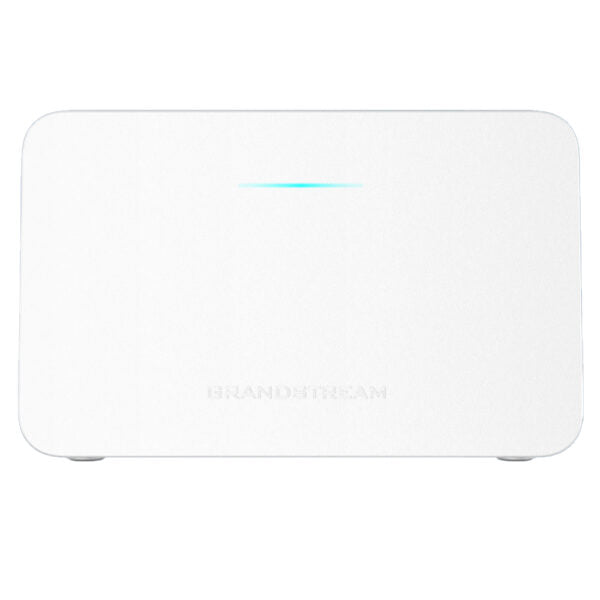
• Wi-Fi 6 (802.11ax) powered dual-band router with up to 3Gbps wireless throughput • Supports 128 concurrent wireless client devices and mesh networking with Grandstream routers • Built-in VPN support for easy access to corporate networks for remote employees • Rich firewall features including DoS, blocklist, URL content filtering, and DPI for application identification and traffic statistics • Powerful 1.3GHz dual-core processor for maximum network throughput and expanded Wi-Fi coverage range • Secure cloud provisioning through GDMS Networking and GWN Manager • Supports up to 128 wireless devices and can power smart office and home automation, smooth 4K Ultra HD streaming, web meetings, video conferences, online gaming, and more • Dimensions: 160mm(L)*50mm(W)*98mm(H), weight: 238g • Operating temperature range: 0°Cto 40°C, humidity: 10% to 90% RH (Non-condensing) • Power adapter included: 100~240V 50/60Hz, output: 12V/1.5A (18W)

About This Product

The Grandstream GWN7062ET is a Wi-Fi 6 router designed for small to medium-sized offices, retail spaces, or home offices that need reliable wireless connectivity for up to 128 devices. It's a single-box solution that combines routing, firewall, and wireless access point capabilities, making it a good fit for environments where you want to replace a separate router and AP with one device. With mesh support, you can extend coverage by adding other Grandstream routers, which is useful for larger office layouts or multi-floor setups.

While the GWN7062ET offers strong performance for most small business needs, it has some practical limitations worth noting. It does not support Power over Ethernet (PoE), so each unit requires a nearby electrical outlet or a PoE injector if you prefer central power. Its firewall features—DoS protection, content filtering, and DPI—are adequate for basic security but not a replacement for a dedicated next-generation firewall. The built-in VPN support is convenient for remote access, but throughput over VPN may be limited by the dual-core processor, so heavy VPN usage could affect overall network performance.

In a Canadian context, this router works well with standard ISP connections from Rogers, Bell, or TekSavvy when configured for DHCP or PPPoE. For a small office in the GTA with a dozen employees and a mix of wired and wireless devices, it offers a solid balance of speed, coverage, and management. However, for a large enterprise requiring advanced VLAN segmentation or hundreds of concurrent users, it would be underpowered. Conversely, for a single-user home where a simple ISP gateway suffices, it may be overkill.
Services We Provide
  • Professional Installation & Configuration
  • Ongoing Maintenance & Support
  • Troubleshooting & Repairs
  • System Upgrades & Updates