Grandstream GWN7602 Wi-Fi Access Point

Frequently Asked Questions

First, confirm the PoE injector or switch is 802.3af/at compliant and delivering at least 12V PoE. Check that the Ethernet cable is securely connected and not damaged. If you are using the supplied power adapter, make sure it's plugged into a working outlet. If the issue persists, a Toronto-based VoIP support provider can usually resolve this remotely.
Ensure the SSID and password entered are correct. Check if the access point's Wi-Fi settings are set to the correct security mode (e.g., WPA2). Also verify that the router is not blocking connections due to MAC filtering. Power cycling the access point by disconnecting PoE for 10 seconds can often resolve transient issues.
Relocate the GWN7602 to a central, elevated position away from metal objects and large appliances. The internal antennas are directional, so experiment with the orientation. If you have multiple units, consider using Grandstream's GWN Mesh or controller to extend coverage. For a small office in the GTA, a single unit in the hallway often provides adequate coverage.
Connect the IP phone to one of the three 100Mbps LAN ports on the access point. Both devices will get DHCP from your router. For best VoIP performance, enable QoS on the access point's settings to prioritize voice traffic. You can manage both devices from Grandstream's cloud platform if you register them.
First, verify that the access point's firmware is up to date. Then ensure QoS is enabled and set to prioritize voice. Check that your router's firewall is not interfering with SIP traffic. A wired test—temporarily plugging the phone directly into the router—can help isolate if the issue is Wi-Fi related. If the drops occur only on Wi-Fi, reducing the channel width or switching to a less congested channel may help.
Use the Grandstream Device Management Protocol (GDMS) or check your router's DHCP client list for a device named 'Grandstream'. The default IP is often 192.168.1.20 if no DHCP is available. Alternatively, you can press the reset button for 10 seconds to factory reset (but be aware this will erase all settings). Contact support if you need help recovering access without resetting.
Yes, the GWN7602 works as a standalone access point with any standard router. Simply connect its uplink port to a LAN port on your router. For full feature management, ensure your router allows you to access the access point's web interface using its IP address. There are no carrier-specific restrictions, so it works with all Canadian ISPs.
Check that the PoE source provides sufficient power—the GWN7602 requires at least 802.3af. If the PoE switch is overloaded, the access point may reboot. Also inspect the Ethernet cable for damage or loose connectors. A poor power supply is the most common cause; try swapping to a known good PoE injector. If the issue persists, it could be a firmware bug, and updating to the latest firmware might resolve it.
The access point includes a wall-mount bracket; secure it with the provided screws (use wall anchors for drywall). It can also be ceiling-mounted if you have access to a drop ceiling. Ensure the unit is oriented so that the LEDs face away from direct sight lines in the room. For a clean install in a Toronto office, consider using a structured cable solution.
Verify that you are connected to the 5GHz band, which offers higher speeds, and not just the 2.4GHz band. Check for channel interference using a Wi-Fi scanner; the GWN7602's automatic channel selection may not always pick the best channel. Also, ensure Wi-Fi Multimedia (WMM) is enabled in the radio settings, as this improves throughput for modern devices.
Access Points

Grandstream GWN7602 Wi-Fi Access Point
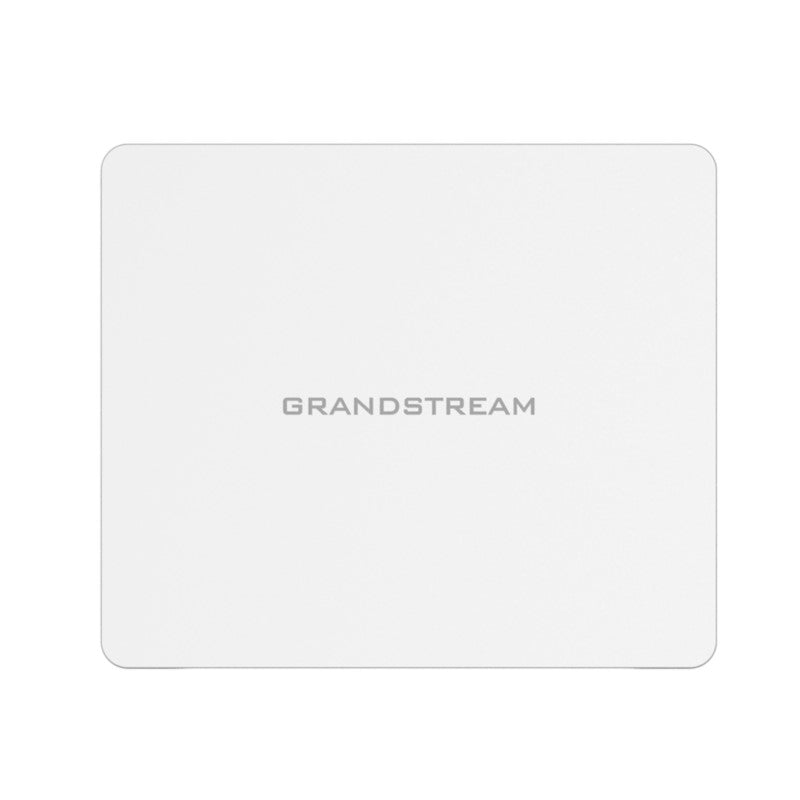
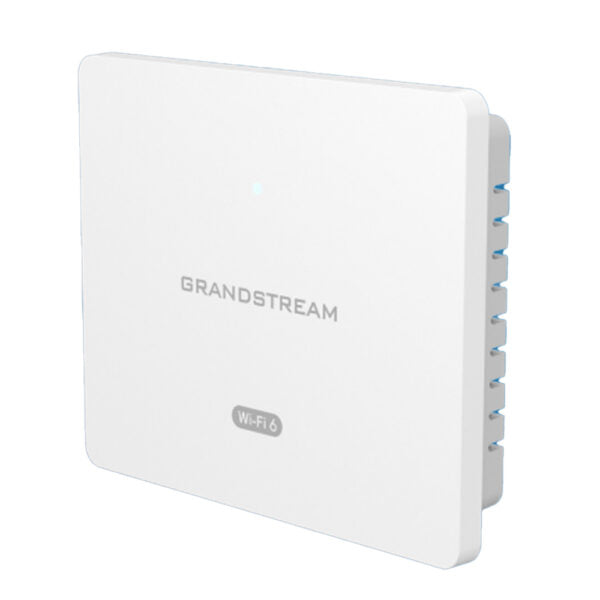
• The GWN7602 is a compact Wi-Fi access point designed for small businesses, homes, offices, hotels and more. It provides three 100Mb ports to provide IP phones, IPTV, computers and similar devices with ethernet while also providing an uplink Gigabit network port with PoE/PoE+ and PSE. Key Features: • Dual band 2×2:2 MIMO technology • Supports up to 80 Wi-Fi clients and a 100-meter coverage range • Advanced QoS for real-time performance of low-latency applications • Self power adaptation upon auto detection of PoE/PoE+ and PSE • Anti-hacking secure boot and critical data/control lockdown via digital signatures Additional Information: • Weight: 0.65 lbs • Dimensions: 7 × 6 × 2 in • Brand: Grandstream • Product Family: GWN-Cloud • Wi-Fi Standard: Wi-Fi 5 (802.11ac) • Network Band: Dual Band • Frequency Band: 2.4 Ghz, 5 Ghz Technical Specifications: • Wi-Fi Standards: IEEE 802.11a/b/g/n/ac • Antennas: 2 dual band internal antennas • Wi-Fi Data Rates: • IEEE 802.11ac: 6.5 Mbps to 867Mbps • IEEE 802.11n: 6.5Mbps to 300Mbps • IEEE 802.11b/g: 1, 2, 5.5, 11Mbps • IEEE 802.11g: 6, 9, 12, 18, 24, 36, 48, 54 Mbps

About This Product

The Grandstream GWN7602 is a compact Wi-Fi 5 access point designed for small business environments where space is tight but wired connections are still needed. Its three built-in 100Mbps Ethernet ports allow you to connect devices like IP phones, computers, or even an IPTV box directly, while the uplink port provides gigabit connectivity to your network. This makes it a practical all-in-one for a home office, a small retail space, or a hotel room where you want both reliable Wi-Fi and wired drops.

Because it includes Power over Ethernet (PoE) input and can also supply power to another device (PoE PSE), you can daisy-chain it with a PoE-powered device like a Grandstream IP phone without needing a separate power adapter at each unit. However, the three downstream ports are limited to 100Mbps, so they are not suited for high-bandwidth wired tasks like large file transfers or backup. The Wi-Fi 5 (802.11ac) radio is adequate for typical web browsing, email, and VoIP calls, but it won't match the speed or capacity of a newer Wi-Fi 6 access point in a busy office.

With a rated capacity of 80 concurrent Wi-Fi clients and a coverage radius of about 100 metres in open space, this device fits best in a low-density deployment—a small team of people, a single apartment, or a compact retail floor. It would be overkill for a single-user home with just a few devices, and conversely underpowered for an open-plan office with dozens of users streaming video or transferring large files. The built-in anti-hacking features and cloud management via Grandstream's GWN.Cloud or GWN Manager make it easy to deploy and monitor remotely, which is useful for multi-site small businesses across the GTA.
Services We Provide
  • Professional Installation & Configuration
  • Ongoing Maintenance & Support
  • Troubleshooting & Repairs
  • System Upgrades & Updates