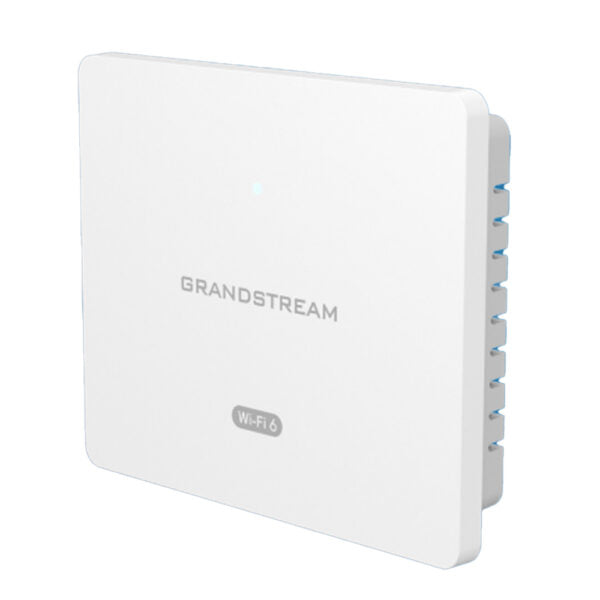
Grandstream GWN7603 compact 802.11ac Wave-2 Dual-Band Wi-Fi Access point

Frequently Asked Questions

Verify that the Ethernet cable connected to the PoE/PoE+ uplink port is securely plugged into a PoE switch or injector that is itself powered on. Try a different cable or a known-working PoE port to rule out a cable fault. If the device still does not light up, confirm the switch port is outputting power by testing with another PoE device.
Start by checking for wireless interference in the 2.4 GHz band, which is often the culprit. Use a Wi-Fi analyzer app to see if neighboring networks are on the same channel and switch to a less congested channel via the AP's management interface. Also, make sure the AP is not placed near metal objects or large appliances that could block the signal.
Log into the GWN7603's web interface (or the GWN controller if used) and navigate to the SSID settings. Create a new SSID, enable VLAN tagging, and assign a unique VLAN ID (e.g., 10) for the guest network. Then configure your router or switch to isolate that VLAN from the corporate network. This keeps guest traffic separate while still providing internet access.
First, confirm your computer is on the same subnet as the AP. If the AP obtained an IP via DHCP, check your router's DHCP lease table for its address. Alternatively, use the Grandstream GWN Discover Tool (free utility) to locate the AP on the network. If you still cannot connect, try a factory reset by pressing the reset button for 7 seconds, but note that this will erase all settings—only do this if you have backed up the configuration or can reconfigure it from scratch.
Ensure the switch port actually delivers PoE (some switches have PoE disabled per port) and that the port is not power-limited. Check the Ethernet cable for damage; a faulty pair can prevent power negotiation. If you're using a PoE injector, verify it is rated for 802.3af (PoE) or 802.3at (PoE+). The GWN7603 supports both, but an injector with insufficient wattage may fail to power it.
Start by connecting a wired device to one of the LAN ports and running a speed test to confirm your internet connection is not the bottleneck. Then use the AP's management tool to check for channel congestion and switch to a less crowded 5 GHz channel if possible. Also, verify that the client devices support 802.11ac and are within reasonable range of the AP—obstructions like walls reduce throughput significantly.
Access the AP's configuration interface and look for the network settings section. You can assign a management VLAN ID (e.g., VLAN 5) that tags all management traffic from the AP. Make sure your upstream switch is configured to allow that VLAN on the trunk port connecting to the AP. This setup is common in managed networks where control traffic is separated from user data.
First, relocate the AP to a more central position, away from metal shelving or concrete walls. Adjust the antennas (if external) or try mounting it higher. You can also log into the AP and increase the transmit power from the default setting, but be mindful of regulatory limits and potential interference with neighbouring cells.
Download the latest firmware from the Grandstream support website and save it to your computer. Log into the AP's web interface, go to the Firmware Upgrade section, and upload the file. Do not power off the device during the upgrade. After the reboot, verify the new firmware version is applied before making further changes.
Absolutely. The GWN7603 provides a reliable wireless backbone for Wi-Fi-enabled IP phones. For best voice quality, enable QoS in the AP settings to prioritize VoIP traffic (e.g., give higher priority to packets from VLAN with voice traffic). Keep the phone within good signal range to avoid jitter. If you encounter choppy audio, first check that the phone is not on an overcrowded 2.4 GHz band.
Access Points

Grandstream GWN7603 compact 802.11ac Wave-2 Dual-Band Wi-Fi Access point
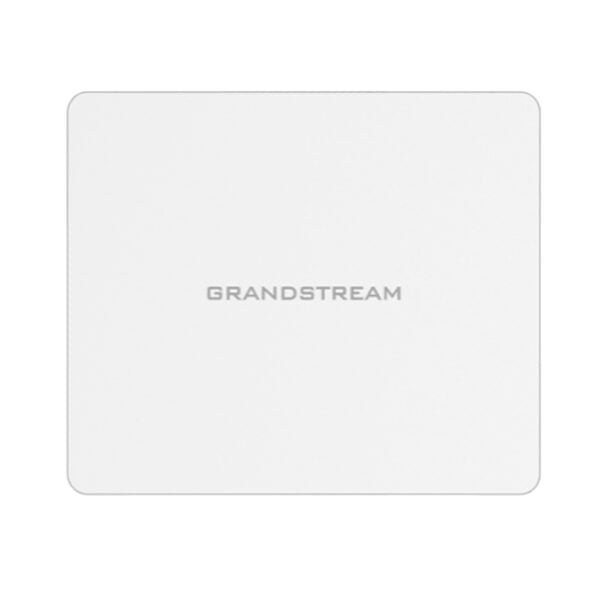
• Compact Wi-Fi access point designed for small businesses, hotels, and home offices • Four Gigabit ethernet ports, including one uplink port that can receive PoE/ PoE+ to power the access point • Dual-band 2×2:2 MU-MIMO technology supporting 100+ concurrent clients and up to 100-meter coverage range Key Features: • 1.27Gbps aggregate wireless throughput • Up to 100 meters coverage range • Self-power adaptation upon auto detection of PoE/PoE+ and PSE • Advanced QoS to ensure real-time performance of low-latency applications • Support up to 100+ Wi-Fi client devices • Weight: 0.65 lbs • Dimensions: 6.73 × 5.51 × 1.30 in • Brand: Grandstream • Wi-Fi Standard: Wi-Fi 5 (802.11ac) • Frequency Band: 2.4 Ghz, 5 Ghz • Mounting Type: Wall Plate

About This Product

The Grandstream GWN7603 is a compact dual-band Wi-Fi 5 access point designed for small offices, hotel guest rooms, or home offices where reliable wireless coverage is needed without the footprint of a larger ceiling-mount unit. Its wall-plate form factor makes it a natural fit for environments where desk or wall space is limited, and it can replace a standalone router or extend an existing wired network with four integrated Gigabit Ethernet ports—one of which can be powered over Ethernet (PoE) to simplify cabling. This device pairs well with a PoE switch or injector and works seamlessly alongside Grandstream VoIP phones or other IP endpoints, making it a practical choice for a unified communications deployment in a small Canadian business or a multi-room hospitality setting. While the GWN7603 supports over 100 concurrent clients and delivers solid 802.11ac performance, it is not a Wi-Fi 6 unit, so buyers planning for heavy future traffic or high-density areas like open-plan offices may find it underpowered. Conversely, for a single room or a few adjacent rooms, its throughput and coverage are more than adequate, but it would be overkill for a tiny space where a simple router would suffice. The lack of a mesh capability means coverage expansion requires additional wired APs, so it is best suited to locations where Ethernet drops already exist or can be run easily.
Services We Provide
  • Professional Installation & Configuration
  • Ongoing Maintenance & Support
  • Troubleshooting & Repairs
  • System Upgrades & Updates