Grandstream GWN7615 Enterprise Wi-Fi Access Point

Frequently Asked Questions

First, verify that the Ethernet cable from your PoE switch or injector is securely connected to both the AP and the switch. Try a different cable or port to rule out a physical fault. If the AP still doesn't get an IP address, check that your network's DHCP server is running and has available addresses.
Ensure the AP is mounted in an open location, ideally on the ceiling, away from metal objects or large electronics that can block signals. Check that the antennas are not obstructed and that the device isn't positioned behind a wall or in a corner. Adjust the transmit power in the GWN controller settings if clients are far from the AP.
First, make sure the AP is connected via a stable, wired Ethernet backhaul and not relying on a wireless uplink. In the controller, enable Quality of Service (QoS) to prioritize voice traffic. Also, confirm that your router or switch isn't overloaded and that your internet connection has sufficient bandwidth for simultaneous calls.
Check that your PoE switch or injector provides at least 802.3af PoE (or 802.3at PoE+ for full features). Try connecting the AP to a different PoE port or using the included power adapter if available. A simple power cycle of the switch or injector often resolves transient issues.
Connect the AP to your network and ensure it gets an IP address via DHCP. The controller should automatically discover the AP in the local subnet. If not, you can manually add it by entering the AP's MAC address or IP in the controller's AP management page. For remote management, the GWN.Cloud or GWN Manager platforms are supported.
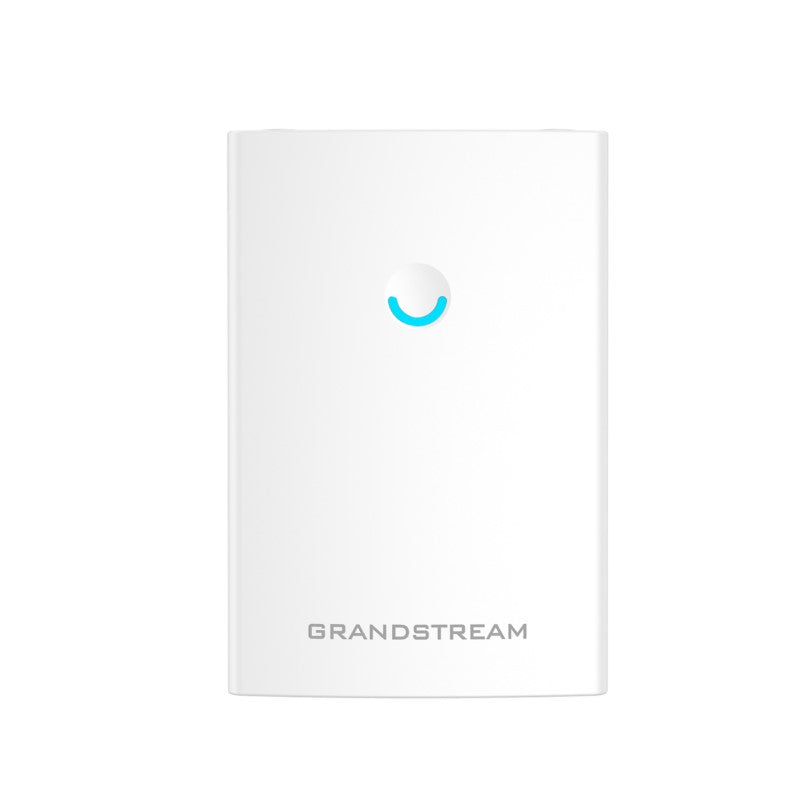
A solid red LED typically indicates the AP is not connected to the network or the controller. Verify the Ethernet cable and that the network is working. If the AP is managed locally, ensure the controller can reach it. A power cycle of the AP and checking the switch port may clear the issue.
Yes, the GWN7615 works with any standard 802.3af/at PoE switch or injector. It does not require proprietary hardware, so it integrates smoothly with existing network gear from brands like Cisco, Netgear, or Ubiquiti as long as PoE power is provided.
Check that the AP is not configured with a client limit in the controller settings. Also, ensure the network's DHCP scope has enough addresses for all devices. If the AP is operating in a congested RF environment, switching to a less crowded channel (especially on the 5 GHz band) can help support more clients.
Log into the GWN controller (local, cloud, or manager) and navigate to the AP management section to check for firmware updates. Apply the update during a maintenance window to avoid disrupting users. The update process is reversible only if you have a backup of the previous firmware, so ensure the update is stable before proceeding.
Confirm that the AP has a stable internet connection and that there is no firewall blocking the controller's management ports. If using a local controller, ensure both devices are on the same subnet or have appropriate routing. Restarting both the AP and the controller can re-establish the link.
Access Points

Grandstream GWN7615 Enterprise Wi-Fi Access Point
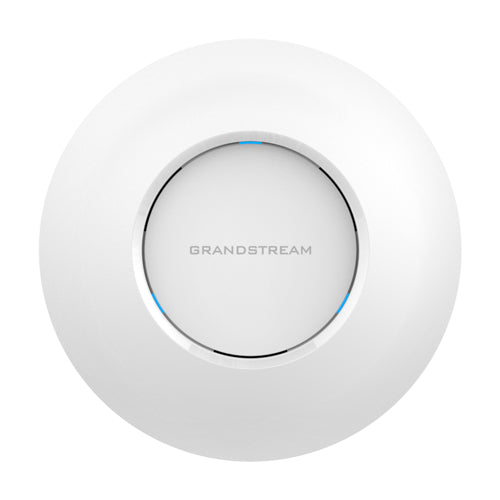
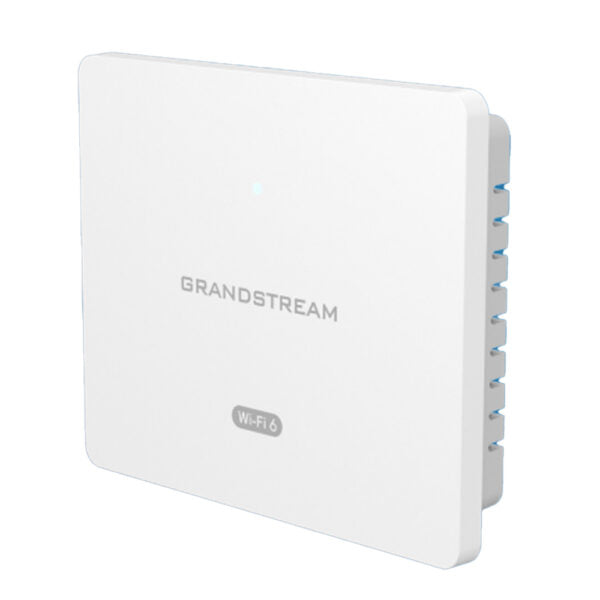
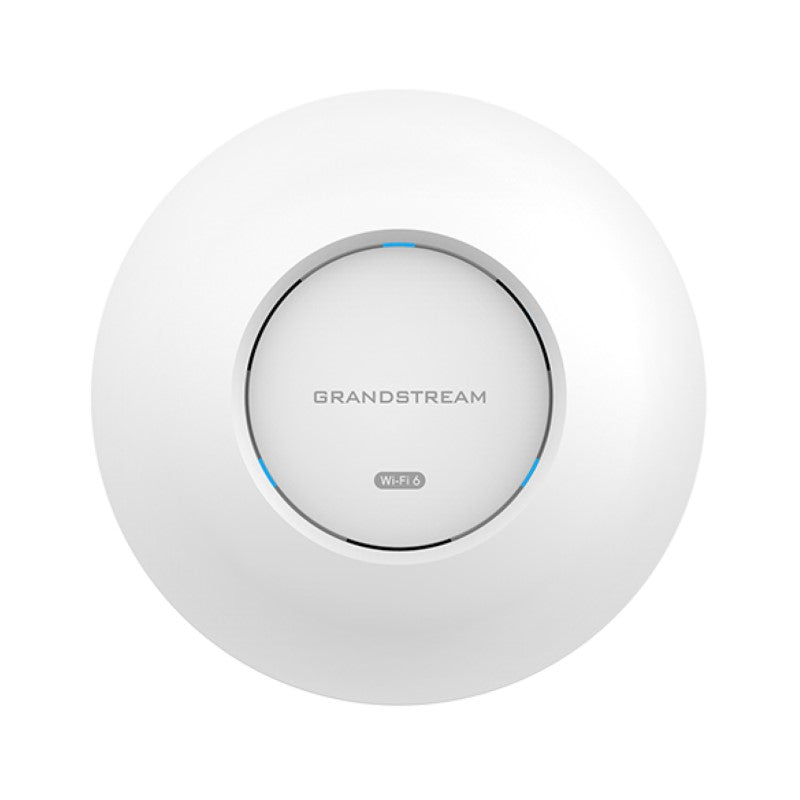
The GWN7615 is an enterprise performance Wi-Fi access point designed for medium to high user density environments. Key features include: • Dual-band 3×3:3 MU-MIMO technology • Self-power adaptation upon auto detection of PoE or PoE+ • Support for up to 200+ concurrent Wi-Fi client devices • Up to 175-meter coverage range • Advanced QoS for real-time performance of low-latency applications • Anti-hacking secure boot and critical data/control lockdown via digital signatures • Embedded controller can manage up to 50 local GWN series APs; GWN.Cloud offers unlimited AP management; GWN Manager offers premise-based software controller Weight: 1.8 lbs Dimensions: 11 × 10 × 4 in Brand: Grandstream Wi-Fi Standard: Wi-Fi 5 (802.11ac) Network Band: Dual Band Frequency Band: 2.4 Ghz, 5 Ghz Mounting Type: Ceiling, Wall Plate Product Family: GWN-Cloud Wi-Fi Standards: IEEE 802.11 a/b/g/n/ac (Wave-2) Antennas: • 3 dual band internal antennas • 2.4GHz, gain 3dBi • 5 GHz, gain 3dBi Wi-Fi Data Rates: • IEEE 802.11ac: 6.5 Mbps to 1300Mbps • IEEE 802.11a: 6, 9, 12, 18, 24, 36, 48, 54 Mbps • IEEE 802.11n: 6.5 Mbps to 450 Mbps • IEEE 802.11b: 1, 2, 5.5, 11Mbps • IEEE 802.11g: 6, 9, 12, 18, 24, 36, 48, 54 Mbps Frequency Bands: • 2.4 GHz Radio: 2412 – 2484 MHz • 5 GHz Radio: 5180-5825 MHz Channel Bandwidth: • 2.4G: 20 and 40MHz • 5G: 20, 40, and 80MHz

About This Product

The Grandstream GWN7615 is an enterprise-grade Wi-Fi 5 access point built for medium-to-high-density office environments where reliable wireless access is non-negotiable. It fits naturally in open-plan or multi-room setups like shared offices, meeting rooms, or retail spaces in the GTA, where dozens of devices need stable, low-latency connectivity. The dual-band 3×3 MU-MIMO design helps maintain throughput when multiple users are streaming or on VoIP calls simultaneously, making it a solid pairing with a hosted PBX or video conferencing system.

Deployment is straightforward thanks to Power over Ethernet (PoE) auto-adaptation, so it works with either standard PoE or PoE+ switches without extra configuration. The embedded controller can manage up to 50 local Grandstream APs, which is ideal for small-to-mid-sized businesses that want to avoid recurring cloud licensing fees. However, for single-AP deployments in a small home office, the management overhead might be overkill—simpler consumer-grade access points would be easier to manage. Conversely, in very large facilities (200+ clients per AP is the ceiling), you may still need careful channel planning and multiple units to avoid congestion.

Canadian businesses should note that the GWN7615 supports standard Wi-Fi frequencies used by all major Canadian ISPs and carriers, so no compatibility issues arise. The device is ceiling-mountable and includes a wall plate option, which helps keep it out of sight in professional settings. There are no peculiarities with Canadian power or safety regulations—standard PoE injectors or switches available from local distributors work fine.
Services We Provide
  • Professional Installation & Configuration
  • Ongoing Maintenance & Support
  • Troubleshooting & Repairs
  • System Upgrades & Updates