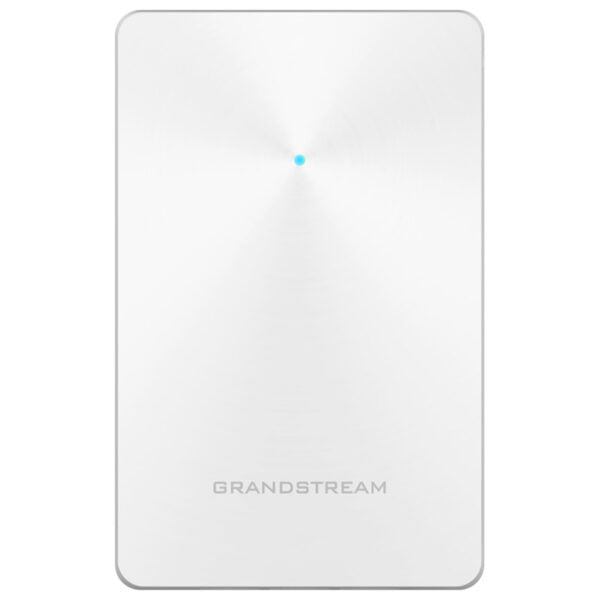
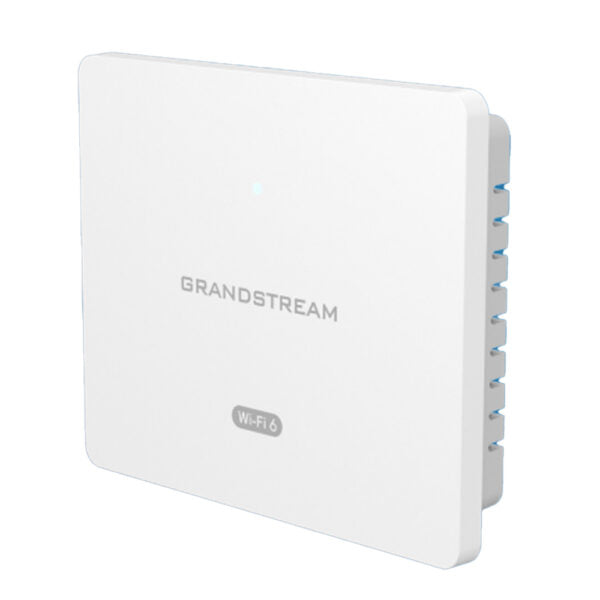
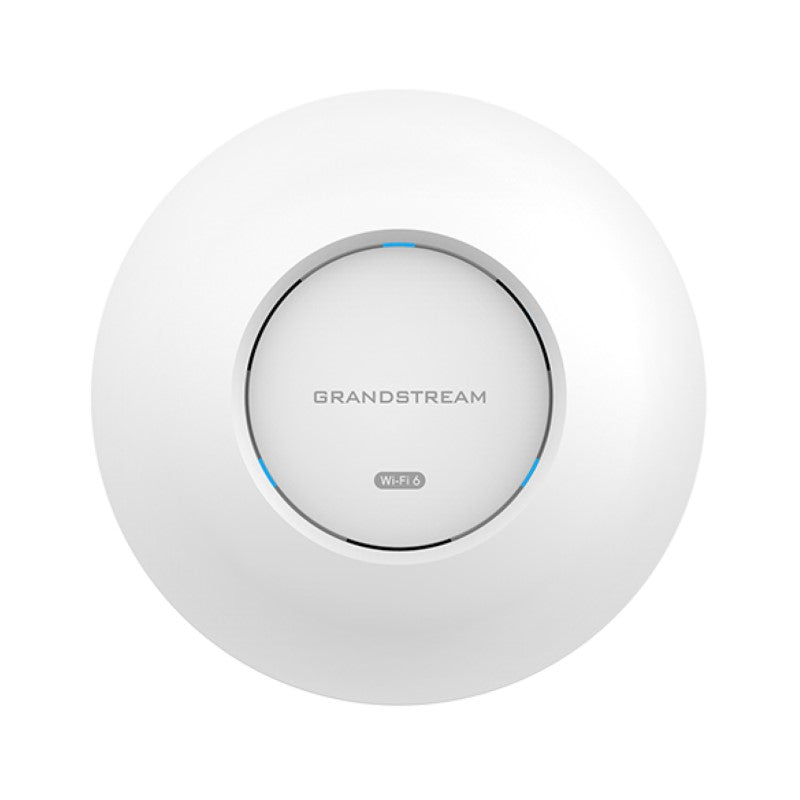
Grandstream GWN7624 In-Wall Access Point

Frequently Asked Questions

First, check that the Ethernet cable connecting the uplink PoE port is plugged into a PoE or PoE+ switch or injector. The GWN7624 requires 802.3af or 802.3at power. If you're using a passive PoE source, it will not work. Try a different cable and swap the port on your switch to rule out a defective port.
The GWN7624 is designed for in-wall coverage in one or two rooms. If the signal is unexpectedly weak, make sure the device's Wi-Fi antennas are not blocked by metal furniture or thick concrete walls. Also, check that the wireless radio is set to a less crowded channel (use a Wi-Fi analyzer app) and that the transmit power is not turned down in the settings.
Verify that the wired device's Ethernet cable is securely plugged in and that the port is not disabled in the local web interface. If the device is set to obtain an IP via DHCP, ensure that the upstream network has a working DHCP server and that the VLAN settings on the GWN7624's LAN ports are not isolating traffic incorrectly.
This is often caused by interference or a weak backhaul connection. First, check that the AP is receiving a stable PoE power source (indicated by a solid green LED). Then, in the management interface, review the wireless logs for channel utilization. If the channel is crowded, switch to a less congested band or channel. Also, ensure the DHCP lease time on your network is not set too short.
Access the AP's web interface or management controller (built-in, GWN.Cloud, or GWN Manager). Under the SSID settings, you can assign a VLAN ID to each wireless network. For the wired LAN ports, navigate to the 'Port Configuration' section and set the VLAN membership for each port. Make sure your upstream switch is trunking the correct VLANs.
Choppy audio typically points to network congestion or prioritization issues. First, enable QoS on the GWN7624 if not already active; it is designed to prioritize real-time applications like VoIP. Also, verify that your internet connection has enough upload bandwidth and that no other traffic is saturating the link. If the phone is using a separate VLAN, confirm that the switch port carrying the phone's traffic is not rate-limited.
Ensure the AP is powered on and has internet access. The GWN7624 must be able to reach the GWN.Cloud servers (check your firewall for outbound HTTPS access). If the AP is behind a corporate firewall, you may need to allow connections to cloud.grandstream.com. Also, verify that the AP's provisioning is set to 'Cloud' and that you have entered the correct cloud activation code from your account.
The 2.03 Gbps wireless throughput is a theoretical aggregate data rate across both bands. Real-world speeds depend on client devices (many still use 1x1 or 2x2 Wi-Fi), signal strength, and channel interference. To get the best possible speed, use a 5 GHz capable client with at least 3x3 streams, and ensure the AP is not oversubscribed with many active clients. Wired connections will always be faster.
Yes, the GWN7624 can operate in mesh mode as part of a GWN series wireless network. To set it up, first connect it to the network via the uplink port and register it to the same management controller as your root AP. Then, in the AP's settings, enable 'Mesh' mode and select the root AP. Keep in mind that mesh backhaul will reduce throughput, especially if the link is weak.
An amber LED typically indicates that the AP is in its boot-up process or that there is a connectivity issue. If it stays amber for more than a few minutes, power cycle the unit by unplugging the PoE cable for 10 seconds. If the problem persists, check that your switch is providing standard PoE and that the Ethernet cable is not damaged. If the issue continues, a Toronto-based VoIP support provider can usually resolve this remotely.
Access Points

Grandstream GWN7624 In-Wall Access Point

• The GWN7624 is an in-wall Wi-Fi access point designed for small-to-medium sized businesses, offices, residential and commercial locations, hotels and more. It provides three Gigabit network ports to provide IP phones, IPTV, computers and similar devices with Ethernet while also providing and uplink Gigabit network port with PoE/PoE+. • Key features: • 2.03 Gbps wireless throughput • 4x Gigabit wireline ports • 5GHz 4×4:4 MU-MIMO • Supports up to 200 concurrent Wi-Fi client devices • Advanced QoS for real-time performance of low-latency applications • Anti-hacking secure boot and critical data/control lockdown via digital signatures • Self-power adaptation upon auto detection of PoE or PoE+ • Embedded controller manages up to 30 local GWN APs • GWN.Cloud offers unlimited AP management, & GWN Manager offers on-premise software AP management • Additional information: • Weight: 2 lbs • Dimensions: 6.93 × 4.67 × 2.56 in • Brand: Grandstream • Product Family: GWN-Cloud • Wi-Fi Standard: Wi-Fi 5 (802.11ac) • Frequency Band: 2.4 Ghz, 5 Ghz • Network Band: Dual Band • Mounting Type: Wall Plate

About This Product

The Grandstream GWN7624 is an in-wall Wi-Fi access point that doubles as a wired network hub, making it a practical choice for small-to-medium businesses, hotel guest rooms, or multi-room offices where wall space is limited and Ethernet drops are already present. It slides into a standard wall plate opening and provides three Gigabit Ethernet ports to connect devices like IP phones, computers, or IPTV set-top boxes, while also serving as a dual-band Wi-Fi 5 access point for surrounding wireless clients. This design is particularly useful in settings like a Toronto-area law office or a boutique hotel, where each room needs reliable wired and wireless connectivity without extra clutter on desks. The GWN7624 is powered over Ethernet (PoE or PoE+), so no separate power adapter is required, and it automatically adjusts to the available PoE class, which simplifies installation. For environments where older Wi-Fi 5 (802.11ac) is sufficient, it offers a strong balance of throughput and coverage, but buyers should note that it is not a Wi-Fi 6 device, so if future-proofing or very high client density is a priority, a newer model may be worth considering. It pairs well with Grandstream IP phones and other SIP devices, and can be managed locally as a standalone unit with its embedded controller handling up to 30 additional GWN access points, or scaled via GWN.Cloud or GWN Manager for larger deployments. While the GWN7624 handles up to 200 concurrent Wi-Fi clients, in extremely dense environments like a conference hall, a dedicated high-density AP would be more appropriate. Conversely, it may be overkill for a single user at home, where a simpler router would suffice. Its in-wall form factor and integrated switch ports make it a neat fit for retrofit office projects in the GTA, especially where running new cabling is impractical.

Services We Provide
  • Professional Installation & Configuration
  • Ongoing Maintenance & Support
  • Troubleshooting & Repairs
  • System Upgrades & Updates