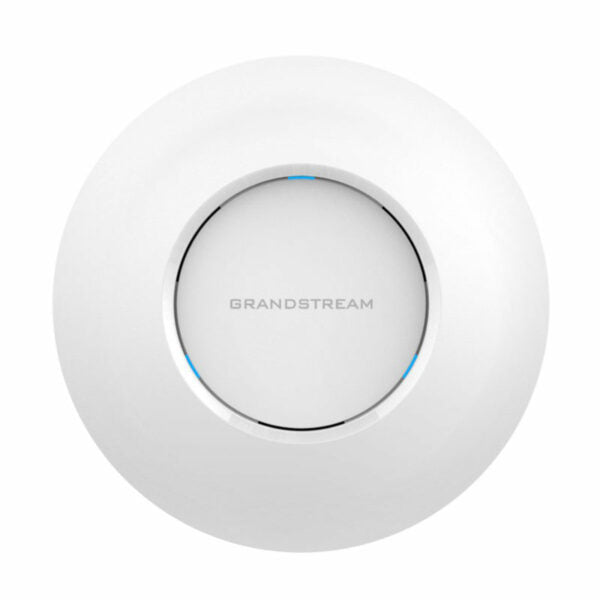
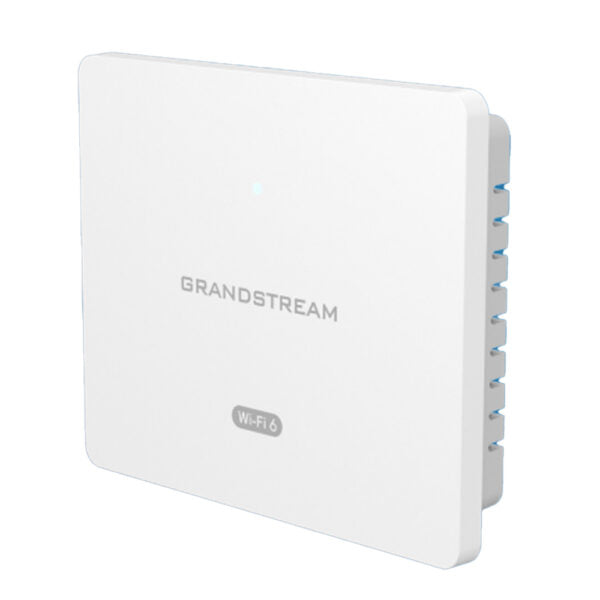
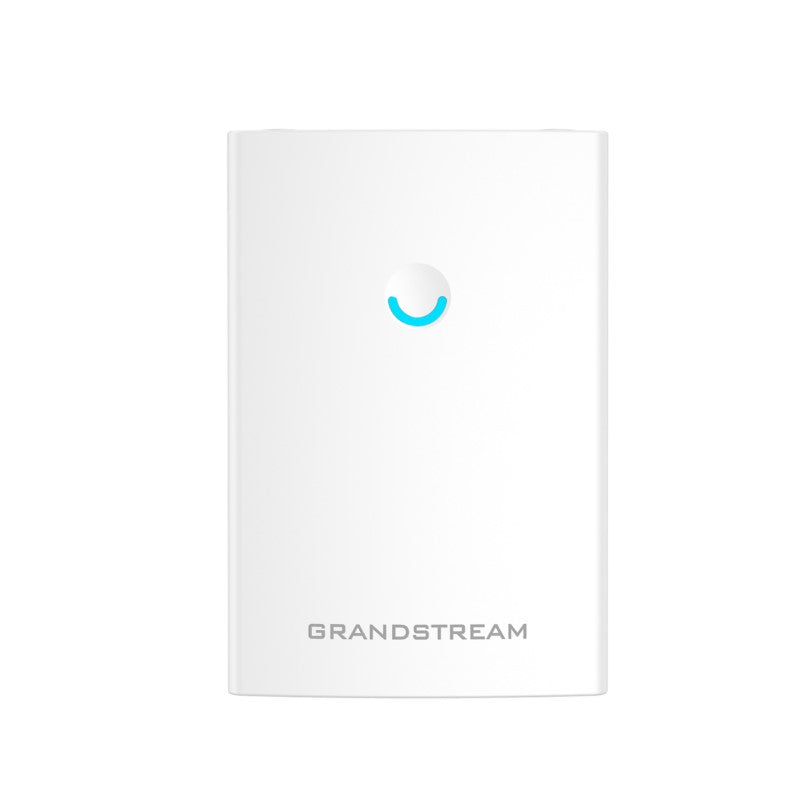
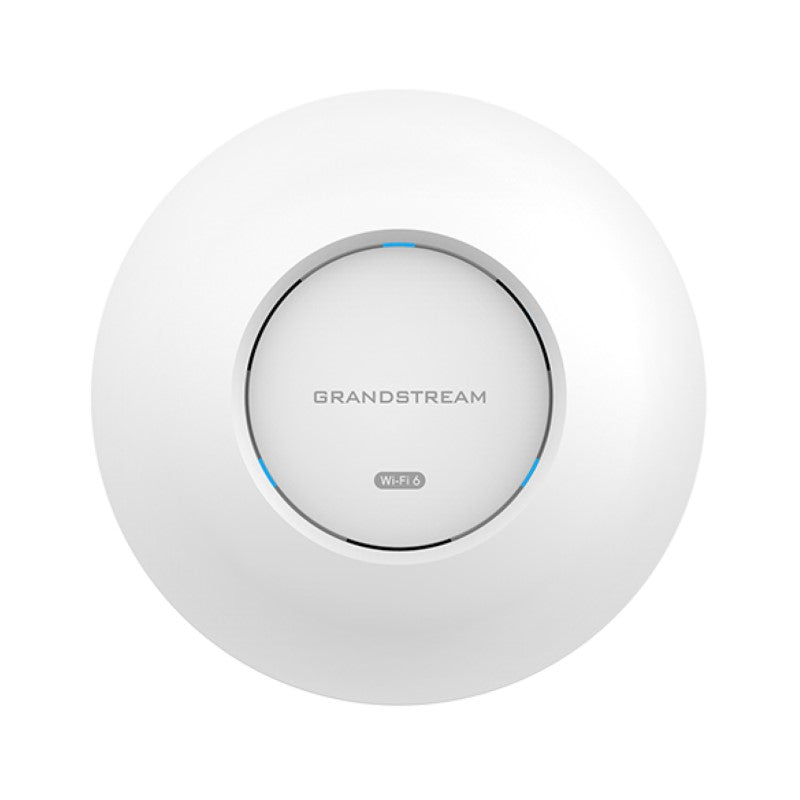
Grandstream GWN7625 WiFi Access Point

Frequently Asked Questions

Start by verifying that the Ethernet cable delivering PoE is properly seated at both ends and that the switch or injector is actively supplying PoE+ power. If you're using a PoE injector, make sure it's rated for at least 30W (IEEE 802.3at). You can also try a different cable or port to rule out a faulty connection. If the AP still shows no lights, confirm the switch is powered on and that PoE is enabled on that port.
Check that your router or modem is handing out IP addresses via DHCP and that the AP's WAN port (the PoE port) is receiving an IP address. Log into the AP's web interface (default IP is usually 192.168.2.1) and look at the network status—if it shows a 169.254.x.x address, your DHCP server isn't responding. Also ensure that the cable between your router and the AP is not plugged into a LAN port that blocks DHCP traffic.
Start by checking the wireless band your clients are connecting to—ensure they are using the 5 GHz band for faster speeds, as 2.4 GHz can be congested. Also, verify that the AP's channel width is set to 40 MHz or 80 MHz on 5 GHz (not the default 20 MHz) and that there is minimal channel overlap with neighboring networks. You can use a Wi-Fi analyzer app to pick a less crowded channel. If the client is far from the AP, signal strength drops, so consider moving it closer.
Random disconnects often stem from interference or channel congestion. Try changing the 5 GHz channel to a less busy one—avoid DFS channels if your clients don't support them. Also, check that the AP's firmware is up to date. If you have multiple APs, ensure they are not on overlapping channels and that the RSSI threshold for client disassociation isn't set too aggressively. Power-cycling the AP often clears temporary glitches.
The default admin credentials are username 'admin' and password 'admin' (all lowercase). If those don't work, someone may have changed them. You can try accessing via the MAC address printed on the label (example: http://192.168.2.1, but the actual IP may differ if your network has a different subnet). If all else fails, a physical reset (holding the reset button for 7 seconds while powered) will restore factory defaults, but only do this if you're prepared to reconfigure the AP.
The GWN7625 supports mesh networks using Grandstream's GWN series. To set it up, first configure one AP as the master via the controller-less web UI (or Grandstream Cloud). Then, power on additional GWN7625 units—they should auto-discover and join the mesh. Ensure all APs are on the same subnet and have the same SSID and password. The mesh works best with wired backhaul, but if you're using wireless backhaul, place the secondary APs within good range of the master.
Yes, the GWN7625 supports captive portal through its embedded web interface. You can configure it under 'Wireless' -> 'SSID Settings' -> 'Captive Portal'. You have options for a local login page or external RADIUS authentication. Keep in mind that the captive portal works per SSID, and you may need to set up a separate guest network. For advanced customization, you can upload a custom HTML page.
VLAN tagging can be set per SSID or per port. Log into the AP's web interface, go to 'Wireless' -> 'SSID Settings', and enable VLAN tagging for a given SSID by entering a VLAN ID (1-4094). For port-based VLAN, go to 'Network' -> 'VLAN' and assign the management VLAN or the native VLAN on the LAN port. Make sure your switch is configured to trunk the corresponding VLANs. If you're using PoE, the management VLAN must match the switch port's native VLAN to avoid losing connectivity.
A blinking red LED on the GWN7625 typically indicates the AP cannot contact the DHCP server or is unable to retrieve an IP address. Check the Ethernet cable connection and ensure the upstream switch/router is offering DHCP. If the LED is solid red, it usually means the AP is booting or has a firmware issue. Try a power cycle; if the problem persists, inspect the LAN cable for damage or test with a different PoE port.
The GWN7625 supports both ceiling and wall mounting. The package includes a mounting bracket that can be attached to a wall plate or directly to a ceiling tile. For wall mounting, orient the AP with the LED side facing outward. Just make sure the ventilation holes aren't blocked, and keep the AP away from metal obstructions that could affect Wi-Fi signal.
Access Points

Grandstream GWN7625 WiFi Access Point

• The GWN7625 is an 802.11ac Wave-2 Wi-Fi access point designed for small-to-medium sized businesses, home offices, retail shops, restaurants and more. • Key features include: • 4×4:4 MU-MIMO technology on the 5G band and 2×2:2 MU-MIMO on the 2.4G band • Sophisticated antenna design for maximum network throughput and expanded Wi-Fi coverage range • Controller-less distributed network management design with embedded controller in web user interface • Support for advanced QoS, low-latency real-time applications, mesh networks, captive portals, 200+ concurrent clients per AP • Dual Gigabit network ports with PoE/PoE+ • Additional information: • Weight: 1.98 lbs • Dimensions: 10.16 × 9.72 × 3.39 in • Brand: Grandstream • Product Family: GWN-Cloud • Wi-Fi Standard: Wi-Fi 5 (802.11ac) • Network Band: Dual Band • Frequency Band: 2.4 Ghz, 5 Ghz • Mounting Type: Ceiling, Wall Plate

About This Product

The Grandstream GWN7625 is a solid pick for small-to-medium-sized businesses that need reliable dual-band Wi-Fi coverage without stepping up to Wi-Fi 6. It's particularly well-suited to open-plan offices, retail stores, or restaurants where you want to support a moderate number of client devices—around 200 per AP—with decent throughput. The controller-less design means you don't have to buy a separate hardware controller; you can manage it through the embedded web interface or Grandstream's cloud platform, which keeps deployment simple for a single location or a handful of sites. It comes with dual Gigabit Ethernet ports and supports PoE+ (Power over Ethernet), so you can power it over the same cable that carries data—handy for ceiling-mounted setups, which are common in GTA office fit-outs. This AP uses Wi-Fi 5 (802.11ac Wave-2) with MU-MIMO on the 5 GHz band, which helps when multiple devices are actively streaming or transferring files. If your office is already wired with a PoE switch and you don't need the absolute latest Wi-Fi standard, this is a cost-effective choice that covers most business needs without frills. On the flip side, the GWN7625 is not ideal if you need cutting-edge wireless speeds, as Wi-Fi 6 (802.11ax) offers better efficiency and performance in very dense environments. For a small home office with only a few devices, it's overkill—a simpler AP or a good all-in-one router would be more practical. And if your deployment calls for seamless roaming across a large number of APs in a warehouse or campus, you might find the controller-less architecture less convenient than a dedicated controller-based system. Still, for a typical Toronto-area retail shop or a growing professional practice, it delivers reliable coverage at a reasonable price point.

Services We Provide
  • Professional Installation & Configuration
  • Ongoing Maintenance & Support
  • Troubleshooting & Repairs
  • System Upgrades & Updates