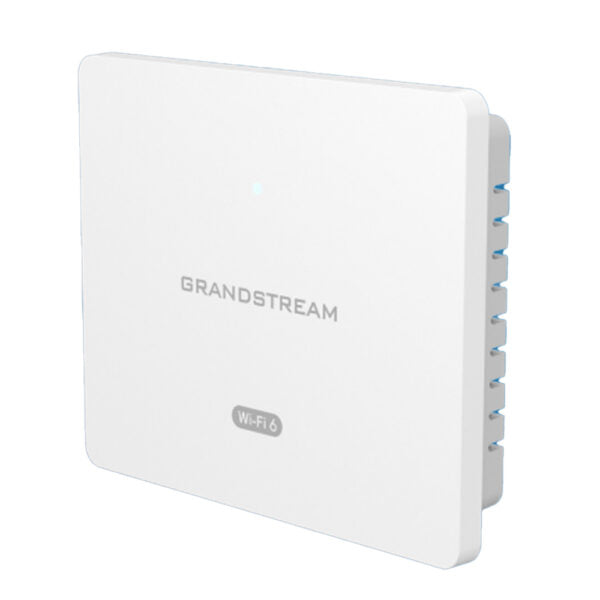
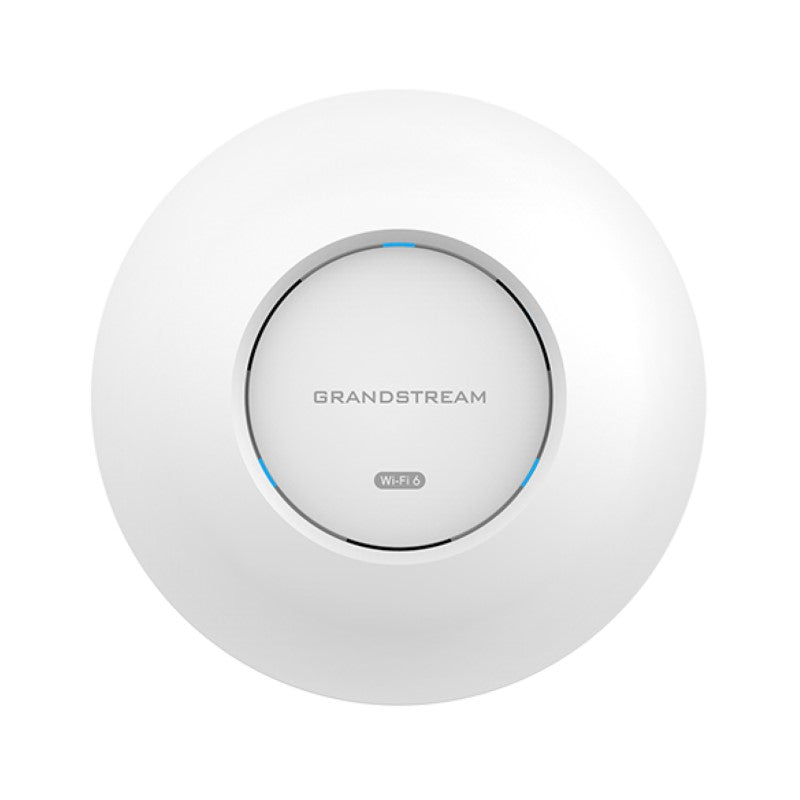
Grandstream GWN7630 Wi-Fi Access Point

Frequently Asked Questions

Confirm the Ethernet cable is plugged into the correct PoE‑capable port on your switch and that the switch is actually supplying power. Next, log into the AP’s web interface or GWN.Cloud to verify that at least one SSID is enabled and assigned to both the 2.4 GHz and 5 GHz radios. If the SSID exists but is not broadcasting, a quick reboot of the AP from the controller is a safe first step.
Most drop‑offs come from DNS or firewall rules blocking the AP’s outbound connection to the cloud. Check that the AP can resolve the GWN.Cloud hostname and that outbound HTTPS (TCP 443) is allowed. Also verify the AP’s gateway and DNS server settings are correct; a wrong gateway will let the AP work locally but stop it from reaching the internet.
Start by checking the channel width and channel selection on the 5 GHz radio. If the AP is set to 20 MHz‑only for compatibility, clients will see much lower throughput. Also look at the switch port’s negotiated speed; a bad cable can force a 100 Mbps link instead of gigabit, which caps all wireless traffic. Moving the AP to a less congested channel and ensuring a gigabit link often solves this.
First, adjust the AP’s physical placement: mount it high on a wall or ceiling, away from metal shelving and large appliances. Inside the controller, verify that both 2.4 GHz and 5 GHz radios are enabled and that transmit power is not artificially limited. If coverage is still weak in a specific corner, a site survey with a free Wi‑Fi analyzer app will show whether the issue is signal strength or interference, which helps you decide if a second AP is genuinely needed.
Enable WMM (Wi‑Fi Multimedia) on the SSID if it is not already active; this is required for proper QoS tagging of voice traffic. On the AP, confirm that the advanced QoS settings are not disabled and that the SSID is configured for WPA2‑AES rather than TKIP. If the problem persists, try moving the call to the 5 GHz band, which is typically less congested, and check that the switch port isn’t showing errors that could indicate a cabling issue.
First, disconnect and reconnect the Ethernet cable, then try a different known‑working PoE+ port on the switch. If the AP still hangs during boot, power it with a compatible PoE injector instead of the switch to rule out a switch power budget problem. Do not attempt a firmware recovery or factory reset until you have confirmed the power source is stable and the cable is intact, because interrupting a recovery process can make the unit unusable.
Yes, the GWN7630 uses standard 802.11ac and Ethernet protocols, so it works with any brand of router or PoE switch. The built‑in controller and GWN.Cloud are only needed for configuration and monitoring; the AP itself will serve clients regardless of what networking gear sits upstream. Just make sure your switch can provide enough PoE+ budget per port.
In a typical office with drywall partitions and moderate client density, two GWN7630 units placed strategically will usually provide solid 5 GHz coverage. Open areas with many clients, such as a training room, may benefit from a third AP to keep per‑device throughput high. The best approach is to perform a quick walkthrough with a Wi‑Fi survey tool after installing the first AP, then add units where the signal drops below ‑67 dBm.
This is typically a DHCP issue, not a Wi‑Fi problem. Check that the VLAN assigned to the SSID is tagged correctly on the switch port and that a DHCP server is reachable on that VLAN. Also confirm the SSID is not set to client isolation or a captive portal that is failing to load. If the network uses a Windows DHCP server, verify the scope is not exhausted.
Yes, the GWN7630 connects to the local network behind your modem or router, so it is completely independent of the ISP. It operates on the standard 2.4 GHz and 5 GHz channels permitted in Canada and does not require any ISP‑specific configuration. If the issue persists, a Toronto‑based VoIP and networking support provider can usually resolve this remotely.
Access Points

Grandstream GWN7630 Wi-Fi Access Point
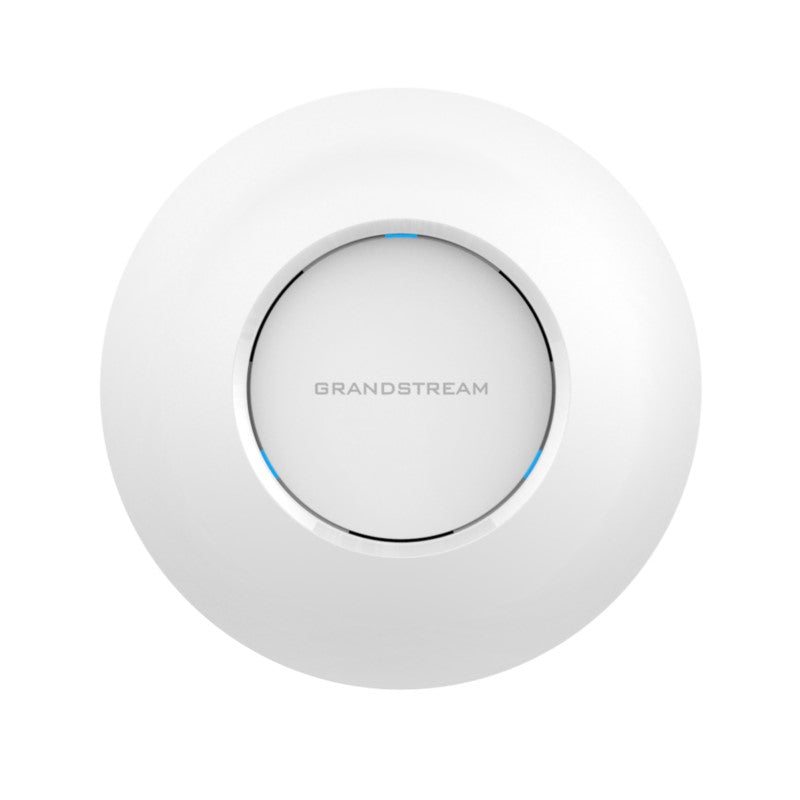
• The GWN7630 is a high-performance 802.11ac Wave-2 Wi-Fi access point designed for small to medium-sized businesses, commercial locations, and branch offices. It features dual-band 4×4:4 MU-MIMO technology for maximum network throughput and expanded coverage range. Key Features: • Dual-band 4×4:4 MU-MIMO technology • Self-power adaptation upon auto detection of PoE or PoE+ • Supports up to 200+ concurrent Wi-Fi client devices • Up to 175-meter coverage range • Advanced QoS for real-time performance of low-latency applications • Anti-hacking secure boot and critical data/control lockdown via digital signatures • Embedded controller can manage up to 50 local GWN series APs; GWN.Cloud offers unlimited AP management Additional Information: • Weight: 2 lbs • Dimensions: 11 × 10 × 4 in • Brand: Grandstream • Wi-Fi Standard: Wi-Fi 5 (802.11ac) • Network Band: Dual Band • Frequency Band: 2.4 Ghz, 5 Ghz Technical Specifications: • Wi-Fi Standards: IEEE 802.11 a/b/g/n/ac (Wave-2) • Antennas: 4 dual band internal antennas (2.4GHz, gain 4dBi; 5 GHz, gain 5dBi) • Wi-Fi Data Rates: 6.5 Mbps to 1733Mbps • Frequency Bands: 2412 – 2484 MHz (2.4GHz) and 5180 – 5825 MHz (5GHz) • Channel Bandwidth: 20, 40, and 80 MHz

About This Product

The Grandstream GWN7630 is a capable Wi‑Fi 5 access point built for small to medium‑sized offices, retail floors, and branch locations that need steady, predictable wireless coverage without the complexity of enterprise licensing. It fits well in environments where a couple of dozen staff and guests are using cloud applications, VoIP handsets, and video conferencing, and where the IT team wants central management without a recurring subscription. Because it uses 802.11ac Wave‑2 with 4×4 MU‑MIMO, it handles many simultaneous devices better than entry‑level APs, which makes it a sensible step up from basic consumer mesh kits in a business setting.

This model works well alongside Grandstream’s own Wi‑Fi‑capable IP phones and GWN series switches, but it is equally comfortable in a mixed‑vendor network. The built‑in controller can manage up to 50 GWN access points directly from the AP itself, which keeps a small multi‑AP deployment simple and cost‑effective. For larger or multi‑site rollouts, it can be moved to the free GWN.Cloud platform. In a typical Toronto professional office or a GTA retail location, a pair of these APs will blanket a modest floorplate reliably, though open‑plan spaces with many partitions will still need a site survey to position them well.

Buyers should understand the practical limits. The 175‑metre range figure assumes clear line of sight; in a real office with drywall, glass, and furniture, expect usable coverage at shorter distances on 5 GHz. Power matters too: the AP self‑adapts to standard PoE or PoE+, but PoE (802.3af) will cap some capabilities, so PoE+ is the better choice if it is available on the switch. This is a Wi‑Fi 5 device, so it does not deliver the higher speeds or OFDMA efficiency of Wi‑Fi 6, though for most small‑business workloads the difference is rarely felt day to day.

Deployments that are a poor fit are those that need to serve several hundred high‑bandwidth clients in a dense area, such as a large conference centre or a university lecture hall. In those cases, a Wi‑Fi 6 or 6E model with more spatial streams and better airtime management will be a more appropriate foundation. Equally, a single AP in a large warehouse or a multi‑floor building with concrete floors will leave frustrating dead spots no matter how good the antenna design is. The GWN7630 is at its best when it is part of a sensibly sized, well‑planned network rather than a lone miracle worker.
Services We Provide
  • Professional Installation & Configuration
  • Ongoing Maintenance & Support
  • Troubleshooting & Repairs
  • System Upgrades & Updates