Grandstream GWN7661 Wi-Fi 6 Access Point

Frequently Asked Questions

First, verify that your PoE switch or injector supplies at least 802.3af PoE (15.4W) or 802.3at PoE+ (30W). The GWN7661 can auto-adapt to either, but if the power source is only passive PoE or underpowered, the AP may not boot. Check the Ethernet cable for damage and reseat it at both ends. If the issue persists, a Toronto-based VoIP support provider can usually resolve this remotely.
Ensure your network has a DHCP server active on the same VLAN as the AP, and that the Ethernet port you plug into is set to trunk or access mode for that VLAN. The GWN7661 will obtain an IP address automatically. If it does not, check that the cable is good and that the switch port is not disabled or in a blocked state.
Start by confirming that the affected devices are within reasonable range of the AP and that there are no large metal obstacles or interference sources (like microwaves) nearby. Then, log into the AP's management interface and check the channel utilization; if the channel is congested, try switching to a less crowded channel in the 5 GHz band. Also ensure the AP firmware is up to date.
Yes. The GWN7661 has an embedded controller that can manage up to 50 local GWN APs without any additional hardware or cloud service. You can also use the free GWN Manager software for on-premise management. For larger deployments, GWN.Cloud offers unlimited management with a subscription.
First, verify that the AP has obtained a valid IP address and that its management interface is accessible. Then check if the SSID is enabled and not hidden, and that the radio is turned on. If the AP is in bridge or repeater mode, ensure the uplink connection is working. A simple power cycle of the AP can often resolve a temporary glitch.
If you have forgotten the admin password, you will need to perform a factory reset by pressing and holding the reset button on the device for about 10 seconds while it is powered on. This will erase all settings and restore the default credentials. Before doing this, please confirm that you have no other way to recover the password, as the reset cannot be undone.
Poor audio on VoIP calls is often caused by network congestion or high latency. Check that QoS is enabled on the AP and that your router or switch prioritizes VoIP traffic. Also, ensure the AP's firmware is current and that the client devices are using a strong 5 GHz signal if possible. If the problem persists, a Toronto-based VoIP support provider can usually resolve this remotely.
The GWN7661 is a standard Wi-Fi access point and does not require special configuration to work with Grandstream VoIP phones. Simply connect the AP to your network, configure your SSID and security settings, and then connect your Grandstream phones to that Wi-Fi network. For optimal performance, enable QoS on the AP to prioritize voice traffic.
First, ensure that the 5 GHz radio is enabled in the AP's settings and that it is broadcasting an SSID (it can be the same or different from the 2.4 GHz SSID). Also check that your client devices support 5 GHz Wi-Fi. If the band is enabled but still not visible, try changing the channel width or channel number to one that is less congested.
Yes, the GWN7661 is designed to mount on a standard wall plate or electrical box using the included screws. It fits most North American single-gang wall plates. Ensure the mounting surface is sturdy and that the Ethernet cable can reach the back of the unit without strain.
Access Points

Grandstream GWN7661 Wi-Fi 6 Access Point
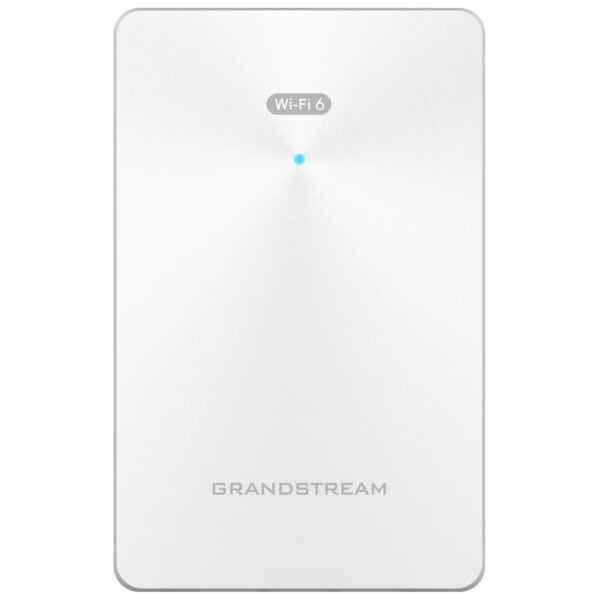
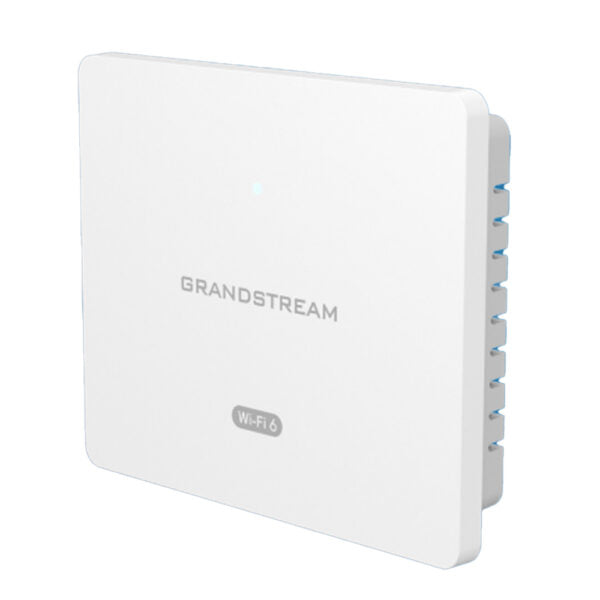
• The GWN7661 is an in-wall 802.11ax Wi-Fi 6 access point designed for small-to-medium sized businesses, offices, residential and commercial locations, hotels and more. • It offers dual-band 2×2:2 MU-MIMO technology as well as a sophisticated antenna design for maximum network throughput and expanded Wi-Fi coverage range. • Wi-Fi 6 technology supports the modern generation of dense environments where many users and many devices require consistent and reliable Wi-Fi connections at higher speeds. Key Features: • 1.77 Gbps wireless throughput • Dual-band 2×2:2 MU-MIMO with DL/UL OFDMA technology • Supports up to 500+ concurrent Wi-Fi client devices • Advanced QoS to ensure real-time performance of low-latency applications • Anti-hacking secure boot and critical data/control lockdown via digital signatures, unique security certificate/random default password per device • Self power adaptation upon auto detection of PoE or PoE+ • Embedded controller manages up to 50 local GWN APs; GWN.Cloud offers unlimited AP management, & GWN Manager offers on-premise software AP management. Additional Information: • Weight: 0.88 lbs • Dimensions: 6.93 × 4.67 × 2.56 in • Brand: Grandstream • Product Family: GWN-Cloud • Wi-Fi Standard: Wi-Fi 6 (802.11ax) • Network Band: Dual Band • Frequency Band: 2.4 Ghz, 5 Ghz • Mounting Type: Wall Plate

About This Product

The Grandstream GWN7661 is an in-wall Wi-Fi 6 access point aimed at small-to-medium businesses, hotels, and residential or commercial locations where a discreet, wall-mounted unit makes sense. It is a good fit for environments that need to support a high density of devices—such as open-plan offices, conference rooms, or common areas in multi-tenant buildings—without running additional cabling to the ceiling. Because it mounts directly to a wall plate, it can replace a standard network jack or sit flush on a wall, making it unobtrusive in lobbies, hallways, or rental units. For a small business in the GTA that is already using Grandstream VoIP phones or other Grandstream network gear, the GWN7661 can be managed through the same Grandstream Controller or GWN.Cloud platform, simplifying overall network administration. One practical tradeoff to consider is that while the GWN7661 offers strong throughput and client capacity, its in-wall form factor may limit placement options compared to a ceiling-mounted AP, potentially affecting coverage in larger open spaces. For a site with fewer than 50 users or low bandwidth demands, this AP may be more than is needed; conversely, for a very large warehouse or campus with hundreds of high-bandwidth clients, a ceiling-mounted model with external antennas might be a better fit. Overall, it is a solid choice for a dense, device-heavy environment where a clean wall mount is preferred.
Services We Provide
  • Professional Installation & Configuration
  • Ongoing Maintenance & Support
  • Troubleshooting & Repairs
  • System Upgrades & Updates