Grandstream GWN7661E GWN In-Wall Wi-Fi 6 Access Point

Frequently Asked Questions

First, confirm that your Ethernet cable is securely connected to a PoE+ switch or injector that supplies at least 30W (802.3at). If the switch port is PoE, try a different port or cable to rule out a bad connection. A power cycle of the switch may also help.
Ensure the AP is in the same Layer 2 network as the controller, or that the controller's IP is reachable via the network. Verify that DHCP is working and the AP has obtained an IP address. If using GWN.Cloud, confirm the AP is registered to your account and that the firmware is up to date.
Check that the AP is mounted on a wall plate and not inside a metal enclosure or behind a large obstruction. Adjust the transmit power in the controller settings; the default may be set to low for dense deployments. Also, ensure the device is using the 5 GHz band for shorter-range, higher-throughput connections.
First, verify the Ethernet cable is not loose or damaged. Check the PoE budget on your switch; if the switch is overloaded, the AP may intermittently power off. If the issue persists, review the AP's logs for DHCP renewal failures or IP conflicts, and ensure the network's DHCP lease time is set to a reasonable duration (e.g., 24 hours).
Use the GWN.Cloud platform or GWN Manager to create a configuration profile with the desired SSIDs, VLANs, and captive portal settings. After adopting the AP, apply the profile and reboot. For multi-room deployments, ensure each AP is named and placed logically in the floor plan for easy management.
The pass-through ports are intended for wired devices and require that the upstream switch provides network access. Verify that the device is using a working Ethernet cable and that the switch port is configured for the correct VLAN. Also, check that the device's network settings are set to DHCP unless a static IP is required.
The GWN7661E is designed to work with Grandstream's own controller ecosystem (embedded, GWN.Cloud, or GWN Manager). While it may function as a standalone AP via its web interface, advanced features like zero-touch provisioning, mesh, and centralized management require a Grandstream controller. For mixed-vendor environments, you may need to manage it separately.
Wi-Fi 6 access points can run warm under load, especially in an enclosed wall box. Ensure the AP has adequate airflow and is not covered by furniture or drapes. If it becomes too hot to touch, check that the ambient temperature is within the device's rated range (0–45°C). If overheating persists, contact support to rule out a hardware issue.
Log into the controller (GWN.Cloud, GWN Manager, or the embedded web interface) and navigate to the firmware update section. The controller will automatically check for the latest version. Schedule the update during a maintenance window, as the AP will reboot. Do not interrupt power during the update.
First, check that you are connected to the 5 GHz band, as 2.4 GHz offers lower speeds. Ensure there is no significant channel interference; use the controller's Wi-Fi scanner to select a less congested channel. Also, verify that QoS settings are not throttling your traffic, and that the connected device supports Wi-Fi 6 for maximum throughput.
Access Points

Grandstream GWN7661E GWN In-Wall Wi-Fi 6 Access Point
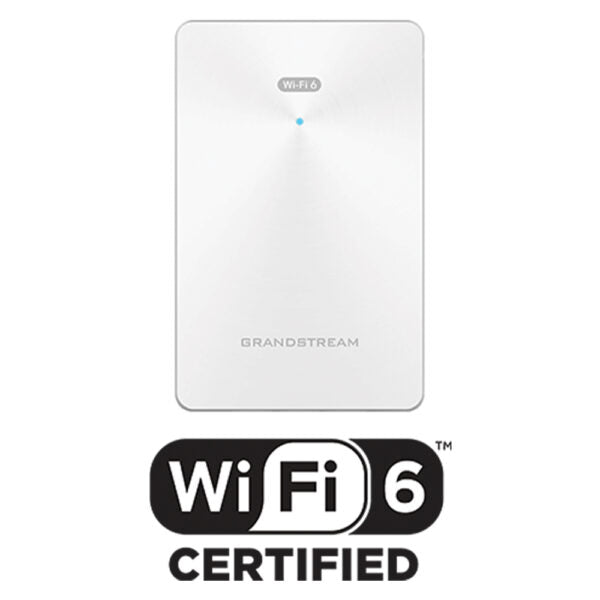
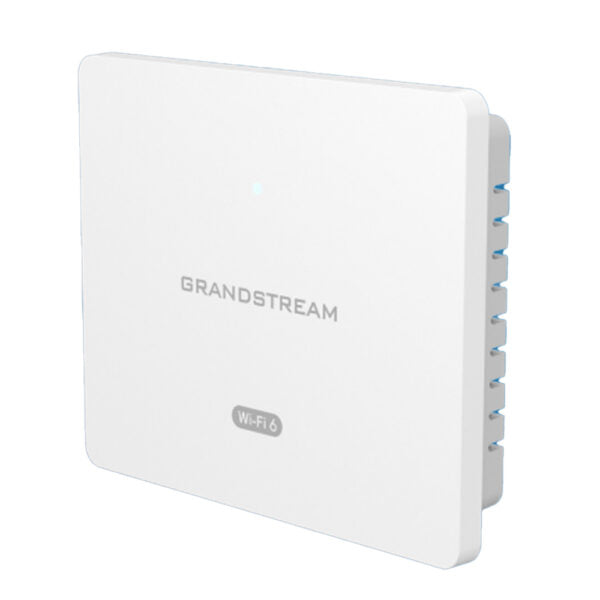
• The GWN7661E is an in-wall AX3000 Wi-Fi 6 access point designed for offices, hotels, homes, apartments and more. • It provides dual-band Wi-Fi 6, sophisticated antenna design for up to 3Gbps wireless speeds, 100-meter coverage range, and MU-MIMO technology. Key Features: • Dual-band Wi-Fi 6 • Up to 3Gbps wireless throughput and 4x Gigabit wireline ports • Support for up to 256 concurrent Wi-Fi client devices • Advanced QoS to ensure real-time performance of low-latency applications • Anti-hacking secure boot and critical data/control lockdown via digital signatures Embedded controller manages up to 50 local GWN APs; GWN.Cloud offers unlimited AP management, & GWN Manager offers on-premise software AP management. Additional Information: • Weight: 0.85 lb • Dimensions: 6.93 × 4.67 × 2.56 in • WiFi Standard: Wi-Fi 6 (802.11ax) • Network Band: Dual Band • Frequency Band: 2.4 Ghz, 5 Ghz • Mounting Options: Wall Plate

About This Product

The Grandstream GWN7661E is an in-wall Wi-Fi 6 access point designed for environments where a discreet, flush-mounted network solution is preferred over a ceiling or desktop unit. It fits naturally in hotel rooms, apartment units, small offices, and multi-tenant buildings where wall space is available and aesthetics matter. The integrated design replaces the need for a separate wall plate or surface-mount enclosure, making it a clean choice for new builds or retrofits in the GTA and across Canada.

This access point pairs well with Grandstream's GWN series controllers, whether through the embedded controller for up to 50 local units, the free cloud platform GWN.Cloud, or the on-premise GWN Manager software. It is a strong option for a single-room or small-suite deployment where high client density (up to 256 devices) and low-latency applications like video conferencing or streaming are required. However, its in-wall form factor means it is not ideal for open-plan offices or large halls where a ceiling-mounted AP would provide better coverage and fewer obstructions.

Practical tradeoffs include the need for an existing or accessible wall box with Ethernet backhaul, as power is supplied via PoE (802.3af/at). The 100-meter coverage range is typical for indoor Wi-Fi 6, but actual performance will vary with wall construction and interference. For Canadian business deployments, ensure your switch provides PoE+ for full performance, and verify compatibility with your chosen controller platform if you are mixing with other AP brands. This device may be overkill for a single-user home office but underpowered for a high-density conference room with dozens of active clients; the GWN7661E is best matched to mid-density spaces like hotel suites or small meeting rooms.
Services We Provide
  • Professional Installation & Configuration
  • Ongoing Maintenance & Support
  • Troubleshooting & Repairs
  • System Upgrades & Updates