Grandstream GWN7664 Wi-Fi 6 Indoor Access Point

Frequently Asked Questions

First, ensure the Ethernet cable is securely connected to both the AP and a PoE+ switch or injector that supplies at least 802.3at power. If you are using a standard PoE (802.3af) source, the AP may not boot fully due to insufficient power. Try swapping the cable and plugging the AP directly into a known working PoE+ port.
A flashing red/green pattern typically indicates the AP is trying to connect to a network but is having trouble getting an IP address or reaching the internet. Check that your DHCP server is active and that the Ethernet cable is functional. You can also power cycle the AP and verify that the switch port is configured for VLAN 1 or the correct management VLAN.
First, confirm that the AP is not placed too close to metal objects, large appliances, or other electronics that can cause interference. Then log into the AP's web interface and check that the 2.4 GHz and 5 GHz bands are not congested—you can try switching to a less crowded channel. Also, verify that the AP firmware is up to date, as Wi-Fi stability improvements are often included in newer versions.
In the AP's web interface, go to the QoS settings and enable WMM and prioritize the VoIP traffic classification. Also configure the SSID for voice as a dedicated VLAN and set the voice VLAN ID if your network uses VLAN tagging. For best results, put the AP and phones on the same LAN segment and ensure the network switch supports 802.1p priority queuing.
First, verify that your computer is on the same VLAN and subnet as the AP. The default IP may be assigned via DHCP, so check your router's DHCP lease table for the AP's current IP address. If you can ping the AP but the web interface is unresponsive, the AP may be running an older firmware version that has a known web UI bug; updating the firmware via GWN Manager or GWN.Cloud will usually resolve this.
Yes, the GWN7664 will power on with standard PoE (802.3af), but it will automatically reduce power consumption. This may limit the maximum throughput and disable some features, especially under high client load. For full performance, use a PoE+ (802.3at) power source.
Yes, the GWN7664 is standards-based and compatible with any router or modem that provides DHCP and a wired Ethernet connection. Just connect the AP to the router's LAN port and configure it through the web interface or via GWN Manager. There is no vendor lock-in at the network level.
Locate the reset button on the AP (usually a small pinhole). With the AP powered on, press and hold the reset button for at least 7 seconds until the LED flashes red, then release. The AP will reboot with default settings. Note that this will erase all configuration, including Wi-Fi SSIDs and passwords.
Start by moving the AP to a central, elevated location away from walls and obstructions. Check the transmit power settings in the web interface; if it is set to low, increase it to medium or high. If the building has concrete walls or metal studs, consider adding a second GWN7664 as a mesh node or wired secondary AP to extend coverage.
First, ensure the AP has a stable internet connection—check that it can reach external sites by pinging a public address from the AP's diagnostics page. Then verify that your firewall or proxy is not blocking outbound HTTPS (port 443) to the GWN.Cloud server. If the issue persists, a Toronto-based VoIP support provider can usually resolve this remotely.
Access Points

Grandstream GWN7664 Wi-Fi 6 Indoor Access Point
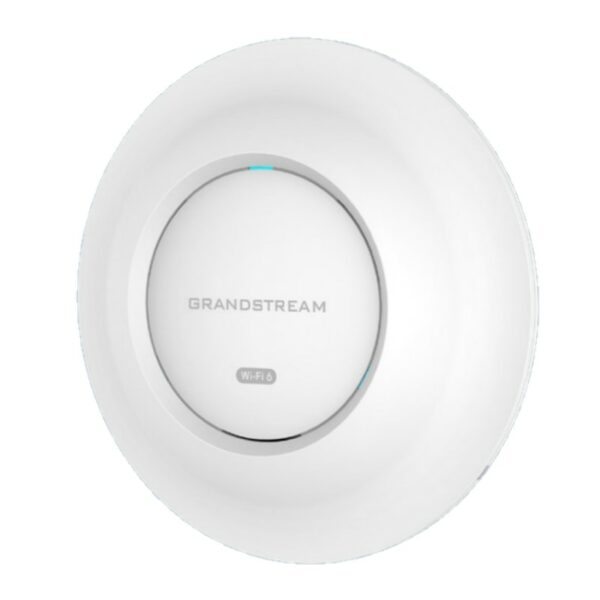
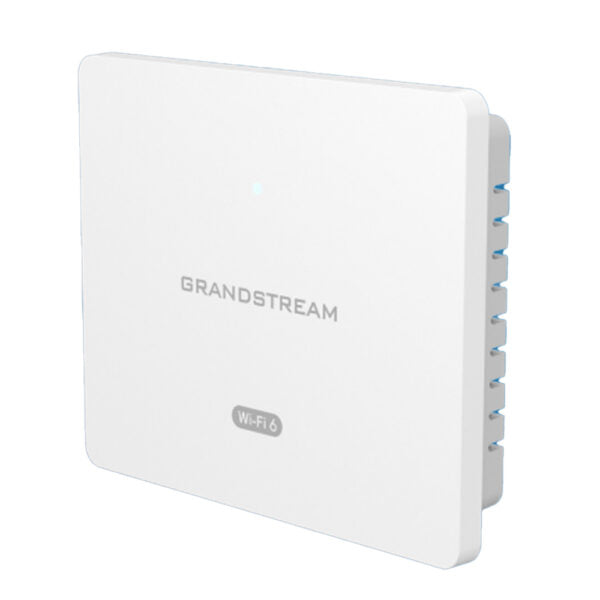
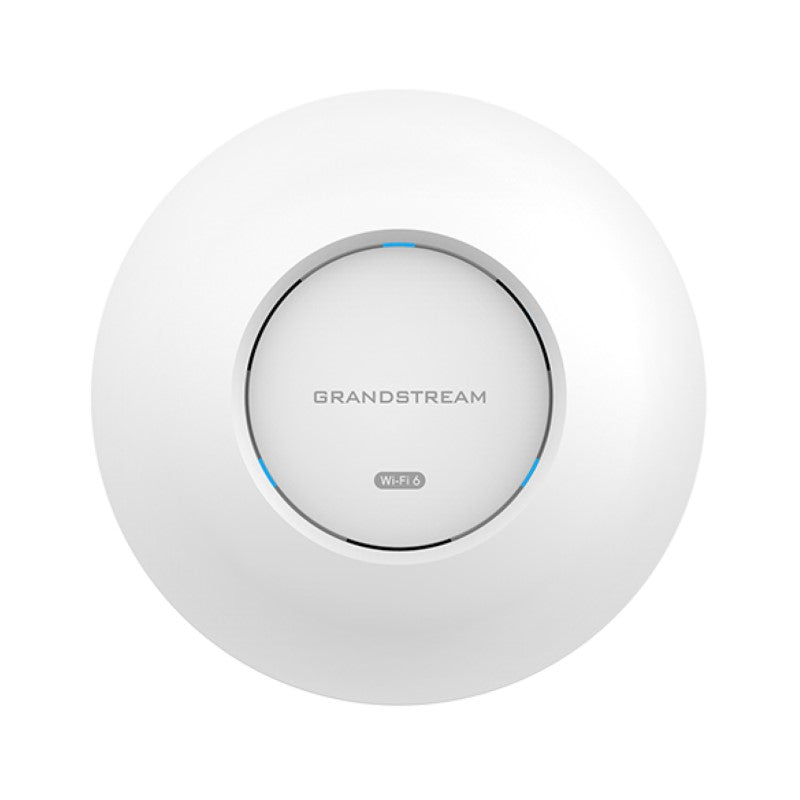
• The GWN7664 is a powerful enterprise-grade 802.11ax Wi-Fi 6 access point ideal for small-to-medium sized businesses, multiple floor buildings, residential settings and commercial locations. • It offers dual-band 4×4:4 MUMIMO with DL/UL OFDMA technology and sophisticated internal antenna design for stronger anti-interference, more stable connection, maximum network throughput and expanded Wi-Fi coverage range. • GWN. Cloud and GWN Manager provide cloud and on-premise Wi-Fi management platforms that make managing your network or several networks across multiple locations easier than ever before. • The product uses a controller-less network management architecture with the controller embedded within the web user interface for easy administration of locally deployed Wi-Fi Aps. • It is ideal for voice-over-Wi-Fi deployments and offers a seamless connection with Grandstream's Wi-Fi capable IP phones, supporting advanced QoS, low-latency real-time applications, mesh networks, captive portals, 512 concurrent clients and dual Gigabit network ports with PoE/PoE+. Key Features: • 3.55Gbps aggregate wireless throughput • 3.5Gbps aggregate wired throughput • Dual-band 4×4:4 MUMIMO with DL/UL OFDMA technology • Up to 175-meter coverage range • Support for 512 concurrent Wi-Fi client devices • Advanced QoS to ensure real-time performance of low-latency applications • Anti-hacking secure boot and critical data/control lockdown via digital signatures, unique security certificate/random default password per device • Self power adaptation upon auto detection of PoE or PoE+ • Embedded controller can manage up to 50 local GWN series APs; GWN. Cloud offers unlimited AP management Additional Information: • Weight: 1.54 lbs • Dimensions: 10.16 × 9.72 × 3.39 in • Brand: Grandstream • Product Family: GWN-Cloud • Wi-Fi Standard: Wi-Fi 6 (802.11ax) • Network Band: Dual Band • Frequency Band: 2.4 Ghz, 5 Ghz • Mounting Type: Ceiling, Wall Plate

About This Product

The Grandstream GWN7664 is an enterprise-grade Wi-Fi 6 access point designed for small-to-medium businesses, multi-floor offices, and commercial spaces that need reliable, high-density wireless coverage. It pairs naturally with Grandstream IP phones for voice-over-Wi-Fi deployments, but it also works well as a standalone wireless backbone for any VoIP or real-time application that demands low latency. The device uses a controller-less architecture, meaning each access point has a built-in management interface that can oversee up to 50 local units, so you can avoid the cost and complexity of a separate hardware controller unless your network spans many sites.

A key tradeoff is that the GWN7664 relies on PoE+ for full performance; if you use standard PoE, the AP will automatically reduce power draw, which may limit throughput or features in high-traffic environments. With a 175-meter coverage range and support for 512 concurrent clients, this AP is well-suited for open-plan offices, conference rooms, or retail floors—but it could be overkill for a single small office with fewer than 20 devices, where a simpler, lower-cost AP would suffice. On the other hand, in a dense GTA office with dozens of VoIP handsets, tablets, and laptops competing for airtime, the dual-band 4x4 MIMO and OFDMA technology help maintain stable connections even during peak usage.

For Canadian deployments, the GWN7664 operates on standard 2.4 GHz and 5 GHz bands, so it is fully compatible with common ISP equipment and carrier networks across Canada. Its secure boot and unique default password per device add a layer of protection against unauthorized access, which is particularly valuable for businesses handling sensitive client data or needing to comply with privacy regulations. Overall, this AP offers a good balance of performance and manageability for growing organizations that want to future-proof their wireless network without committing to a subscription-based cloud management platform.
Services We Provide
  • Professional Installation & Configuration
  • Ongoing Maintenance & Support
  • Troubleshooting & Repairs
  • System Upgrades & Updates