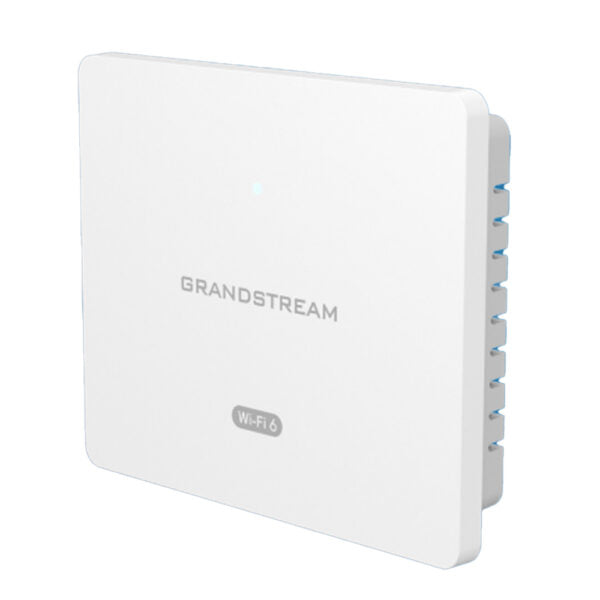
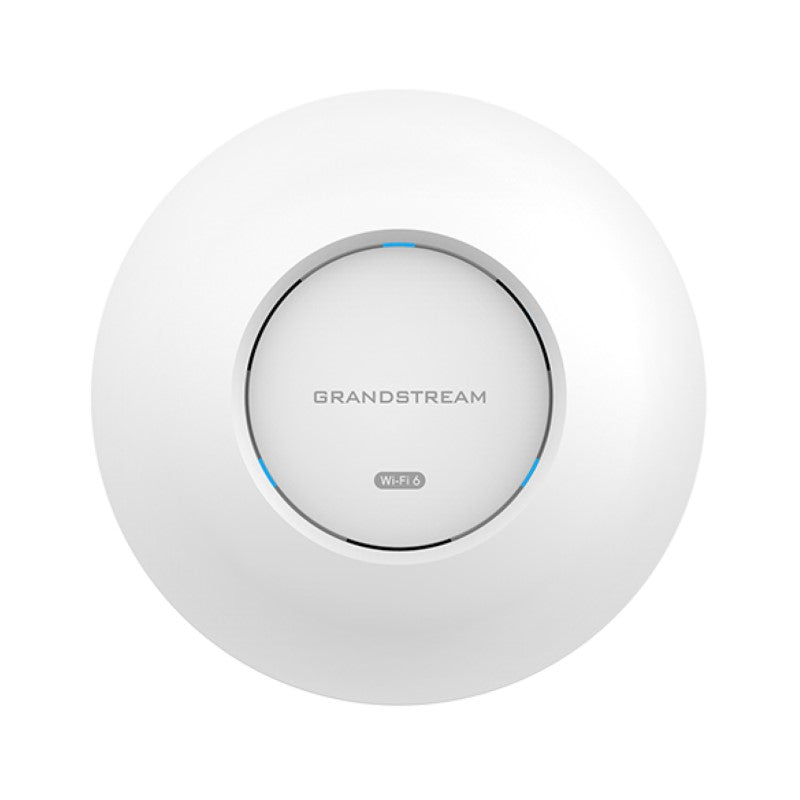
Grandstream GWN7664E Wi-Fi Access Point 4×4 802.11ax Wi-Fi 6 AP, AX6000, 2 x 2.5 Gbe Ports, HE160

Frequently Asked Questions

Confirm the Ethernet cable is plugged into the correct PoE+ port on a switch or injector that supports 802.3at. A standard PoE (802.3af) source may light the LED but won’t provide enough power for full operation. Try a different known‑good cable and, if available, test with a PoE+ injector directly to rule out switch port issues.
First, verify that the SSID broadcast is not disabled in the GWN.Cloud or local web interface. If you just adopted the AP, allow a few minutes for the configuration to push. Connect a laptop directly to the same switch to ensure the VLAN is trunked correctly and that DHCP is offering addresses on that subnet.
Check that the AP can reach the internet and that no firewall is blocking outbound TCP ports 80 and 443 to Grandstream’s cloud FQDN. A quick test is to SSH into the AP (if enabled) and ping the cloud server. If the local network uses a proxy, make sure the AP’s network settings include the correct proxy address.
Ensure the Ethernet uplink is negotiated at 2.5 Gbps and that the switch port is not set to 100 Mbps. Speed drops can also happen if the 5 GHz channel width is set to 20 MHz instead of 80 or 160 MHz. In the radio settings, confirm that 802.11ax is enabled and that WMM is on for QoS.
Both APs need to be managed by the same GWN.Cloud account or local controller. In the web interface, enable mesh under the radio settings for the wired root AP. The satellite unit will automatically discover and join the mesh after you adopt it, provided it is within range and on the same management VLAN.
Reduce the number of SSIDs to a maximum of three and disable lower data rates under advanced radio settings. Check for interference from neighboring networks using a Wi‑Fi scanner and manually pick a less congested channel. Also verify that the client isolation feature is not accidentally turned on for the corporate SSID.
The GWN7664E supports link aggregation (LACP) on its two Ethernet ports. You need a switch that also supports LACP and must configure the aggregation group there first. Then enable LACP in the AP’s network settings. This provides higher throughput to the wired network and redundancy, not a doubling of Wi‑Fi speed.
A factory reset should only be done as a last resort because it wipes all configuration. First, try recovering the password via the cloud platform or by using the SSH key if you have it. If you must reset, press and hold the reset pinhole for about 10 seconds until the LED flashes. Be prepared to readopt the AP, and if the issue persists, a Toronto‑based VoIP support provider can usually resolve this remotely.
Many Bluetooth devices, microwaves, and neighboring 2.4 GHz networks can cause interference. Temporarily disable the 2.4 GHz radio to confirm, then set the channel to 1, 6, or 11 and reduce the channel width to 20 MHz. If the problem continues, a site survey may reveal non‑Wi‑Fi sources of noise.
Do not attempt a downgrade without confirming the cause. Power cycle the AP and watch the LED pattern: a slow blinking green usually means it is trying to obtain an IP. If it stays solid red, connect a console cable to check boot messages. If the unit is completely unresponsive, contact Grandstream support with the exact firmware version you applied before taking any recovery steps.
Access Points

Grandstream GWN7664E Wi-Fi Access Point 4×4 802.11ax Wi-Fi 6 AP, AX6000, 2 x 2.5 Gbe Ports, HE160
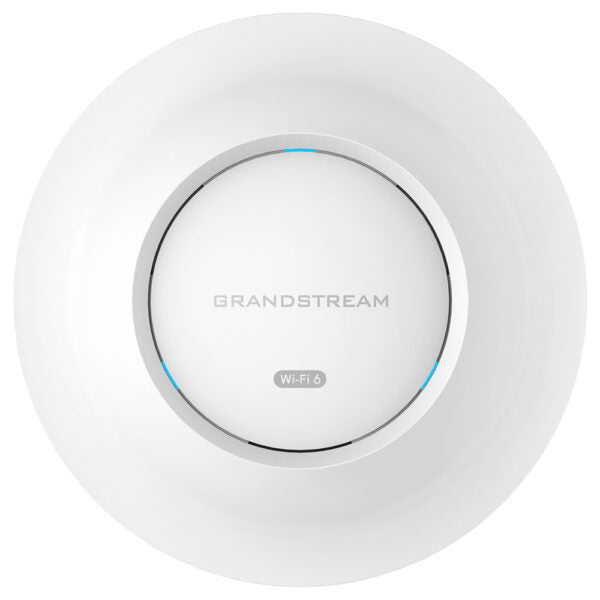
• The GWN7664E is a powerful, enterprise-grade high-performance 802.11ax Wi-Fi 6 access point ideal for small-to-medium sized businesses and residential settings. • It offers dual-band 4×4:4 MUMIMO with DL/UL OFDMA technology and a sophisticated internal antenna design for stronger anti-interference, more stable connection, maximum network throughput of up to 6Gbps, and expanded Wi-Fi coverage range. • The GWN7664E is supported by GWN.Cloud and GWN Manager, Grandstream’s cloud and on-premise Wi-Fi management platform that makes managing your network or several networks across multiple locations easier than ever before. Key Features: • 6Gbps aggregate wireless throughput • Advanced QoS to ensure real-time performance of low-latency applications • Dual-band 4×4:4 MUMIMO with DL/UL OFDMA technology • Anti-hacking secure boot and critical data/control lockdown via digital signatures, unique security certificate/random default password per device • Up to 175-meter coverage range • Self power adaptation upon auto detection of PoE+ • Support for 512 concurrent Wi-Fi client devices • Embedded controller manages up to 50 local GWN APs; GWN.Cloud offers unlimited AP management, and GWN Manager offers on-premise software AP management Additional Information: • Weight: 2.34 lb • Dimensions: 10.16 × 9.72 × 3.39 in • Wi-Fi Standard: Wi-Fi 6 (802.11ax) • Network Band: Dual Band • Frequency Band: 2.4 Ghz, 5 Ghz • Mounting Options: Ceiling, Wall Plate

About This Product

The Grandstream GWN7664E is built for small-to-medium businesses and multi-dwelling residential properties that need to support a high density of modern devices. It fits well in open-plan offices, retail floors, and hospitality lobbies where dozens of users stream, video call, and transfer data simultaneously. With dual 2.5GbE ports and Wi‑Fi 6, it can serve as a wired backhaul hub for a cluster of access points, reducing congestion in a growing network.

This access point pairs naturally with Grandstream’s own managed switches and GWN series APs, especially if you plan to use the embedded controller to manage up to 50 local units. It also works with cloud or on‑premise management platforms, so you can start small and scale without swapping hardware. If you are moving from a basic consumer router or an older Wave 2 AP, the jump to 4×4 MIMO and OFDMA will noticeably improve airtime fairness and range.

The GWN7664E demands PoE+ (802.3at) to reach full performance; a standard PoE switch will limit its transmit power and may disable one of the 2.5GbE ports. For a small office with fewer than 30 active clients, it is likely overprovisioned and a more modest AX3000 model would save budget. Conversely, a large warehouse or stadium that requires hundreds of APs with real‑time location analytics will need a controller with broader feature set, making this unit underpowered for that tier.

In a Canadian business context, the GWN7664E is a practical choice for upgrading legacy Wi‑Fi in a Toronto law firm or a Vancouver retail chain, especially when paired with a local Grandstream distributor who can supply PoE+ switches and assist with the initial cloud onboarding. Its security certificate and random default password help meet basic compliance expectations without extra licensing cost.
Services We Provide
  • Professional Installation & Configuration
  • Ongoing Maintenance & Support
  • Troubleshooting & Repairs
  • System Upgrades & Updates