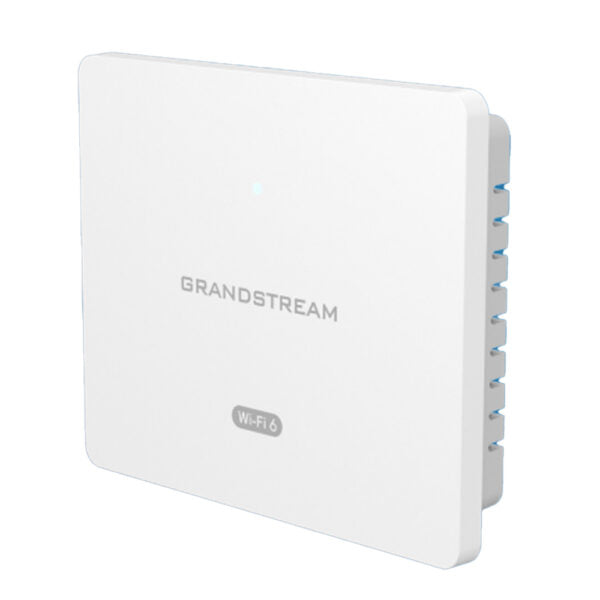
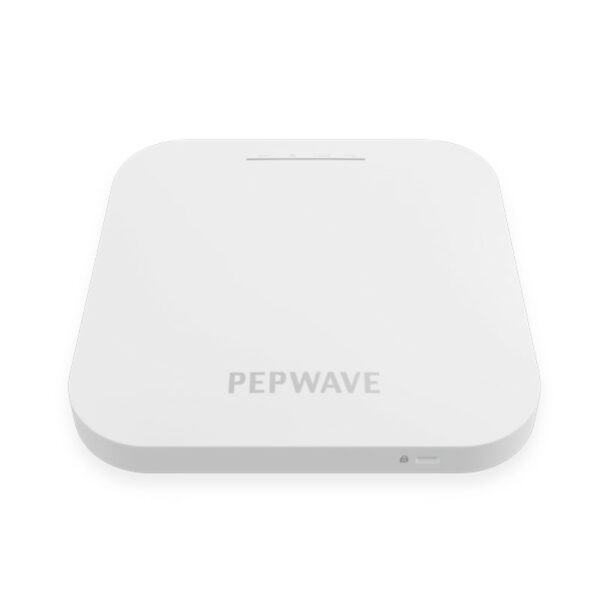
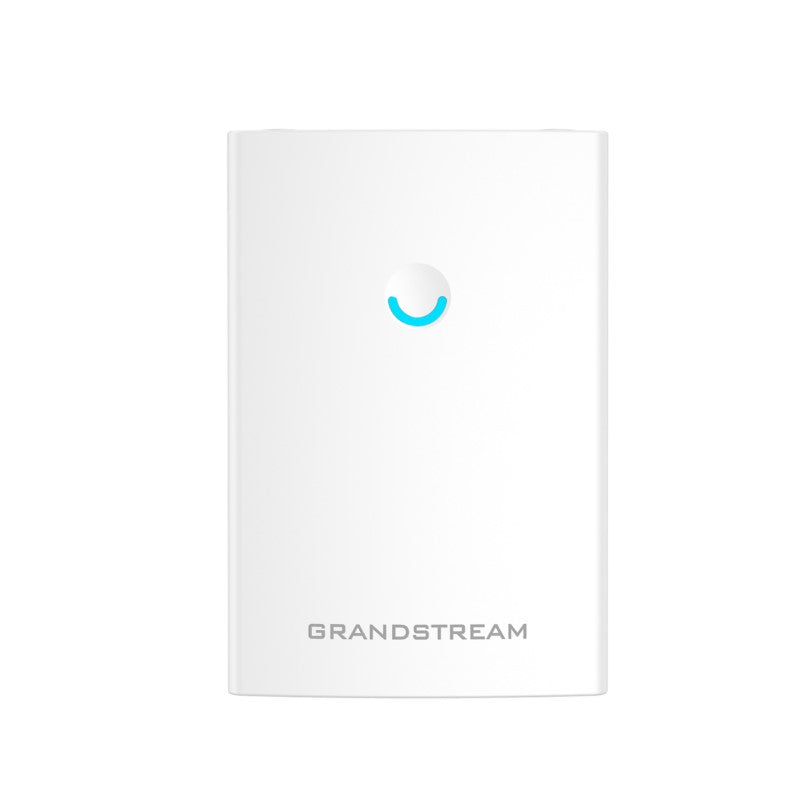
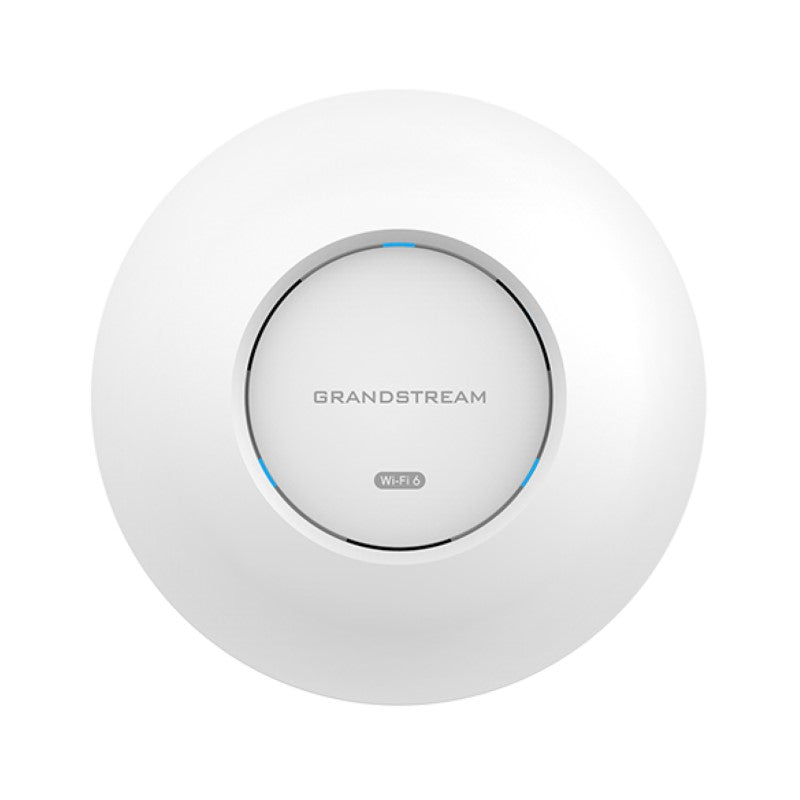
Grandstream GWN7670 Dual Band Wi-Fi 7 Access Point

Frequently Asked Questions

Start on the wired side: make sure the Ethernet cable is plugged into the correct 2.5 GbE port and that the switch port supplying PoE+ is actually delivering power and a live network link. If the AP is behind a firewall, confirm that it can reach the internet and resolve the GWN Manager cloud address, or that your on‑premises GWN Manager server is reachable from the AP’s subnet. Also verify that the AP obtained an IP address via DHCP; a missing DHCP offer is the most common reason an AP stays silent. If the issue persists, a Toronto‑based VoIP and networking provider can usually remote in and trace the discovery path quickly.
Intermittent cloud disconnects are often caused by an unstable internet path rather than the AP itself. First, check the uplink switch’s error counters for CRC errors or flapping on the port. Then, look at the site’s firewall and DNS settings; Grandstream cloud management uses specific outbound ports and requires consistent DNS resolution. Temporarily moving the AP to a known‑good switch port and bypassing any deep packet inspection rules will tell you whether the problem lives in the AP or the network edge.
Wi‑Fi 7 access points often enable advanced security and rate features by default that legacy clients do not understand. Log into the AP’s local web interface or GWN Manager and confirm that WPA3 transition mode (WPA2/WPA3 mixed) is selected rather than WPA3‑only. Also check that the 2.4 GHz radio is enabled and that 802.11b/g/n protection modes are active; some older sensors need those base rates advertised. Temporarily creating a separate SSID just for the 2.4 GHz band with WPA2‑PSK is a safe way to isolate the issue without touching the main production network.
Speed tests measure bulk throughput, not the consistent low‑latency delivery that real‑time voice requires. On a Grandstream network, enable the Advanced QoS profile that prioritizes voice and video traffic, and pair the AP with a switch that honours 802.1p/DSCP markings end‑to‑end. On the call server or IP PBX, confirm that the Wi‑Fi phones are using a codec like G.711 or Opus with a short packetization interval rather than a high‑compression codec that amplifies jitter. A quick sanity check is to ping the AP from a wired device and look for latency spikes greater than 10–20 ms.
Most likely not. Building materials common in GTA commercial construction—concrete block, metal studs, low‑E glass, and even older plaster with wire mesh—can attenuate a 5 GHz signal far more than open‑air specs suggest. Start by checking the transmit power settings in GWN Manager; the radio may be set lower than the regulatory maximum for your region, which is a safe default. If coverage is still inadequate, adding one additional AP and enabling client roaming between them is the standard remedy, rather than assuming a single unit should cover an entire floor.
This behaviour typically indicates the AP reverted to factory defaults or received a blank configuration push. Before rebuilding anything, verify that your GWN Manager or GDMS Networking platform still shows the AP with its intended configuration. If the configuration is still defined there but the AP is not picking it up, first safely reboot the AP and watch the management dashboard to see whether it re‑associates and applies the correct profile. Should the platform show the AP as unprovisioned, do not rush into manual changes; instead, confirm whether an automated provisioning rule was accidentally triggered, because that rule would need to be corrected first to prevent the same reset from happening again.
The simplest method is to create a new SSID in GWN Manager or the AP’s local interface and assign it to the desired VLAN ID under the network settings for that SSID. Ensure the same VLAN is defined on your managed switch and that the switch port carrying the AP is tagged for that VLAN. When the AP is managed centrally, the VLAN assignment can be pushed to all access points at once, keeping your guest traffic isolated across the entire site without touching each unit individually.
The access point auto‑detects the power source and adapts accordingly, but it is designed for 802.3at PoE+ to deliver full performance. If connected to a basic 802.3af PoE switch, the AP may still power on, yet it could disable the BLE radio or limit transmit power to stay within the lower power budget. For reliable operation in a business setting, supplying PoE+ is the safe approach; using a PoE+ injector in line with a non‑PoE switch is an acceptable workaround when upgrading the entire switch is not immediately feasible.
The AP supports both ceiling and wall‑plate mounting, and Grandstream offers brackets designed to deter casual tampering. For a public area, choose a mount location high on the wall or ceiling that is out of immediate reach, and use the included security screw if available. Tucking the Ethernet cable inside the mount bracket and securing the AP with a Kensington‑style lock slot—if the bracket or chassis provides one—adds an extra layer of physical protection. For most Canadian medical or professional offices, a ceiling‑mounted position above a suspended ceiling tile serves the dual purpose of keeping the AP out of sight and out of reach.
Repeated update failures usually point to a network stability problem during the download and write phase. First, connect to the AP’s local web interface and note the current firmware version and the size of the update file. Then, try staging the update from an on‑premises GWN Manager instead of the cloud, as the local connection is less susceptible to internet congestion. If the update still fails, capture the exact error message shown in the management log and engage Grandstream support or a local VoIP integrator before attempting any manual recovery methods, since interrupting a partially written firmware can leave the AP in an unrecoverable state.
Access Points

Grandstream GWN7670 Dual Band Wi-Fi 7 Access Point
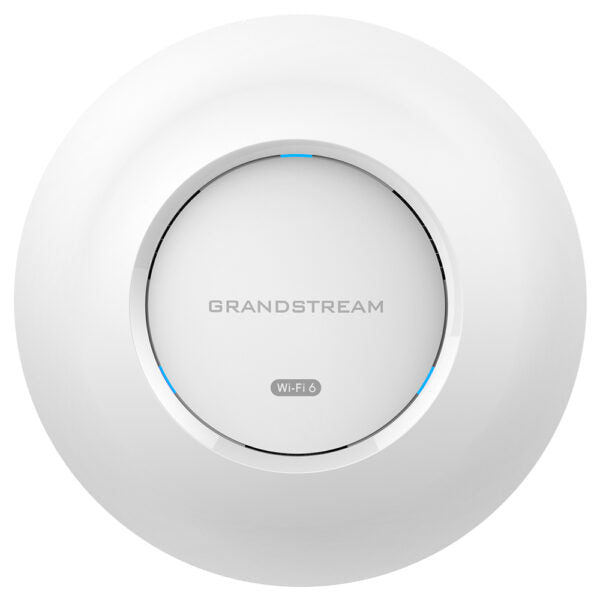
The GWN7670 is a new generation enterprise-grade Wi-Fi 7 access point, ideal for small-to-medium-sized businesses to build next-generation Wi-Fi networks. It offers dual-band 2×2:2 MU-MIMO with DL/UL OFDMA technology and a sophisticated antenna design for maximum network throughput and expanded Wi-Fi coverage range. With 4096 QAM modulation, Wi-Fi 7 achieves a significant increase in data transfer rates. Key features include: • Dual-band 2×2:2 MU-MIMO with DL/UL OFDMA technology • Up to 175-meter coverage range • Support for 256 concurrent Wi-Fi client devices • Advanced QoS to ensure real-time performance of low-latency applications • Anti-hacking secure boot and critical data/control lockdown via digital signatures • Self-power adaptation upon auto detection of PoE+ This access point uses a controller-less distributed network management design, making it easy to install and manage. It is also supported by Grandstream's cloud and on-premises Wi-Fi management platform, GDMS Networking, and GWN Manager. The GWN7670 features: • 2×2 Dual Band • Wi-Fi 7 Indoor AP • 1 x 2.5 GigE • BLE • 3.6Gbps aggregate wireless throughput, 5Gbps aggregate wired throughout • 256 concurrent clients per AP Product specifications include: • Weight: 2.01 lb • Dimensions: 9.00 × 8.66 × 3.11 in • Wi-Fi Standard: Wi-Fi 7 (802.11be) • Network Band: Dual Band • Frequency Band: 2.4 GHz, 5 GHz • Mounting Options: Ceiling, Wall Plate For a full list of specifications, please refer to the Product Data Sheet.

About This Product

The GWN7670 is a practical entry point into Wi‑Fi 7 for growing Canadian businesses that need to support a dense mix of modern laptops, phones, and IoT devices without overcomplicating their network. It is purpose‑built for open offices, retail floors, clinics, and classroom environments where reliable coverage and client capacity matter more than multi‑gigabit peak speeds on a single device. With its 2×2 dual‑band design and a 2.5 Gigabit Ethernet uplink, it hits a sensible sweet spot: it delivers the efficiency gains of 802.11be where they count, while staying within budgets that make a multi‑AP rollout realistic.

This access point fits cleanly into Grandstream‑native deployments managed through GWN Manager or the GDMS Networking cloud, but it also works in mixed‑vendor environments where the controller‑less distributed intelligence keeps setup simple. For a firm already running Grandstream phones, gateways, or cameras, the GWN7670 pulls everything under one management pane and makes QoS prioritization of voice and video traffic straightforward. It pairs naturally with mid‑range PoE+ switches, and its self‑sensing PoE means a single cable run handles both power and data on a standard drop ceiling or wall plate mount.

A realistic limitation to keep in mind is that this is a dual‑band AP, not tri‑band; if your deployment relies heavily on the newly opened 6 GHz spectrum for dedicated high‑throughput backhaul or extremely low‑latency applications, a tri‑band model would be a better match. Similarly, while 256 clients per radio is substantial, a large lecture hall or a warehouse with very high device density will eventually need additional APs placed closer together. The 175‑metre coverage figure is an open‑air maximum; in typical Canadian drywall‑and‑glass construction, expect reliable performance at roughly a third of that distance, which is still plenty for most small‑to‑medium floor plates.

For a Toronto professional services office, a suburban dental practice, or a mid‑size retail location, a small fleet of GWN7670 units is often the right level of investment: you get the longer‑term protocol advantages of Wi‑Fi 7 today, without paying for radio chains or spectrum you do not yet need. Where it would be overkill is a three‑person real‑estate brokerage in a single room, and where it would be underpowered is a campus‑wide deployment that demands 6 GHz macro‑coverage or dedicated AI‑driven RF analytics out of the box.
Services We Provide
  • Professional Installation & Configuration
  • Ongoing Maintenance & Support
  • Troubleshooting & Repairs
  • System Upgrades & Updates