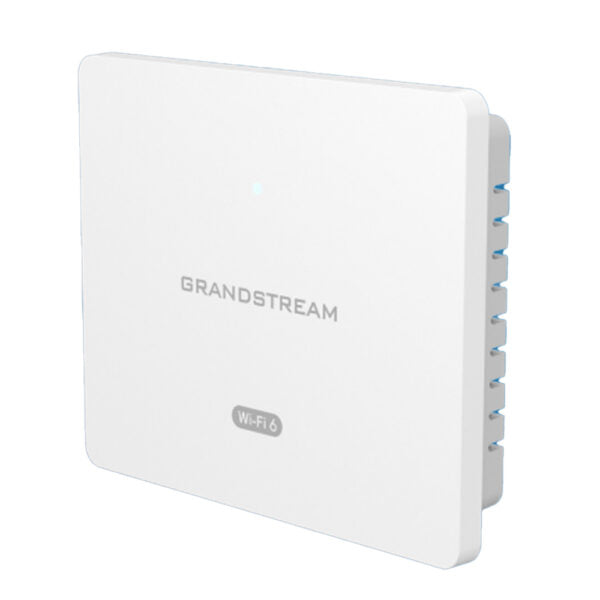
Grandstream GWN7670WM in Wall Wi-Fi 7 Access Point

Frequently Asked Questions

First, check that the Ethernet cable is securely connected to a PoE+ (802.3at) switch or injector. The GWN7670WM requires at least 30W of power, and standard 802.3af PoE may not deliver enough. Try a different port or cable, and confirm the switch port is actively providing power. If it still doesn't light up, your switch or cable may be faulty.
Start by verifying that the AP is not overheating or placed in a confined space. Also, check for channel interference by logging into the AP's web interface and reviewing the Wi-Fi channel utilization. If a neighboring network is using the same channel, switch to a less congested one. Power-cycling the AP and the switch port can also clear temporary glitches.
The reset button is located on the front panel behind the faceplate. Press and hold it for about 10 seconds until the LEDs flash rapidly. This will restore factory defaults, including the IP address and administrator credentials. Only perform a reset if you have confirmed the device is unreachable and you have a backup of your configuration.
You need a switch that supports 802.3at PoE+ (30W per port). Standard 802.3af PoE (15.4W) may not provide enough power, causing the AP to boot loop or not function properly. Check your switch's specifications before connecting. If you're unsure, a dedicated PoE+ injector is a safe alternative.
Log into the AP's web interface and confirm that the SSID is enabled and not hidden. Also check that the radio (2.4GHz or 5GHz) is turned on. If you're using a controller (like GWN.Cloud or GWN Manager), verify that the provisioning template includes the correct SSID settings and that the AP has synced successfully.
You can update via the web interface under Maintenance > Upgrade. Alternatively, if you're managing multiple APs through GWN.Cloud or GWN Manager, you can schedule firmware updates from the controller dashboard. Always back up your configuration before upgrading, and ensure the AP remains powered during the process.
Yes, the port will auto-negotiate to the highest speed supported by the connected device. If your switch or cable only supports 1G, the link will run at that speed. To achieve 2.5G, ensure both the switch port and the Ethernet cable (Cat5e or better) are rated for 2.5GBASE-T. If everything is compatible and it still negotiates to 1G, try a different cable or port.
Yes, it is designed to fit a standard single-gang US electrical box (or a Canadian equivalent with the same dimensions). The AP comes with a mounting bracket that screws into the box. Make sure the box is securely fastened to the wall and that the Ethernet cable can reach the back of the unit without excessive bending.
First, confirm that the AP has internet access and can reach the controller's IP or URL. If you're using GWN.Cloud, check that the AP is registered to your account. A common cause is a firewall blocking port 443 or the controller's specific provisioning port. Temporarily disable the firewall or add an exception, then reboot the AP.
While the AP supports up to 256 concurrent clients, real-world performance depends on your internet speed, the types of applications, and signal conditions. For general office use (web browsing, email, video conferencing), you'll see good performance up to about 80-100 devices per radio. For high-bandwidth applications like 4K streaming or large file transfers, aim for fewer than 50 clients per radio.
Access Points

Grandstream GWN7670WM in Wall Wi-Fi 7 Access Point
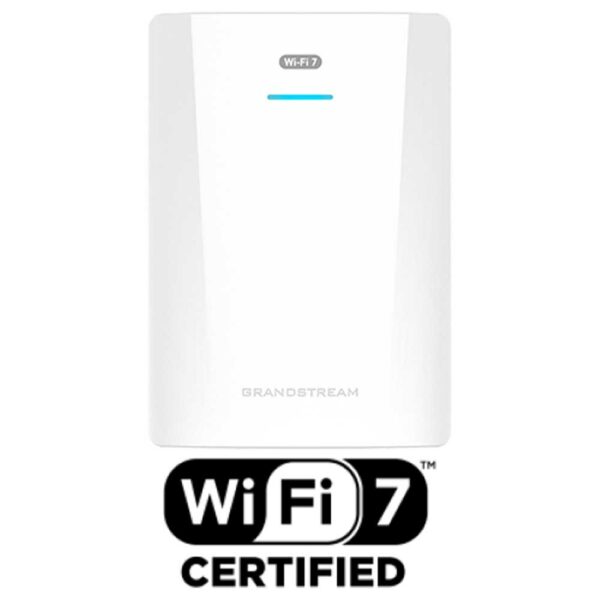
* The GWN7670WM is an enterprise-grade in-wall Wi-Fi 7 access point designed for small-to-medium-sized businesses to build next-generation Wi-Fi networks. * It offers dual band 2×2:2 MIMO with DL/UL OFDMA technology and a sophisticated antenna design for maximum network throughput and expanded Wi-Fi coverage range. * Key features: + Dual band operation + 2×2:2 MIMO technology for improved network performance + DL/UL OFDMA technology for enhanced reliability + Advanced security features, including anti-hacking secure boot and critical data/control lockdown via digital signatures + Support for up to 256 concurrent Wi-Fi client devices + 3.6Gbps aggregate wireless throughput and 2.5Gbps aggregate wired throughput * Technical specifications: + Wi-Fi standards: IEEE 802.11 a/b/g/n/ac/ax/be + Antennas: 5 single frequency antennas, gain 3.5dBi (2.4GHz) and 5.5dBi (5GHz) + MIMO technology: 2×2:2 2.4GHz and 2×2:2 5GHz + Receiver sensitivity: -92dBm @6Mbps, -74dBm @54Mbps for 802.11a; -73dBm @MCS7, -70dBm @MCS7 for 802.11n + SSIDs: 32 total, 16 per radio (2.4GHz & 5GHz) + Concurrent clients: up to 256 + Network interfaces: 2x 2.5G Ethernet WAN/LAN

About This Product

The Grandstream GWN7670WM is an in-wall Wi-Fi 7 access point built for small to medium-sized businesses that need reliable, high-density wireless coverage without running extra cabling. It replaces a standard Ethernet wall plate, making it a clean fit for offices, hotel rooms, or retail spaces where you want to keep walls tidy and avoid ceiling-mounted units. With dual-band 2x2:2 MIMO and OFDMA, it handles up to 256 concurrent clients, which is plenty for a busy meeting room or a small open-plan floor. The tradeoff is that in-wall designs have a more limited coverage footprint than a ceiling-mount AP, so you'll need one per room or small cluster of desks rather than covering a large hall with a single unit. For a Toronto office with drywall construction, the 3.5dBi and 5.5dBi antennas work well, but in open-plan spaces with high ceilings or concrete walls, you might find it underpowered and need additional units. Conversely, for a single-room deployment like a small boardroom or a retail counter, this AP is overkill—a simpler Wi-Fi 6 model would suffice at lower cost. It pairs naturally with a 2.5G PoE switch (sold separately) and works with most Canadian carriers' business internet services, though you'll want to confirm your switch supports 802.3at PoE+ to power it fully.
Services We Provide
  • Professional Installation & Configuration
  • Ongoing Maintenance & Support
  • Troubleshooting & Repairs
  • System Upgrades & Updates