Grandstream GWN7672 Tri-Band Wi-Fi 7 Access Point

Frequently Asked Questions

First, confirm that the PoE+ switch or injector you are using can deliver at least 30W per port – standard PoE (15.4W) is not sufficient. If you are using a power adapter, ensure it is the correct 12V/2.5A model. Reseat both ends of the Ethernet cable and try a different port on the switch. If the device still doesn’t power up, verify that the cable is not damaged and that the switch port is enabled.
This often happens when the client device does not support Wi-Fi 7 and is connecting on a congested band, or when the backhaul cable is only Gigabit while the AP has 5 Gbps ports. Check the negotiated link speed on the wired connection – it should be at least 2.5 Gbps for full throughput. Also, verify that the client is connecting to the 5 GHz or 6 GHz band and not the 2.4 GHz band, which is slower. If interference is high, consider changing the channel in the AP’s settings.
First, double-check that the SSID is enabled in the web interface or GWN Manager. Go to Wireless > SSID and make sure the status is ‘Enabled’ and that the broadcast checkbox is ticked. Also, confirm that the AP is not in a ‘stealth’ or hidden SSID mode. If it still does not appear, try power-cycling the unit and check that the Ethernet cable is securely connected and the switch port is active.
From the AP’s web interface or GWN Manager, go to Wireless > SSID and add a new SSID. For the security mode, choose WPA2/3-PSK or an open portal if you want a captive portal. Under Network Settings, assign a different VLAN ID for guest traffic to keep it isolated from your main corporate network. If your switch supports 802.1Q VLAN tagging, make sure the trunk port to the AP allows that VLAN.
Intermittent disconnections are often due to RF interference, channel congestion, or a weak signal from a distant AP. Start by checking the wireless channel utilization in the AP’s dashboard – if it’s above 80%, try switching to a less crowded channel manually. Also, verify that you haven’t enabled fast roaming or band steering without proper client support, as these features can cause dropouts. If the issue persists, check the wired connection for packet loss or CRC errors on the switch port.
Yes. Each GWN7672 has a built-in controller that can manage up to 50 local GWN access points without any subscription. From the primary AP’s web interface, you can ‘discover’ and adopt other APs on the same Layer-2 network. For larger deployments, you can use the free GWN Manager software on-premise. Cloud management via GDMS is available as an option but not required.
A quiet buzz can be normal for power electronics, especially under load, but if it is loud or accompanied by intermittent Wi-Fi drops, it may indicate a power supply issue. First, try moving the PoE injector or power adapter to a different outlet to rule out electrical noise. If the sound persists, stop using the unit and check the device temperature – overheating can cause audible coil whine. Contact your support provider for further diagnosis.
From the AP’s configuration, go to Network > VLAN and enable the ‘802.1Q VLAN’ mode, then assign each SSID the appropriate VLAN ID under Wireless > SSID. On your switch, the port connecting to the AP should be configured as a trunk port (or tagged for the relevant VLANs) with the native VLAN set to the management VLAN. If the switch is unmanaged, VLANs will not work – you will need a managed switch that supports 802.1Q.
Wi-Fi 7’s 6 GHz band requires client devices that support the 6 GHz spectrum (Wi-Fi 6E or Wi-Fi 7). Check the specifications of your phones, laptops, or tablets – most devices from 2023 or earlier do not support 6 GHz. Also, ensure that the 6 GHz radio is enabled in the AP’s settings (Wireless > Radio > 6 GHz). If everything is correct, try reducing the channel width to 80 MHz for better compatibility.
This is unlikely to be caused by the AP alone, as it is backward-compatible with Wi-Fi 5. Check that the security mode is set to WPA2-PSK or mixed WPA2/WPA3 – if you set WPA3-only, older clients may not support it. Also, verify that the SSID is not hidden and that the AP is broadcasting on the 2.4 GHz band, as many older Wi-Fi 5 devices only use 2.4 GHz. If the issue remains, try temporarily disabling the 6 GHz radio to see if it resolves the problem.
Access Points

Grandstream GWN7672 Tri-Band Wi-Fi 7 Access Point
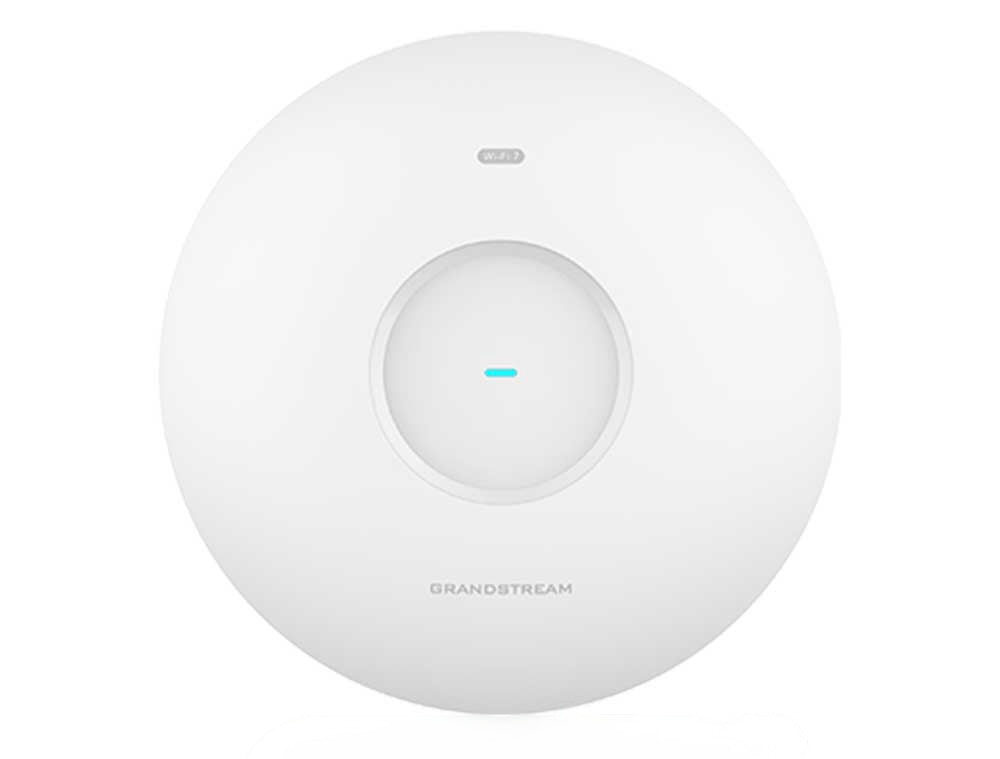
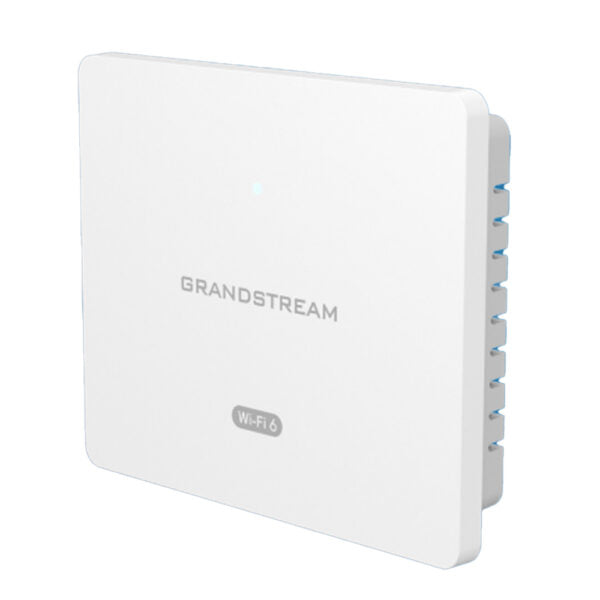
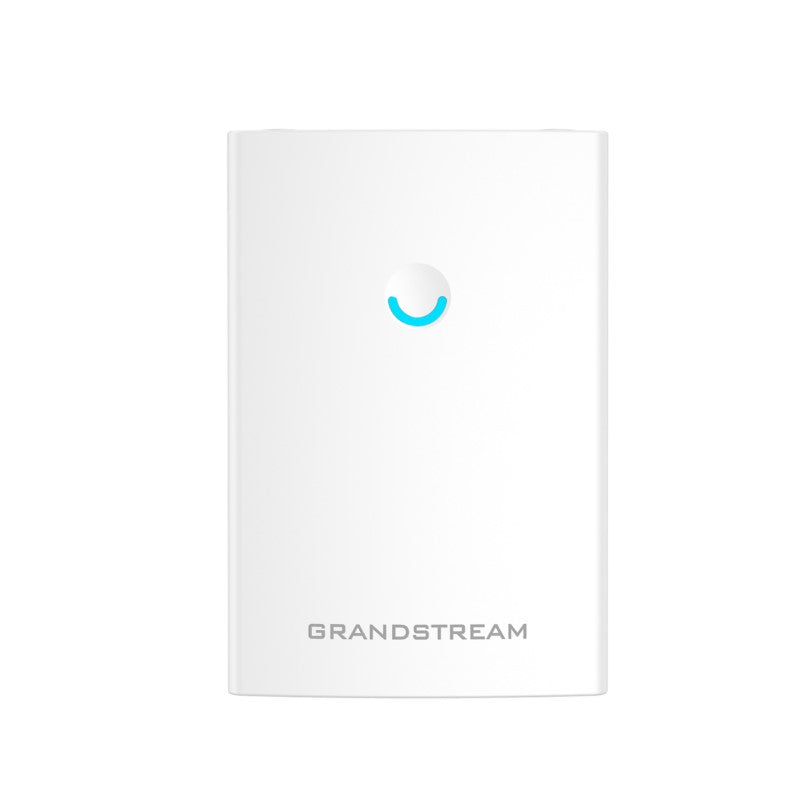
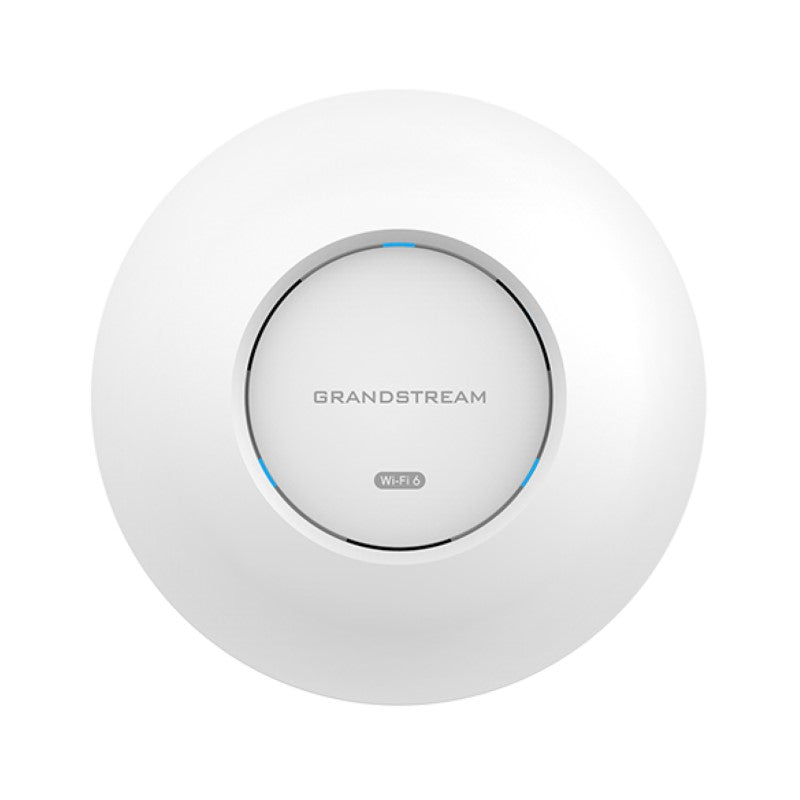
Experience next-level wireless performance with the Grandstream GWN7672, an enterprise-grade Wi-Fi 7 access point built for high-demand environments. Blazing speeds up to 11Gbps (BE11000) make it perfect for medium to high user density areas like offices, campuses, and public venues. • Tri-band 2x2:2:2 MU-MIMO with DL/UL and Enhanced OFDMA technologies ensure wide coverage and smooth connectivity • Multi-Resource Units (MRU), Preamble Puncturing, and 4096-QAM boost speed and reduce interference • Multi-Link Operation (MLO) feature enhances spectrum efficiency for a seamless user experience Easy to deploy and manage, the GWN7672 features a built-in controller and supports GDMS Networking and GWN Manager for centralized cloud or on-premise control. Key features include: • 11Gbps aggregate wireless throughput (BE11000), 5Gbps aggregate wired throughput • Supports up to 384 concurrent Wi-Fi client devices • Advanced QoS to ensure real-time performance of low-latency applications • Anti-hacking secure boot and critical data/control lockdown via digital signatures, unique security certificate/random default password per device • Self-power adaptation upon auto-detection of PoE+ • Embedded controller manages up to 50 local GWN APs; GDMS Networking offers unlimited AP management, & GWN Manager offers on-premise software AP management For a full list of specifications, please refer to the Product Data Sheet.

About This Product

The Grandstream GWN7672 is a tri-band Wi-Fi 7 access point designed for environments where many devices need reliable, high-speed wireless access simultaneously. It’s a natural fit for mid-to-large offices, university campuses, or public venues such as conference centres and co-working spaces, where you might have hundreds of clients connecting at once. The unit pairs well with a managed PoE+ switch and a modern network that can handle 5 Gbps wired backhaul, and it can replace an existing fleet of older Wi-Fi 5 or Wi-Fi 6 access points if your organization is ready for the next generation of wireless standards.

One practical tradeoff to consider is that the GWN7672 requires PoE+ (802.3at) or a power adapter, so older switches that only provide standard PoE (802.3af) will not power it properly—meaning an upgrade may be needed for some deployments. While the access point supports up to 384 concurrent clients, achieving that density assumes a minimum of 2.4 GHz and 5 GHz clients; real-world performance depends on client device capabilities, physical obstructions, and channel congestion.

For a small office or a home with only a handful of devices, this access point is overkill — a lower-end Wi-Fi 6 or Wi-Fi 6E model would deliver sufficient speed at a lower cost. Conversely, in a high-density deployment such as a lecture hall or a convention centre, even the GWN7672 may be underpowered if every client is running bandwidth-intensive applications; in those cases, multiple units managed via the built-in controller (up to 50 APs) or GDMS cloud platform are the practical path.

Canadian businesses, particularly in the GTA, often face dense RF environments where neighbouring Wi-Fi can cause interference. The GWN7672’s multi-link operation and preamble puncturing help mitigate this, but careful channel planning is still recommended for best results. Because the device uses standard 802.11 protocols, it will work with any ISP and router combination in Canada, though the wired backhaul must support at least a multi-gigabit connection to avoid bottlenecks.
Services We Provide
  • Professional Installation & Configuration
  • Ongoing Maintenance & Support
  • Troubleshooting & Repairs
  • System Upgrades & Updates