Grandstream GWN7801 Enterprise Layer 2+ Managed Network Switch

Frequently Asked Questions

The GWN7801 is a switch, not a router—it does not run a DHCP server by default. Ensure that a device on your network (such as your router or a separate DHCP server) is providing IP addresses, and that the switch port connecting to that server is in the correct VLAN and not blocked by port security. Verify the DHCP server is reachable by pinging it from a device connected to the switch. If the issue persists, a Toronto-based VoIP support provider can usually resolve this remotely.
Log into the switch’s web interface and go to the QoS configuration section. Create a traffic class rule that matches voice packets by DSCP value (typically EF for VoIP) or by UDP port ranges (e.g., 5060–5090 for SIP and RTP). Then assign that class to a high-priority queue. The switch supports automatic detection of latency-sensitive packets, but manual rules give you more control. After applying, test your voice quality with a call.
Access the VLAN menu under the Layer 2 features. Create two VLANs—one for corporate (e.g., VLAN 10) and one for guest (e.g., VLAN 20). Assign the appropriate ports to each VLAN, either as access ports (untagged) for endpoints or as trunk ports (tagged) for uplinks. Make sure your router or firewall can route between the VLANs if inter-VLAN communication is required. Test by pinging devices on the same VLAN first.
Yes, as long as the switch has a routable IP address and you have opened the necessary ports on your firewall. The GWN7801 supports HTTPS web management, SNMP, and cloud management via GWN Cloud or GWN Manager. For remote CLI access, you may use SSH or Telnet (Telnet is less secure). Ensure you change the default password and enable HTTPS-only for secure remote management.
Link flapping is often a physical layer issue. First, try a different Ethernet cable and reseat both ends. Check that the connected device’s NIC is set to auto-negotiate (the switch defaults to auto-negotiation). If the problem persists, try a different port on the switch to isolate a faulty port. Also inspect the port LEDs—if they flash erratically, the cable or connector may be damaged. If the issue continues, contact your network administrator or support.
A factory reset will erase all settings and restore the switch to its out-of-box state. Before attempting any reset, back up your current configuration through the web interface (System > Maintenance > Backup/Restore). If you are experiencing issues that you suspect require a reset, confirm the cause with a network technician first, as there are often safer steps like power cycling or checking cabling. A reset should only be performed as a last resort or after consulting support.
Double-check that the port connected to your router or firewall is configured as a trunk port and includes both VLANs (tagged). On the endpoints, ensure they are set to access the correct VLAN on their interface (if software-defined) or that the switch port is in access mode with the proper VLAN ID. Use the switch’s VLAN statistics and port mirroring to see which VLAN tags are actually being sent. A simple test: connect a laptop to a port in VLAN 10 and use packet capture to verify tags.
The default username and password are typically 'admin' and 'admin'. If that doesn't work, the device may have been configured previously or returned to factory defaults. Try power cycling the switch and attempting again. If you still cannot log in, you may need to perform a hardware reset using the reset pinhole on the front panel (holding for 7+ seconds), but note that this will erase all settings. Before resorting to a reset, confirm with your IT team that the credentials weren't changed.
Yes, the switch supports LLDP (Link Layer Discovery Protocol) and CDP (Cisco Discovery Protocol). In the management interface, go to the LLDP or CDP neighbor table to see information about connected devices, including hostname, port ID, and IP address. For a quick check, you can also look at the switch’s MAC address table, which shows which MAC addresses are learned on each port. This is useful for troubleshooting connectivity issues.
First, confirm that the SFP module is compatible with the GWN7801. Grandstream typically supports standard SFP modules, but some third-party modules may not work. Try reseating the module and cleaning the fiber ends with a lint-free cloth. Ensure the SFP module’s speed and duplex settings match the device on the other end. If the port still doesn’t light up, test the SFP module in a known-good port on a different switch if possible.
Switches

Grandstream GWN7801 Enterprise Layer 2+ Managed Network Switch
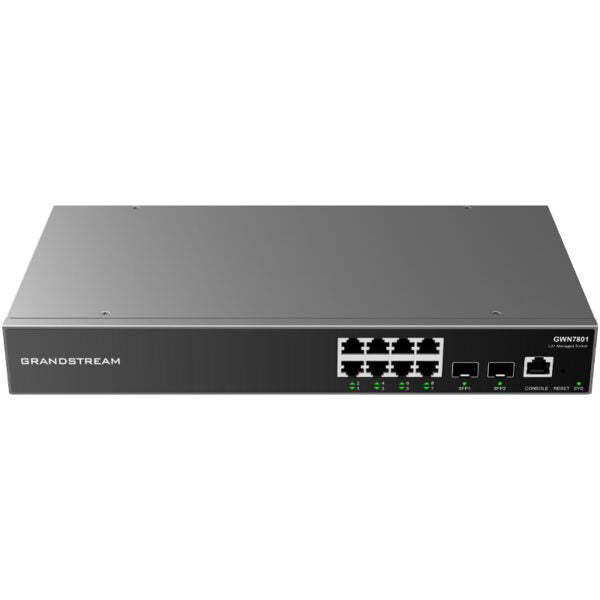
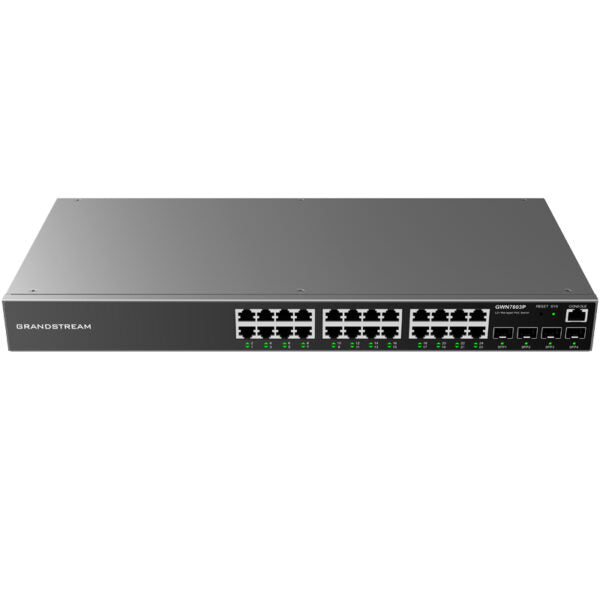
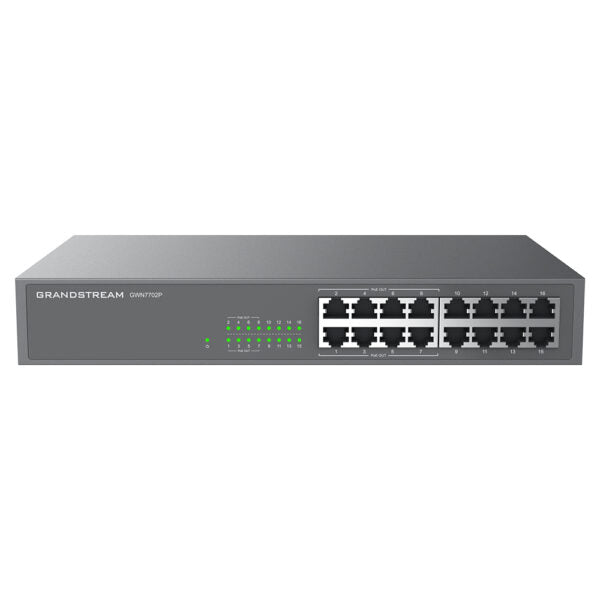
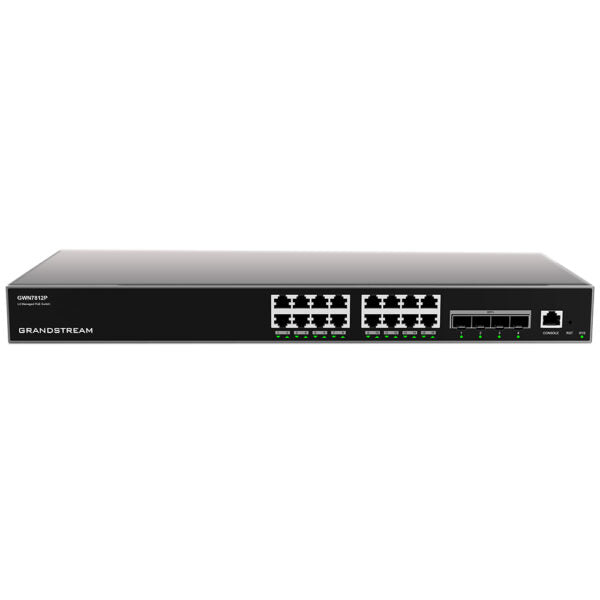
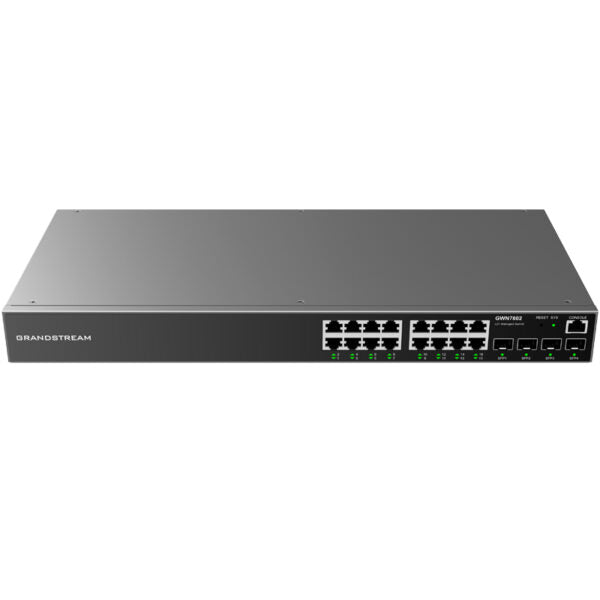
The GWN7800 series are Layer 2+ managed network switches designed for small-to-medium enterprises. They offer advanced features such as VLAN, QoS, IGMP Snooping, and comprehensive security capabilities. Key Features: • 8 Gigabit Ethernet ports • 2 Gigabit SFP ports • Supports deployment in IPv6 and IPv4 networks • Provides quaternary binding of IP, MAC, VLAN, and port • ARP Inspection, IP Source Guard, DoS protection, port security, and DHCP snooping • Device management via SNMP, RMON, CLI, HTTPS, TR069, GWN Manager, and GWN Cloud • Advanced QoS auto detects and prioritizes latency sensitive audio/video/RTP/VoIP/SIP packets • 3-Year Warranty Guaranteed Technical Specifications: • Model: GWN7801 • Network Protocol: IPv4, IPv6, IEEE 802.3, IEEE 802.3i, IEEE 802.3u, IEEE 802.3ab, IEEE 802.3z, IEEE 802.3x, IEEE 802.3af/at, IEEE 802.1p, IEEE 802.1Q, IEEE 802.1w, IEEE 802.1d, IEEE 802.1s • Gigabit Ethernet Ports: 8 • Gigabit SFP Ports: 2 • Console: 1 • Number of PoE Ports: N/A • Integrated Power Supply: 30W • Max Output Power per PoE Port: N/A • Max Total PoE Output Power: N/A • PoE Standards: N/A • Auxiliary Ports: • 1x Reset Pinhole • Forwarding Mode: Store-and-forward • Total non-blocking throughput: 10Gbps • Switching Capability: 20Gbps • Forwarding Rate: 14.88M packets per second • Packet Buffer: 4.1MB • LEDs: 1x tri-color LED for device tracking and status indication, 10x green LEDs for data ports

About This Product

The Grandstream GWN7801 is a compact Layer 2+ managed switch built for small-to-medium businesses that need reliable network segmentation and traffic prioritization without the expense of PoE or high port counts. It fits naturally in a dedicated wiring closet or on a desk in a modest office where a handful of Gigabit Ethernet connections and a couple of fibre uplinks are sufficient. This switch pairs well with Grandstream’s own IP phones and wireless access points, but it will work equally well with any vendor’s equipment that respects standard 802.1Q VLANs and QoS markings. The key practical tradeoff is the lack of PoE – you will need separate power adapters or a PoE injector for powered devices, so plan your cable runs accordingly. For a Toronto business running a few VoIP handsets and a printer, the GWN7801 is a cost-effective, manageable core switch; for a larger operation with dozens of access points or high-density voice traffic, you would want a model with PoE and more ports. It is also overkill for a home network with only a couple of devices, as the managed features would go unused.
Services We Provide
  • Professional Installation & Configuration
  • Ongoing Maintenance & Support
  • Troubleshooting & Repairs
  • System Upgrades & Updates