Grandstream GWN7802 Enterprise Layer 2+ Managed Network Switch

Frequently Asked Questions

First, confirm your computer is on the same subnet as the switch’s management IP. By default, the GWN7802 may use DHCP; if no DHCP server is available, it falls back to a static IP like 192.168.0.1. Connect directly to a LAN port, set your PC to a static IP in that range, and try again. If still unreachable, a quick power cycle often clears a hung management interface.
Ensure the port where your router or firewall connects is set as a trunk port carrying all required VLANs. Also check that the PVID on each access port matches the untagged VLAN you intend for that device. A common oversight is forgetting to tag the uplink port with all VLANs, so traffic gets dropped silently.
Start with the basics: verify the Ethernet cables are undamaged and fully seated. Try a known-good cable and a different port. If still no link, check that the connected device’s NIC is enabled and set to auto-negotiation. A mismatch in speed/duplex settings can also prevent link; temporarily set both sides to auto to test.
Confirm that the QoS trust mode on the switch is set to trust DSCP or CoS markings coming from the phones. If the phones aren’t marking packets, the switch may not prioritize them. Also check that no other high-traffic device is saturating the uplink—QoS can only manage congestion, not eliminate it if the link is completely full.
Make sure the switch has internet access and can resolve the GWN-Cloud server address. Often, DNS or firewall rules block the discovery traffic. Verify the switch’s default gateway and DNS settings are correct. A reboot after confirming connectivity usually triggers a fresh adoption attempt.
First, reseat the SFP module—sometimes it’s not fully clicked in. Check that the fiber type (single-mode or multi-mode) matches between the module and the cable, and that the polarity is correct. The GWN7802 SFP ports are gigabit only, so ensure your module is a 1G SFP, not 10G. If the issue persists, a Toronto-based VoIP support provider can usually resolve this remotely.
No, the GWN7802 does not provide Power over Ethernet. You will need either a separate PoE switch, a PoE injector for each phone, or a midspan PoE injector between this switch and the phones. The switch’s integrated power supply only powers the switch itself.
There is a reset pinhole on the front panel. However, a factory reset will wipe all configuration, including VLANs and cloud management settings. Before taking that step, try to recover access via the console port or through GWN-Cloud if it was previously adopted. If you must reset, hold the pinhole for about 10 seconds while powered on, but only do so after confirming that no current configuration can be recovered.
First, check the power source—ensure the power cable is secure and the outlet isn’t shared with high-draw equipment causing voltage dips. A failing power supply or overheating can also trigger reboots; verify the switch’s vents aren’t blocked and the ambient temperature is within operating range. If the problem continues, a Toronto-based VoIP support provider can usually resolve this remotely.
Switches

Grandstream GWN7802 Enterprise Layer 2+ Managed Network Switch
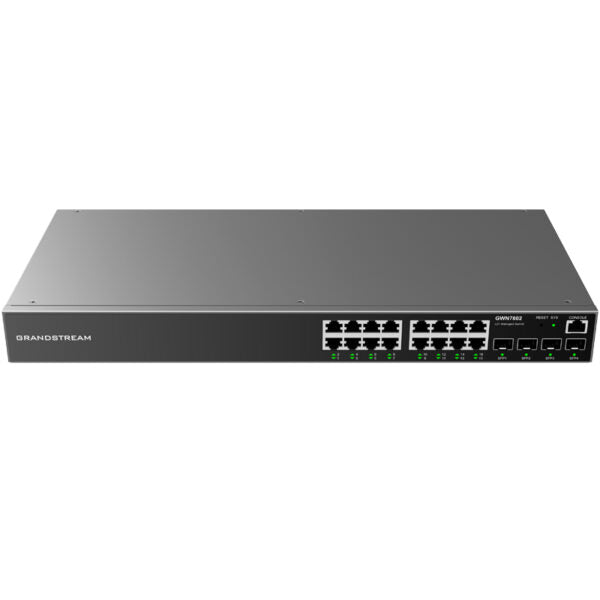
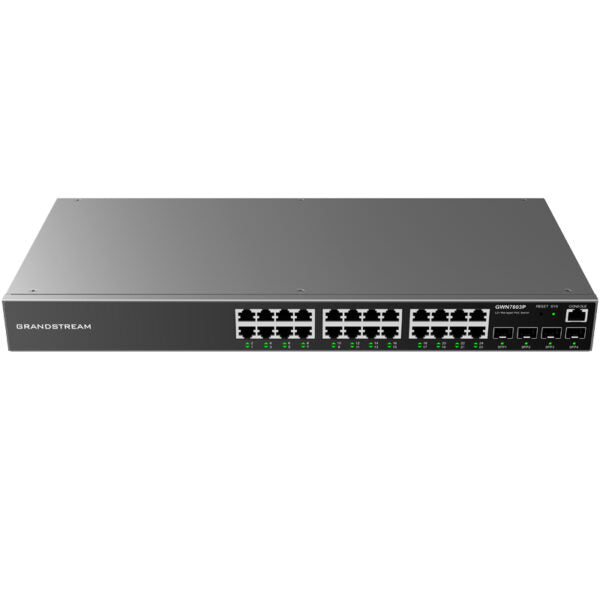
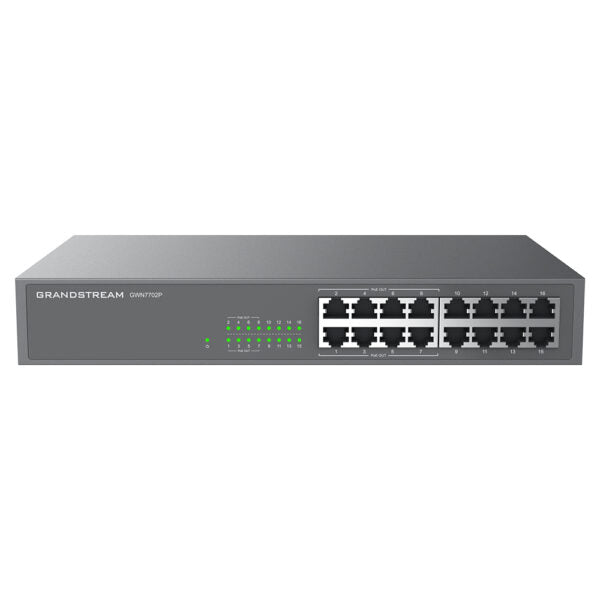
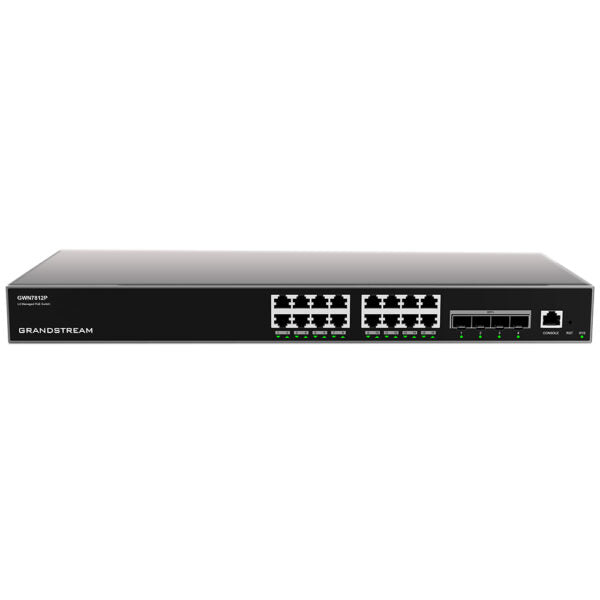
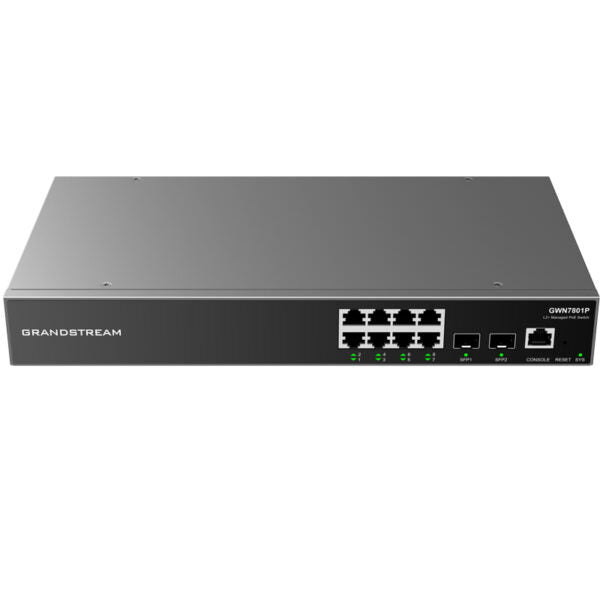
The GWN7800 series are Layer 2+ managed network switches that allow small-to-medium enterprises to build scalable, secure, high performance, and smart business networks. Key Features: • Advanced VLAN for flexible and sophisticated traffic segmentation • Advanced QoS auto detects and prioritizes latency sensitive audio/video/RTP/VoIP/SIP packets • IGMP Snooping for network performance optimization • Comprehensive security capabilities against potential attacks • PoE models provide smart dynamic PoE output to power IP phones, IP cameras, Wi-Fi access points and other PoE endpoints Additional Information: • Weight: 5.73 lbs • Dimensions: 17.32 × 7.88 × 1.74 in • Brand: Grandstream • Product Family: GWN-Cloud • Switch Type: Managed Switches • Number of Ports: 24-28 • Main Port Speed: Gigabit • Uplink Ports: Gigabit SFP • Layer Support: L2+ • PoE Support: No • Redundant Power Supply: No Technical Specifications: • Model: GWN7802 • Network Protocol: IPv4, IPv6, IEEE 802.3, IEEE 802.3i, IEEE 802.3u, IEEE 802.3ab, IEEE 802.3z, IEEE 802.3x, IEEE 802.3af/at, IEEE 802.1p, IEEE 802.1Q, IEEE 802.1w, IEEE 802.1d, IEEE 802.1s • Gigabit Ethernet Ports: 16 • Gigabit SFP Ports: 4 • Console: 1 • Number of PoE Ports: N/A • Integrated Power Supply: 30W • Max Output Power per PoE Port: N/A • Max Total PoE Output Power: N/A • PoE Standards: N/A • Auxiliary Ports: + 1x Reset Pinhole + 20x green LEDs for data ports • Mounting: Desktop, Wall-Mount, or rack-mount (rack-mount brackets included) • LEDs: 1x tri-color LED for device tracking and status indication

About This Product

The Grandstream GWN7802 is a non-PoE Layer 2+ managed switch built for small-to-medium businesses that need reliable, configurable network segmentation without the complexity of a full Layer 3 device. It fits well in offices where voice and data traffic coexist—its advanced QoS can automatically prioritize SIP and RTP packets, making it a sensible pairing with Grandstream IP phones or any VoIP deployment. The 16 gigabit copper ports and 4 SFP uplinks give you room for workstations, printers, and access points, while the lack of PoE means you’ll need separate power for endpoints like phones and cameras. That tradeoff keeps the switch affordable and cool-running, but it’s important to plan your power budget separately.

This switch really shines when you integrate it with Grandstream’s GWN-Cloud platform for centralized monitoring and configuration. For a Toronto small business with a handful of VLANs—say, separating guest Wi-Fi, internal data, and voice—it provides all the necessary controls without overcomplicating the setup. It’s a good fit for a satellite office or retail location where you want managed features but don’t need to power devices from the switch itself. If you’re already using Grandstream APs or gateways, the GWN7802 slots neatly into that ecosystem.

Be aware that the 30W integrated power supply only runs the switch itself; there’s no PoE budget to tap into. So if your deployment plan includes PoE-powered IP phones or cameras, you’ll either need a PoE injector for each device or a separate PoE switch uplinked to this unit. Also, the 16 copper ports may feel limiting if you’re wiring a dense office floor, though the SFP uplinks let you connect to a core switch or server without sacrificing a user port. It’s not designed for high-availability setups that require redundant power supplies—there’s no RPS port—so for mission-critical environments, you’d want to pair it with a UPS or consider a model with dual power inputs.

For a typical GTA professional office with 10–20 employees, this switch often hits the sweet spot between cost and capability. It’s overkill for a tiny setup where an unmanaged switch would suffice, but underpowered if you need to power dozens of PoE devices or require advanced routing protocols. When combined with a Grandstream router and cloud management, it forms the backbone of a straightforward, secure network that a local IT provider can easily support remotely.
Services We Provide
  • Professional Installation & Configuration
  • Ongoing Maintenance & Support
  • Troubleshooting & Repairs
  • System Upgrades & Updates