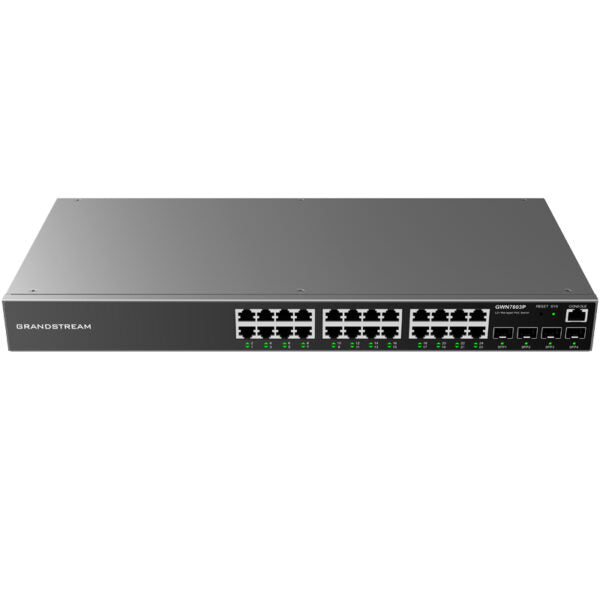
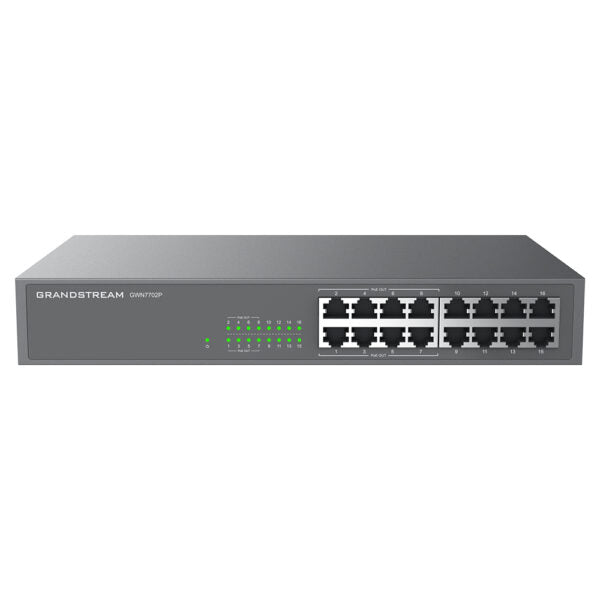
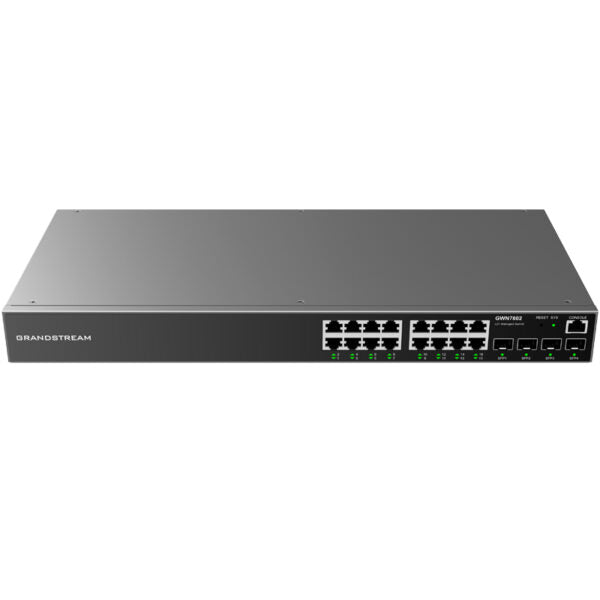
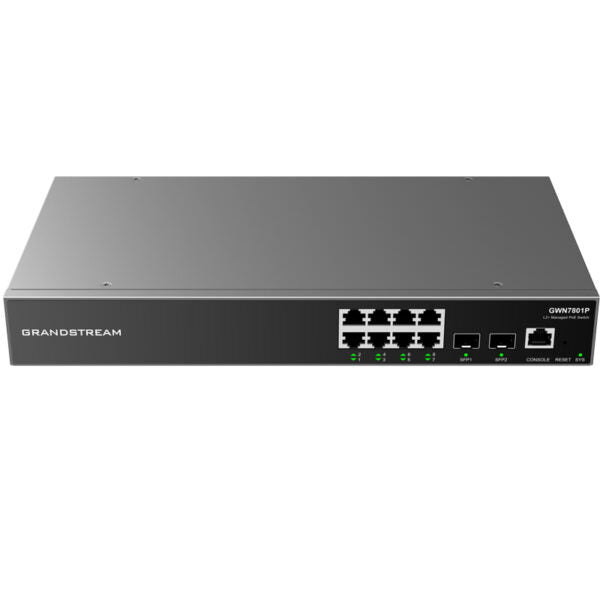
Grandstream GWN7812P Enterprise Layer 3 Managed PoE Network Switch, 16 x GigE, 4 x SFP+

Frequently Asked Questions

First verify that the Ethernet cable is firmly seated at both ends and that you are using a known-good port on the switch. Log into the switch's web interface or GWN Cloud and check the port's PoE status—see if power is being drawn and whether the total budget hasn't been exceeded. If the camera requires a higher PoE class than the port is set to provide automatically, you may need to manually adjust the port's power allocation, but testing with another known-working PoE device can help isolate the problem.
Check that the phones are receiving IP addresses from the DHCP server; if they aren't, verify the VLAN assignment on the switch port. For a voice VLAN, the switch port should be configured as a trunk or access port with the correct VLAN ID matching your VoIP network. Also confirm the phones' firmware can obtain the provisioning URL from DHCP option 66/150 or from their own configuration. Power cycle a single phone while watching its network boot process to see if it gets an address.
Confirm the uplink port (one of the SFP+ or copper Gigabit) has link lights. Try reseating the uplink cable and, if using fibre, check that polarity is correct. On the switch management page, verify that the uplink port is not administratively down and that spanning-tree protocol hasn't blocked it. If you've recently made configuration changes, temporarily set the uplink port's VLAN to the default VLAN 1 as a test to rule out VLAN mistagging.
First, rule out a faulty cable by swapping a known-good cable onto one affected port. Next, look at the switch's log for excessive errors, port flapping, or loop detection events. If you see a high number of CRC errors, it could indicate a cabling or hardware issue. Also check that the PoE power budget is not being fully drained momentarily by a device's power spike—using the real-time PoE monitoring in GWN Cloud can help spot this.
Ensure your computer is on the same IP subnet as the switch—the factory default IP is often 192.168.1.1 with a static address like 192.168.1.10. If the switch has been adopted into GWN Cloud, try connecting directly with a laptop and checking that the switch's IP hasn't been changed by DHCP. A safe next step is to power cycle the switch while holding any management connection; after reboot, give it a couple of minutes and try again. Avoid a full factory reset until you've verified you can't reach it otherwise, as that will wipe all configuration.
The least disruptive path is through GWN Cloud or GWN Manager, where you can schedule the upgrade and apply it to a test device first if you have a spare switch. If you must do it locally, download the correct firmware from Grandstream's official site, but be sure to read the release notes—some jumps may require intermediate versions. Always back up the switch configuration before starting, and plan a maintenance window because the switch will reboot. If you're unsure, a Toronto-based VoIP support provider can perform the upgrade remotely with minimal downtime.
Access the switch through the web UI or GWN Manager and navigate to the VLAN section. Create a new VLAN with an ID that matches your voice network, then assign the required ports as untagged members of that VLAN (if phones use LLDP-MED or CDP) or tag them with both the data and voice VLANs. Don't forget to set the priority (QoS) higher on the voice VLAN to protect call quality. Test with one phone before rolling out to all ports.
Yes, you can manage it through Grandstream's free GWN Cloud service or the on-premise GWN Manager software—no physical controller is needed. Once the switch is registered to your cloud account, you can monitor ports, change VLANs, and apply firmware updates from anywhere. Remote access is encrypted, but always use a strong, unique password and, if possible, enable two-factor authentication on the cloud account.
The GWN7812P adheres to standard IEEE 802.3af/at for PoE and standard networking protocols, so it will work with any compliant device from manufacturers like Poly, Cisco, Ubiquiti, or others. PoE allocation is dynamic and auto-sensing; you don't need to do anything special for third-party gear. The only tight integration is on the management side with GWN Cloud, but the switch itself doesn't lock you into Grandstream endpoints.
The switch provides a total of 130W (typical for the GWN7812P) that can be shared across all ports. A typical IP phone draws 3–7W and a Wi-Fi 6 access point might pull 15–20W, so you could comfortably run, for example, ten phones and two APs with power left for a few cameras. Use the switch's built-in PoE consumption graph to see current draw before adding more devices. If you push the limit, the switch will prioritize power based on port order or your configured priority, but it's best to stay under the budget. A Toronto-based VoIP support provider can help you map out which ports to use if you're deploying many devices.
Switches

Grandstream GWN7812P Enterprise Layer 3 Managed PoE Network Switch, 16 x GigE, 4 x SFP+
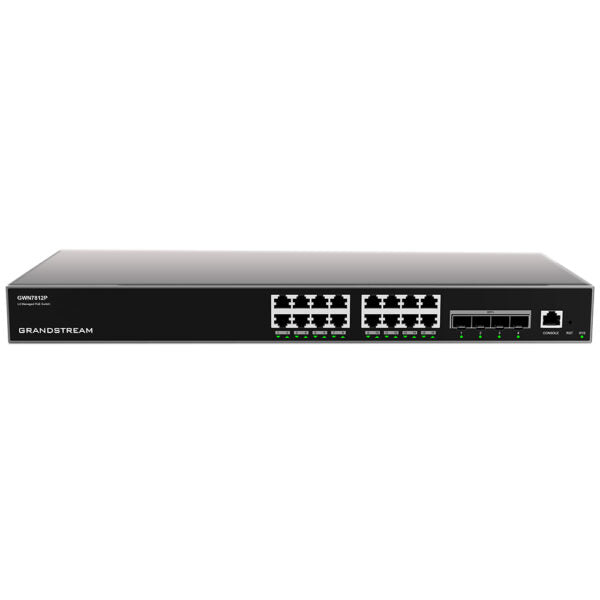
• Layer 3 managed network switches for medium-to-large enterprises • Scalable, secure, high performance and smart business networks • Advanced VLAN for flexible traffic segmentation, advanced QoS for prioritization of network traffic, IGMP/MLD Snooping for network performance optimization • Comprehensive security capabilities against potential attacks • PoE models provide smart dynamic PoE output to power IP phones, IP cameras, Wi-Fi access points and other PoE endpoints • Managed in various ways, including local Web user interface, CLI, GWN.Cloud and GWN Manager Key Features: • 16 x Managed PoE Network Switches • Smart power control for dynamic PoE/PoE+ allocation per port (PoE models) • Supports IPv6 and IPv4 networks • Embedded controller with GWN.Cloud and GWN.Manager for cloud and on-premise network management • Built-in QoS for prioritization of network traffic Additional Information: • Weight: 8.38 lb • Dimensions: 19.69 × 13.07 × 3.43 in • Number of Ports: 11-18 • Main Port Speed: Gigabit • Uplink Ports: 10G SFP+ • Layer Support: L3 • PoE Support: Yes • PoE Budget: Medium (100-199 W) • Weight: 8.38 lb • Dimensions: 19.69 × 13.07 × 3.43 in

About This Product

The GWN7812P is a practical choice for a growing Canadian business with a modest count of IP phones, access points, and cameras. Its 16 Gigabit ports and medium PoE budget (100–199 W) support a typical branch office or retail floor where a dozen or so endpoints need both data and power from one box. The four 10G SFP+ uplinks keep it ready for a high-capacity backbone, so it can sit at the edge of a larger campus network without becoming a bottleneck.

Because it's part of the Grandstream ecosystem, the switch integrates cleanly with the same vendor's Wi-Fi access points and IP phones, as well as the GWN Manager or GWN Cloud platform. For an IT team already using Grandstream, this simplifies provisioning, monitoring, and firmware updates. The Layer 3 feature set gives you static routing and basic inter-VLAN routing, which can offload a core router in smaller deployments—though you will need someone comfortable with managed switch configuration to make use of it.

There are a couple of limits to keep in mind. The PoE budget is adequate for most Class 2 or 3 devices, but if you need to power several high-draw 802.3bt PTZ cameras or powerful access points, you may quickly reach the ceiling. In that case a higher-budget switch or midspan injectors would be a better fit. The 16-port count also means it is not meant for a dense wiring closet; for large Toronto office floors with 48+ drops, you'd need a higher-density model.

On the other hand, for a small office that only needs six ports and has no plans to grow, the GWN7812P is overkill—a simpler, unmanaged PoE switch would be more cost-effective. But for the mid-range shop that values centralised cloud management and Layer 3 smarts without a huge licence cost, it lands in a comfortable sweet spot.
Services We Provide
  • Professional Installation & Configuration
  • Ongoing Maintenance & Support
  • Troubleshooting & Repairs
  • System Upgrades & Updates