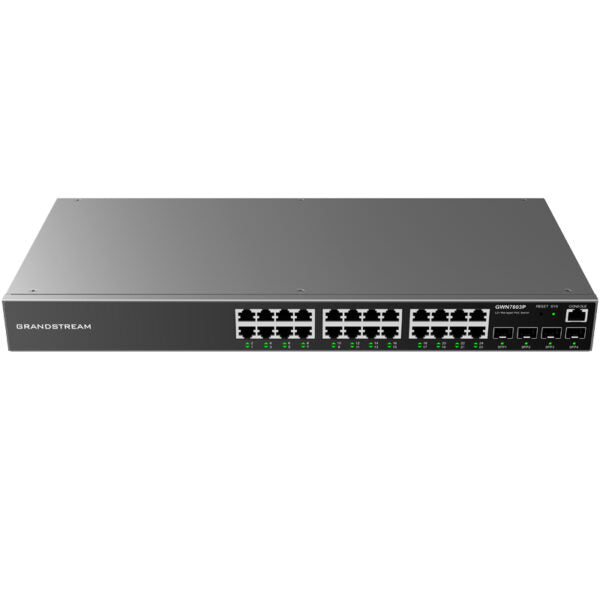
Grandstream GWN7803 Enterprise Layer 2+ Managed Network Switch

Frequently Asked Questions

First, confirm the power cord is securely plugged into both the switch and a working electrical outlet. If you are using a PoE source to power the switch (some models support PoE input), ensure that source is delivering adequate power and that the Ethernet cable is in good condition. If the switch still does not power on, try a different outlet and cable before contacting support.
Check that VLAN settings are correct—if your phone system expects a specific voice VLAN, the switch port assigned to the phone must be set to that VLAN. Also verify that QoS is enabled and configured to prioritize voice traffic, as misconfigured QoS can cause packet delay that trips registration timeouts. If the issue persists, a Toronto-based VoIP support provider can usually resolve this remotely.
Ensure your computer is on the same subnet as the switch's default IP (often 192.168.2.1 for Grandstream switches). If you changed the IP, you may need to perform a network scan or check your router's DHCP lease list to find it. Also, confirm that your browser supports HTTPS and that no firewall is blocking port 443.
No, the GWN7803 has an embedded web interface you can access directly via browser. You can also manage it through Grandstream's free GWN Manager software or their cloud platform (GWN.Cloud) if you prefer centralized management. No additional hardware is required for basic setup.
Access the web interface, go to the QoS section, and configure DSCP or 802.1p priority values for voice traffic. Typically, you would assign a high priority to the VLAN used by your phones. Then apply the QoS rules to the ports connecting your phones to ensure voice packets are queued ahead of data.
CRC errors on a specific port usually indicate a physical layer problem: a bad cable, a loose connector, or electromagnetic interference. Swap the Ethernet cable on that port with a known-good one and reseat the connector at both ends. If errors stop, replace the cable. If not, test the port with a different device to rule out the switch port itself.
No, this is a Layer 2+ managed switch and does not perform routing between VLANs or Wide Area Network (WAN) functions. You need a separate router (like the Grandstream GWN7000 series) to handle inter-VLAN routing and internet connectivity.
Download the latest firmware from Grandstream's website, then upload it via the switch's web interface during a maintenance window. The switch will reboot after the update, so plan for a few minutes of downtime. If you manage multiple switches with GWN Manager, you can schedule firmware updates in batches to minimize impact.
Blinking activity lights with no link typically point to a speed or duplex mismatch. Check that both the switch port and the connected device are set to auto-negotiate speed and duplex. Manually setting a port to 100 Mbps full duplex on a device that expects auto can cause this. Also test with a different Ethernet cable.
The standard GWN7803 model requires AC power. Only certain PoE-capable models in the GWN7800 series support PoE power input. Check your specific model's label—if it does not say PoE power input, it must be plugged into a wall outlet.
Switches

Grandstream GWN7803 Enterprise Layer 2+ Managed Network Switch
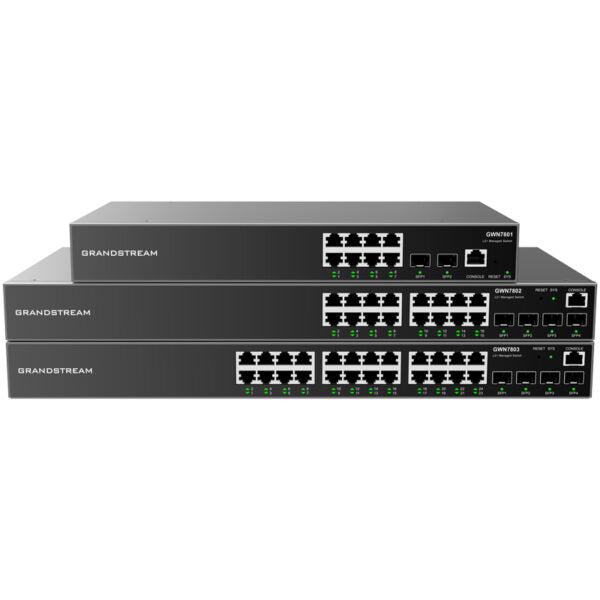
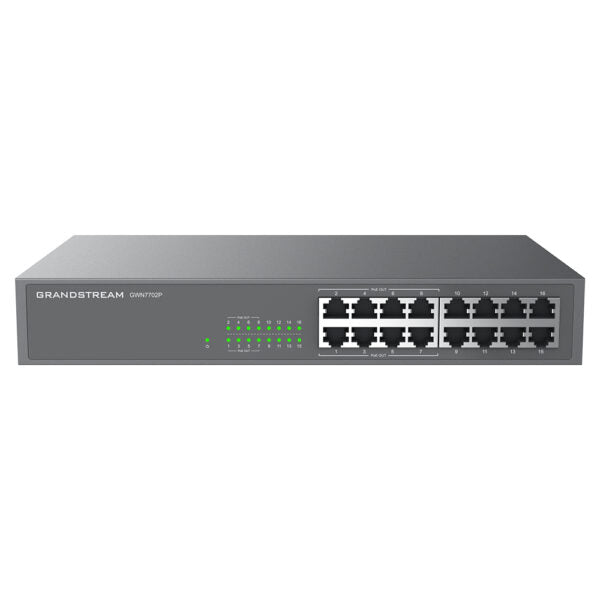
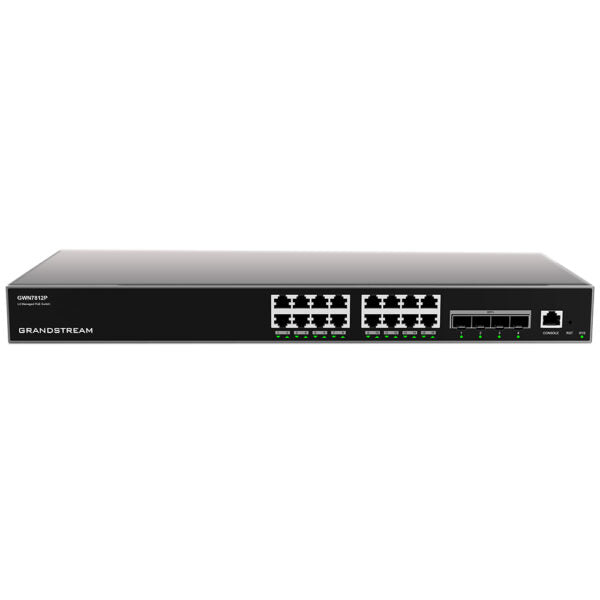
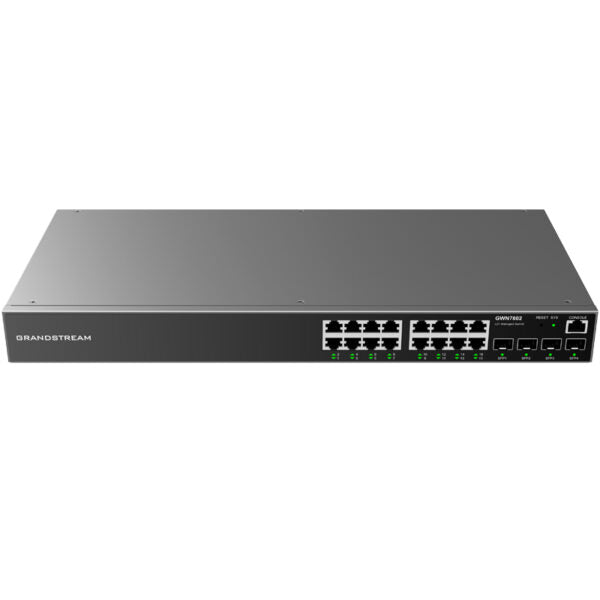
• The GWN7800 series are Layer 2+ managed network switches designed for small-to-medium enterprises, offering scalable, secure, high-performance, and smart business networks. • Advanced features include: • VLAN support for flexible traffic segmentation • QoS for automated latency-sensitive voice/video traffic prioritization • IGMP Snooping for network performance optimization • Comprehensive security capabilities against potential attacks • The switches support PoE models with smart dynamic PoE output, powering IP phones, IP cameras, Wi-Fi access points, and other endpoints. • Management options include: • Local network controller embedded in the switch • Integrated local master on GWN7000 series routers • Grandstream's free on-premises software (GWN Manager) • Cloud network management platform (GWN.Cloud) • Key specifications: • 24-28 Gigabit Ethernet ports • 4 Gigabit SFP ports • IPv6 and IPv4 network support • Device management via SNMP, RMON, CLI, HTTPS, TR069, GWN Manager, GWN Cloud • Advanced QoS for latency-sensitive audio/video packets • 3-Year Warranty Guaranteed

About This Product

The Grandstream GWN7803 is a Layer 2+ managed network switch built for small-to-medium enterprises that require more control than a basic unmanaged switch can offer. It is a strong fit for an office running a mix of VoIP phones, security cameras, and Wi-Fi access points, especially where you want to keep voice and video traffic separate from general data to maintain call quality. The switch's VLAN and QoS features let you prioritize delay-sensitive traffic without needing a full Layer 3 setup, making it a practical middle ground for growing businesses that aren't ready for a router-based network core.

This switch pairs naturally with Grandstream's own GWN series of routers and access points, though it will work fine with any standards-compliant equipment. One tradeoff to consider is that the GWN7803 is a non-PoE model, so if you plan to power IP phones or cameras directly from the switch, you will need to budget for PoE injectors or a separate PoE switch. For a Toronto office with a dozen or so endpoints that can be powered locally, this is rarely an issue, but it is worth noting if you are consolidating power delivery.

Deployments where you need deep packet inspection, policy-based routing, or firewall-level security would call for a router or a Layer 3 switch; the GWN7803 handles switching and traffic segmentation well but does not route between VLANs itself. Conversely, for a very small office with five devices, this switch may be overkill—a simpler gigabit switch would suffice at a lower cost. It is best matched to an environment where you have a handful of VLANs, a need for QoS, and the desire to manage the switch via SNMP or Grandstream's free cloud platform without a dedicated IT manager on staff.
Services We Provide
  • Professional Installation & Configuration
  • Ongoing Maintenance & Support
  • Troubleshooting & Repairs
  • System Upgrades & Updates