Grandstream GWN7806 Enterprise Layer 2+ Managed Network Switch, 48 x GigE, 6 x SFP+

Frequently Asked Questions

First, verify that the power cord is securely connected to both the switch and a working power outlet. If the switch is connected to a power strip or UPS, confirm that device is powered on. If the switch still shows no lights, try a different power cord or outlet. If the issue persists, contact your VoIP support provider for further diagnosis.
Ensure your computer is on the same subnet as the switch. By default, the switch uses IP address 192.168.5.1. If that doesn't work, try connecting via the console port and use CLI to check the current IP. Also confirm that your browser is not blocking pop-ups or using a proxy. If the problem continues, a quick power cycle may help.
Access the switch's web interface, go to the VLAN section, and create a new VLAN ID (e.g., VLAN 20 for voice). Then assign the ports connecting to your VoIP phones to that VLAN. Make sure your router or upstream switch is also configured to route traffic for that VLAN. For phones that support LLDP-MED, enable that feature for automatic VLAN assignment.
Audio drops are often related to network congestion or misconfigured QoS. On the GWN7806, enable QoS and prioritize voice traffic (typically by setting DSCP values for VoIP). Also check for any link errors on the switch ports connecting to the phones. If the problem persists, verify that your network has sufficient bandwidth and that no loops exist.
Yes, the GWN7806 is a standard Layer 2+ switch and is fully compatible with any ISP that provides Ethernet or fiber connectivity. You would connect the ISP's modem or ONT to one of the switch's uplink ports. For fiber services, you may need a media converter or SFP module compatible with your ISP's fiber type.
Stacking on the GWN7806 is done via the SFP+ ports using stacking cables or fiber. Connect the designated stacking ports between switches in a ring or chain topology. Then, in the web interface, go to the stacking configuration and assign a master unit. This allows you to manage up to 16 switches as a single logical device.
This usually means the configuration was not saved to the startup config. After making any changes, navigate to the 'Save' or 'Save Configuration' option in the web interface and ensure you apply the changes to the startup config. If the issue persists, check if the switch's firmware is up to date.
Go to the Security section in the web interface and select Port Security. You can set a maximum number of MAC addresses per port (e.g., 1 for a single device) and configure the action for violations (e.g., shutdown or restrict). This helps prevent unauthorized devices from connecting to your network.
First, ensure the SFP+ module is fully inserted and compatible with the switch. Some third-party modules may not be recognized. Try reseating the module and check the link status on the switch's port configuration page. If it still fails, test with a known-working Grandstream-branded module.
Yes, the GWN7806 supports GWN.Cloud. You need to register the switch with your GWN.Cloud account by entering the cloud server address and account credentials in the switch's web interface. Once connected, you can manage the switch remotely via the cloud dashboard.
Switches

Grandstream GWN7806 Enterprise Layer 2+ Managed Network Switch, 48 x GigE, 6 x SFP+
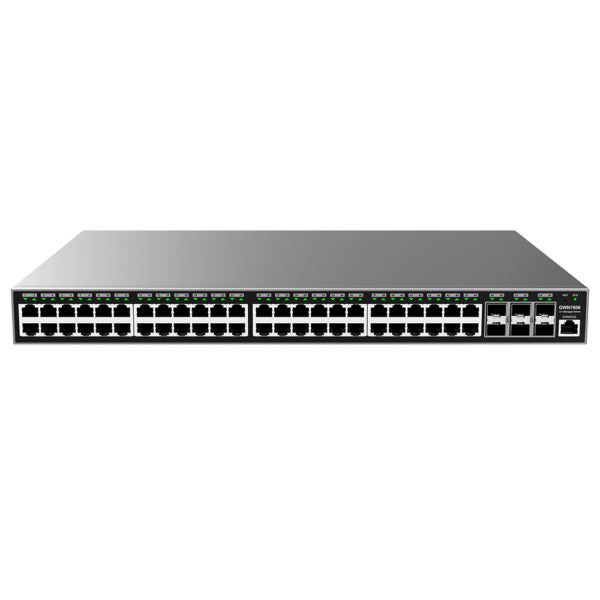
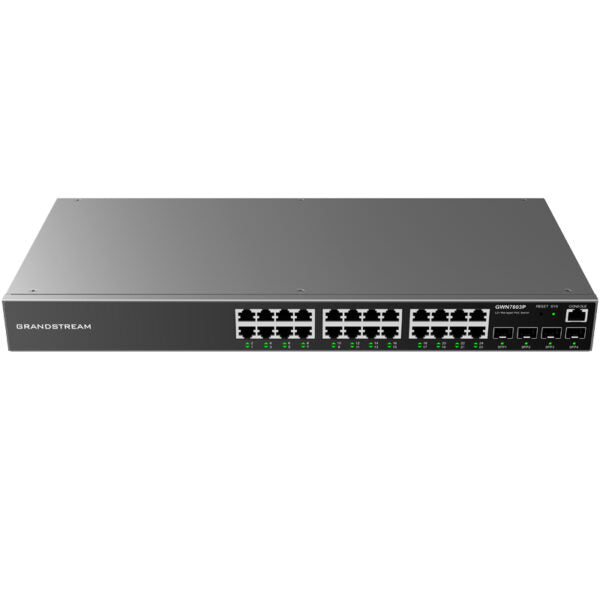
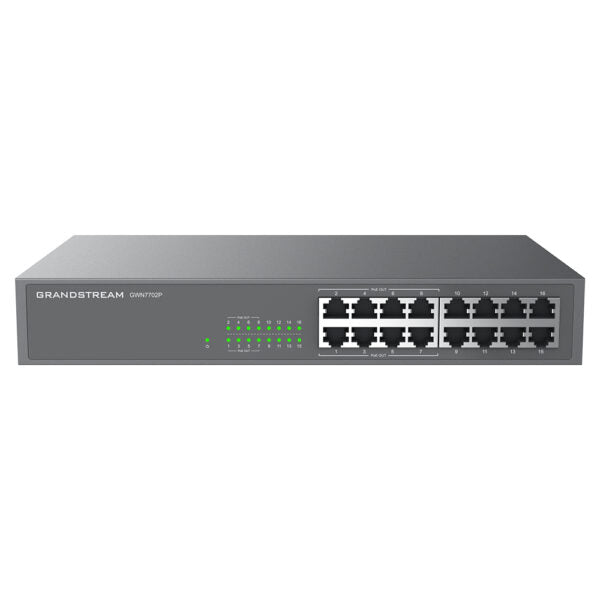
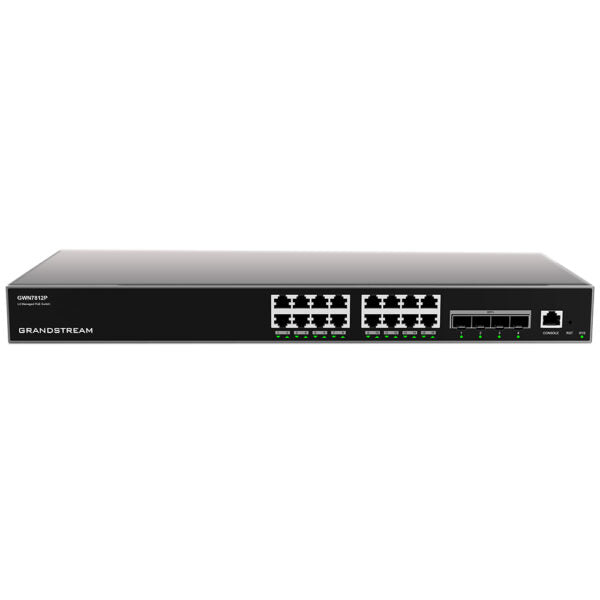
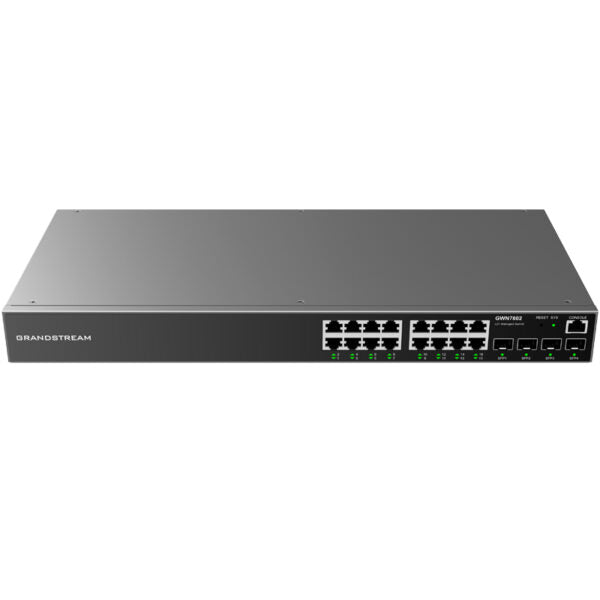
The GWN7806 is a layer 2+ managed network switch designed for small-to-medium enterprises to build scalable, secure, high performance and smart business networks that are fully manageable. Key features include: • Advanced VLAN for flexible and sophisticated traffic segmentation • Advanced QoS for prioritization of network traffic • IGMP/MLD Snooping for network performance optimization • Comprehensive security capabilities against potential attacks This switch is easy to deploy and manage, including managed by the local Web user interface of the GWN7806 switch and CLI. It also supports GWN.Cloud and GWN Manager, Grandstream’s cloud and on-premise network management platform. The GWN7806 has 48 Gigabit Ethernet ports, 6 Gigabit SFP+ ports, and supports deployment in IPv6 and IPv4 networks. It includes reliability features such as fault detection, device protection, dual boot, dual system file redundancy, link aggregation, storm control, and more. Other key features include: • ARP Inspection, IP Source Guard, DoS protection, port security & DHCP Snooping • Embedded controller to manage switch; GWN. Cloud and GWN Manager, Grandstream’s cloud and on-premise Wi-Fi management platform • Built-in QoS allows for prioritization of network traffic • Supports stacking for easy management of up to 16 switches in one interface • Weight: 9.26 lb • Dimensions: 21.54 × 17.95 × 4.21 in • Switch Type: Managed Switches • Number of Ports: 48-52 • Main Port Speed: Gigabit • Uplink Ports: 10G SFP+ • Layer Support: L2+

About This Product

The Grandstream GWN7806 is a Layer 2+ managed switch aimed at small to medium-sized businesses that need a reliable, scalable network backbone. With 48 Gigabit Ethernet ports and six 10G SFP+ uplinks, it is well-suited for office environments where dozens of wired devices—such as VoIP phones, access points, and workstations—must connect without congestion. The switch supports advanced VLAN and QoS features, making it a strong fit for organizations that want to segment traffic (e.g., separating voice and data) and prioritize latency-sensitive applications like VoIP calls. It pairs naturally with Grandstream's own GWN series of access points and IP phones, and can be managed locally via web or CLI, or centrally through Grandstream's cloud or on-premise GWN Manager platform. For a Canadian business, particularly in the GTA, this switch offers enough port density and uplink speed to support a medium-sized office deployment, and its support for stacking up to 16 units allows for future expansion without replacing hardware. However, it is not a full Layer 3 switch, so organizations needing advanced routing capabilities (like OSPF or BGP) may find it underpowered. Conversely, for a small office with fewer than 20 devices and basic networking needs, the GWN7806 may be overkill—a simpler unmanaged or Layer 2 switch would suffice. Buyers should also note that while the switch includes robust security features (ARP inspection, DHCP snooping), it does not support Power over Ethernet (PoE), so any connected devices requiring power will need separate PoE injectors or a PoE-capable switch.
Services We Provide
  • Professional Installation & Configuration
  • Ongoing Maintenance & Support
  • Troubleshooting & Repairs
  • System Upgrades & Updates