Grandstream GWN7811P Enterprise Layer 3 Managed PoE Network Switch, 8 x GigE, 2 x SFP+

Frequently Asked Questions

First confirm the Ethernet cable is fully seated and the phone’s power requirements match the switch’s PoE budget. The GWN7811P delivers PoE on all eight ports automatically, but the total power drawn across all ports must stay under the switch’s limit; check the web UI for real‑time consumption. If you’re using a midspan injector between the switch and phone, remove it to test direct connection. If the issue persists, a Toronto‑based VoIP support provider can usually verify PoE settings remotely and help rule out a hardware fault.
Start by confirming the switch is powered and the management PC is on the same Layer 2 network, typically the default VLAN 1. If you’re using a static IP, ensure no IP conflict exists and that the IP address matches the subnet of the network you’re connected to. Connect via a console cable to view the current IP configuration if the web UI remains unreachable. A simple reboot often clears transient IPv4 stack issues without losing any configuration.
Verify that the switch has internet access and that DNS is correctly resolving the cloud server addresses. In the switch’s web UI, check that the cloud management settings point to the correct server URL and that the discovery method (DHCP option 43, DNS, or manual) matches your deployment. Test basic internet connectivity from the switch using a ping from the CLI. Firewall rules blocking TCP 443 or the management port towards the cloud can also prevent registration.
On a Layer 3 switch, inter‑VLAN routing is only active if you have configured an IP interface for each VLAN and enabled IP routing globally. First, verify that both VLANs have an interface with an IP address and that routing is enabled. Then check that no access control lists or port‑isolation settings are blocking traffic between ports within the same VLAN. A quick test is to assign two test devices to static addresses in the same subnet (without crossing VLANs) to confirm basic Layer 2 forwarding works.
Inspect the power supply and the physical environment: ensure the power cord is secure, the switch is not overheating, and air vents are clear. A marginal power source or a momentary brownout can trigger a reboot; consider connecting the switch to a UPS. Look at the system log for any recurring error messages before the reboot. If you recently applied a firmware update, check the release notes for known issues, but do not attempt a downgrade without first confirming that the current firmware is the root cause.
Confirm the transceiver is a model supported by Grandstream and that the far‑end device is set to the same speed and duplex. With the GWN7811P’s 10G SFP+ ports, auto‑negotiation may behave differently; try forcing the speed to 10G or 1G depending on the optic. Swap the fibre strands to rule out a simple polarity mismatch. Always insert the transceiver gently until it clicks and ensure the port status shows a module detected in the UI.
Check whether QoS is configured to prioritize voice traffic. Without proper DSCP or 802.1p precedence, large file transfers can congest the egress queues. On the GWN7811P, you can assign the voice VLAN a higher priority and trust the CoS values from the phone. Also, verify there are no duplex mismatches on the switch‑to‑phone link; use the port statistics to look for late collisions or CRC errors. Often simply enabling QoS on the switch resolves micro‑choppiness.
The switch supports IGMP/MLD snooping and storm control; ensure they are enabled on the relevant VLANs to limit multicast and broadcast flood. Check for a network loop – a miswired cable can create a broadcast storm that overwhelms the switch’s CPU before loop protection kicks in. Temporarily disable ports one at a time while monitoring traffic levels to isolate the source. If a loop is found, enable spanning tree protocol (RSTP or MSTP) as a permanent safeguard.
Yes, you can create VLAN interfaces (SVIs) and enable IP routing to handle inter‑VLAN traffic directly on the switch. This works well for basic subnets like voice, data, and management, keeping latency low. For more advanced routing such as NAT, VPN termination, or firewall policies, you would still need a dedicated router or firewall. Before enabling routing, plan your subnets so that the switch can become the default gateway for the VLANs you want to route.
First, give the switch a full ten minutes to complete the update and reboot; some updates take time to apply configuration migration. If the status LEDs suggest it is powered but unreachable, connect via the console port to watch boot messages and see if it stops at a recovery prompt. At that point, you may need to reload the firmware from a TFTP server, but do not interrupt the process once started. If you're unsure, reach out to Grandstream support or a Toronto‑based networking specialist who can guide a safe recovery without wiping the existing configuration.
Switches

Grandstream GWN7811P Enterprise Layer 3 Managed PoE Network Switch, 8 x GigE, 2 x SFP+
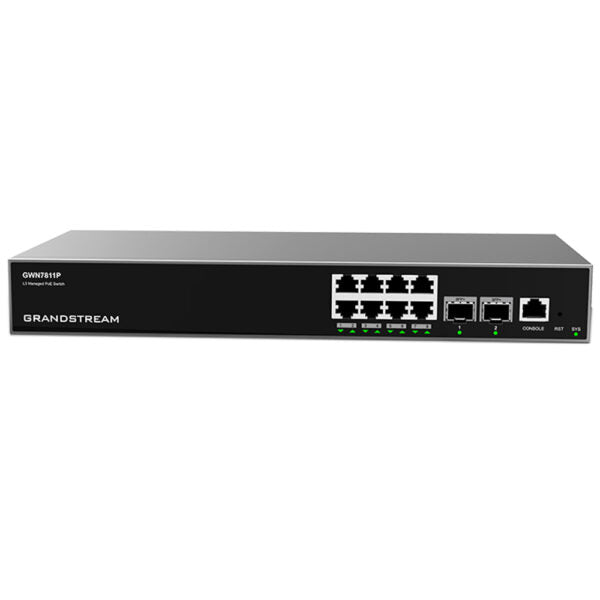
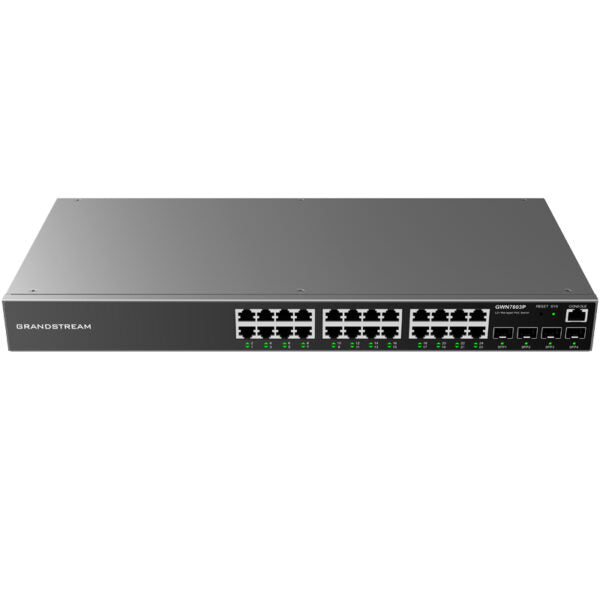
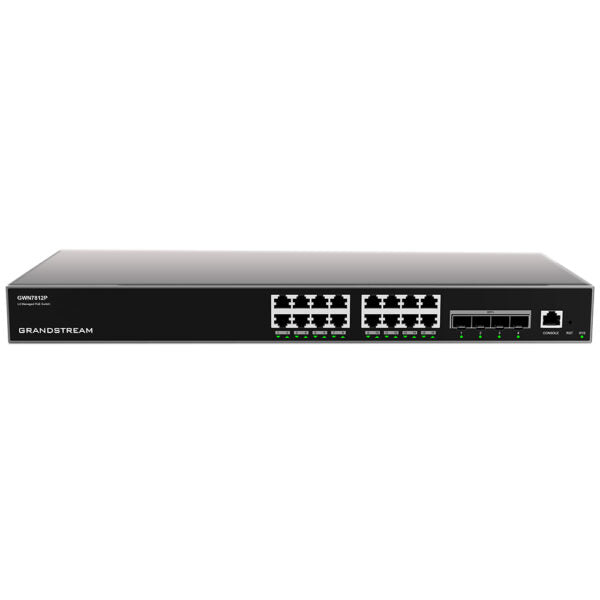
• The GWN7810 series is a Layer 3 managed network switch designed for medium-to-large enterprises, providing scalable, secure, and high-performance networks that can be fully managed. • Key features include: • Advanced VLAN for flexible traffic segmentation • QoS for prioritization of network traffic • IGMP/MLD Snooping for network performance optimization • Comprehensive security capabilities against potential attacks • PoE models with smart dynamic PoE output to power IP phones, IP cameras, Wi-Fi access points, and other PoE endpoints • The switch can be managed through: • Local Web user interface • CLI (command-line interface) • GWN.Cloud and GWN Manager, Grandstream’s cloud and on-premise network management platform • Additional features include: • Built-in QoS for prioritization of network traffic • ARP Inspection, IP Source Guard, DoS protection, port forwarding security & DHCP snooping • Weight: 5.91 lb • Dimensions: 16.61 × 8.13 × 2.01 in • Switch Type: Managed Switches, PoE Switches • Number of Ports: 5-10 • Main Port Speed: Gigabit • Uplink Ports: 10G SFP+ • The switch supports: • IPv4 and IPv6 networks • IEEE 802.3, IEEE 802.3i, IEEE 802.3u, IEEE 802.3ab, IEEE 802.3z, IEEE 802.3ae, IEEE 802.3x, IEEE 802.1p • Technical specifications: • Box Contents: 1x Switch, 1x 1.2m(10A) AC Cable, 1x 25cm Ground Cable, 4x Rubber Footpads, 1x Power Cord Anti-Trip, 8x Screws (KM 3*6), 1x Quick Installation Guide, 1x Console Cable(Optional) • Network Protocol: IPv4, IPv6, IEEE 802.3, IEEE 802.3i, IEEE 802.3u, IEEE 802.3ab, IEEE 802.3z, IEEE 802.3ae, IEEE 802.3x, IEEE 802.1p • Gigabit Ethernet Ports: 8 • 10Gigabit SFP+ Ports: 2 • Console: 1 • Number of PoE Ports: 8 • Link Aggregation: 5

About This Product

The Grandstream GWN7811P is a compact but full-featured Layer 3 managed PoE switch built for small to medium-sized deployments that need routing intelligence without a massive port count. It’s a natural fit in a branch office, a retail location, or an open‐plan workspace where eight wired devices and a couple of fibre uplinks cover the essential endpoints – IP phones, cameras, access points, and perhaps a network printer or smart display – while central management keeps IT overhead low.

Because it supports dynamic PoE per port, it works particularly well alongside Grandstream’s own VoIP phones and access points, though it will power any 802.3af/at Class 0–4 device. The dual 10G SFP+ cages give it real headroom when you need to connect back to a core switch over fibre or aggregate to a NAS. That said, with only eight copper ports, it’s not a distribution switch for a growing floor unless stacked, and a large campus core would quickly outgrow its switching capacity.

A buyer should weigh the fact that, as a stand‑alone Layer 3 device, it can handle inter‑VLAN routing locally, which offloads the firewall for basic traffic between office subnets. But if your environment already runs a separate router for all intervlan duties, you might use this switch purely at Layer 2 and push routing upstream – still a valid and simpler mode. For a typical Toronto mid‑sized professional office running a handful of SIP phones and a few ceiling APs, the GWN7811P is well‑scoped. In a busy Canadian MSP’s client network where you need a hands‑off, cloud‑monitored edge switch, it fits neatly into a Grandstream‑managed ecosystem.

Where it may be overkill is a home lab or a three‑person suite that just needs a basic unmanaged PoE injector. Conversely, a large warehouse with many cameras and IoT devices would need far more ports, making this model a building block rather than a standalone solution.
Services We Provide
  • Professional Installation & Configuration
  • Ongoing Maintenance & Support
  • Troubleshooting & Repairs
  • System Upgrades & Updates