Grandstream GWN7816P Enterprise Layer 3 Managed Network Switch

Frequently Asked Questions

First, verify that the power cable is securely connected to both the switch and a working wall outlet. If the switch has a redundant power supply unit installed, check that both power sources are plugged in and active. If the LED indicators remain off, try a different power cable or outlet to rule out a simple power issue.
Check the PoE budget status in the switch's web interface to ensure you have not exceeded the total power available. Also confirm that the port your device is connected to is configured for PoE and that the device itself is not faulty. If the device is on ports 9-48, remember those are limited to 30W, which may be insufficient for some high-power devices.
Try connecting a computer directly to one of the switch's ports and set your computer's IP to the same subnet as the switch's default management IP (typically 192.168.2.x). If you still cannot connect, check that your computer's firewall is not blocking the connection, and verify you are using the correct username and password. A power cycle of the switch may also help if the management interface is hung.
First, ensure that the switch's VLAN configuration is correct for your VoIP traffic. Many VoIP deployments use a separate voice VLAN, so verify that the phone ports are in the proper VLAN and that the switch is not blocking multicast traffic used by some provisioning systems. If the issue persists, check the switch's QoS settings to prioritize voice traffic over data.
Ensure the SFP+ module is fully inserted and that it is a supported type for this switch. Try reseating the module in a different SFP+ port to rule out a faulty port. If the module still is not recognized, check that the cable or fiber is connected and that the device at the other end is powered on and configured for the same speed and duplex.
Log into the switch's web interface and navigate to the VLAN configuration section. Create two VLANs: one for data and one for voice. Assign the appropriate ports to each VLAN, and set the port connected to your router as a trunk port carrying both VLANs. Finally, configure the switch to tag voice traffic on the voice VLAN so your IP phones can automatically join the correct network.
Check the switch's PoE status to ensure the cameras are receiving enough power, especially if they are on ports 9-48 which are limited to 30W. Also verify that the switch's QoS settings are not prioritizing other traffic over video. If the cameras are on a separate VLAN, confirm that multicast settings like IGMP snooping are enabled to optimize video streaming.
The GWN7816P has active cooling that may run at higher speeds based on internal temperature, not just port usage. Check the switch's ambient environment to ensure it is not in a hot or enclosed space. If the temperature is normal and the noise persists, you can monitor the fan status in the web interface to see if any fans are reporting errors.
You can manage all your Grandstream switches centrally using GWN.Cloud or GWN Manager. Register each switch to your GWN.Cloud account or point them to your GWN Manager server. Once connected, you can configure, monitor, and update all switches from a single dashboard, which is especially useful for multi-site deployments.
First, check the switch's port statistics for errors, collisions, or discards. This can indicate a duplex mismatch or faulty cable. Also verify that your uplink SFP+ ports are not saturated; if they are, consider link aggregation to increase bandwidth. If the switch is in a stack, ensure the stacking cables are properly connected and the stack is configured correctly.
Switches

Grandstream GWN7816P Enterprise Layer 3 Managed Network Switch
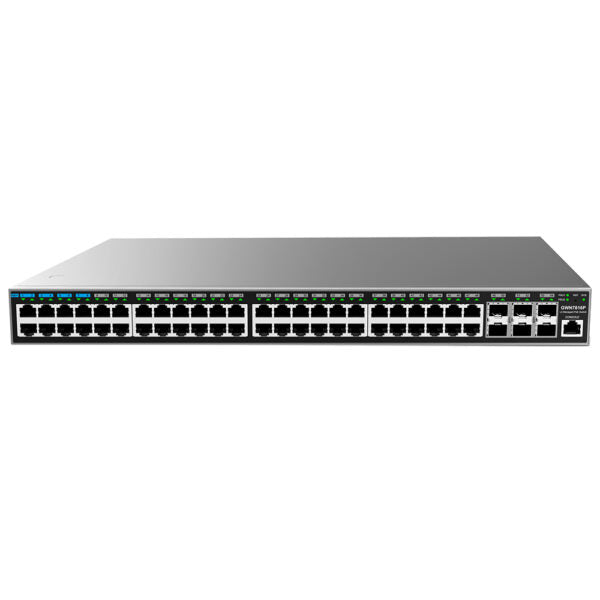
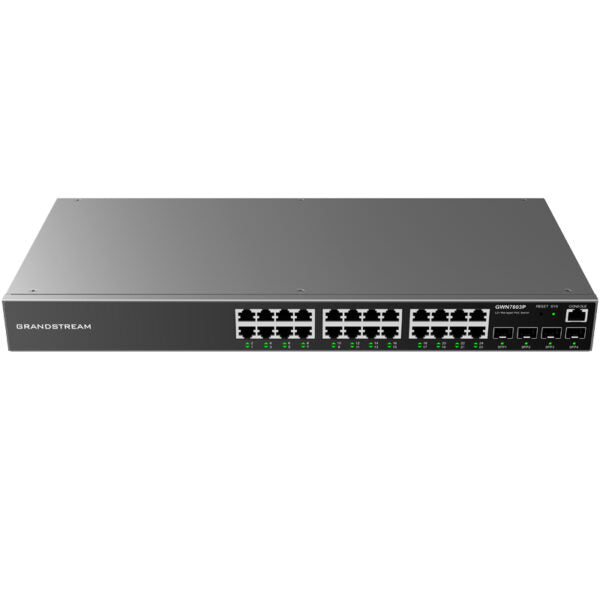
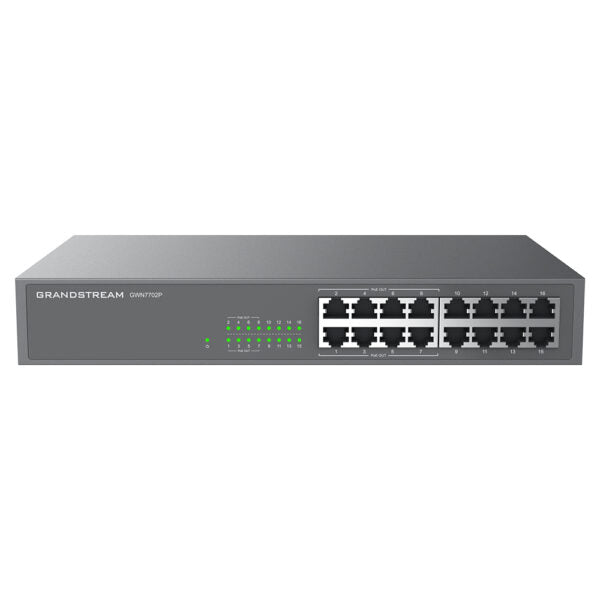
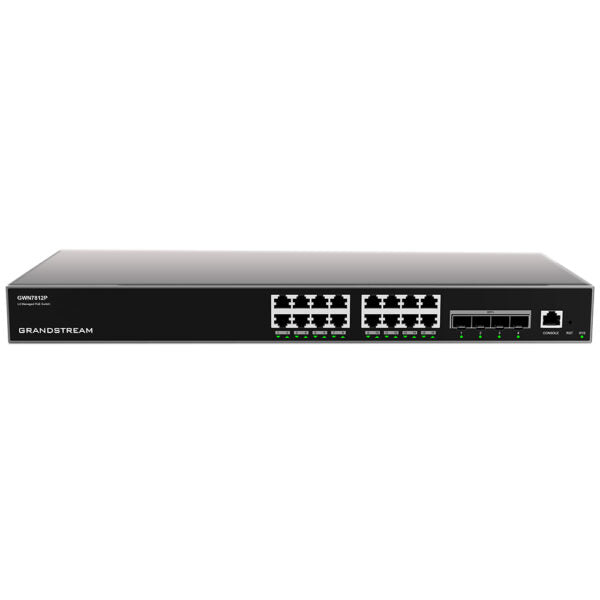
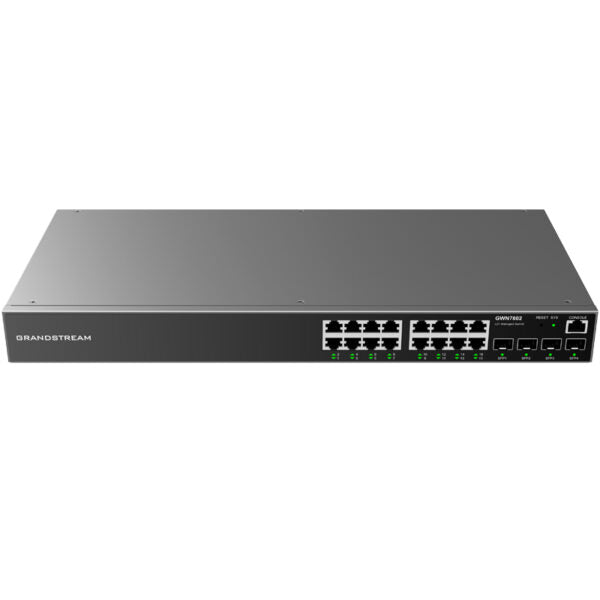
48-port Layer 3 managed network switches that enable medium-to-large enterprises to build scalable, secure, and high-performance networks. Key features include: • Advanced VLAN for flexible traffic segmentation • Advanced QoS for prioritization of network traffic • IGMP/MLD Snooping for network performance optimization • Comprehensive security capabilities against potential attacks Smart dynamic PoE output supports powering IP phones, IP cameras, Wi-Fi access points, and other PoE endpoints. The switch can be managed through the local Web user interface, CLI, GWN.Cloud, and GWN Manager. Technical specifications: • Model: GWN7816P • Network Protocol: IPv4, IPv6, IEEE 802.3, etc. • Gigabit Ports: 48 • SFP+ Ports: 6 • PoE Budget: High (≥200) • Maximum Output Power Per PoE Port: 60W (1-8), 30W (9-48) • Redundant Power Supply: Yes

About This Product

The Grandstream GWN7816P is a Layer 3 managed switch designed for medium-to-large enterprise networks that need both high port density and Power over Ethernet. With 48 Gigabit ports and a substantial PoE budget, it is well-suited to environments where you need to power a mix of IP phones, security cameras, and wireless access points from a single switch. The six SFP+ uplink ports provide flexibility for connecting to a core network or aggregating traffic, making it a good fit for multi-floor office deployments such as those common in the GTA. One practical tradeoff is that the first eight ports deliver up to 60W each, which is useful for high-power devices like PTZ cameras, while the remaining ports are limited to 30W, so planning your device placement matters. For a small business with fewer than 20 users, this switch would be overkill in both port count and cost, while in a large warehouse or campus it may be underpowered for a fully redundant core unless paired with additional switches. It pairs naturally with Grandstream's own IP phones and access points, but it works equally well with any standards-compliant VoIP or networking gear. In a Canadian context, the switch operates on standard 120V power and its redundant power supply option is worth considering for organizations that cannot tolerate downtime.
Services We Provide
  • Professional Installation & Configuration
  • Ongoing Maintenance & Support
  • Troubleshooting & Repairs
  • System Upgrades & Updates