Grandstream GWN7830 Enterprise Layer 3 Managed Aggregation Switch

Frequently Asked Questions

First, check that the power cord is securely plugged into both the switch and a working wall outlet. Try a different outlet or test with a known-good device. If the switch still does not power on, inspect the power cord for damage and ensure the voltage matches the switch's rating. If it still fails, contact support rather than attempting internal repairs.
The switch should retain its saved configuration in non-volatile memory. If configuration is lost after a power cycle, it is likely that the settings were not saved properly. Use the "Save" or "Apply" option in the web interface after making changes, and consider taking a backup of the configuration file. If the issue persists, verify that the firmware is up to date.
Make sure your computer is on the same subnet as the switch. If you have changed the switch's IP address, check your router's DHCP lease list or use the console port to verify. Try a different browser or clear your browser cache. A temporary network issue can also cause this; rebooting the switch may help.
Access the switch's web interface and navigate to the VLAN section. Create separate VLANs for voice (e.g., VLAN 20) and data (e.g., VLAN 10). Then assign each port to the appropriate VLAN, or use VLAN tagging if your devices support it. Remember to configure your router or Layer 3 routing on the switch to allow inter-VLAN communication if needed.
First, reseat the SFP module in its port and check that it clicks fully into place. Verify that the module is compatible with the GWN7830 and that the fiber or copper cable is undamaged. Try a different port on the switch to rule out a faulty port. If the issue continues, test the module in another device or try a different module.
Check that QoS is enabled on both the switch and your router or upstream device. Ensure that voice traffic is correctly tagged with the appropriate VLAN and priority (e.g., DSCP EF). Also verify that your network is not overutilized; QoS can prioritize but cannot fix severe bandwidth shortage. Finally, confirm that the GWN7830's QoS settings are applied to the correct ports.
You will need a console cable (usually RJ45 to DB9 or USB) and a terminal emulator like PuTTY. Connect the cable to the console port on the switch and your computer. Set the connection parameters to 115200 baud, 8 data bits, no parity, and 1 stop bit. Press Enter to see the login prompt. Once logged in, you can configure the switch via CLI.
First, ensure the DHCP server is enabled on the correct VLAN in the switch settings. Verify that the available IP pool has not been exhausted. Check if any IP address conflicts exist by reviewing the DHCP lease list. If phones are on a different subnet, configure a DHCP relay on the switch to forward requests to your main DHCP server.
Download the latest firmware file from the Grandstream support website. Log into the switch's web interface, go to the maintenance or upgrade section, and upload the firmware file. Do not power off the switch during the upgrade process. After the upgrade, the switch will reboot; verify the new firmware version in the system information page.
The reset pinhole allows you to restore the switch to factory default settings. Only use it if you are certain that you need to wipe all current configurations, for instance if the switch is locked out or you are re-deploying it. After a factory reset, you will need to reconfigure the switch from scratch. It is safest to first try to access the web interface or console to troubleshoot before resorting to a reset.
Switches

Grandstream GWN7830 Enterprise Layer 3 Managed Aggregation Switch
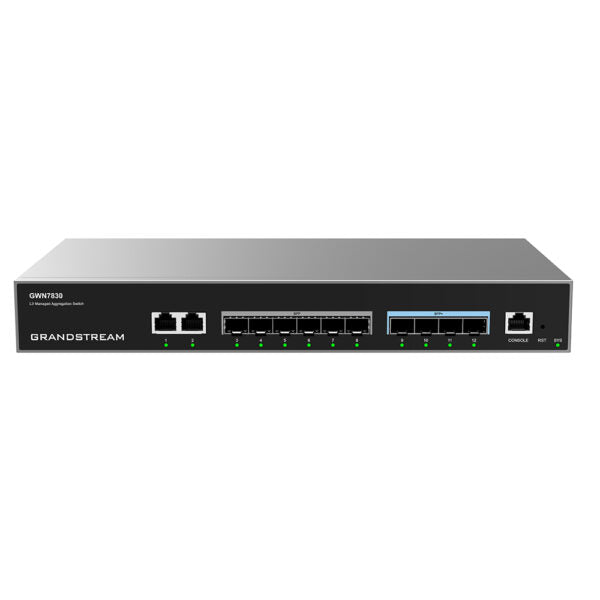
• Layer 3 aggregation managed switches for scalable, secure, high performance and smart business networks. • Supports advanced VLAN for flexible and sophisticated traffic segmentation • Advanced QoS for prioritization of network traffic • IGMP/MLD Snooping for network performance optimization • Comprehensive security capabilities against potential attacks • Manageable through local Web user interface, CLI, GWN.Cloud, and GWN Manager Features: • 6 x SFP ports • 4 x SFP+ ports • 2 x GigE ports • Supports deployment in IPv6 and IPv4 networks • ARP Inspection, IP Source Guard, DoS protection, port security & DHCP snooping • Embedded controller to manage switch • Built-in QoS for prioritization of network traffic Additional Information: • Weight: 4.21 lb • Dimensions: 13 × 6.89 × 1.73 in • Switch Type: Managed Switches • Number of Ports: 11-18 • Main Port Speed: Gigabit • Uplink Ports: Gigabit SFP • PoE Support: No • Layer Support: L3 Technical Specifications: • Box Contents: GWN7830 Switch, AC Cable, Ground Cable, Rubber Footpads, Power Cord Anti-Trip, Extended Rack-Mounting Kits, Screws, Quick Installation Guide • Network Protocol: IPv4, IPv6, IEEE 802.3, IEEE 802.1p, IEEE 802.1Q, Gigabit Ethernet Ports: 2, Gigabit SFP Ports: 6, Gigabit SFP+ Ports: 4 • Maximum no. of Supported Modules: SM-1G: 6, MM-1G: 6, RJ45-1G: 3, SM-10G: 4, MM-10G: 4, RJ45-10G: 2 • Console: 1 • Integrated Power Supply: 30W • Auxiliary Ports: 1x Reset Pinhole • Forwarding Mode: Store-and-forward • Total non-blocking throughput: 48Gbps • Switching Capability: 96Gbps • Forwarding Rate: 71.424Mpps • Packet Buffer: 12Mb • Network Latency: <4µs

About This Product

The Grandstream GWN7830 is a Layer 3 managed aggregation switch designed for growing business networks that need to segment traffic without sacrificing performance. It fits well in a medium-sized office or IT closet where multiple access layer switches or routers connect back to a central point. Because it supports both IPv4 and IPv6 and includes advanced VLAN and QoS features, it can handle mixed-traffic environments like VoIP, video conferencing, and data storage on the same infrastructure. It is worth noting that the GWN7830 does not provide Power over Ethernet (PoE), so any PoE-powered devices such as phones or cameras will need a separate PoE switch or injector. This switch is ideal for network pros who need reliable, secure aggregation with management through a local web interface, CLI, or Grandstream's cloud platform, but it may be overkill for a small office with only a handful of devices, where a simpler unmanaged switch would suffice. For a Toronto-based business deploying a multi-site VoIP system, this switch can serve as a solid backbone, especially when paired with Grandstream's GWN series phones or gateways for end-to-end compatibility.
Services We Provide
  • Professional Installation & Configuration
  • Ongoing Maintenance & Support
  • Troubleshooting & Repairs
  • System Upgrades & Updates