Grandstream GWN7832 Enterprise Layer 3 Managed Aggregation Switch

Frequently Asked Questions

First, check that the included AC power cable is securely connected to the switch and to a working outlet. The GWN7832 has a redundant power supply connector; if you are using an external RPS, verify it is properly seated and delivering 12V/60W. A simple unplug and re-plug of the main power cord often resolves intermittent power issues. If the switch still shows no lights, try a different outlet or power cord before contacting support.
Confirm that your computer is on the same VLAN or subnet as the default management interface. Grandstream switches typically come with a default IP of 192.168.1.1 or 192.168.0.1; check the sticker on the device. If you have changed the IP and forgotten it, try connecting through the console port with a serial cable at 115200 baud—this will let you see the current configuration. If that fails, a power cycle may restore access to the factory defaults, but that should be a last resort after verifying network connectivity.
Ensure the SFP+ module is firmly inserted and that it is a supported model (the GWN7832 supports Grandstream SM-10G, MM-10G, and RJ45-10G modules). Try reseating the module in a different port to isolate a faulty slot. If the module is from a third-party vendor, the switch may not auto-negotiate standards; set the port speed and duplex manually in the CLI or web interface. Power cycling the switch with the module installed can sometimes force recognition.
Check that the quality of service (QoS) settings are properly configured to prioritize voice traffic. The GWN7832 supports advanced QoS, so ensure DSCP or 802.1p markings from your phones or router are not being stripped. Also verify that the switch is not experiencing broadcast storms or excessive CPU load from a loop—enable STP/RSTP on all ports. If the issue persists, a Toronto-based VoIP support provider can usually diagnose the traffic patterns remotely.
Log into the switch via web interface or CLI and create the desired VLANs (e.g., VLAN 10 for voice, VLAN 20 for data). Assign the ports that connect to VoIP phones or access switches as trunk ports with the native VLAN set to your data VLAN and allow the voice VLAN. Ensure that the phones are configured to tag traffic with the correct VLAN ID. For a GTA office, this setup keeps voice traffic logically separate and eases QoS enforcement.
A red system LED typically indicates a hardware fault or power supply issue. Check that both the main internal power supply and any external RPS are functioning. If the red LED persists after a power cycle, verify that the ambient temperature is within the switch's operating range and that the ventilation slots are not blocked. Contact support if the LED remains red—do not attempt disassembly.
Yes, the GWN7832 can be managed via GWN.Cloud or GWN Manager, which is convenient if you already use Grandstream’s cloud management for phones or wireless. Register the switch to your GWN.Cloud account using its MAC address and provisioning code from the web interface. This centralised management allows you to apply configurations and monitor the switch alongside your other Grandstream devices from anywhere.
Layer 3 routing on the GWN7832 requires that you enable IP routing globally and create VLAN interfaces with IP addresses. Make sure there is a static route (or a default route) pointing to your uplink router. Also check that the VLANs are not isolated by an ACL. A common oversight is forgetting to assign an IP interface to the management VLAN that matches your gateway's subnet.
Download the latest firmware file from Grandstream’s official website. Log into the switch web interface, go to Maintenance > Upgrade, and upload the file. Do not interrupt the power or network connection during the upgrade—allow the switch to reboot fully. After the update, verify that your configuration is intact; if not, you may need to reload a backup. Avoid firmware downgrades unless directed by support, as they can introduce incompatibilities.
Ensure that both ports are of the same speed and duplex and that the peer device also supports the same LAG protocol (LACP in active mode is recommended). On the GWN7832, configure the LAG under the Aggregation menu, then assign the member ports as access or trunk as needed. A misconfiguration like static aggregation on one side and LACP on the other will prevent link establishment. Re-check both ends' settings.
Switches

Grandstream GWN7832 Enterprise Layer 3 Managed Aggregation Switch
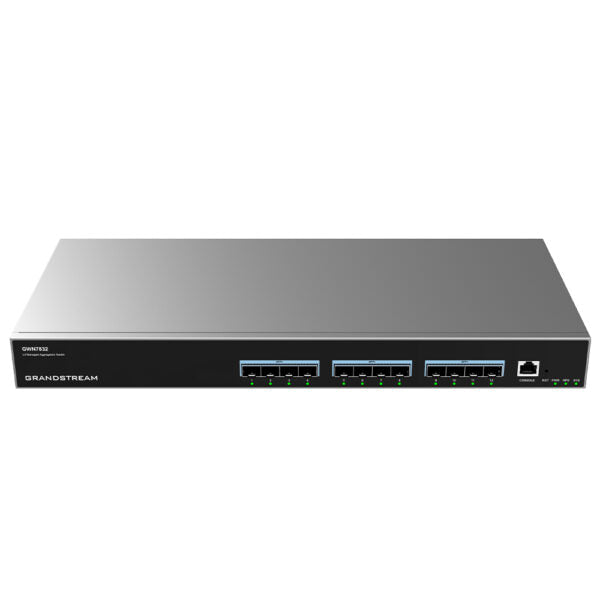
• The GWN7830 Series Layer 3 aggregation managed switches provide scalable, secure, high-performance business networks with advanced traffic segmentation and prioritization capabilities. Key Features: • Supports deployment in IPv6 and IPv4 networks • Advanced QoS for prioritizing network traffic • IGMP/MLD Snooping for optimized network performance • Comprehensive security features against potential attacks • Managed via local Web interface, CLI, GWN.Cloud, and GWN Manager Additional Information: • Weight: 5.89 lb • Dimensions: 17.32 × 7.87 × 1.73 in • Switch Type: Managed Switches • Number of Ports: 11-18 • Main Port Speed: 10G • Uplink Ports: 10G SFP+ • Power Supply: No PoE support • Layer Support: L3 • Redundant Power Supply: Yes Technical Specifications: • Box Contents: + 1x GWN7832 Switch + 1x 1.2m(10A) AC Cable + 1x 25cm Ground Cable + 4x Rubber Footpads + 1x Power Cord Anti-Trip + 2x Rack-Mounting Kits + 8x Screws(KM 3*6) + 1x Quick Installation Guide • Network Protocol: + IPv4, IPv6, IEEE 802.3, IEEE 802.3i, IEEE 802.3u, IEEE 802.3ab, IEEE 802.3z, IEEE 802.3ae, IEEE 802.3az, IEEE 802.3ad, IEEE 802.3x + Gigabit SFP+ Ports: 12 + Maximum no. of Supported Modules: SM-10G: 12; MM-10G: 12; RJ45-10G: 6 • Console: 1 • Integrated Power Supply: 60W • External Redundant Power Supply( RPS): 12V/60W • Auxiliary Ports: 1x Reset Pinhole • Forwarding Mode: Store-and-forward • Total non-blocking throughput: 120Gbps

About This Product

The Grandstream GWN7832 is a Layer 3 managed aggregation switch built for medium-to-large business networks that need high-capacity backhaul. With 12 10G SFP+ ports and a non-blocking throughput of 120 Gbps, it is ideal for linking multiple access switches, servers, or storage arrays in a campus or enterprise environment. This switch fits naturally in a Toronto office deployment where voice, video, and data traffic must be segmented and prioritized reliably—think head office multitenant buildings, data closets serving VoIP and Wi-Fi networks, or any environment where uptime and traffic control matter. It replaces or complements lower-tier aggregation switches by offering full Layer 3 capabilities and redundant power supply support, giving IT teams granular control without performance bottlenecks.

A key practical tradeoff is that the GWN7832 does not supply Power over Ethernet (PoE). That means it is not a drop-in replacement for an access switch that powers phones or cameras. Instead, it lives one layer up in the network, connecting PoE access switches or other 10G-capable devices. For a business that already has PoE switches at the edge, this aggregation switch is a smart core purchase; for a pure VoIP deployment that needs to power endpoints directly, a PoE switch at the access layer would still be required. The 12 SFP+ ports offer flexibility with 10G fiber or copper modules, but note that only six of those support an RJ45 10GBASE-T module—something to plan for when choosing uplink media.

In a smaller office or retail location with fewer than 50 endpoints, this switch would likely be overkill—a 1G Layer 2 switch with a couple of 10G uplinks would suffice at a lower cost. Conversely, it may feel underpowered in a large data centre environment that calls for 40G or 100G uplinks. For most GTA-based businesses running a serious VoIP deployment or multi-service network, however, the GWN7832 offers a balanced mix of throughput, manageability, and redundancy without the expense of chassis-based systems.
Services We Provide
  • Professional Installation & Configuration
  • Ongoing Maintenance & Support
  • Troubleshooting & Repairs
  • System Upgrades & Updates