Grandstream GXW4232-V2 32 FXS Port Gigabit Analog Gateway

Frequently Asked Questions

First, check that the analog phone is securely plugged into the correct RJ11 port and that the phone itself works on a known-good line. Then log into the gateway's web interface and verify the corresponding FXS port is enabled and not set to 'Down' status; if it's disabled, simply enable it. Also confirm that a dial plan or outbound route exists on your IP PBX for that extension.
Start by double‑checking the SIP server address, username, and password under the FXS Profile settings in the web interface. Ensure your network firewall allows UDP traffic on port 5060 (or the custom port your provider uses) and disable SIP ALG on your router if it's turned on. A quick test is to see if the gateway can reach the provider's server by pinging it from the gateway's network diagnostics page.
This is often caused by a NAT or firewall blocking the RTP audio stream. In the gateway's SIP settings, turn on NAT traversal and enable 'Keep Alive' if it isn't already active. Confirm your router has port forwarding for the RTP port range (default 5004–5059) or switch to a connection-oriented SIP transport such as TCP or TLS if your provider supports it.
Navigate to the channel settings for the affected port and make sure echo cancellation is enabled—it is on by default but may have been turned off. Experiment with the jitter buffer length, increasing it slightly from the default; too short a buffer can let echo through. If the echo persists, try replacing the analog telephone cable, as a faulty cable can sometimes introduce the problem.
Connect a computer directly to the gateway's LAN port with a static IP in the same subnet as the gateway's factory default (192.168.0.x range) and try accessing 192.168.0.160. If that fails, check the front LCD panel—it shows the current IP address—and navigate to that address from a directly connected machine. Avoid performing a factory reset until you have recorded the existing configuration, as you might lose working SIP settings.
Start with the basics: reseat the Ethernet cable and try a known‑good port on your switch. Verify the gateway is receiving stable power; if you are using a PoE‑to‑DC adapter, test with the supplied AC adapter instead to rule out power fluctuations. Check the system logs for any alarm about high temperature—the unit needs adequate ventilation in the rack, so ensure nothing is blocking the air vents.
Yes, the GXW4232-V2 works with any SIP‑compliant PBX. You will configure one or more SIP profiles pointing to your cloud PBX's domain, with the correct authentication credentials. Because the gateway sits on your local network, it handles the analog side while all call control happens in the cloud—just make sure your internet connection has low latency and sufficient upload bandwidth for the number of simultaneous calls you expect.
Assign the fax machine to its own FXS port and set that port's codec preference to G.711 passthrough or T.38, whichever your SIP provider supports. Disable echo cancellation and silence suppression on that port, as these can interfere with fax tones. Also make sure jitter buffer is set to a fixed, moderate length—too much variability will cause fax failures.
For tight bandwidth, G.729 offers toll quality at 8 kbps and is a safe first choice. If your provider and endpoints support it, Opus provides excellent quality at variable bitrates and adapts to network conditions. In any case, always keep G.711 enabled as a fallback; most Canadian VoIP carriers still rely on G.711 for high-quality voice and fax tones. If the issue persists, a Toronto‑based VoIP support provider can usually resolve this remotely.
Yes, it supports GDMS and also can be provisioned via XML config files or TR‑069. When paired with a Grandstream UCM, you can use the UCM's zero‑config feature to push settings to the gateway after adding it as a device in the UCM’s web interface. Make sure both the UCM and the gateway are on the same LAN or a routed subnet for auto‑discovery to work.
VoIP Gateways

Grandstream GXW4232-V2 32 FXS Port Gigabit Analog Gateway
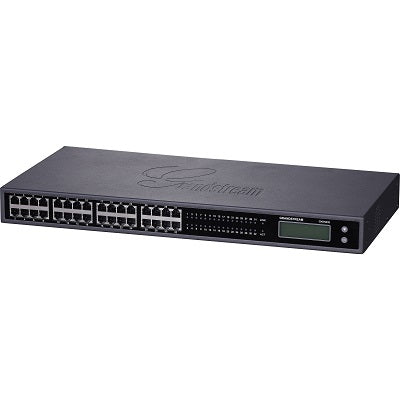
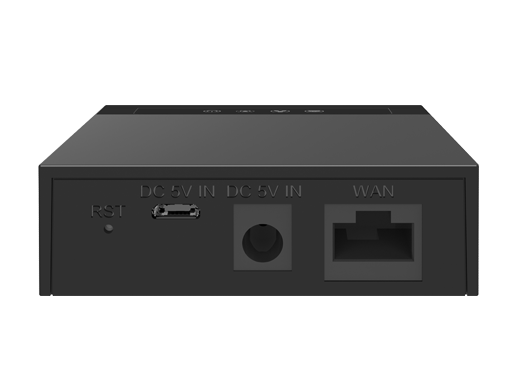
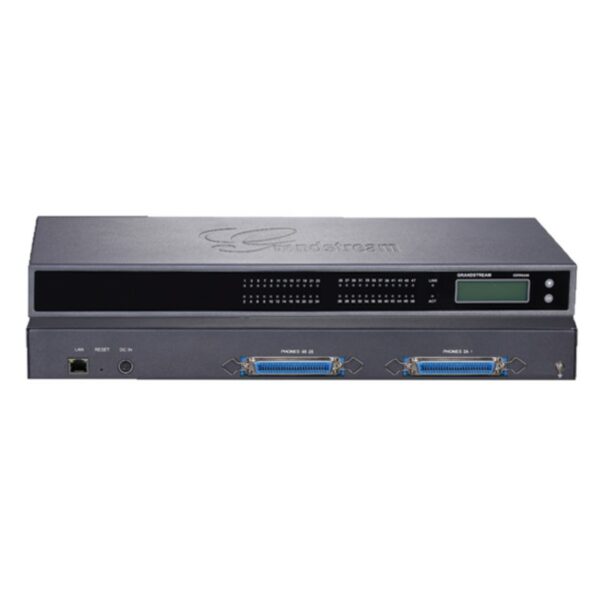
• The GXW4232 high-density FXS gateway series enables businesses to create a cost-effective hybrid IP and analog telephone system that combines the benefits of VoIP communications with Gigabit speeds. Preserving investment on existing analog phones, fax machines, and legacy PBX systems. • Key Features: • 32 FXS ports • Near HD quality audio • GDMS Support • Single 10/100/1000Mbps auto-sensing RJ45 port • TLS and SRTP security with AES encryption technology • Automated provisioning options including TR-069 and XML config files • Supports simultaneous 3-way voice conferencing per port • Weight: 7.86 lbs Dimensions: 19.13 × 13.15 × 3.94 in Device Ports: FXS, Gigabit Number of Ports: 32 FXS • Telephone Interfaces: • 32 x RJ11 & 1/1/2 50-pin Telco connectors • Network Interfaces: • 1 x 10M/100M/1000Mbps auto-sensing RJ45 port • LED indicators: • Power, LAN Link, LAN Activity, Connection Per Telephone Port • LCD display: • Backlit 128×32 graphic LCD display with support for multiple languages • Voice-over-Packet Capabilities: • Window based carrier grade line echo cancellation, dynamic jitter buffer, modern detection & auto-switch to G.711

About This Product

The Grandstream GXW4232-V2 is a high-density FXS analog gateway built for organisations that need to bridge a large base of legacy telephony equipment into a modern VoIP environment. With 32 FXS ports in a single 1U rack unit, it is well suited to medium-sized businesses, multi-tenant offices, hotels, or campus deployments where analog phones, fax machines, and even overhead paging systems remain in daily use. By placing this gateway between the LAN and the analog endpoints, a company can continue using trusted desk phones while routing calls over a SIP trunk or IP PBX—an approach that stretches budgets during a phased migration away from copper lines. In the Canadian market, this is a practical fit for Toronto-area law firms, medical clinics, and property management offices that have a significant investment in analog conference phones or specialised fax lines and want to adopt hosted VoIP without a disruptive rip-and-replace.

In terms of what it pairs with, the GXW4232-V2 works natively with Grandstream’s own UCM series of IP PBXs, as well as most standards-based SIP platforms such as 3CX, FreePBX, and leading cloud PBX providers. It is often deployed alongside a dedicated network switch and a router with solid QoS capabilities, because voice quality depends on consistent, low-latency packet delivery. One thing to keep in mind is that this model has a single Gigabit network port; there is no built-in failover or secondary uplink, so if network redundancy is critical you would need to address that at the switch or router level.

A practical limit worth understanding is that the gateway itself does not supply power to the analog phones—each telephone connected to its RJ11 or Telco ports needs its own power adapter or must be a purely passive device. In a large deployment, that means managing a bundle of AC adapters or using a centralised power solution. Also, while 32 ports may sound generous, this device becomes overkill for a small office with fewer than a dozen analog endpoints; a smaller 8- or 16-port gateway would be a more cost-effective and space-efficient choice. On the flip side, if your environment requires more analogue lines, you can stack multiple GXW42xx units, but the lack of a second Ethernet port means that truly high-availability setups demand careful network design.

Finally, consider the long-term direction of your site. This gateway shines in a hybrid setting where the analog tail is still long. If your building is already fully wired for IP phones and the remaining analog devices are dwindling, the GXW4232-V2 may be more capacity than you need, and you might find a smaller gateway or even ATAs a better match. For now, it remains a workhorse for Canadian businesses that value reliability and are not ready to abandon their analog endpoints.
Services We Provide
  • Professional Installation & Configuration
  • Ongoing Maintenance & Support
  • Troubleshooting & Repairs
  • System Upgrades & Updates