
Grandstream UCM6304 IP PBX
AIM Telecom provides troubleshooting and configuration support for this product to businesses across Toronto and the GTA. Contact us to confirm whether the issue can be handled by phone or requires on-site service.
Get Support Call 416-312-4819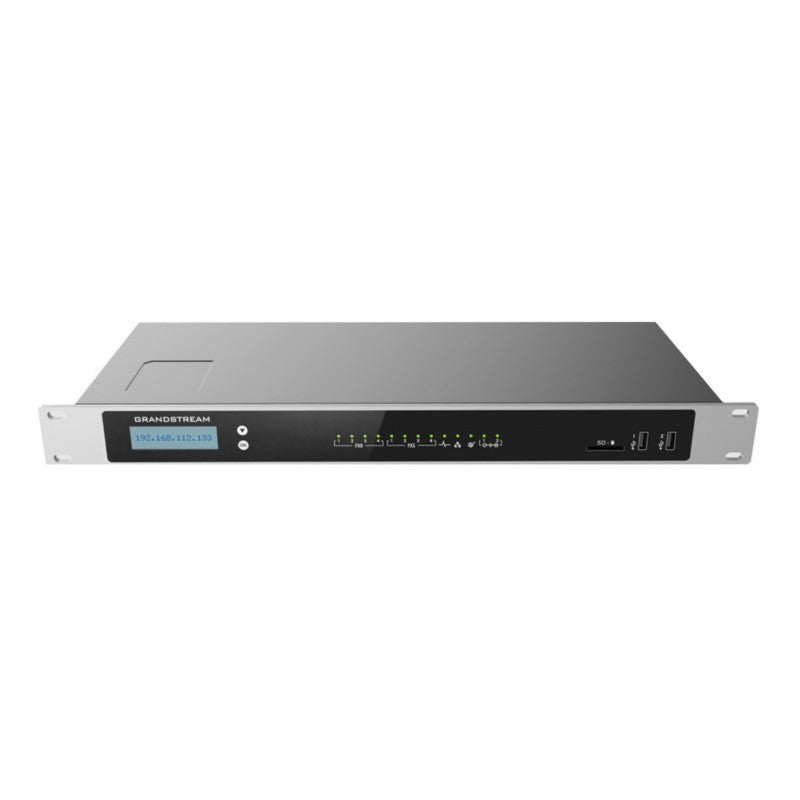
Common issues and fixes
Reviewed troubleshooting steps are not yet available for this model.
Ask AIM Telecom about this productAbout this product
*The Grandstream UCM6304 is a powerful unified communication and collaboration solution designed for businesses. This IP PBX unifies voice, video calling, video conferencing, video surveillance, web meetings, data, analytics, mobility, facility access, intercoms, and more on one centralized network.*
*Key Features:*
• Supports up to 3000 users and 450 concurrent calls
• Zero configuration provisioning of Grandstream SIP endpoints
• Built-in conferencing & meetings platform with support for desktop, Wave app, and SIP endpoints
• Wave for Android, iOS, Chrome, and Firefox browsers allows communication with all UCM6300 users and solutions
• API available for third-party integrations, including CRM and PMS platforms
• Advanced security protection with secure boot, unique certificate, and random default password
• Three Gigabit auto-sensing RJ45 network ports with integrated PoE+ and support NAT router
• Automated NAT firewall traversal service facilitates secure remote connections
• Supports Full-Band Opus voice codec and H.264/H.263/ H.263+/H.265/VP8 video codec, jitter resilience up to 50% packet loss
• Compatible with GDMS for cloud setup, management, and monitoring
• Based on Asterisk* version 16 open-source telephony operating system
*Additional Information:*
• Weight: 7.45 lbs
• Dimensions: 22 × 13 × 4 in
• Brand: Grandstream
• Phone System Call Capacity: 101-500 Concurrent Calls
• Device Ports: FXO, FXS
*Technical Specifications:*
• Analog Telephone FXS Ports: 4 RJ11 Ports (all ports have lifeline capability in case of power outage; number of ports can be expanded by peering with an FXS gateway)
• PSTN Line FXO Ports: 4 RJ11 Ports (all ports have lifeline capability in case of power outage; number of ports can be expanded by peering with an FXO gateway)
• Network Interfaces: Three self-adaptive Gigabit ports (switched, routed or dual mode) with PoE+
• NAT Router: Yes (supports router mode and switch mode)
• Peripheral Ports: 2*USB 3.0, 1*SD card interface
*Key Features:*
• Supports up to 3000 users and 450 concurrent calls
• Zero configuration provisioning of Grandstream SIP endpoints
• Built-in conferencing & meetings platform with support for desktop, Wave app, and SIP endpoints
• Wave for Android, iOS, Chrome, and Firefox browsers allows communication with all UCM6300 users and solutions
• API available for third-party integrations, including CRM and PMS platforms
• Advanced security protection with secure boot, unique certificate, and random default password
• Three Gigabit auto-sensing RJ45 network ports with integrated PoE+ and support NAT router
• Automated NAT firewall traversal service facilitates secure remote connections
• Supports Full-Band Opus voice codec and H.264/H.263/ H.263+/H.265/VP8 video codec, jitter resilience up to 50% packet loss
• Compatible with GDMS for cloud setup, management, and monitoring
• Based on Asterisk* version 16 open-source telephony operating system
*Additional Information:*
• Weight: 7.45 lbs
• Dimensions: 22 × 13 × 4 in
• Brand: Grandstream
• Phone System Call Capacity: 101-500 Concurrent Calls
• Device Ports: FXO, FXS
*Technical Specifications:*
• Analog Telephone FXS Ports: 4 RJ11 Ports (all ports have lifeline capability in case of power outage; number of ports can be expanded by peering with an FXS gateway)
• PSTN Line FXO Ports: 4 RJ11 Ports (all ports have lifeline capability in case of power outage; number of ports can be expanded by peering with an FXO gateway)
• Network Interfaces: Three self-adaptive Gigabit ports (switched, routed or dual mode) with PoE+
• NAT Router: Yes (supports router mode and switch mode)
• Peripheral Ports: 2*USB 3.0, 1*SD card interface
More product details
The Grandstream UCM6304 is an IP PBX built for medium-to-large businesses that need a unified communications platform spanning voice, video, conferencing, and mobility. It comfortably supports up to 3,000 users and 450 concurrent calls, making it a strong fit for organizations with several hundred employees or branch offices that want a single appliance to handle all internal and external call routing, audio and video meetings, and even basic video surveillance integration. The unit’s four FXS and four FXO ports give it direct analog connectivity for legacy phones or PSTN lines, which is handy for gradual migration or backup circuits, while the three Gigabit ports with PoE+ simplify wiring by powering PoE endpoints directly from the PBX.
For companies already invested in Grandstream SIP endpoints, the zero-configuration provisioning offered by the UCM6304 dramatically reduces deployment time. The built-in conference bridge and Wave softphone/meeting client extend collaboration to desktop and mobile users without needing a separate server. On the flip side, this PBX would be overkill for a small business with fewer than 100 users; a lower-tier UCM model would be more cost-effective and easier to manage. Similarly, very large enterprises with thousands of users and complex multi-site requirements may find the UCM6304’s single-box architecture limiting and should evaluate a distributed or cloud-based alternative.
Canadian businesses, particularly those in the GTA, will appreciate that the UCM6304 integrates cleanly with major SIP trunk providers available in the region. The automated NAT firewall traversal helps simplify remote worker connectivity, and the unit’s secure boot and random default password provide a baseline of protection out of the box. However, administrators should plan for periodic firmware updates and provisioning backup to maintain reliability. Overall, this is a capable, expandable platform for organizations that want one appliance to handle voice, video, and collaboration without jumping to a full UCaaS subscription.
For companies already invested in Grandstream SIP endpoints, the zero-configuration provisioning offered by the UCM6304 dramatically reduces deployment time. The built-in conference bridge and Wave softphone/meeting client extend collaboration to desktop and mobile users without needing a separate server. On the flip side, this PBX would be overkill for a small business with fewer than 100 users; a lower-tier UCM model would be more cost-effective and easier to manage. Similarly, very large enterprises with thousands of users and complex multi-site requirements may find the UCM6304’s single-box architecture limiting and should evaluate a distributed or cloud-based alternative.
Canadian businesses, particularly those in the GTA, will appreciate that the UCM6304 integrates cleanly with major SIP trunk providers available in the region. The automated NAT firewall traversal helps simplify remote worker connectivity, and the unit’s secure boot and random default password provide a baseline of protection out of the box. However, administrators should plan for periodic firmware updates and provisioning backup to maintain reliability. Overall, this is a capable, expandable platform for organizations that want one appliance to handle voice, video, and collaboration without jumping to a full UCaaS subscription.