Teltonika RUTX11100400 North America Dual SIM 4G Cellular Router
Frequently Asked Questions
First, confirm that the SIM card is inserted correctly, activated, and not locked to a different carrier. Check that the antennas are firmly attached and that you're in an area with 4G LTE coverage. If the issue persists, verify the APN settings under Network → Mobile → SIM card in the web interface match your carrier's parameters (e.g., for Rogers, the APN is typically 'internet.com' or 'rogers-core-appl1.apn').
Start by checking the signal strength indicator on the router's status page – if it's low (below -100 dBm), try relocating the router or its antennas to a window or higher position. Also, ensure there is no metal enclosure blocking the signal. If you're using an external antenna, verify the cable is not damaged. Finally, check if the issue coincides with specific times of day, which could point to network congestion.
Insert both SIMs into the slots labeled SIM1 and SIM2. In the web interface, go to Network → Mobile → SIM Management, set 'Failover' as the SIM switch rule, and configure the failover thresholds (e.g., switch to SIM2 after 3 consecutive ping failures to 8.8.8.8). The router will automatically swap to the backup SIM if the primary connection drops.
This often points to a NAT or firewall rule issue. Log into the router and check System → Firewall to ensure that the 'Allow all' rule is in place for the LAN zone. Also, confirm that the WAN interface is set to use the mobile connection (Network → WAN → WAN1). If you've recently changed any routing settings, revert to defaults and test again.
Start by changing the Wi-Fi channel in the router's wireless settings (Network → Wireless) to a less congested one, especially if you're in a dense urban area like downtown Toronto. Ensure the router is placed centrally and away from large metal objects. If the problem persists, test with a wired Ethernet device to isolate whether the issue is Wi-Fi-specific or a broader connectivity problem.
Yes, the RUTX11 is sold as a North American model and supports the LTE bands used by all major Canadian carriers (including Rogers, Bell, Telus, and their MVNOs). Just ensure your SIM is data-only or has a data plan that allows router use. Some carriers may require you to manually enter the APN as mentioned in FAQ 1.
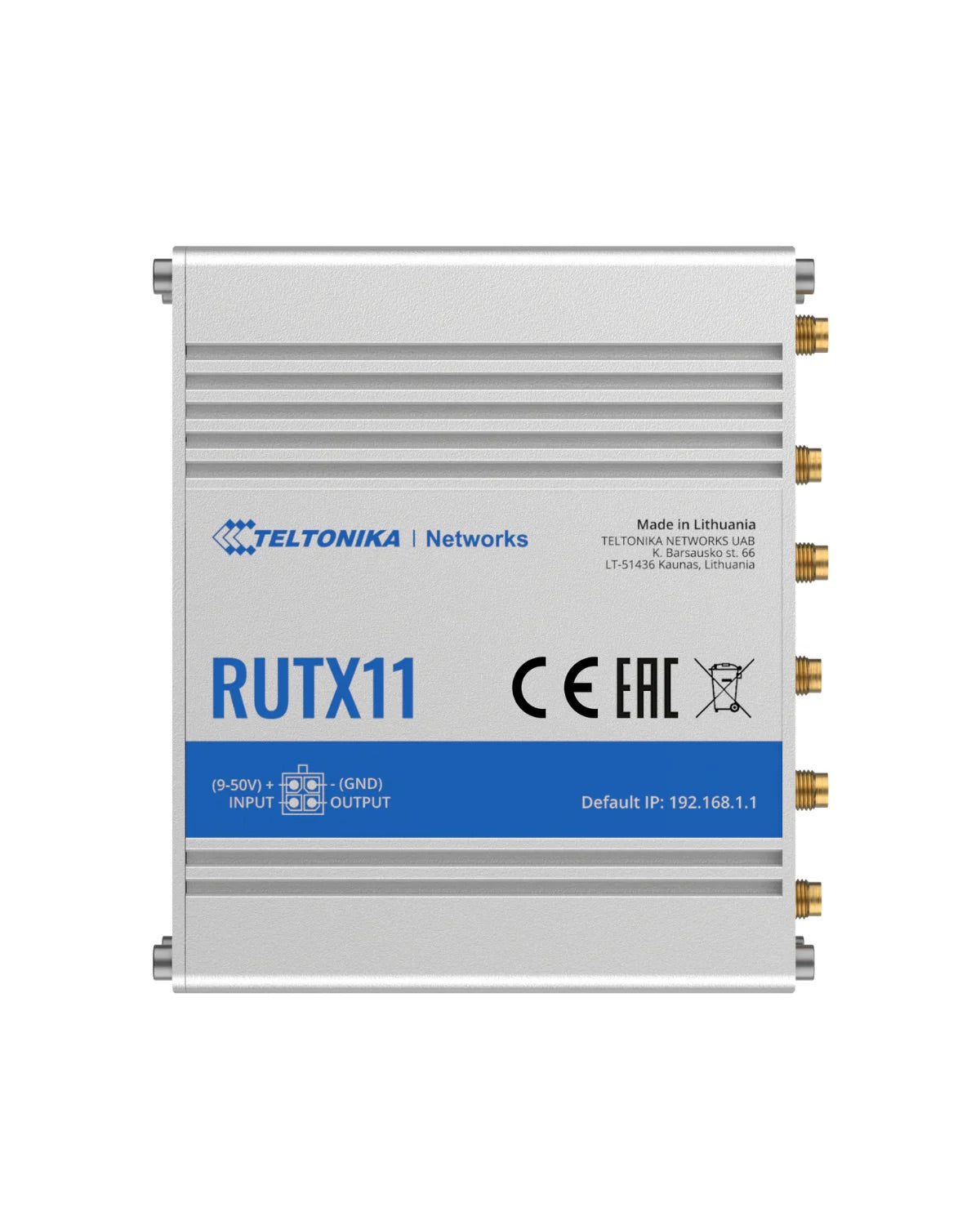
By default, the router's LAN IP is 192.168.1.1. Connect your computer to one of the LAN ports, set your computer's network to obtain an IP automatically, and open a browser to that address. The default login is 'admin' with password 'admin01'. Change this immediately on first login.
Make sure the GPS antenna (included with the router if ordered as a kit, or purchased separately) is connected to the 'GPS' SMA port and has a clear view of the sky – indoors or under heavy tree cover will not work. In the WebUI, go to Services → GPS to verify the receiver status. If it shows 'No Fix', try moving the antenna to a window or outdoors temporarily.
Download the latest firmware from Teltonika's support site for the RUTX11 North American version. In the router's web interface, go to System → Firmware, upload the .bin file, and confirm the upgrade. Do not power off the router during the update. If the download fails, check your internet connection or try a different browser.
This usually means the router's LAN IP has changed or a firewall rule blocked your computer. First, try connecting via a direct Ethernet cable to a LAN port and manually assigning your computer an IP in the 192.168.1.0/24 subnet (e.g., 192.168.1.100). If that fails, press and hold the 'Reset' button (a paperclip into the small hole on the back) for 10 seconds to restore factory defaults – but note this erases all configurations, so contact support first if you can avoid it.
Routers
Teltonika RUTX11100400 North America Dual SIM 4G Cellular Router
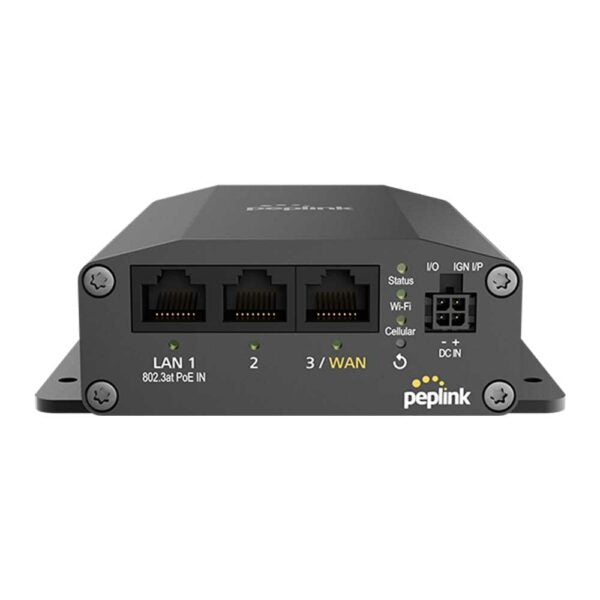
RUTX11 is a robust industrial LTE Advanced (LTE-A) router equipped with 4x Gigabit Ethernet ports, WiFi, Dual-SIM, GPS, Bluetooth, a powerful CPU and RutOS software for advanced networking solutions. Key Features: • Dual-SIM with auto Failover and Backup WAN • Wide range of internal hardware interfaces for power-hungry industrial applications • 4G LTE – Cat 6 DL up to 300 Mbps in sync with 4 x 1 Gbit Ethernet ports for seamless data transfer • Bluetooth LE for sensor connectivity and minimized solution ecosystem For a full list of specifications, please refer to the Product Data Sheet.
About This Product
This rugged industrial router is built for environments where a reliable, high-speed cellular connection is critical—think remote monitoring sites, construction trailers, fleet vehicles, or backup connectivity for a warehouse outside the GTA. It pairs naturally with IoT sensors, CCTV cameras, or any equipment that needs a stable WAN link when wired broadband isn't available or as a failover circuit. The dual-SIM auto-failover and Cat 6 LTE-A give it serious resilience: if one carrier's signal drops in a Canadian winter, the router can flip to a second SIM without manual intervention. That said, the RUTX11 is overkill for a typical office desk where a standard Wi-Fi router and a single cable modem suffice; its advanced features and price point are aimed at managed deployments where uptime and remote manageability justify the cost. A buyer should also note that this model is a standalone cellular router—it doesn't replace a full SD-WAN appliance, and its VoIP capabilities are limited to routing traffic, not hosting phone lines. For a Canadian business needing to keep a remote oil-field office or a seasonal cottage connected, this device is a solid fit; for a coffee shop looking to offer guest Wi-Fi, a simpler LTE router would be more practical.
Services We Provide
- Professional Installation & Configuration
- Ongoing Maintenance & Support
- Troubleshooting & Repairs
- System Upgrades & Updates