Yealink A10-010 All-in-One Android Video Collaboration Bar

Frequently Asked Questions

Ensure the power adapter is securely connected to the bar and to a working wall outlet. If the power LED still does not light up, try a different outlet. If the issue persists, a Toronto-based VoIP support provider can usually resolve this remotely.
First confirm the HDMI cable is firmly plugged into both the A10's HDMI output port and your display. Then check that your display is set to the correct HDMI input. If your display supports CEC, make sure it is enabled so the bar can automatically switch inputs.
Check that the mute button on the remote or the touch screen indicator is not active. Ensure no physical obstruction, such as a sticker or dust, is covering the microphone array. Test with a short call to a colleague to confirm.
Go to the camera settings menu on the A10's touch screen or remote and confirm that Auto Framing and Speaker Tracking are toggled on. Note that some video conferencing apps, like Zoom, have their own settings; ensure the feature is enabled within the app as well.
Power cycle the A10 by unplugging it for 10 seconds and reconnecting. Also restart your Wi-Fi router. If the issue continues, check that the bar is within reasonable range of your router and avoid obstructions. For a more stable connection, consider using the Ethernet port instead.
Replace the batteries with fresh ones and ensure a clear line of sight between the remote and the A10's IR receiver (typically the front of the bar). If the remote still does not respond, a power cycle of the bar may help.
The A10 runs Android and comes pre-loaded with the Teams and Zoom apps. Connect to your network via Wi-Fi or Ethernet, then sign in with your account credentials. The bar is certified for both platforms, so all controls should work natively.
Yes, the A10 supports content sharing. You can use the wireless screen sharing feature (via Wi-Fi) or connect your laptop via the USB-C port. Consult the user guide for the specific method supported by your video conferencing app.
No, the Yealink A10 requires its included power adapter. It does not support Power over Ethernet. Make sure you have an electrical outlet near the mounting location.
The bar comes with a wall mount bracket. You can attach it to the wall above or below the display. Alternatively, it can sit on a shelf or desktop. Ensure the mounting surface is sturdy enough to support its weight (about 4 lbs) and that the camera has a clear view of the room.
Video Conferencing

Yealink A10-010 All-in-One Android Video Collaboration Bar
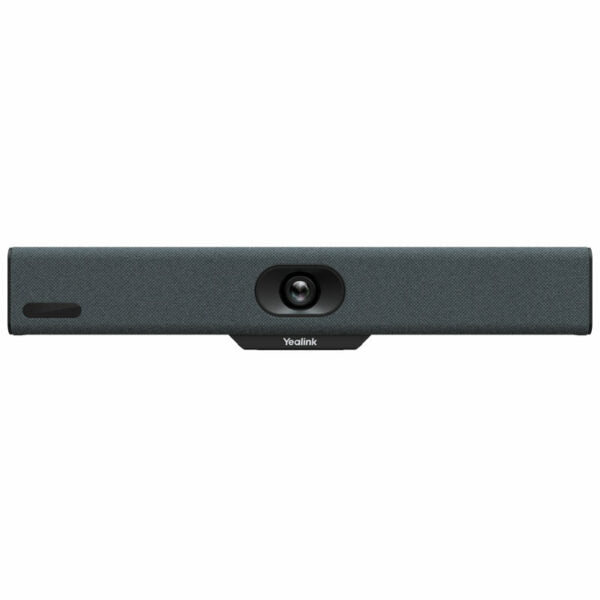
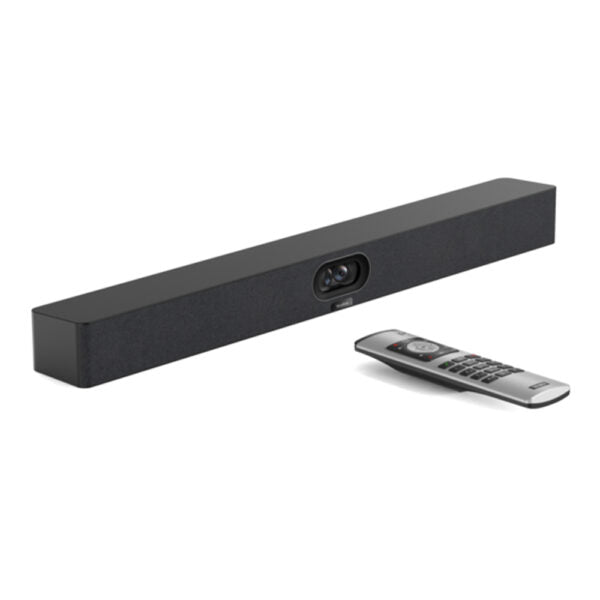
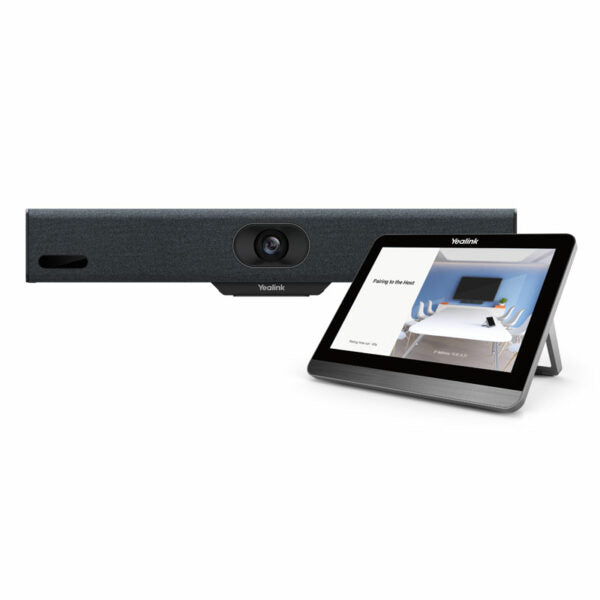
• Yealink MeetingBar A10 is an all-in-one video collaboration bar for workspace and huddle rooms, delivering outstanding 4K video quality with a 120° lens. • Features: • Android 11.0 OS • All-in-One Design • 4K Camera • Electric Privacy Shutter • Auto Framing and Speaker Tracking • Built-in Bluetooth • Built-in Wi-Fi • Content Sharing • Certified by Microsoft Teams & Zoom • Additional Information: • Weight: 3.97lb • Dimensions: 17.6 × 6.5 × 5.91 in • Supported Platforms: Microsoft Teams, Zoom • Video Conferencing: Android, Collaboration Bars, Microsoft Teams, Zoom • Video Room Size: Small/Huddle • Technical Specifications: • Model: A10-010 • Part number: 1203680 • Package Contents: 1x A10 all-in-one Collaboration bar, power adapter, wallmount bracket, cables, 1x VCR11 remote control, including 2-year hardware warranty • Audio: • Built-in 8 MEMS microphone array • Built-in 5 W high fidelity speaker • AI Noise Cancellation Algorithm • Full duplex • Echo cancellation • Operating System: Android 11.0 • Camera: • 4K Camera • Resolution: 4K, 1080p and 720p at 30fps • 120° DFoV • 105° HFoV • 4x e-PTZ camera • Electric privacy shutter • Intelligence Features: • Auto Framing • Speaker Tracking • Smart Gallery (Zoom Only) • Connections: • 1 x HDMI output (CEC supported) • 1 x USB 2.0 • 1 x USB-C • 1 x 10 M/100 M/1000 M Ethernet port • 1 x Yealink VCH port (RJ-45) • 1 x Power port • 1 x Security lock slot • 1 x Reset slot

About This Product

The Yealink MeetingBar A10 is designed for small huddle rooms and workspaces where simplicity is key. It combines a 4K camera, microphone array, and speaker into a single bar that connects directly to a display via HDMI, eliminating the need for a separate PC or laptop. This form factor suits offices where teams need quick, ad-hoc video calls without complex setup or cabling. It pairs naturally with a TV or monitor and comes certified for both Microsoft Teams and Zoom, two platforms common in Canadian business environments.

In practice, the A10 is a practical replacement for a webcam-and-speakerphone combo in rooms with up to four or five participants. Its 120° wide-angle lens captures everyone around a small table, and auto-framing ensures the group stays centered. The electric privacy shutter gives peace of mind when the camera is not in use. However, the integrated 5W speaker is adequate only for intimate spaces; in a noisier or larger room, the sound may feel thin. The device runs Android 11.0, meaning it can only use apps available for that platform—it does not run Windows or macOS apps natively.

For deployment in Greater Toronto Area offices, the A10 offers quick installation: mount it on the wall below or above the display, connect power and HDMI, and sign in to your Teams or Zoom account. The two-year hardware warranty provides a safety net. Where it may be overkill is in a single-person workspace or a booth where a basic USB webcam would suffice; conversely, it lacks the microphone pickup range and speaker output needed for a ten-person conference room. The all-in-one bar is best viewed as a tailored tool for small collaboration spaces, not a one-size-fits-all video solution.
Services We Provide
  • Professional Installation & Configuration
  • Ongoing Maintenance & Support
  • Troubleshooting & Repairs
  • System Upgrades & Updates