Yealink A10-020 – 1203684

Frequently Asked Questions

First, confirm the electric privacy shutter is open—look for the indicator light near the lens. Next, check that the MeetingBar is selected as the video device within the Teams meeting settings, not the built-in display camera. If the issue persists, a Toronto-based VoIP support provider can usually resolve this remotely.
The CTP18 touch console connects over the network and is typically paired during initial setup. Ensure it's powered via its PoE adapter and connected to the same LAN as the MeetingBar. If it still doesn't respond, try restarting the console and verify the IP settings on both devices.
Echo is often caused by the MeetingBar's speaker volume being too high or the device being too close to a reflective surface. Lower the speaker volume slightly and ensure the bar is positioned so that sound from its speaker isn't bouncing directly back into the microphone array. Soft furnishings in the room can also help absorb reflections.
Yes, the MeetingBar has built-in Wi-Fi and can connect to your corporate wireless network. For best performance, use a 5 GHz network and avoid crowded channels. Keep in mind that for critical meetings, a wired Ethernet connection is more reliable, especially if you're sharing high-resolution content.
Check that the power adapter is securely connected at both the wall outlet and the MeetingBar. Try a different outlet to rule out a power source issue. If there's still no sign of life, inspect the adapter's LED (if present) and ensure the cable isn't pinched or damaged.
The MeetingBar runs one platform at a time based on the firmware loaded. To switch, you need to provision the device for the other platform through the Yealink management portal or your provisioning server. This usually involves a firmware change and reconfiguration, so it's best to confirm which platform you'll use before deployment.
Intermittent audio is often a network quality issue. Check for packet loss or jitter on your internet connection—running a quick network test from the device's admin menu can help. Also, ensure no other bandwidth-heavy applications are running on the same network segment during the call.
Make sure the MeetingBar is placed at eye level and that there's adequate lighting in the room. The AI needs clear contrast to detect faces. If people are sitting too far to the sides or very close to the bar, the 120° lens may still not capture everyone optimally—try repositioning the seating slightly.
The A10 is designed as an appliance for Microsoft Teams and Zoom Rooms. While it runs Android, using it with generic SIP services isn't supported out of the box and would require custom integration that may void warranty or compliance. For a standard SIP-based video room, consider a dedicated video endpoint instead.
A frozen console can often be recovered by disconnecting its PoE cable for 30 seconds and reconnecting it. This forces a clean reboot without affecting the MeetingBar itself. If the problem recurs frequently, check for any pending firmware updates for the CTP18. If the issue persists, a Toronto-based VoIP support provider can usually resolve this remotely.
Video Conferencing

Yealink A10-020 – 1203684
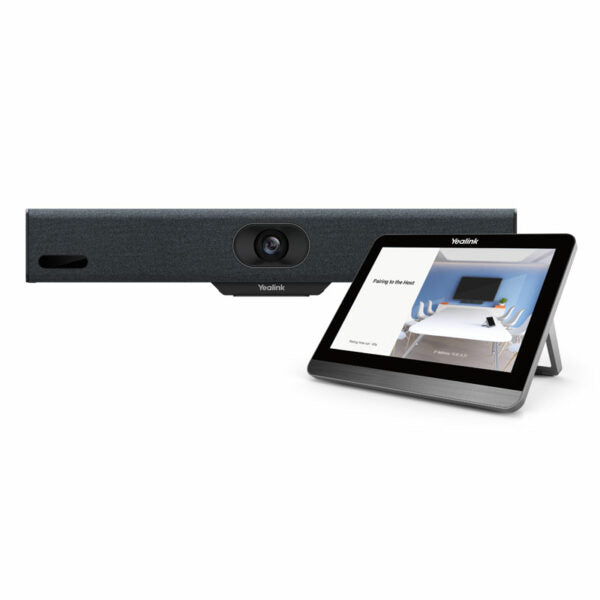
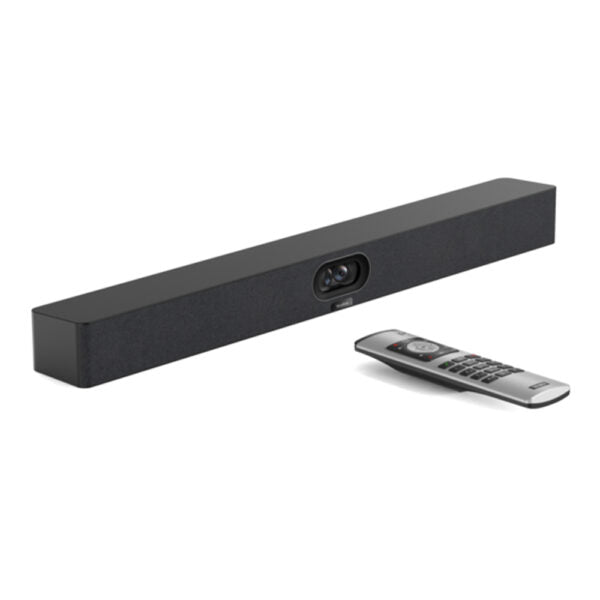
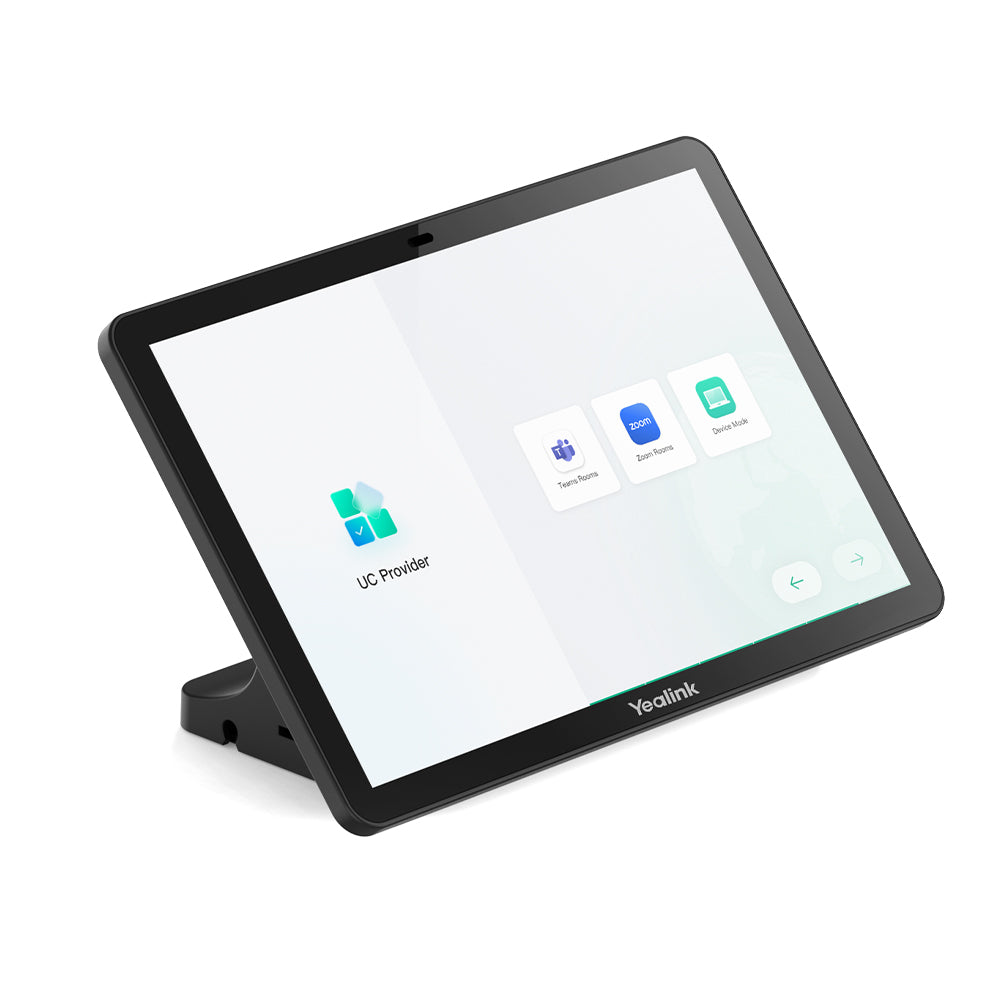
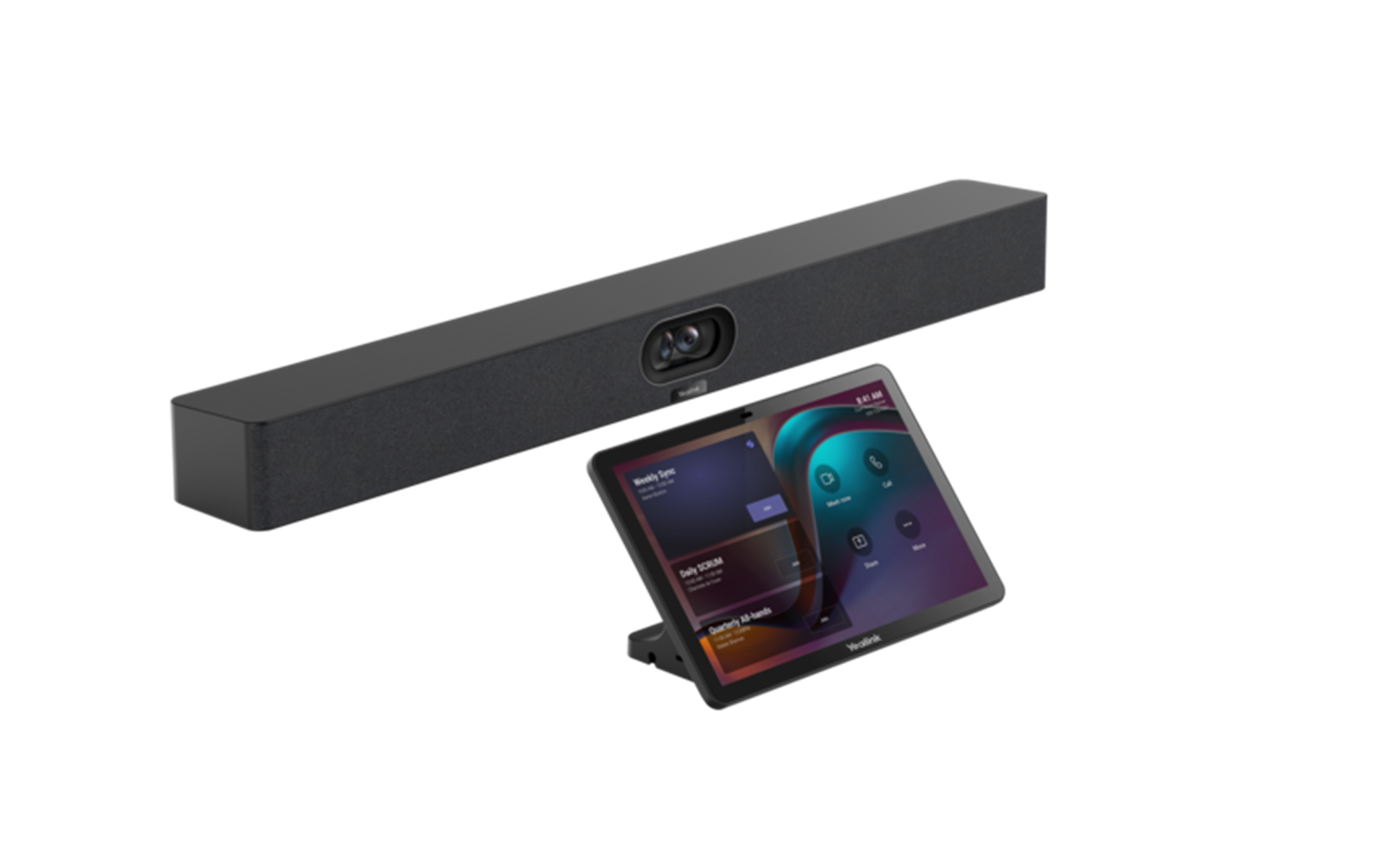
• Yealink MeetingBar A10, an all-in-one video collaboration bar for workspace and huddle rooms, featuring a 4K camera and 120° lens for outstanding video quality. • Key features: • AI-powered Auto Framing, Speaker Tracking, and electric privacy shutter • Excellent audio experience with 8 MEMS microphone arrays and Yealink AI-based noise proof technology • All-in-one design with computing unit, camera, microphones, speaker, Wi-Fi, and Bluetooth for simple deployment • Supports cloud video platforms like Microsoft Teams and Zoom for seamless collaboration • Additional information: • Weight: 10.52 lb • Dimensions: 27.56 × 12.13 × 9.65 in • Supported Platforms: Microsoft Teams, Zoom • Video Conferencing: Android, Collaboration Bars, Microsoft Teams, Zoom • Video Room Size: Small/Huddle • Technical Specifications: • Model: A10-020 • Part number: 1203684 • Box Contents: • 1x A10 all-in-one Collaboration bar (power adapter, wallmount bracket and cables) • 1x CTP18 touch console (PoE power adapter, wallmount bracket and cables) • Including 2-year hardware warranty

About This Product

The Yealink MeetingBar A10 is purpose-built for small and huddle rooms where simplicity and quick meeting starts matter more than extensive customization. It combines a 4K camera, microphone array, speaker, and compute module into a single bar that mounts neatly above or below a display. For a Toronto startup or a satellite office in the GTA, this means one device to cable, one power source, and minimal IT overhead—ideal when the room itself is often repurposed or shared across teams.

It pairs naturally with Microsoft Teams and Zoom, running their native Android-based interfaces, so users see a familiar meeting experience without needing a dedicated PC. The included CTP18 touch console gives you a dedicated control surface for joining calls and managing content, which helps avoid the "whose laptop is hosting?" confusion common in ad-hoc spaces. The tradeoff is that as an all-in-one Android appliance, you can't later upgrade the camera or add external DSPs for more demanding audio setups; it's a closed, optimized system.

If your room seats more than six people or has challenging acoustics—think glass walls or high ceilings—the A10's integrated audio may reach its limits. In those settings, a modular solution with separate microphones and speakers would be more effective. Conversely, for a single-person focus room or a phone-booth-style space, the A10 is overkill; a simple USB speakerphone or headset would do the job at a fraction of the cost.

For Canadian businesses standardizing on Teams or Zoom across multiple small meeting spaces, the A10 delivers a consistent, easily reproducible deployment. Its Wi-Fi capability also helps in older buildings where running Ethernet to every huddle corner isn't practical, though a wired connection is always recommended for video stability.
Services We Provide
  • Professional Installation & Configuration
  • Ongoing Maintenance & Support
  • Troubleshooting & Repairs
  • System Upgrades & Updates