Yealink BH76 UC Black USB-A – 1208621

Frequently Asked Questions

First, ensure the USB-A Bluetooth adapter is firmly plugged into your computer and that the headset is powered on. Check that Bluetooth is enabled on your computer and look for 'BH76' in the list of available devices. If it still doesn't connect, try plugging the adapter into a different USB port or restarting your computer. For deeper troubleshooting, a Toronto-based VoIP support provider can usually resolve this remotely.
Make sure the retractable microphone arm is fully extended and positioned close to your mouth. Also verify that the active noise cancellation (ANC) level is set appropriately; too high an ANC setting on certain environments can affect audio perception. If the issue persists, confirm the headset's firmware is up to date via Yealink's software, and check your softphone's audio input/output settings.
The BH76 offers up to 35 hours talk time, so rapid draining may indicate the battery wasn't fully charged or that the headset is left on standby for long periods. Try a full charge using the provided cable (2 hours) and note how long it lasts. If you're using wireless charging, ensure the charging pad is correctly aligned. If the issue continues, the battery may require service—contact your dealer or Yealink support before attempting any reset.
The BH76 can maintain two simultaneous Bluetooth connections. To pair a second device, first ensure the headset is already connected to one device. Then put the headset into pairing mode (press and hold the multi-function button until the LED flashes red and blue) and select 'BH76' on the second device's Bluetooth menu. The headset will manage both connections, allowing you to switch between calls easily.
A stuck busylight often means the headset thinks a call is still active. Try ending any ongoing call from your softphone and then pressing the call control button on the headset to reset the state. If the light remains, restart the headset by powering it off and on. Persistent issues may stem from a software glitch—check for firmware updates or contact support.
The BH76 is designed primarily for computer and mobile device use via Bluetooth or its bundled USB-A adapter. It does not include a DECT base station for traditional desk phone connectivity. If you need to use it with a desk phone, you would require an additional Bluetooth adapter compatible with your phone model, but performance may vary. For standard office tasks, it pairs best with softphones on a PC or Mac.
Bluetooth dropout can occur if the connected device is too far away (the BH76's range is up to 30 meters, but walls and interference reduce it). Ensure the headset and adapter are within 10 meters and avoid sources of radio interference like microwaves or large metal objects. Also, verify the headset's firmware is current—older firmware may cause connection stability issues. If the problem persists, try forgetting the device on your computer and re-pairing it.
Firmware updates are managed via Yealink's Device Manager software or the Yealink USB Connect tool. Download the latest version from the Yealink support page, launch the tool, connect the headset via USB cable, and follow the on-screen instructions. Do not disconnect the headset during the update. If you're unsure about the process, contact your IT provider to avoid any interruption.
First, confirm ANC is enabled by checking the headset's dedicated ANC button (usually a press to cycle through levels). Some users expect full silence, but the BH76's ANC is designed to reduce ambient noise, not eliminate it completely. Try adjusting the ANC level in a noisy environment to feel the difference. If you still notice zero effect, the microphones may be blocked—clean the earcup grilles gently. If no improvement, contact support as the ANC hardware may be faulty.
Ensure the headset is selected as both the audio output and input device in your softphone's settings (e.g., in Teams, Skype, or Zoom). On Windows, check your Sound settings under 'Recording Devices' and set 'Yealink BH76' as default. On macOS, go to System Preferences > Sound > Input and select the headset. If it still doesn't list, disconnect and reconnect the USB-A adapter and restart your softphone. If the issue persists, one of Toronto's UC support specialists can assist remotely.
VoIP Headsets

Yealink BH76 UC Black USB-A – 1208621
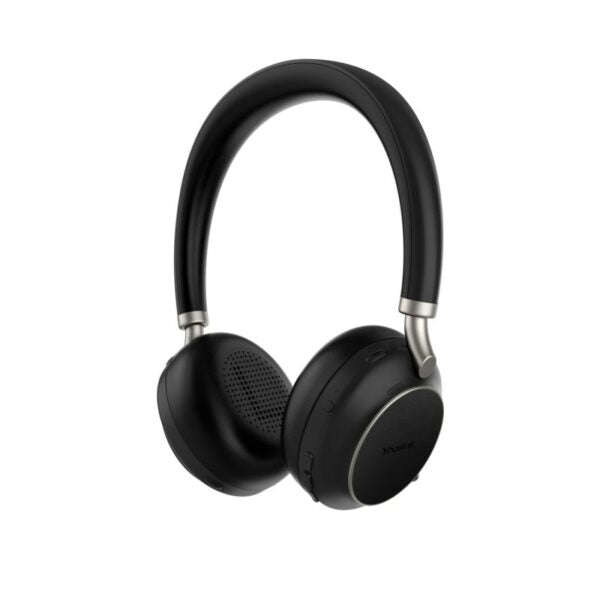
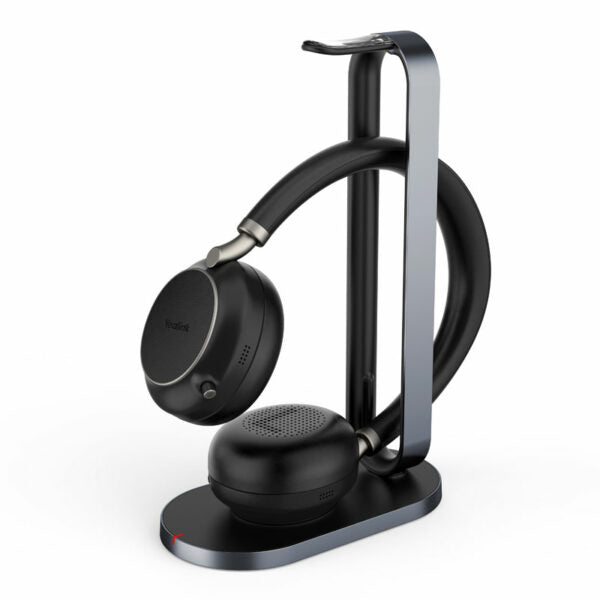
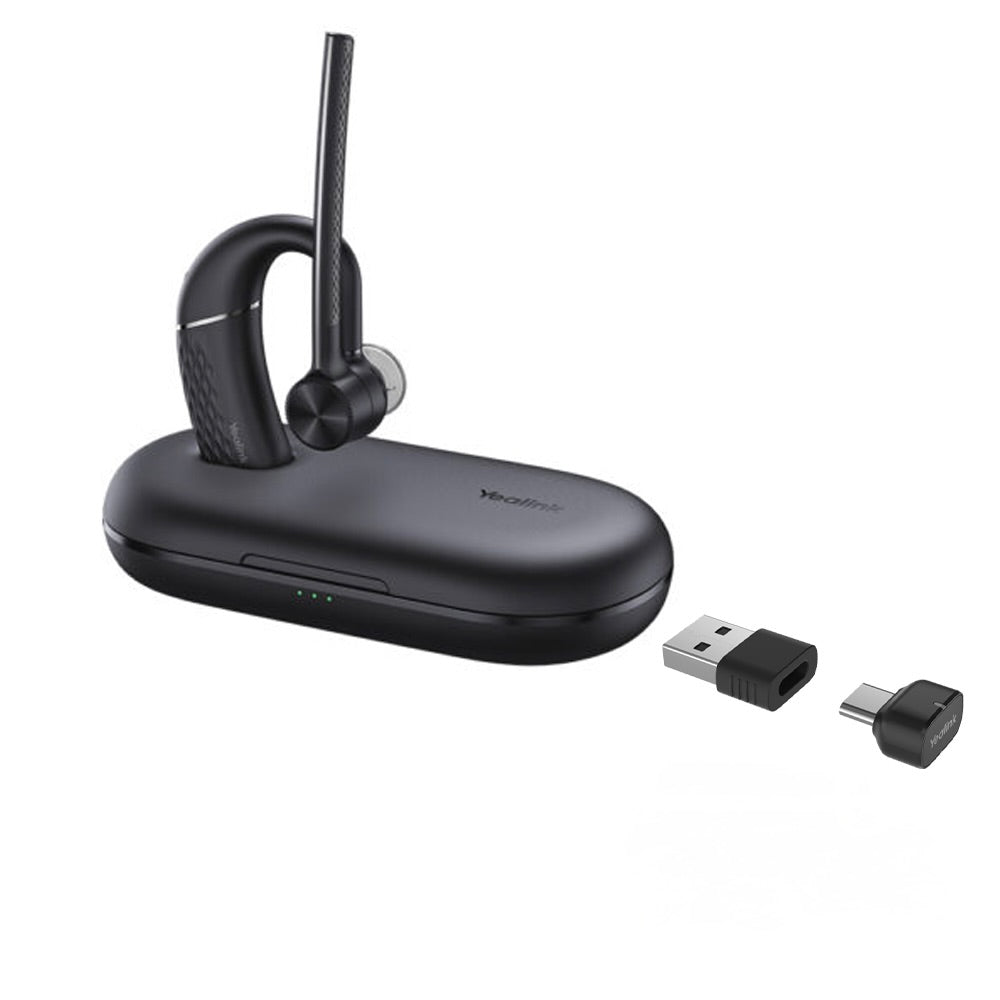
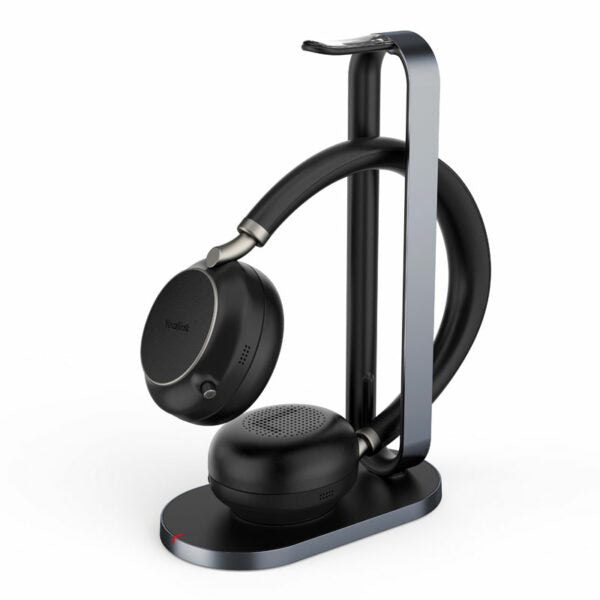
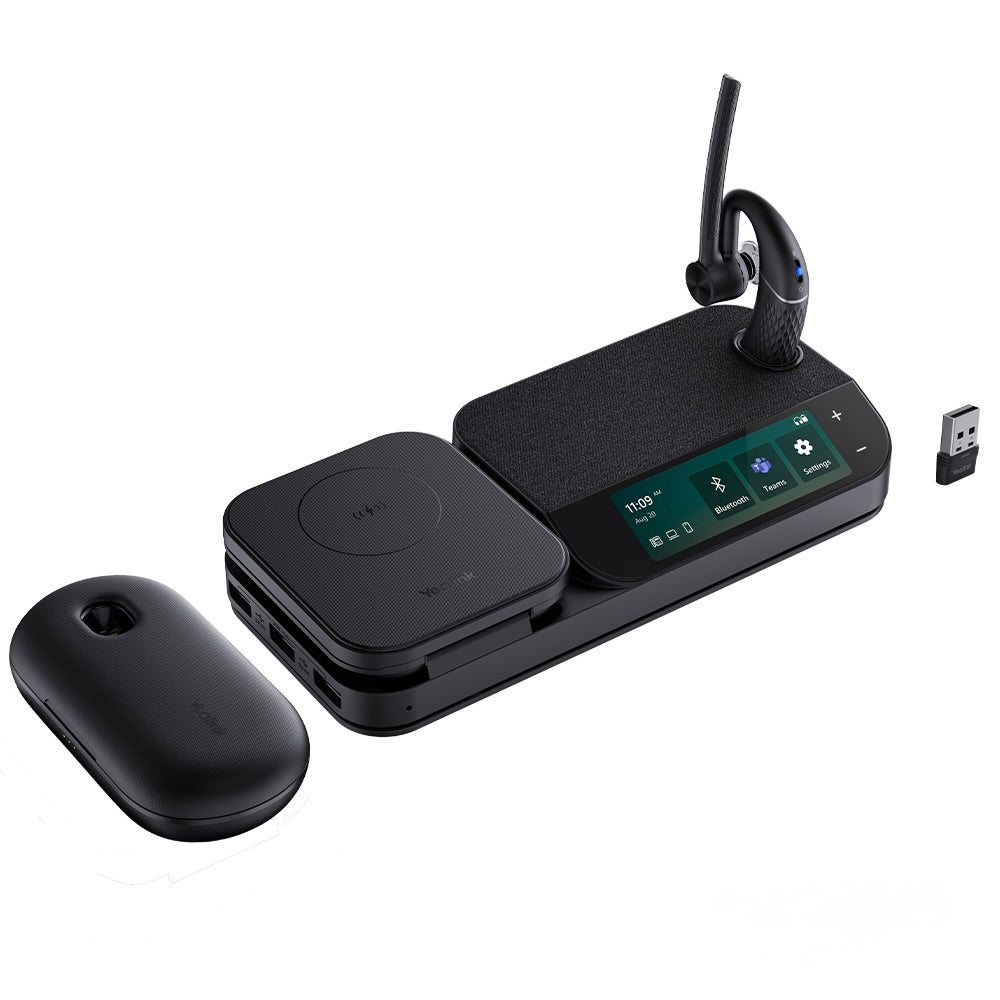
The Yealink BH76 Bluetooth Wireless Business Headset provides a stylish and professional appearance, with ultimate audio quality playback experience. Key features include: • Retractable hidden microphone arm for convenient use • Multiple microphones with Acoustic Shield Technology for enhanced sound • 4 levels of active noise cancellation (ANC) for improved listening comfort • Qualcomm aptX digital audio algorithm for high-definition audio and optimized music playback • Up to 40 hours wireless battery life and Qi wireless charging stand • Dual-side busylight for full visible angles and excellent audio experience with all day wearing comfort • UC Certified for seamless integration with your devices • Color: Black • Connectivity: USB-A Weight: 1.59 lbs Dimensions: 7.64 × 8.15 × 2.09 in Headset Type: Bluetooth, DECT, Teams Certified, USB Technical Specifications: Battery: • Talking time: up to 35 hours • Music time: up to 40 hours • Standby time: 112 hours • Charging Time (cable): within 2 hours • Charging Time (wireless charging): within 3 hours Audio: • Active Noise Cancellation: YES • Speaker size: 35 mm Ø • Speaker sensitivity: 117 dB @1 mW-1k Hz • Speaker max input power: 50 mW • Speaker frequency range: 20 Hz-20k Hz • Speaker bandwidth – Music mode: 20 Hz-20k Hz • Speaker bandwidth – Speak mode: 100 Hz-8k Hz • Microphone type: 1 directional analog ECM and 4 analog MEMS • Microphone sensitivity: -15.66 dBFS/Pa • Microphone frequency range 100 Hz-8k Hz: SBC • Audio codecs: Aptx-HD • User hearing protection: EN50332 Connectivity: • Connection (computer and mobile devices): USB-A Bluetooth adapter, Bluetooth • Bluetooth device: Yes • Bluetooth version: Bluetooth 5.2 • Bluetooth profiles: HSP v1.2 , HFP v1.7, A2DP v1.3, AVRCP v1.6, PBAP v1.1, SPP v1.2 • Operating range: Up to 30m/Up to 100ft • Bluetooth pairing list: Up to 8 devices • Simultaneous Bluetooth connections: 2

About This Product

The Yealink BH76 is a professional Bluetooth headset designed for users who spend significant time on calls and require all-day comfort without compromising on audio quality. It fits naturally in busy office environments, including Toronto's GTA corporate offices, where clear communication and minimal background noise are essential. The headset pairs seamlessly with UC platforms, softphones, and computers equipped with a USB-A port, making it a practical choice for desk workers who switch between calls and music throughout the day.

With a retractable microphone arm and 4-level active noise cancellation, the BH76 helps maintain focus in moderately noisy settings like open-plan offices or home workspaces. However, it is not a dedicated noise-cancelling headset for extremely loud environments; its strength is balancing call clarity with situational awareness. The long battery life (up to 35 hours talk time) and Qi wireless charging stand reduce cable clutter, though the wired USB-A adapter is needed for Bluetooth connectivity on devices without built-in Bluetooth.

This headset is overkill for users who only take occasional calls and do not need extended battery, ANC, or multi-device pairing. Conversely, it may be underpowered for users who need simultaneous dual-device connectivity beyond two Bluetooth connections or require a headset with a dedicated DECT base station for office-wide roaming. It replaces simpler wired headsets or entry-level Bluetooth models, offering a step up in audio fidelity and comfort for high-call-volume professionals.
Services We Provide
  • Professional Installation & Configuration
  • Ongoing Maintenance & Support
  • Troubleshooting & Repairs
  • System Upgrades & Updates